

Gboard is the keyboard that most Android users already have installed.

Gboard it is also the keyboard most people never bother to customize. You can type on it straight out of the box, but the real power comes from the settings menu and the gestures you probably do not know about. It currently holds a 4.6 star rating from over 19 million reviews on Google Play, with 10 billion+ downloads. The install size varies by device and version, but it typically sits around 50 MB to 80 MB. The age rating is Everyone. A tool that is deeply integrated into Android, but also one that has frustrated some users with recent updates and voice typing bugs.
What Is Gboard
Google built Gboard to be fast, smart and reliable. It does not try to be the flashiest keyboard or the most customizable one. It tries to get out of your way and let you type. The core value of Gboard is efficiency. It integrates glide typing, voice input, multilingual support and translation into one keyboard, so you do not have to switch between multiple apps.
Gboard Mechanics of Typing and Smart Features
Glide Typing
You slide your finger from letter to letter and Gboard predicts the word you are trying to type. Glide typing in Gboard is one of the most accurate in the business. You do not need to trace perfectly. The AI fills in the gaps based on context.
Voice Typing
You tap the microphone icon and speak. Gboard converts your speech to text. Voice typing in Gboard is fast when it works, but some users report issues with punctuation, capitalization and misspelled words. If you use voice typing often, check the settings to see if punctuation is set to automatic.
Handwriting
You can write in cursive or print and Gboard converts it to text. Handwriting in Gboard is useful for languages that are difficult to type with a standard keyboard or for people who prefer writing by hand.
Emoji Search and GIFs
You can search for emojis by name and you can search for GIFs directly in the keyboard. Emoji search in Gboard saves time when you cannot remember where a specific emoji is located.
Gboard Multilingual and Translation Support
Multilingual Typing
You can enable multiple languages and Gboard will autocorrect and suggest words from all of them without you manually switching. Multilingual typing in Gboard is seamless if you type in two or three languages. The keyboard detects the language based on the word you are typing.
Google Translate
You can translate text as you type, directly in the keyboard. The translation feature in Gboard supports hundreds of language varieties. It is not a replacement for a dedicated translation app, but for quick messages, it is faster than copying and pasting into another app.
Gboard Keyboard Shortcuts
Most people know about swipe typing, but there are several shortcuts that save time in a different way. Keyboard shortcuts in Gboard include gesture cursor control, which lets you slide your finger across the space bar to move the cursor. You can also use gesture delete by sliding left from the delete key to remove entire words instead of single letters.
Another shortcut worth knowing: long press the comma key to access the settings menu directly. And if you enable the number row in settings, you can long-press the number keys to access symbols without switching layouts. These shortcuts are not obvious, but they reduce the number of taps you need to make.
Best Gboard Settings to Improve Your Typing Speed
The default settings are fine, but you can make the keyboard noticeably faster with a few changes. The best Gboard settings for typing speed start with enabling glide typing if it is not already on. Then turn off “auto correction” if you find it intrusive, or adjust the “auto correction aggression” slider to be more aggressive if you want it to catch more mistakes.
Enable the number row. Turn on “gesture delete” and “gesture cursor control.” Disable any unnecessary animations or sounds that slow down the visual feedback. These settings do not change the core typing experience, but they reduce friction.
How to Use Gboard’s Search Feature
Gboard has a search button in the toolbar that lets you search the web without leaving the keyboard. Using the search feature in Gboard is simple: tap the “G” icon in the toolbar and a search bar appears. You can search for anything and the results appear in a panel above the keyboard. You can then copy text from the results or share a link.
This is useful when you are having a conversation and need to look something up quickly. Instead of switching to a browser, you search directly from the keyboard.
How to Enable Gboard Spell Check
Spell check is separate from auto correction. Enabling spell check in Gboard is done by going to Settings, tapping “Text correction,” and turning on “Spell check.” When spell check is on, misspelled words are underlined in red and you can tap them to see suggestions.
If you find the red underline distracting, you can turn it off. But if you write in a language that Gboard does not fully support, spell check is a useful safety net.
Gboard vs Stock Keyboard: Which Should You Use?
This depends on what phone you have. Gboard vs stock keyboard is not a fair comparison for most people because Gboard is the stock keyboard on many Android phones. If you have a Samsung phone, the stock keyboard is Samsung Keyboard. Gboard is generally faster, has better prediction and supports more languages. Samsung Keyboard has better integration with Samsung specific features.
If you want a fast, reliable keyboard with strong prediction and translation, Gboard is the better choice. If you use Samsung specific features like Samsung Pass or Bixby, the stock keyboard might be more convenient.
Gboard Swipe Typing: How It Works and Tips to Master It
Swipe typing in Gboard works by tracking your finger as you slide across the letters. The AI predicts the word based on the path you trace. To master it, do not lift your finger between words. Keep the flow continuous. If you make a mistake, slide back to the delete key to correct it.
The key to mastering swipe typing is to trust the AI. Do not try to trace every letter perfectly. The AI fills in the gaps.
How to Customize Your Gboard Keyboard Theme and Layout
Customizing your Gboard keyboard theme and layout is easy. Go to Settings, tap “Theme,” and choose from a variety of themes. You can also create a custom theme with your own photo. For layout, go to Settings, tap “Preferences,” and adjust the keyboard height or enable the number row.
How to Fix Gboard Not Showing in Specific Apps
If Gboard does not appear in a specific app, the issue is usually the app’s input method setting, not Gboard itself. Fixing Gboard not showing in specific apps involves checking the app’s settings and making sure it is using the system keyboard. Some apps have their own built-in keyboard that overrides Gboard.
If the app uses the system keyboard and Gboard still does not appear, try restarting the app or the phone. If that does not work, clear the Gboard cache in settings.
Gboard Voice Typing: How to Use Speech to Text
Voice typing in Gboard lets you dictate text instead of typing it. Tap the microphone icon on the keyboard and start speaking. Gboard converts your speech to text in real time. If you need to add punctuation, you can say “period” or “comma.”
Voice typing is useful when your hands are full or when you are walking. It is not perfect, but it is faster than typing for long messages.
Gboard Emoji Keyboard: How to Find and Use Emojis Faster
The emoji keyboard in Gboard lets you search for emojis by name. Tap the emoji icon on the keyboard, then tap the search bar and type the name of the emoji you want. You can also use the “Emoji Kitchen” feature to combine two emojis into a single sticker.
Gboard Dictionary: How to Add and Remove Words
The Gboard dictionary lets you add custom words that the keyboard should recognize. Go to Settings, tap “Dictionary,” then “Personal dictionary.” Select the language and tap the plus icon to add a word. You can also remove words that the keyboard keeps suggesting incorrectly.
Wear OS and Pro Tips
Wear OS Support
You can use Glide Typing, Voice Typing and Emoji Typing on your smartwatch. Wear OS support in Gboard brings the same typing experience to a much smaller screen.
Gesture Cursor Control
You can slide your finger across the space bar to move the cursor. Cursor control in Gboard is a small feature that saves a lot of frustration when you need to edit a word in the middle of a sentence.
Gesture Delete
You can slide left from the delete key to delete multiple words at once. Gesture delete in Gboard is faster than tapping the delete key repeatedly.
Number Row and Symbol Hints
You can enable a dedicated number row in settings and you can show symbol hints on the keys. The number row in Gboard is not enabled by default, but it is one of the first things you should turn on if you type numbers often.
Gboard Design and Interface
The UI is sleek and modern. You can customize the theme, with or without key borders and adjust the size and layout to fit your screen.
The trade-off is text area overlap. Some users report that recent updates cause the keyboard to overlap the text area, cutting off what they are writing. The interface issues in Gboard are not universal, but they are frequent enough that you should know about them before you update.
What Users Say About Gboard App
What users like
Some users have used Gboard for years and still prefer it. Users appreciate the full featured nature of the app. Multilingual typing and Google Translate earn consistent mention.
Were users say work is need it
Recent updates cause text area overlap, cutting off what you write. Voice typing is broken for some users, adding periods, capitalizations and misspelling words. Some users feel the quality has gone down in the last year. User complaints about Gboard focus on the recent updates and voice typing bugs, not the core typing experience.
Gboard Tips
Use Glide Typing for Speed
Glide typing is the most underrated feature. Many people still tap every key. A frequent Gboard tip on Reddit is to force yourself to use glide typing for two days, even if your accuracy is terrible at first.
After two days, you will find your typing speed is twice as fast as tapping. The core of glide typing is flow. You do not need to trace perfectly. You just slide a rough path and the AI guesses the word from context.
Use Voice Typing for Hands Free Input
Voice typing is useful when your hands are full or when you are walking. Tap the microphone icon and speak. Voice typing in Gboard is fast when it works, but some users report issues with punctuation and capitalization. If you use voice typing often, check the settings to see if punctuation is set to automatic.
Use Multilingual Typing
You can enable multiple languages and Gboard will autocorrect and suggest words from all of them without you manually switching. Multilingual typing in Gboard is seamless if you type in two or three languages. The keyboard detects the language based on the word you are typing.
Use Google Translate
You can translate text as you type, directly in the keyboard. The Google Translate feature in Gboard supports hundreds of language varieties. It is not a replacement for a dedicated translation app, but for quick messages, it is faster than copying and pasting into another app.
Use Gesture Cursor Control
You can slide your finger across the space bar to move the cursor. Cursor control in Gboard is a small feature that saves a lot of frustration when you need to edit a word in the middle of a sentence. It is faster than tapping the exact spot you want.
Use One Handed Mode
On large screens, you can pin the keyboard to the left or right side. One handed mode in Gboard is useful when you are holding the phone with one hand and cannot reach the other side of the screen. You can enable it from the settings menu or by tapping the one handed mode icon.
Gboard Similar Apps
Gboard vs SwiftKey
SwiftKey leans harder into AI, Copilot and theme customization. Gboard offers a cleaner interface and stronger voice typing. If you want AI assistance and deep customization, SwiftKey fits better. If you want a clean, reliable typing experience, Gboard is the right path.
Gboard vs Fossify Keyboard
Fossify focuses on privacy and offline operation with no internet permission. Gboard focuses on smart features and translation, which require data. If privacy is your priority, Fossify is the choice. If you want smart features and translation, Gboard is the answer.
Gboard vs Facemoji
Facemoji focuses on emoji and GIF expression. Gboard balances rich content with typing speed and translation. If you want a keyboard that is all about emojis, Facemoji is lighter. If you want a balance of features, Gboard is better.
Gboard vs Yandex Keyboard
Yandex focuses on multilingual typing. Gboard offers broader AI features and a larger theme library. If you need Eastern European language support, Yandex fits better. If you need broader AI and themes, Gboard is the choice.
Conclusion
Gboard is a keyboard that does a lot, but it does not always do it perfectly. The typing experience is solid, the smart features are useful and the customization options are deep. But the recent updates have caused problems for some users.
FAQ
How to Download and Install Gboard on Your Phone
Downloading and installing Gboard is simple. Open the Google Play Store, search for “Gboard,” tap “Install,” and wait for the download to finish. Once installed, open the app and follow the prompts to set it as your default keyboard. Or you can use the direct link to download Gboard from the Official Google Play Store.
What is the official website and where do I find community resources?
The official support hub is support.google.com/gboard, which hosts troubleshooting guides and feature explanations. For community driven advice, the gboard reddit is active. It is the best place to find workarounds for recent bugs, theme sharing and discussions about new features.
How do I contact support if I find a bug or need technical help?
Since Gboard is a Google product, support is handled through the Google Support Center. You can submit feedback directly from the Gboard settings menu by tapping “Help & feedback.” If you need to reach the developer, the support email is gboard-dev-support[at]google.com, though the in-app feedback tool usually gets a faster response.
How to Add Multiple Languages to Gboard
Adding multiple languages to Gboard is one of the most useful features. Go to Settings, tap “Languages,” then “Add keyboard.” Select the language you want to add. You can add multiple languages and switch between them by tapping the globe icon on the keyboard.
Gboard will detect the language you are typing in based on the words you use, so you do not need to manually switch as often. This is especially useful if you type in two or three languages daily.
Can I really type in over 150 languages with Gboard?
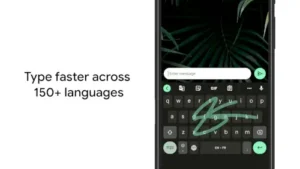
Yes. As shown in the image, Gboard supports typing across more than 150 languages. You can add multiple languages to your keyboard and switch between them by tapping the globe icon. The keyboard also detects the language you are typing based on context, so you do not have to manually switch as often.
How do I use stickers in Gboard?
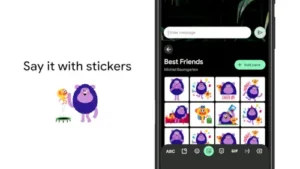
Tap the emoji icon on the keyboard toolbar, then tap the sticker icon. From there, you can browse your downloaded sticker packs or tap “Add pack” to find new ones. You can also use the “Emoji Kitchen” feature to combine two emojis into a custom sticker.