

Snapseed give you more then most free photo editors that offer you basic filters and call it a day.
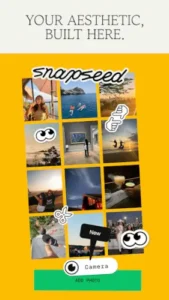

Snapseed does something different. Curves. Selective adjustments. RAW support. Healing brush. All without a subscription. The question is whether this Google owned app still keeps up with newer, AI powered competitors, or whether it feels like a powerful tool that stopped evolving.
What is Snapseed exactly?
You are looking at one of the best free photo editing apps on Android because it combines professional level tools, RAW editing, non destructive workflows, and an easy gesture based interface.
Snapseed comes from Google, and it is built for users who want precise control over their images. The app supports JPG and RAW files, offers dozens of tools and filters, and lets you save custom looks for reuse later. Its biggest strength is that it feels advanced without being overwhelming. You can make quick edits with one tap filters or do deeper adjustments like curves, perspective correction, and selective edits.
On Google Play, Snapseed holds a 4.3 star rating from more than 1.7 million reviews. The app size comes in at roughly 119 MB. The age rating is Everyone. The app is completely free with no ads and no subscription.
A free professional photo editing app from Google
The category matters here. Snapseed is not a filter app. It is not a social platform. It is a professional grade photo editor that happens to be free. The toolset includes 29 distinct tools. Curves for tonal control. Healing for object removal. Selective adjustments with control points. RAW development for DNG files. Double exposure for blending images. Face enhance and face pose for portraits. Non destructive editing means you can change your mind at any point without starting over.
Who this app was built for
Not every mobile user needs Snapseed. Here is who will find it valuable.
Mobile photographers who shoot in RAW
Do you shoot in RAW format on your phone? Snapseed reads RAW DNG files directly. You get the same flexibility as desktop editors. Adjust white balance. Recover blown highlights. Lift underexposed shadows. The RAW Develop tool is the reason many serious mobile photographers keep Snapseed installed.
Social media users who want better than basic filters
Instagram filters are fine. Snapseed filters are adjustable. You can layer multiple tools. Control the intensity. Save your own presets. Your feed will look more consistent and more polished than anyone using one tap presets.
Anyone who needs selective edits and object removal
A photo is rarely bad everywhere. Often, just one part needs work. A too bright sky. A too dark face. A distracting object. Snapseed lets you edit selectively. Use control points to adjust brightness only in one area. Use the healing brush to remove a stranger walking through your shot.
Users who want professional tools without subscription fees
Lightroom Mobile costs money monthly. Photoshop Express has a subscription. Snapseed is free. No trial. No hidden payments. No ads. Google does not monetize this app directly. It is a utility. That alone makes it worth trying.
Snapseed Main Features you will use
The app offers dozens of tools. Here are the ones that matter most.
29 plus tools and filters including Healing, Brush, HDR, Perspective, Curves
The tool list is long. Tune Image for basic adjustments. Details for sharpening. Curves for advanced tonal control. White Balance for color correction. Healing for object removal. Brush for dodging and burning. HDR Scape for dramatic landscapes. Perspective for fixing keystoning. Expand for adding canvas. The variety means you rarely need another app.
RAW Develop support for editing RAW DNG files
Open a RAW file. The RAW Develop tool opens. Adjust exposure, contrast, saturation, and white balance with more latitude than JPG editing. The difference is visible. Recover details from shadows that would be black in a JPG.
Non destructive editing to return to earlier changes
Snapseed uses a stack system. Each tool you apply becomes a layer. You can go back to any step. Adjust a previous tool’s settings. Delete a tool entirely. The original photo never changes. This non destructive workflow is rare in free mobile editors.
Selective adjustments using control points and brushes
Control points are the signature feature. Tap a spot on the photo. That spot becomes the center of a circular selection. Drag the radius to expand or shrink. Then adjust brightness, contrast, saturation, or structure within that area only. The selection feathering is smooth. The result looks natural.
Healing tool for removing unwanted objects
Spot healing is common. Snapseed goes further. You can heal larger objects. A trash can. A tourist. A power line. Zoom in. Paint over the object. The app samples surrounding area and blends. Works best on simple backgrounds. May struggle with complex textures.
Double Exposure for blending two photos
Combine two images. Adjust opacity. Choose blend modes. Add, subtract, multiply, overlay. Double exposure creates artistic effects. Ghostly portraits. Textured landscapes. Creative composites.
Face Enhance and Face Pose tools for portraits
Face Enhance improves skin tone, brightens eyes, and adds subtle definition. Face Pose adjusts the orientation of the face. Make someone look slightly more toward the camera. Widen or narrow the smile. The adjustments use 3D modeling and look natural.
Lens Blur, Glamour Glow, Vintage, Noir, and creative filters
Beyond corrective tools, Snapseed includes creative filters. Lens Blur simulates shallow depth of field. Glamour Glow adds soft, dreamy light. Vintage gives faded film looks. Noir creates high contrast black and white. The filters are adjustable, not one tap presets.
Save and reuse custom looks
Edit a photo. Get it exactly right. Tap the save icon. Choose Save Look. Name it. That look now appears in your Looks tab. Apply it to future photos with one tap. A great way to keep your feed consistent.
Redesigned UI with Faves tab and improved RAW tools
Recent updates refreshed the interface. The Faves tab stores your most used tools. RAW Develop got improvements. Dark theme was added. The design remains clean but navigation is faster.
Snapseed Interface and Design
Clean, minimalist design that keeps focus on the photo
The interface is sparse. Your photo fills the screen. Tools appear as icons at the bottom. Adjustments appear as sliders on the side. No toolbars. No banners. No ads.
Large previews, swipe gestures, and simple layout
Swipe up and down to switch tools. Swipe left and right to adjust intensity. Tap the compare icon to see the original. The gesture based controls become second nature after a few uses.
Approachable even with advanced tools
A beginner can open Snapseed and tap Auto Adjust. An expert can spend an hour on Curves and Selective edits. The same interface serves both. The learning curve is gentle but the depth is real.
Where the design works well
Speed is the priority. Tools open instantly. Adjustments apply in real time. No lag. No waiting for rendering. The app feels responsive even on older phones.
Where feature parity gap between Android and iOS frustrates users
The iOS version of Snapseed has received more frequent updates. Some features arrived on iPhone months before Android. Android users feel neglected. The gap is not massive, but it is noticeable to long term users.
What users say about Snapseed app
The parts people enjoy
Positive reviews often mention the professional toolset. Curves and selective adjustments are praised. The fact that the app is free and has no ads earns consistent respect. Healing tool is called effective. RAW support is highlighted by photographers.
The parts people complain about
No free app escapes criticism. Here is what comes up most often.
Feature parity gap between Android and iOS versions
iOS gets new features first. Sometimes months earlier. Android users feel like second class citizens. The gap frustrates loyal users.
Stalled update cadence on Android
Snapseed updates on Android have slowed. Bug fixes happen. New features rarely appear. The app is stable but feels stagnant compared to competitors.
Recent export regressions and file saving bugs
Some users report that exported photos look different than the preview. Lower quality. Compression artifacts. Save failures. These bugs appear in recent reviews and frustrate users who rely on Snapseed for final output.
Lack of cloud sync for multi device workflows
You edit on your phone. You want to continue on your tablet. You cannot. Snapseed has no cloud sync. No cross device history. The lack of ecosystem lock in is a strength for privacy but a weakness for workflow.
How to use Snapseed
Import a photo from camera roll or shoot directly
Open Snapseed. Tap the plus icon. Choose a photo from your gallery. Or tap the camera icon to shoot a new photo within the app.
Apply automatic tuning for quick improvement
Tap Tools. Tap Tune Image. Tap the wand icon. Auto Adjust applies exposure, contrast, and saturation corrections instantly. A good starting point for beginners.
Use selective edits with control points or brushes
Tap Tools. Tap Selective. Tap anywhere on the photo. A control point appears. Drag the radius. Adjust brightness, contrast, saturation, or structure. The edit applies only within the circle.
Layer multiple tools in non destructive stack
Each tool you apply becomes a layer. Tap the stack icon to see your edit history. Tap any previous tool to adjust its settings. Delete a tool without affecting others. The original photo remains untouched.
Compare changes before and after
Tap and hold the compare icon. The screen shows the original photo. Release to see your edits. This works at any point in the editing stack.
Save custom looks for reuse
Edit a photo. Tap the save icon. Choose Save Look. Name it. Your custom look appears in the Looks tab. Apply to future photos with one tap.
Export final image to gallery or share directly
Tap the export icon. Choose Save to save to your gallery. Choose Share to send directly to messaging apps or social media. Export quality settings are adjustable.
Looking for another powerful free photo editor with professional tools? Check out Lightroom Mobile, which offers cloud sync and more frequent updates, but requires a subscription for advanced features.
Snapseed tips and tricks
You can open Snapseed and start editing in seconds. Getting professional looking results takes a little practice with the tools. These tips separate users who post polished photos from users who wonder why their edits look overdone.
Start with automatic tuning for fast improvement before fine adjustments
Here is a question. Why spend ten minutes on sliders when the app can give you a strong starting point in one second?
Snapseed tips from experienced editors all say the same thing. Tap Tools. Tap Tune Image. Tap the wand icon. Auto Adjust fixes exposure, contrast, and saturation instantly. The result is rarely perfect, but it is rarely bad. Use Auto Adjust as a baseline. Then fine tune manually. Starting from a corrected image saves time and prevents over editing.
Use selective edits when only one part of a photo needs fixing
A photo is rarely bad everywhere. Often, just one area needs work. The sky is too bright. The subject’s face is too dark. A corner is blown out.
Snapseed photo editing app includes Selective adjustments. Tap Tools. Tap Selective. Tap a spot on the photo. A control point appears. Drag the radius to cover the problem area. Then adjust brightness, contrast, or saturation within that circle only. The rest of the photo stays unchanged. Selective edits look natural because they are not global.
Save favorite edits as looks for similar photos
You edit a photo. You love the result. The next photo needs the same treatment. Do you repeat every slider adjustment manually? No.
Snapseed app lets you save looks. After editing, tap the save icon. Choose Save Look. Name it. Your custom look appears in the Looks tab. Apply it to future photos with one tap. Perfect for maintaining a consistent feed style. Batch edit a whole vacation album in minutes.
Use RAW files for maximum flexibility with exposure and color
Snapseed photo app supports RAW DNG files. Most phone cameras save JPG by default. RAW captures more data.
Why does that matter? A JPG has less room for adjustment. Brighten a dark JPG and you see noise. Recover highlights from a blown out JPG and you see grey mush. A RAW file holds more information. You can lift shadows without noise. You can recover highlights without losing detail. Switch your camera to RAW before importing into Snapseed.
Try Perspective and Expand tools for travel and architecture shots
You take a photo of a building. The vertical lines lean inward. The horizon is crooked. The composition feels tight.
Snapseed includes Perspective and Expand tools. Perspective fixes keystoning. Straighten vertical lines. Make buildings look upright. Expand adds canvas around the edges. The app generates matching content to fill the new space. Excellent for recomposing shots after the fact.
Use Healing to clean up distractions like spots or people in background
A stranger walks through your landscape shot. A dust spot appears on the lens. A power line cuts across the sky.
Zoom in. Tap Tools. Tap Healing. Paint over the distraction. The app samples the surrounding area and blends. Works best on simple backgrounds like sky, grass, or water. May struggle on complex patterns like brick walls or crowds. For complex backgrounds, use a smaller brush and multiple passes.
Apply Curves carefully for stronger contrast and tonal control
Curves is a powerful tool. It is also easy to overdo.
Open Curves. You see a diagonal line. Tap to add points. Drag up to brighten that tone. Drag down to darken. An S curve adds contrast. Shadows go darker. Highlights go brighter. A slight S curve makes most photos pop. A steep S curve looks unnatural. Use Curves in small increments. Compare with the original often.
Explore Lens Blur and Glamour Glow for portraits and social posts
Snapseed is not just for correction. It includes creative tools.
Lens Blur simulates a shallow depth of field. The background blurs. The subject stays sharp. Adjust the transition area so the blur looks natural. Glamour Glow adds soft, diffused light. Portraits look dreamy. Skin looks smoother. Use these tools for social media posts where a polished look matters more than strict realism.
Apps similar to Snapseed
If you like Snapseed, here are five other apps worth your time. Each offers something similar with a different twist.
Lightroom Mobile
Lightroom Mobile is the closest competitor. Professional tools. RAW support. Selective adjustments. Snapseed similar apps should start here. The difference is that Lightroom requires a subscription for advanced features like healing and cloud sync. Good for users who want cross device workflows and don’t mind paying.
Photoshop Express
Photoshop Express is Adobe’s other mobile editor. Fast. Simple. Includes healing, filters, and corrections. The difference is that Photoshop Express has fewer tools than Snapseed but a cleaner interface. Good for quick edits without opening a full featured app.
Picsart
Picsart combines photo editing with graphic design and social features. Add text. Make collages. Apply stickers. The difference is that Picsart is more about creative design than photographic correction. Good for social media managers who need both editing and layout tools.
VSCO
VSCO is known for presets and community. The editing tools are solid but less deep than Snapseed. The difference is that VSCO has a social feed where users share photos. Good for creators who want editing plus community in one app.
PhotoDirector
PhotoDirector includes AI powered tools like object removal and sky replacement. The difference is that PhotoDirector has more automated features but a subscription model. Good for users who want AI assistance over manual control.
Snapseed Community
Snapseed is a tool, not a social platform. The community lives outside the app.
No strong in app social features
There is no Snapseed social network. No profile. No followers. No feed. The app does one thing. It edits photos. Where you share those photos is up to you.
Community exists through tutorials and photography forums
The Snapseed community is active on YouTube, Reddit, and photography forums. Users share editing workflows. They post before and after comparisons. They explain how to achieve specific looks. Search for Snapseed photo app tutorial and you will find thousands of videos.
Before and after edits shared on Instagram and Reddit
The most common output from Snapseed is photos shared elsewhere. Instagram. Reddit photography subreddits. Facebook groups. The app is part of the creation process, not the distribution platform.
Creator tool, not a social platform
Snapseed is for making photos. It does not try to be Instagram. It does not have a sharing feed. It does not track followers. The focus stays on editing. This is a strength for users who want pure functionality without social pressure.
Conclusion
Snapseed works for three types of people. First, mobile photographers who shoot in RAW and need professional tools without a subscription. Second, social media users who want more control than basic filters but find Lightroom too expensive. Third, anyone who needs selective edits, healing, or curves on their phone.
If you fit any of those, the download is worth it.
Feature parity gap between Android and iOS frustrates Android users. Stalled update cadence makes the app feel stagnant. Recent export regressions and file saving bugs affect reliability. Lack of cloud sync hurts users with multiple devices.
Do you want a powerful, free photo editor with professional tools even if updates are slow? Or do you prefer a subscription app with regular new features and cloud sync?
If the first one, Snapseed offers more tools for free than any competitor. If the second one, Lightroom Mobile is worth the monthly cost. Both answers are fine. Just know what you want.
Frequently asked questions about Snapseed
How do I get Snapseed download on my phone?
Download Snapseed from the Official Google Play Store
Is Snapseed really free, or are there hidden costs?
Snapseed is completely free. No ads. No subscription. No in app purchases. No watermark on exported photos. Every tool is available to every user. Google does not monetize this app directly. It remains one of the few truly free professional photo editors on mobile.
Where can I find the official website and help?
Snapseed does not have a traditional official website only a help Snapseed help page.
I have a problem with the app. Who do I contact?
Snapseed does not have a dedicated support email. Google handles support through their Help Center. For bug reports and issues, leave a review on the Google Play Store or App Store. For urgent problems, use the Google support portal. Here is the general Google support address: apps-help[at]google.com. For Snapseed download problems or installation issues, try clearing the Play Store cache or restarting your device.
Does Snapseed work with RAW photos from my camera?
Yes. Snapseed supports RAW DNG files from most smartphones and professional cameras. When you open a RAW file, the app automatically uses the RAW Develop tool. You can adjust exposure, white balance, contrast, and saturation with more flexibility than JPG editing. RAW files are larger and take more processing power, but the image quality is significantly better for serious editing.