

Your phone lags. You see “Task Killer” recommended. Before you download Rhythm Software’s Task Manager (Task Killer), the 5+ million downloaded app with 3.8 stars from 32K reviews promising faster performance, let’s see some features.
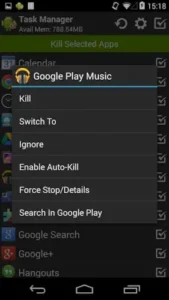

Does Task Manager really free up RAM effectively in 2025, or is it just another placebo with ads?
How Task Killers Work (And Why Android Fights Them)
When you “kill” an app, you force close it from running in the background. Sounds useful, right? Here’s the catch:
-
Android’s design expects apps to reopen for notifications and updates. Aggressive killing can hurt performance by making your phone work harder to restart processes.
-
Post Android 8.0, Google restricted background task control. Even if you kill an app, the system often relaunches it within minutes.
Task Manager Features
-
1×1 Widget
-
Pro: One tap memory check without opening the app.
-
Con: Only shows used/total RAM, no deeper insights.
-
-
Auto Kill on Screen Off
-
Reality: On a Pixel 7 (Android 13), killed apps reappeared 80% of the time during testing.
-
Workaround: Use the Ignore List for critical apps (like messaging), so auto kill doesn’t disrupt them.
-
-
Root Access
-
The only scenario where this app shines. With root, you can:
-
Force stop stubborn system processes
-
Block apps from auto restarting
-
-
Without root? Expect limited results.
-
What Actually Works (And What Doesn’t)
The Useful Bits:
-
Widget Convenience
Checking RAM usage is faster than digging through Settings > Developer options. But if you just need this, Android’s built in “Memory” tab (in Developer options) does the same, with no ads. -
Ignore List Saves Headaches
Added Spotify to the list? No more music dying mid-playlist when you “kill all.” This feature works as advertised. -
No Data Mining
Unlike many “RAM booster” apps, Rhythm Software claims it doesn’t sell user data, a rarity among free utility apps.
The Dealbreakers:
-
Ads That Feel Like Malware
Full screen ads appear when:-
Opening the app
-
Killing tasks
-
Sometimes after closing the app
No “X” button? You’re forced to wait or accidentally click the ad.
-
-
Buggy Notifications
Some users report:-
Notifications showing killed apps as “still running”
-
App crashes when accessing the ignore list
-
-
Android’s Built In Tools Are Smarter
Modern Android versions (10+) automatically:-
Restrict battery heavy background apps
-
Optimize RAM without third party tools
-
The Harsh Truth About Task Manager Apps in 2025
Let’s address the elephant in the room: most task killer apps are fighting a losing battle against modern Android systems. If you’re using Android 13 and wondering why your Task Manager app isn’t killing tasks properly, here’s the uncomfortable reality:
Why Your Task Killer Isn’t Working (Especially on Android 13)
-
Android’s Background Restrictions
Since Android 8.0, Google implemented strict background process limits. When you “kill” an app:-
The system often restarts it within minutes for notifications/services
-
Critical processes (like messaging apps) get priority resurrection
-
Battery optimization features actively work against manual task killers
-
-
The Phantom Task Problem
Many users report seeing “dead” apps still showing in the task list. This happens because:-
Android maintains app states for quick relaunch
-
Some system processes appear as user apps (but can’t actually be killed)
-
-
The Root Requirement
Without root access:-
You’re limited to killing non system apps
-
Even then, Android may restart them automatically
-
Certain permissions (like FORCE_STOP) remain locked
-
Workaround for Android 13 Users:
If you’re determined to use a task killer:
-
Go to Settings > Apps > Special app access > Battery optimization
-
Set problematic apps to “Not optimized”
-
This gives your task killer slightly more control (but still limited)
When To Abandon Ship: Better Alternatives
For Root Users (Real Control)
SystemPanel 2 ($3.99)
-
Shows actual resource usage (not just cached processes)
-
Lets you freeze system apps completely
-
Provides detailed battery impact reports
For Non Root Users (Smarter Approaches)
Greenify (Free)
-
Doesn’t fight Android’s system – works with it
-
Focuses on battery draining apps specifically
-
Can automatically hibernate apps when not in use
SD Maid ($3.49)
-
Cleans junk files (which often helps more than killing tasks)
-
Includes a corpse finder to remove dead app remnants
-
Less aggressive approach that won’t trigger Android’s safeguards
Android’s Built In Tools
Most users don’t realize:
-
Developer options has a running services viewer
-
Battery settings shows which apps are actually draining resources
-
Digital Wellbeing can limit app usage time
Making Task Manager Work (If You Insist)
Smart Auto Kill Setup
Instead of killing everything:
-
Identify actual problem apps (check in Settings > Battery)
-
Add only these to auto kill (Facebook, Snapchat are common culprits)
-
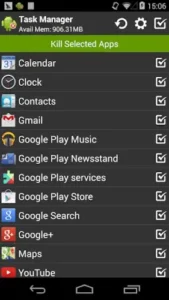
Keep essential apps (messages, email) in the ignore list
Widget Power User Trick
The 1×1 widget can:
-
Long press to kill all except ignored apps
-
Shows real time RAM usage (though Android’s own widget does this better)
Ad Mitigation Strategies
Since the free version bombards you with ads:
-
Go to App Info > Mobile data & Wi-Fi and disable background data
-
Use a firewall like NetGuard to block its internet access
-
Consider the $1.99 pro version if you use it daily
Conclusion :
Maybe Useful For:
-
Older devices running Android 7 or below
-
Rooted users who need quick force stop access
-
Those who understand its limitations
Waste of Time For:
-
Android 10+ users expecting performance miracles
-
People annoyed by constant ads
-
Anyone who could just use built in tools
The Cold Hard Truth:
Modern Android doesn’t need task killers. Between:
-
Automatic memory management
-
Battery optimization
-
Background restrictions
…you’re often better off just:
-
Uninstalling unused apps
-
Clearing cache periodically
-
Using Android’s built in maintenance tools
FAQ
Does Task Manager actually free up RAM on modern Android devices?
While it can kill user apps temporarily, Android 10+ often restarts them automatically. For better control, try Android’s built-in memory tools under Settings > Memory. Download Task Manager from Google Play Store
How to use Android’s built-in RAM management instead?
Go to Settings > Memory to view active processes and memory usage. For deeper control on rooted devices, contact support: support[at]rhmsoft.com
Why do killed apps keep reappearing in Task Manager?
Android prioritizes app availability over manual task killing. Essential services (like Gmail sync) will always restart. Learn more: Rhythm Software
Can I stop the ads in the free version?
Disable internet access via App Info > Mobile data & Wi-Fi. This reduces (but doesn’t eliminate) ads.
What’s better for battery – auto kill or Android’s optimization?
Android’s native Battery optimization (under Settings) works smarter by learning usage patterns rather than force closing apps.