

UserLAnd brings full Linux distributions like Ubuntu, Debian, and Kali to your Android device without requiring root access, giving you a complete desktop experience from the palm of your hand.
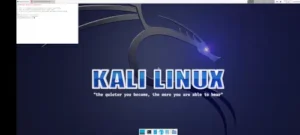

UserLAnd is developed by UserLAnd Technologies, this open source app has earned a 4.8 star rating. The app requires Android 5.0 (Lollipop) or higher with at least 500 MB free storage for distribution installation, and is available on Google Play Store.
What Is UserLAnd?
UserLAnd is an open source app that lets you run complete Linux distributions such as Ubuntu, Debian, and Kali directly on your Android phone without rooting your device, providing full Linux capabilities from terminal access to VNC graphical interfaces. The app uses a combination of PRoot (a user space implementation of the chroot system call) and a custom SSH or VNC connection layer to create an isolated Linux environment that runs on top of Android’s existing kernel.
The underlying kernel is already compatible with Linux binaries, meaning UserLAnd can run actual distribution packages without needing to recompile or virtualize them. When you first open UserLAnd, you are presented with a list of supported distributions and applications, with options for full distros like Ubuntu, Debian, Kali Linux, and Alpine, or individual app environments like a standalone Firefox instance or XFCE desktop session depending on what you actually need.
Full Linux Distros Without Root
The most powerful feature of UserLAnd is running full Linux distributions without rooting your device . You can choose from Ubuntu, Debian, Kali Linux, Alpine, and Arch Linux. Each distribution runs in an isolated container that does not touch other apps’ data, giving you a real Linux distro experience without virtualization overhead.
The PRoot implementation creates a container that isolates the Linux OS from the Android host system, allowing it to run in Android user space. UserLAnd installs the Linux OS image in a directory on your device’s internal storage, then uses a server for the Linux environment. The best part? No root access required.
Terminal, VNC, and Graphical Desktop
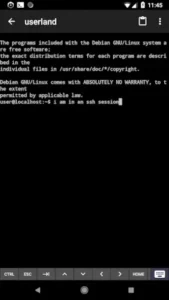
UserLAnd provides a built-in terminal to access favorite Linux shells like bash and zsh right from your smartphone, with a real bash shell on a non rooted Android device. But unlike terminal only apps, UserLAnd also offers seamless VNC integration for users who prefer a graphical desktop environment.
You can connect to VNC sessions for a graphical experience with XFCE desktop sessions, all with easy setup in just a few taps without complex commands. The graphical interface runs at lightning speed without internet due to local operation, providing low latency that makes the desktop feel responsive.
Development Tools and VS Code
UserLAnd allows you to build any development environment using the apt command. You can set up Python, Node.js, Go, or Rust environments, and build full web development stacks including Node.js, PHP, Laravel, and WordPress.
The VS Code via code server feature is particularly impressive. You can set up code server to use VS Code via your browser, with almost the complete VS Code experience including extensions, terminal, and themes. The easy GUI setup takes just a few taps, and local operation provides lightning speed without internet.
UserLAnd Core Features
Full Linux Distributions Without Root
Ubuntu distribution with apt package management. Debian distribution with stable package ecosystem. Kali Linux for security testing. Alpine lightweight distribution. Arch Linux for rolling release experience. PRoot implementation for isolation. SSH/VNC layers for access.
Built-in Terminal and Shells
Real bash shell on non rooted Android. Zsh shell for advanced users. Built-in terminal for command access. Shell customization with aliases, history, prompts.
VNC Graphical Desktop Experience
Seamless VNC integration for graphical desktop. XFCE desktop session for lightweight GUI. Easy connection to VNC sessions. Graphical experience in just a few taps.
Common Linux Applications
Firefox for web browsing. Git for version control. GIMP for image editing. LibreOffice for document editing. R for statistical computing. Octave for numerical computing. VS Code via code server for development. Python IDLE IDE.
SSH Connections and Remote Access
SSH support for remote access. Remote access to Linux environment. File system management via SSH. Secure remote logins. Server management from Android.
Development Environment Setup
Python environment using apt. Node.js environment using apt. Go environment using apt. Rust environment using apt. Web development (Node.js, PHP, Laravel, WordPress). Full development toolkit.
VS Code via code server
code server setup for VS Code via browser. Almost complete VS Code experience. Extensions, terminal, and themes available. Easy GUI setup in few taps. Local operation with low latency.
Open Source and Community Driven
Open-source app with community development. Strong community support. Regular updates with new features. Available on Google Play Store. Available on Aptoide.
Free and Pro Versions
Free version with basic Linux functionality. Pro version with enhanced features. X server with terminal app in free version. Handful of apps in free version (Firefox, GIMP). Pro version for full value.
UserLAnd Graphics and Design
UserLAnd features a clean but very basic interface design that focuses on function over appearance, making it feel more like a technical workspace than a mobile app built for casual use. The clear and organized icons help with navigation, but overall design could be improved with better visual separation between sections. The terminal view itself is simple and effective, but lacks visual appeal, prioritizing functionality over aesthetics.
What Users Say About UserLAnd App
What Works
Users consistently praise the full Linux distro on Android without Termux’s compromises. The no-root requirement for Linux distribution installation is a major advantage. Multiple Linux distributions (Ubuntu, Debian, Kali, Alpine, Arch) provide flexibility. The built-in terminal for favorite shells (bash, zsh) offers command line comfort. VNC sessions for graphical desktop experience (XFCE) provide visual interface options. Easy setup for common Linux applications (Firefox, GIMP, LibreOffice, Octave) gets users started quickly. VS Code via code-server for web development on Android is a standout feature. SSH connections for remote access and file system management enable server work.
UserLAnd is described as “the best solution for installing Linux on Android” with “easiest way to run full Linux distro on Android phone” and “best thing is no root access required”.
Where The App Could Improve
Common criticisms include the Pro version being the only valuable option according to some reviews, with the free version limited. The clean but very basic interface design lacks visual appeal. The terminal view is simple and effective but lacks visual appeal. Overall design could be improved with better visual separation between sections. Requires at least 500 MB free storage for distribution installation. Requires Android 5.0 (Lollipop) or higher.
Play Store cache may need clearing if installation fails. SD card may need unmounting temporarily if using adoptable storage. Storage and network access permissions may raise eyebrows for some users. The free version allows X server with terminal app and handful of apps, but Pro version needed for full value .
Check out Termux for another Linux terminal emulator on Android without root, or explore the full collection of Android apps to find your next power user tool.
UserLAnd Tips
Getting started with UserLAnd is straightforward, but a few smart choices early on will save you time and help you get the most out of the app. Here is what to focus on first.
Beginner Advice
Start with Ubuntu for easiest setup. Ubuntu is the most user friendly distribution and has the largest community for troubleshooting. Choose Ubuntu when you first open UserLAnd. The setup process is smooth, and you will find plenty of guides online. Once you are comfortable with Ubuntu, you can experiment with Debian, Kali, or other distributions.
Learn basic Linux commands (ls, cd, mkdir, apt). If you are new to Linux, start with the fundamentals. Learn how to list files (ls), change directories (cd), create directories (mkdir), and manage packages (apt). These commands are the building blocks of everything you will do in UserLAnd. A solid foundation makes advanced tasks much easier.
Update system first with sudo apt update and sudo apt upgrade. Before installing anything, update your system to the latest state. Run sudo apt update to refresh the package list, then sudo apt upgrade to install updates. This ensures you have the latest security fixes and package versions.
Install essential packages (git, python, nodejs, vim). Do not install everything at once. Start with the essentials. Git is for version control. Python is for scripting. Nodejs is for web development. Vim is a powerful text editor. These four packages cover most beginner needs. Once you are comfortable, you can expand to more specialized tools.
Use built-in terminal for command access. The built-in terminal gives you full command line access to your Linux environment. Use it. The more comfortable you become with the terminal, the more you can do. Terminal commands are faster and more powerful than graphical interfaces for many tasks.
Explore VNC sessions for graphical desktop. UserLAnd offers VNC sessions for a graphical desktop experience. Connect to VNC and explore the XFCE desktop environment. This is particularly useful if you prefer a visual interface over the command line. The setup takes just a few taps, and the graphical experience runs smoothly.
Set up SSH carefully for remote access. SSH is powerful but requires caution. Always use secure connections. Do not share your SSH keys. Use strong passwords or key based authentication. A careless SSH setup can expose your device to risks. SSH is best for experienced users who understand security basics.
Backup configurations regularly. Your configuration files (bashrc, vimrc, etc.) are valuable. Backup them regularly. If something goes wrong, you can restore your settings quickly. A good backup habit saves time and frustration.
Check Android version compatibility (5.0+). UserLAnd requires Android 5.0 (Lollipop) or higher. Anything older is a security risk. Verify your Android version before installation. If you are on an older device, consider upgrading or using a different app.
Free up at least 500 MB storage before installation. The app itself is tiny, but distributions expand. You need at least 500 MB free storage for distribution installation. Free up space before you start. Check your storage and remove unnecessary files to ensure a smooth installation.
Advanced Strategy
Master apt package manager for efficient installation. apt is your gateway to thousands of packages. Learn the key commands: apt search to find packages, apt install to install them, apt remove to uninstall, and apt update/upgrade to keep everything current. Mastery of apt lets you manage your Linux environment efficiently.
Optimize shell configuration with aliases and functions. Aliases save typing. Functions automate complex tasks. A well optimized shell configuration makes you faster and more productive. Invest time in your shell setup. It pays off daily.
Develop complex scripts in Python, Node.js, or bash. As you grow comfortable, write more complex scripts. Automate repetitive tasks. Build tools that solve problems you face. Python is excellent for general purpose scripting. Node.js is great for web related tasks. Bash is perfect for system automation.
Set up full development environment with gcc, make, gdb, git. UserLAnd supports full development workflows. Install gcc for C/C++ compilation. Use make for build automation. Debug with gdb. Manage code with git. This setup turns your phone into a portable development workstation.
Use VNC extensively for graphical desktop. The VNC graphical desktop is not just a novelty. Use it for tasks that are easier with a visual interface. File management, document editing, and image editing are all more comfortable with a GUI. The XFCE desktop is lightweight and responsive.
Customize appearance with themes and fonts. UserLAnd supports customization options. Change the appearance to suit your preferences. A visually comfortable workspace makes extended sessions more enjoyable.
Integrate Bluetooth keyboard, mouse, and external display. UserLAnd supports external hardware. Connect a Bluetooth keyboard for comfortable typing. Use a mouse for easier navigation. Connect an external display for a larger workspace. These hardware integrations make UserLAnd suitable for long productivity sessions.
Manage remote servers efficiently with SSH and git. SSH lets you manage remote servers from your phone. Use git to sync code and configurations. A well configured SSH and git setup lets you work from anywhere. You can deploy code, manage servers, and collaborate with others from your phone.
Build and debug programs with gcc, make, gdb. UserLAnd includes a full development toolchain. Write code in vim or emacs. Compile with gcc. Build with make. Debug with gdb. The full workflow is available on your phone. This is invaluable for developers who need to test or debug on the go.
Run VS Code via code server for complete development experience. code server gives you VS Code in your browser. Use the same features as the PC version: extensions, terminal, and themes. The easy GUI setup takes just a few taps. Local operation provides lightning speed without internet.
UserLAnd Similar Apps
UserLAnd sits in a unique space among Android apps, but several alternatives offer similar functionality. Here is how it compares.
| App | Similarity | Key Difference |
|---|---|---|
| Termux | Linux terminal emulator on Android without root | Termux is terminal only. UserLAnd provides VNC graphical desktop and full distros. |
| Linux Deploy | Linux environment on Android | Requires root access. UserLAnd does not require root. |
| PRoot distro | PRoot based Linux environment | UserLAnd provides more user friendly interface and VNC support. |
| SSH clients (e.g., JuiceSSH) | Remote access via SSH | No local Linux environment. UserLAnd includes local Linux plus SSH. |
| Code editors (e.g., Acode, Dcoder) | Coding on Android | No full Linux environment. UserLAnd includes full Linux plus editors. |
| VNC viewers | VNC graphical desktop | No integrated Linux environment. UserLAnd provides integrated Linux plus VNC. |
UserLAnd is closest to Termux because both provide Linux environment on Android without root access, though UserLAnd uses PRoot for full Linux distributions (Ubuntu, Debian, Kali) while Termux uses APT package manager with custom packages, and UserLAnd provides VNC graphical desktop experience while Termux is terminal only. It differs from Linux Deploy through no-root requirement, making it more accessible for users without rooted devices. For users who want a full Linux distro with a graphical desktop on Android without root, UserLAnd is the most complete option.

Who Is UserLAnd For?
UserLAnd is for power users who want full Linux distros on Android without root access. If you want Ubuntu, Debian, or Kali Linux on your phone without rooting, UserLAnd delivers. The app gives you a complete Linux environment with terminal access, graphical desktop, and development tools.
Developers who need coding and debugging tools on mobile will find UserLAnd invaluable. You can build Python, Node.js, Go, and Rust environments. VS Code via code server provides a complete development experience. The full development toolkit turns your phone into a portable workstation.
Linux enthusiasts who want to learn and experiment will appreciate the full distributions. You can try different distros, learn Linux commands, and experiment with software. The app is an excellent learning tool for anyone who wants to understand Linux better.
People who want graphical desktop experience via VNC will find UserLAnd’s VNC support essential. The XFCE desktop provides a familiar graphical interface. File management, document editing, and image editing are all easier with a GUI.
If you are a power user, developer, or Linux enthusiast, UserLAnd is worth trying.
Can I Run Linux Software on My Phone Without Rooting It?
Yes, absolutely. You do not need to root your Android device to run Linux software. Apps like UserLAnd and Termux make it possible to run Linux distributions and applications without any root access.
UserLAnd uses PRoot to create an isolated Linux environment. PRoot is a user space implementation of the chroot system call that intercepts and translates filesystem paths, creating a virtual root filesystem without actual root privileges. This means you can install and run full Linux distributions like Ubuntu, Debian, and Kali directly on your phone, just like you would on a desktop.
The app handles the technical complexity for you. When you select a distribution, UserLAnd automatically downloads the necessary filesystem image and configures the environment within a few minutes. You do not need to enter complex commands or understand the underlying technology. The setup process guides you through each step with clear prompts .
The experience is closer to a real Linux system. Unlike terminal only solutions that use a non standard filesystem layout, UserLAnd gives you an actual Linux distribution with a standard filesystem hierarchy. Software behaves the way it would on a desktop installation because, functionally, it is running in a real distribution environment. You can install packages directly from the distro’s own repositories using apt or other package managers.
There is a tradeoff in performance. The PRoot layer adds some overhead compared to more direct approaches, and on older or lower spec devices, that can be noticeable. Battery usage also tends to be higher. However, for learning, coding, and using Linux tools on the go, the convenience of not needing root far outweighs these considerations for most users.
How to Run x86 Linux Programs on ARM Devices
Running x86 programs on ARM devices requires emulation because the two architectures use different instruction sets. Here is how it works.
Use a CPU emulator. The most common way to run x86 code on ARM is to use an emulator like QEMU. Kali Linux documentation, for example, explains how to install and use qemu-user-static to run x86 binaries on ARM devices. After installing the necessary packages, you can invoke x86 binaries directly, and the emulator handles the translation automatically.
Use a fast emulator like FEX. FEX is a high performance emulator specifically designed for running x86 and x86-64 programs on ARM64 Linux hosts. It offers broad compatibility and can be used alongside Wine/Proton to play Windows games. FEX supports forwarding API calls to host system libraries to reduce emulation overhead, making it faster than traditional emulators.
Use a compatibility layer like UserLAnd with PRoot. While PRoot primarily handles filesystem translation, you can install emulators like QEMU inside the UserLAnd environment to run x86 binaries. You would need to install qemu-user-static and the necessary x86 libraries using dpkg --add-architecture amd64. Not all x86 programs will work, and some may require additional libraries or configuration.
The process involves several steps:
-
Install the emulator package (e.g.,
qemu-user-static). -
Add the x86 architecture support (
dpkg --add-architecture amd64). -
Install the necessary x86 libraries.
-
Run the x86 binary either directly (with automatic translation) or explicitly with the emulator command (e.g.,
qemu-x86_64-static my_x86_code) .
Keep in mind that emulated x86 code will run slower than native ARM code because the emulator has to translate each instruction. The performance depends on the emulator used and the complexity of the program. For best performance, use ARM native versions of applications whenever available.
Conclusion
UserLAnd delivers a full Linux distro experience on Android that stands out for its no-root requirement, multiple distributions, and VNC graphical desktop. The PRoot implementation gives you real Linux distributions without virtualization overhead. The built-in terminal and VNC sessions provide both command line and graphical access. The development tools and VS Code via code server enable coding on mobile.
The app has limitations. The Pro version is needed for full value according to some reviews. The basic interface design lacks visual appeal. Storage requirements (500 MB) may be a consideration. Android 5.0+ compatibility means older devices are excluded. The free version is limited compared to Pro.
For users willing to invest in the Pro version or work within the free version’s limitations, UserLAnd offers a compelling Linux experience on Android. It does not try to be a flashy mobile app. It focuses on providing a real Linux environment with powerful capabilities. And for power users, developers, and Linux enthusiasts, that focus works.
If you want full Linux distros on Android without root, UserLAnd is worth downloading.
Linux on your phone. The power is in your hands.
UserLAnd FAQ
How do I download UserLAnd and is it really free?
UserLAnd is completely free to download and use. You can Download UserLAnd from the Official Google Play Store. The app requires approximately 50 MB for the base installation, but Linux distributions will require at least 500 MB of additional storage. UserLAnd is open source and free forever with no ads. A Pro version is available for users who want enhanced features, but the free version provides full Linux distribution functionality.
Where can I find guides, tips, and community resources?
The GitHub repository is the best place for source code, issues, and development updates. The UserLAnd Reddit community is active with discussions, troubleshooting, and tips from other users. The UserLAnd Discord server and Telegram group provide real time chat and support.
What if I encounter a problem?
For technical issues or bug reports, you can check the GitHub issues page for known problems and solutions. The Reddit community is also helpful for troubleshooting. Since UserLAnd does not require an account, there is no account recovery process. If you need to report a bug or request a feature, you can open an issue on GitHubor by email at: support[at]userland.tech. For general questions, the community forums and Discord server are good places to ask.
What Linux distributions can I run with UserLAnd?
UserLAnd supports multiple full Linux distributions including Ubuntu, Debian, Kali Linux, Alpine, and Arch Linux. Each distribution runs in an isolated container without touching other apps’ data. You can choose which distribution to install when you first open the app, and you can install multiple distributions if you have enough storage space. Ubuntu is recommended for beginners due to its ease of use and large community support.
Can I use UserLAnd for web development and coding?
Yes. UserLAnd is an excellent tool for web development and coding on the go. You can build development environments for Python, Node.js, Go, and Rust using the apt command. You can also set up code server to run VS Code in your browser, providing almost the complete VS Code experience with extensions, terminal, and themes. Web development stacks including Node.js, PHP, Laravel and WordPress can be installed and configured directly in the Linux environment.