

AlfredCamera turns your old smartphones into security cameras. No expensive hardware. No complicated wiring. Just two devices, a QR code, and a live feed you can watch from anywhere.
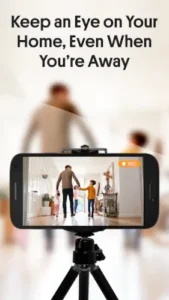

AlfredCamera app solves a simple problem. You have spare phones sitting in drawers. Instead of collecting dust, they can monitor your home, watch your pets, or keep an eye on the baby. AlfredCamera makes this possible in minutes, not hours.
-
Rating: 4.9 stars on Google Play (based on over 1 million reviews)
-
Downloads: 50 million+
-
Size: Approximately 98 MB
-
Age Range: PEGI 3
-
Similar Tool: Check out Manything
What Is AlfredCamera?
AlfredCamera is a mobile app that repurposes your old phones, tablets, or webcams into live monitoring cameras. You install the app on two devices. One becomes the Camera, capturing video. The other becomes the Viewer, letting you watch the feed remotely.
The app works across Android, iPhone, and web browsers. It includes live monitoring, motion detection, two way talk, and cloud storage for recorded clips. The free tier handles basic security needs. Premium unlocks higher quality, longer storage, and AI person detection.
How AlfredCamera Works: The Setup Process
Installing and Pairing Devices
Download the app on both devices from the Google Play Store or Apple App Store. Choose Camera role for the device that will record video. Choose Viewer role for the device you will use to watch the feed.
Pairing happens through a QR code. The Camera device displays a code. The Viewer device scans it. That is it. You are live within seconds.
Camera Placement Tips
Position the Camera device with a clear view of what you want to monitor. Keep it steady on a flat surface or mount it securely. Plug it into a constant power source so it does not run out of battery during monitoring.
Ensure the device connects to a stable Wi-Fi network. Wi-Fi is required for streaming and alerts. Lighting matters too. Position the camera to avoid direct sunlight or backlighting that washes out the image.
The Viewer Experience
Open the Viewer app or web portal to see your live feed. You can watch from anywhere with internet access. The app supports multiple camera views, so you can switch between devices if you have several set up. The interface is clean and straightforward. Tap any camera tile to expand the feed.
AlfredCamera Key Features Worth Knowing
Live Monitoring and Alerts
Watch real-time video from any connected device. Motion detection sends push notifications when something moves in the camera’s view. Sensitivity settings let you adjust how easily motion triggers alerts. Detection zones let you ignore specific areas like hallways or windows that cause false alarms.
Two Way Talk
Speak through the Camera device and listen to audio from its microphone. This feature deters intruders, calms anxious pets, or lets you communicate with family members at home. The audio is clear enough for basic conversations.
Recording Options
AlfredCamera offers continuous 24/7 recording and motion triggered event clips. Cloud storage saves footage for later review. The free tier includes limited cloud storage. Premium increases storage capacity. Local storage options are also available.
Night Vision and Low Light Performance
Software based low light enhancement improves visibility in dim environments. The app uses digital processing rather than infrared hardware. Night mode helps you see what is happening even when the lights are off.
AI Person Detection (Premium)
The Premium feature distinguishes people from animals and objects. This reduces false alerts from pets or moving shadows. The app focuses on human activity, sending notifications only when someone enters the frame.
Trust Circle and Sharing
Share camera access with family members so multiple people can check the feed simultaneously. The Trust Circle feature is useful for households where several people need to monitor the same camera. Video clip sharing lets you send important footage to others.
Who Is AlfredCamera For?
Homeowners and Renters
AlfredCamera offers affordable home security. Monitor entry points, watch for package deliveries, and check on your home while on vacation. The app is a low cost alternative to dedicated security systems.
Pet Owners
Watch your pets while at work. Use two-way talk to calm anxious animals. Motion alerts notify you when your pet is active. Recording lets you review behavior patterns.
Parents and Caregivers
Baby monitoring is a common use case. The app works as a nanny cam alternative. Check on elderly relatives who live alone. The system provides peace of mind while you are away.
Small Business Owners
Monitor your office or shop remotely. Check employee safety and activity. Review after hours footage for security incidents. The system helps protect your business without expensive surveillance equipment.
What We Like and What Could Be Better
Strengths
Free to use with basic features. No subscription required for live viewing, motion detection, and alerts.
Repurposes old devices. Phones that would otherwise sit unused become valuable security tools.
Easy setup process. QR code pairing takes seconds. Anyone can set it up without technical knowledge.
Cross-platform support. Works on Android, iOS, and web browsers. Use whatever devices you already own.
Trust Circle for family sharing. Multiple people can access the same feed simultaneously.
Limitations
Free tier limitations. Cloud storage is limited. Motion clips are shorter. Video quality is capped.
Ads on free version. The free experience includes advertisements. Premium removes them.
Requires stable internet. Both devices need reliable Wi-Fi. The system does not work offline.
Device battery and charging considerations. The Camera device needs constant power. Overheating can be an issue with older phones.
Can I Turn My Old Phone Into a Security Camera?
Yes. And it is easier than you think.
That old Android or iPhone sitting in your drawer has everything needed to become a functional security camera. It has a camera, microphone, speaker, Wi-Fi, and a screen. AlfredCamera uses these components to create a live monitoring system.
Here is what you need:
-
An old phone or tablet for the Camera device
-
A second device (phone, tablet, or computer) for viewing
-
A stable Wi-Fi connection for both devices
-
A power source to keep the Camera device running
The process takes about five minutes. Download AlfredCamera on both devices. Choose Camera on the old phone. Choose Viewer on your current phone. Scan the QR code. You are now monitoring your home.
The Camera device captures video and sends it to the cloud. The Viewer device displays the live feed. Motion detection triggers alerts. Two-way talk lets you communicate through the Camera device.
No technical expertise required. No wiring, drilling, or professional installation. Just two devices and the app.
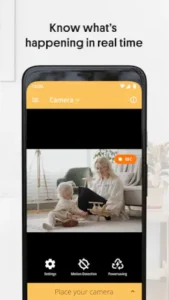
How to Transform an Old Smartphone Into a Home Surveillance Camera
The transformation from dust collecting phone to active security camera happens in a few straightforward steps. Here is how to do it properly.
Step 1: Choose Your Camera Device
Pick an older phone with a working camera and Wi-Fi. The camera quality determines your video clarity. Newer phones produce better images. Any Android device running Android 5.0 or later works. iPhones need iOS 12 or newer.
The device does not need a cellular plan. Wi-Fi is enough. Remove the SIM card if you prefer. The phone just needs power and internet access.
Step 2: Prepare the Device
Factory reset the old phone if it contains personal data. This gives you a clean start. Install AlfredCamera from the Google Play Store or Apple App Store. Create an account or log in.
Plug the device into a wall charger. Place it in the location you want to monitor. Position it on a stable surface or mount it on a wall. Ensure the camera has a clear view of the area.
Step 3: Set Up the Camera Role
Open AlfredCamera on the old device. Select “Camera” as the role. The app displays a QR code on the screen. This code pairs the Camera device with your Viewer device.
The Camera device starts sending video to the cloud immediately. It detects motion and records clips based on your settings. The device should remain plugged in and connected to Wi-Fi at all times.
Step 4: Set Up the Viewer Role
Install AlfredCamera on your current phone or tablet. Select “Viewer” as the role. Scan the QR code displayed on the Camera device. The devices pair automatically.
Your live feed appears on the Viewer screen. You can watch from anywhere with internet access. The app supports multiple cameras if you have several devices set up.
Step 5: Configure Your Settings
Adjust motion detection sensitivity to match your environment. Lower sensitivity for areas with frequent movement. Higher sensitivity for spaces where you want to catch every detail.
Set detection zones to ignore areas that trigger false alerts. Hallways, windows, and high-traffic zones can cause unnecessary notifications. Draw boundaries around the areas that matter.
Enable push notifications so you know when motion is detected. Test the setup by walking through the camera’s view. Check that alerts arrive on your Viewer device.
Step 6: Optimize for Long Term Use
Keep the Camera device on a constant power source. Old batteries drain quickly during continuous use. A plugged-in device stays active indefinitely.
Monitor the device temperature. Older phones can overheat during extended operation. Remove cases that trap heat. Place the device in a well ventilated location.
Check the Wi-Fi connection regularly. Weak signals cause buffering and missed events. Position the Camera device within range of your router. Consider a Wi-Fi extender for distant locations.
What You Get After Setup
-
Live video feed accessible from anywhere
-
Motion detection alerts sent to your phone
-
Recorded clips stored in the cloud
-
Two-way talk through the camera
-
Night vision for low-light conditions
-
Multiple camera support for full coverage
The entire setup costs nothing beyond the devices you already own. Premium features add HD video, person detection, and extended storage for those who need more.
Why AlfredCamera Works for This Transformation
AlfredCamera is designed specifically for repurposing old devices. The app handles the technical complexity so you do not have to.
The QR code pairing system eliminates complicated network configuration. Motion detection runs in the cloud, so your Camera device does not need powerful processing. The interface is straightforward enough for anyone to use.
The free tier includes live viewing, motion detection, and limited cloud storage. This is enough for basic monitoring. Premium adds person detection, HD footage, and longer storage for users who need more.
Other apps can do this too. Manything, Presence, and AtHome Camera offer similar functionality. AlfredCamera stands out for its ease of use and large user base. The 50 million downloads and 4.9 star rating reflect its reliability.
The question is not whether you can turn your old phone into a security camera. You can. The question is whether the app you choose makes the process simple and reliable. AlfredCamera does.
AlfredCamera vs Other Security Camera Apps
AlfredCamera is not the only option for turning old devices into security cameras. Several alternatives exist, each with different strengths depending on what you need to monitor and how much you want to spend.
| App / Service | Main similarity |
|---|---|
| Manything | Repurposes old devices into security cameras with cloud storage. Offers similar two way talk and motion alerts. Paid plans required for full features. |
| Presence | Remote home monitoring with motion alerts and live viewing. Focuses on ease of use and family sharing. Free tier available with limited storage. |
| AtHome Camera | DIY surveillance with live viewing, motion detection, and cloud recording. Supports multiple camera setups. Works across Android and iOS. |
| WardenCam | Turns devices into IP style security cameras. Offers local storage options and works without cloud dependency. Good for privacy focused users. |
Getting Better Results With AlfredCamera
Device Setup Tips
Choose a device with consistent charging capability. Older phones with degraded batteries may overheat or shut down during extended monitoring. Plug the Camera device into a wall charger and position it on a stable surface.
Placement determines everything. Position the camera at eye level for the best viewing angle. Avoid pointing it at windows or direct light sources that create glare. Ensure the lens is clean for clear footage.
Wi-Fi connection quality affects streaming reliability. Place the Camera device within range of your router. Weak signals cause buffering and missed motion events. Consider using a Wi-Fi extender if coverage is spotty.
Device overheating is a real concern. Older phones running continuously can get hot. Remove cases that trap heat. Keep the device in a well ventilated area. Some users place a small fan nearby for cooling.
Reducing False Alerts
Setting detection zones is one of the most effective ways to reduce false alerts. Draw boundaries around areas where motion matters. Ignore hallways, windows, or high traffic zones that trigger unnecessary notifications.
Adjust motion sensitivity to filter out small movements. Lower sensitivity for areas with occasional movement. Increase it for spaces where you want to catch every detail. Test different settings to find the sweet spot.
The schedule feature limits alerts during specific times. Turn off notifications during daytime home activity. Enable them only when you are away or asleep. This prevents alert fatigue from routine movement.
Person detection, available with Premium, distinguishes humans from animals and objects. This feature significantly reduces false alerts from pets, moving shadows, or passing cars. It is worth considering if you get frequent unnecessary notifications.
Maximizing Free Features
Understanding free tier limits helps you avoid surprises. The free version includes live viewing, motion detection, and limited cloud storage. You get a set number of motion clips per day. Storage capacity is capped.
Optimize storage usage by reviewing clips regularly. Delete footage you do not need. Download important clips to your device for offline storage. This keeps your cloud storage available for new events.
Manage notification settings to avoid overwhelming your phone. Adjust alert frequency and types. Use quiet hours during times when you do not want interruptions. The app gives you control over what triggers notifications.
Regular clip review helps you understand what the app captures. Check motion events periodically to verify detection accuracy. This practice also helps you identify placement issues or false alert patterns.
When to Upgrade to Premium
Premium becomes necessary when free limits hold you back. If you need HD footage for clear identification, the upgrade is worth considering. Standard definition works for basic monitoring but lacks detail for faces or license plates.
Longer clip storage matters if you want to review events from days or weeks ago. The free tier stores clips for a limited time. Premium extends this period significantly.
An ad-free experience improves usability. The free version includes ads that appear during use. Premium removes these interruptions for a cleaner interface.
Person detection features are the biggest reason to upgrade. If your camera captures frequent motion from pets or objects, AI person detection filters out everything except human activity. This saves time and reduces notification overload.
Security Best Practices
Enable app lock to protect your camera feeds from unauthorized access. Set a passcode or use biometric authentication. This is important if other people have access to your Viewer device.
Use Trust Circle carefully. Share access only with people you trust completely. The feature gives others the ability to view your camera feeds. Remove access when it is no longer needed.
Regular password updates protect your account. Change your password periodically. Use a strong, unique password that is not used for other services.
Review access permissions regularly. Check which devices are connected to your account. Remove any devices you no longer use. This prevents old devices from accessing your feeds.
Conclusion
AlfredCamera is a practical home security solution that turns old phones into monitoring cameras. It works for homeowners, pet owners, parents, and small business owners who want affordable surveillance without buying dedicated hardware.
What it does best: repurposing old devices, simple setup, and free basic monitoring. The app has 50 million downloads and a 4.9 star rating, reflecting its popularity and reliability. The QR code pairing system makes setup accessible to anyone, regardless of technical experience.
What it does not do: professional grade security, offline recording, or hardware level night vision. Free tier limits and ads may push users toward Premium. The system relies heavily on stable internet connections and consistent device power.
Final recommendation: AlfredCamera is worth downloading if you have spare phones and need basic home monitoring. The free version provides enough functionality for most casual users. Start with a single camera, test the setup, and expand as needed. For serious security needs, consider the Premium plan or dedicated hardware. The ability to repurpose old devices makes this one of the most cost-effective security solutions available.
FAQ
Is AlfredCamera really free to use?
Yes. AlfredCamera offers a free tier that includes live viewing, motion detection, push notifications, two way talk, and limited cloud storage. The free version displays ads and has storage limits. Premium removes ads, adds HD footage, AI person detection, and longer clip storage. Most casual users find the free tier sufficient for basic home monitoring needs.
How many devices can I use with AlfredCamera?
You can set up multiple Camera devices and view them all from a single Viewer app. The free tier supports a limited number of cameras. Premium allows more devices and additional features. You can monitor different rooms, entry points, or outdoor areas simultaneously. Each Camera device needs its own power source and Wi-Fi connection.
What is the AlfredCamera download process like?
The AlfredCamera download is available on the Google Play Store for Android devices and the Apple App Store for iOS devices. Search for AlfredCamera, tap install or use the direct link to Download AlfredCamera from the Official Google Play Store.
Can I access my camera feed from anywhere?
Yes. You can watch your camera feed from any location with internet access. The Viewer app works on Android, iOS, and web browsers. You can also access feeds through the AlfredCamera web portal. The live feed updates in real time. Motion alerts reach your device regardless of your location, keeping you informed wherever you are.
Who do I contact if I need support or have questions?
For technical support, account issues, or bug reports, contact the AlfredCamera team directly at support[at]alfred.camera. The support team is responsive and handles issues promptly. For general inquiries, partnership requests, or business related questions, visit the official website at alfred.camera. The help center also includes setup guides, troubleshooting articles, and FAQs. Additional resources include the official wiki page and community forums.