

Fossify Calendar strips schedule management back to a local tool, rather than a data collection platform that demands an account, cloud sync and push notifications.
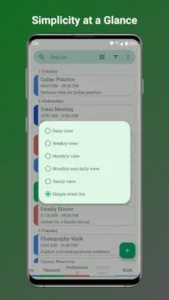

With Fossify Calendar you open, see your schedule, add or edit events and close it. There are no ads popping up between events, and no “smart suggestions” trying to plan your time for you. It currently holds a 4.7 star rating from over 1,800 reviews on Google Play, with 100,000+ downloads. The install size sits around 15 MB to 20 MB, it supports Android 8.0 and up and the age rating is Everyone.
What is Fossify Calendar
It is a free, open source calendar and scheduling app. The core features are not complicated: create events, set reminders, switch between day, week and month views, import holidays and sync external calendars. Any built-in calendar on any phone can do these things.
What makes Fossify Calendar different is what it refuses to do. It does not collect your schedule data, does not upload events to a server and does not analyze your time allocation in the background. The Play Store data safety declaration states “no data collected, no data shared with third parties” and the source code is public on GitHub for anyone to verify. This transparency is especially important for a calendar because schedule data reveals more than you might think. What time you have meetings, when you visit the doctor, who you are meeting with. The design premise of Fossify Calendar is simple: that information does not need to leave your device.
Fossify Calendar Mechanics of Planning Your Schedule
Flexible Event Creation
When creating an event, you can set a start time, end time, recurrence rule (daily, weekly, monthly, custom) and reminder time. These are basic features, but the path is short with no multi-layer menus. You tap the plus button, fill in the information, save and you are done.
Multiple Views
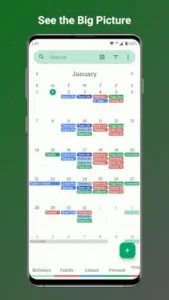
Day view, week view, month view, year view and event list view. Five modes you can switch between. Day view is for planning today. Week view is for seeing the overall rhythm. Month view is for long term planning. The view switching speed in Fossify Calendar is faster than most competitors because it does not load cloud data. All events are local.
Filtering and Searching
You can use filters to quickly find events from a specific calendar or type. If you manage a work calendar, personal calendar and family calendar at the same time, filters let you see just one category. Imported holidays and birthdays appear automatically on the calendar without manual entry.
Syncing with DAVx5
This is its most practical feature and also the most misunderstood. Fossify Calendar does not connect directly to a Google account. It syncs through DAVx5, an intermediate app. DAVx5 is an open source CalDAV client that supports Google Calendar, Outlook, Nextcloud, Exchange and other major services. You install DAVx5, configure your account and Fossify Calendar can read events from those calendars. The advantage of this design is that your schedule data does not pass through Fossify’s servers. It only reads local data synced by DAVx5.
Fossify Calendar Privacy and Security Features
No Ads or Trackers
No banner ads, no popups, no third party analytics. You open the app, look at your schedule and close it. Nothing in between tries to grab your attention or collect behavioral data.
Minimal Permissions
It requests only the permissions necessary to read and write calendar data. No location, no contacts (unless you actively import birthdays), no network data. The Fossify Calendar permission list is short enough to read in under a minute.
Open Source Transparency
The code is public on GitHub. If you do not trust the statement “we do not collect data,” you can look at the code yourself and see whether there are network requests. For a calendar, an app that holds a lot of personal information, this verifiability is more convincing than any privacy policy.
Fossify Calendar Customization and Widgets
The layout is Material Design. You can change themes and adjust colors. Reminder sounds, vibration patterns and looping audio streams are customizable. Home screen widgets support custom backgrounds and colors. The widgets in Fossify Calendar are mentioned repeatedly in user reviews because their adjustable depth is higher than most calendar apps.
The cost is that some interface font sizes do not adapt. Some users report that the bottom event filter font is too large and gets cut off on small screens. This is not universal, but if you use a small screen device, you may run into it.
What Users Say About Fossify Calendar App
What users like
What users appreciate most is the privacy stance: no ads, no tracking, no unnecessary permissions. Widget customization options let people who like to tinker adjust their home screen to their liking. The flexibility of DAVx5 syncing lets it connect to any major calendar service without handing data to a middleman. Open-source transparency keeps privacy conscious users around.
Were work is requiere
Beyond the font size issue, two other details are mentioned repeatedly. The snooze time in the notification panel is not customizable, so you are stuck with the default options. Birthdays from contacts and default birthday events from the calendar show up twice. These are small issues, but they add up for heavy users.
Fossify Calendar Tips
Use DAVx5 for Online Syncing
This is the most important step. Fossify Calendar does not log directly into a Google account. It syncs through DAVx5, an open source app. You need to install DAVx5 from the Google Play Store, add your account there and then enable the corresponding calendar inside Fossify Calendar.
A frequent Fossify Calendar tip on Reddit is to set the sync interval to manual during the initial setup. Once you confirm events are pulling correctly, switch it to automatic. This prevents unnecessary battery drain in the background and avoids confusion if the first configuration fails.
Customize Sounds and Vibrations
Reminder sounds and vibration patterns can be set individually. You do not have to use the system default. You can assign different sounds to different calendars. For example, a short beep for work and a softer ringtone for personal events.
A more practical approach is to set a looping audio stream for important events. A normal reminder rings once and stops. If you are driving or in a meeting, you will miss it. A looping stream keeps ringing until you manually dismiss it. For events you cannot afford to miss, this is more reliable than a standard alert.
Add Widgets to Your Home Screen
The widgets in Fossify Calendar are mentioned frequently in user reviews because their adjustable depth is higher than most calendar apps. You can choose background colors, adjust transparency and decide how many days of events to display.
An overlooked use case is to place the widget on your lock screen or the first page of your home screen. Let it become the first thing you see when you unlock your phone. You do not need to open the app to know what is on your schedule. This habit does not just change efficiency. It changes your awareness of time.
Import Holidays and Birthdays
Holidays and birthdays can be imported automatically. Holidays are selected by region and birthdays come from your contacts.
But there is a recurring issue in user feedback. Contact birthdays and the default birthday calendar often show up twice. The fix is to turn off one source. Either use only contact imports or use only the default calendar events, not both. Users on app Fossify Calendar discussions on Reddit generally agree on the solution: import contacts first, then go into the calendar settings and disable “show default birthday calendar.”
Switch Views for Better Planning
Day view is for planning today. Week view is for seeing the overall rhythm. Month view is for long term planning. The view switching speed in Fossify Calendar is faster than most competitors because it does not load cloud data. All events are local.
A practical habit is to use day view in the morning and week view at night. In the morning, you need to know what is happening today. At night, you need to know what is left in the week. Month view is for a five minute scan on Sunday evening to confirm nothing major is missing.
Why Are My Calendar Appointments Disappearing?
Events disappearing usually does not mean Fossify Calendar deleted your data. It means it can no longer read it. The most common cause is that DAVx5 lost its sync connection or the account authorization expired.
Open DAVx5 and check if the account status shows “Connected.” If it shows an error or unauthorized, log in again. Then go back to Fossify Calendar, open the calendar list in settings and confirm the specific calendar is checked. Sometimes the calendar still exists but was accidentally unchecked, making events “disappear” when they are really just hidden. Disappearing events in Fossify Calendar usually happen after you change your account password or revoke app permissions. DAVx5 needs to re-authenticate before it can resume syncing.
How to Fix Calendar Events That Won’t Sync
Sync failures fall into three categories. First, DAVx5 is not configured correctly, with the wrong account info or server address. Second, network permissions are restricted and battery saver is cutting off background sync. Third, the calendar provider itself has restrictions, such as an Exchange server requiring extra steps for third party client sync.
The troubleshooting order is this: manually tap “Sync now” in DAVx5 to see if there are error messages. Then check your phone’s battery optimization settings and whitelist both DAVx5 and Fossify Calendar. Finally, confirm your calendar provider allows third party apps to sync via CalDAV. Fixing sync in Fossify Calendar is not about the app itself. It is about the DAVx5 layer. The app only reads the local data DAVx5 syncs. DAVx5 does the actual syncing.
What Does It Mean When Calendar Events Are Grayed Out?
Grayed out events usually mean that calendar is read only or it has been archived or disabled. For example, if you subscribe to a public holiday calendar, it shows up in gray because you should not and cannot modify it. Or you set an account to read only in DAVx5, and Fossify Calendar displays that state accurately.
Another possibility is that the calendar itself is hidden, but events remain visible in the view. Go into settings and look at the calendar list. Grayed items usually have a status description. Grayed out events in Fossify Calendar are not a bug. They are visual feedback about permissions or status.
Best Private Calendar App for Android
“Best” depends on how much convenience you are willing to trade for privacy. If you want no cloud at all and only local records, Fossify Calendar is one of the cleanest options. It does not even request network permission.
If you need syncing but do not want to hand data to Google, Fossify Calendar paired with DAVx5 is a workable solution. Data goes through your own configuration, not through Fossify’s servers. If you need end to end encrypted calendar sharing, you need a calendar built into an encrypted email service like Tutanota, not Fossify. The privacy layer of Fossify Calendar is “the app does not collect.” It is not “communication is encrypted.” That distinction matters.
How to Switch to Fossify Calendar From Google Calendar
Migration takes two steps. First, export your calendar from the Google Calendar web version in iCal (.ics) format. Second, import that file into a local calendar that Fossify Calendar can read.
If you do not want to export and import, you can connect your Google account directly through DAVx5. Fossify Calendar will automatically read events from your Google Calendar without manual migration. The easiest way to switch to Fossify Calendar from Google Calendar is DAVx5, because it keeps both calendars in sync instead of making a one time copy. You can switch back to Google Calendar at any time and your data will not be lost.
Can I Sync My Calendar Across Multiple Devices?
Yes, but it requires an intermediate layer. Fossify Calendar does not do cloud syncing on its own. It relies on DAVx5 to connect to a CalDAV server. If you use Nextcloud, Fastmail or a Google account, DAVx5 can sync that data to each device.
The catch is that each device needs DAVx5 configured separately. It is not a “log in once and all devices sync” experience. If you have three devices, you install DAVx5 on all three and configure the account on each. The cost of multi device syncing with Fossify Calendar is a tedious initial setup. The benefit is a transparent sync pipeline. You know exactly where your data goes.
How to Set a Default Calendar App on Android
Open your phone settings, find “Apps” or “App Management,” then look for “Default Apps” and select “Calendar App.” Choose Fossify Calendar from the list. Customized systems like Samsung or Xiaomi use different menu names, but the logic is the same.
Once set, tapping date links or event reminders in other apps will open Fossify Calendar by default. Setting Fossify Calendar as default makes it the central entry point for your schedule. Event jumps from other apps will all land here.
Is Fossify Calendar Safe and Private?
It is safe, but you have to define what “safe” means. If you mean protection from data collection, it does well. The Play Store declaration says no data is collected, it does not request network permission and the code is open source for auditing. It technically cannot upload your schedule anywhere.
If you mean protection from data leaks when your device is lost, it has no built-in encryption lock. Anyone who gets your unlocked phone can open the calendar and see your schedule. If you need that layer of protection, you have to pair it with a system app lock or a third party encryption tool. The privacy protection in Fossify Calendar is at the app level, not the device level.
How to Import Calendar Events Into Fossify
There are two ways. The first is importing an .ics file. Download the file to your phone, open Fossify Calendar, go to settings and find “Import,” select the file, and choose which calendar to import into. The second is through DAVx5. Once the account is configured, events appear automatically without manual importing.
When importing events into Fossify Calendar, pay attention to the target calendar. If you import into a read only calendar, the import will fail or be ignored. Confirm the target calendar is writable before executing the import.
Best Open Source Calendar App for Android
Fossify Calendar and Etar Calendar are the two main options. Fossify has more customization options, richer widgets and a more modern interface. Etar is closer to the stock Android calendar interface. It is lightweight but has fewer features.
If you want more customization and a better widget experience, choose Fossify. If you want a more native, less intrusive interface, choose Etar. Both are open source, free and ad-free. The core value of an open source calendar is not how many features it has. It is that you can verify it is not doing something behind your back. Both apps stand up to that test.
Fossify Calendar Similar Apps
Fossify Calendar vs Google Calendar
Google Calendar has AI suggestions, smart reminders and deep integration with Gmail and Google Meet. It collects data and uses your scheduling patterns to optimize recommendations. Fossify Calendar has none of that and does not collect data. If you handle a lot of meetings daily and need AI to help arrange your time, Google Calendar is easier. If you care more about your schedule not being uploaded, Fossify is the only choice.
Fossify Calendar vs TimeTune
TimeTune focuses on daily routines and time blocking. It helps you design how a day is allocated, such as “exercise from 7 to 8, commute from 8 to 9.” It is free with ads, and some features require a subscription. Fossify Calendar is a traditional calendar. It does not help you plan time blocks. It records events you have already scheduled. If you want “help me design how my day goes,” TimeTune is the right path. If you want “record the meetings and appointments I already have,” Fossify fits better.
Fossify Calendar vs Calendar Widget: Month/Agenda
Calendar Widget is an app dedicated to home screen widgets. It is not a full calendar. It just displays data from your system calendar through widgets. The widgets in Fossify Calendar are part of a complete calendar app, not a standalone product. If you only need a good looking widget, Calendar Widget is enough. If you need a full calendar that can create events, set reminders and sync, Fossify is more complete.
Fossify Calendar vs 149 Live Calendar & To-Do List
149 Live Calendar mixes tasks and calendar events. You can see “meeting at 3 PM” and “submit report today” in the same interface. Fossify Calendar does only the calendar. It does not do task management. If you want one app to handle everything, 149 is more consolidated. If you already have a dedicated task management tool and just need a clean calendar, Fossify is a better fit.
If you want a more feature complete calendar alternative that stays lightweight, the open source route of Etar Calendar is another direction. Its interface is closer to stock Android, but its customization options are not as deep as Fossify’s.
Conclusion
Who Fossify Calendar Is For
People who do not want their schedule handed to the cloud. People on de-Googled systems or custom ROMs who need a reliable default calendar. Users who care about auditable open source code. And anyone who wants home screen widgets without being interrupted by ads.
Who Should Look Elsewhere
People who rely on Google Calendar’s AI suggestions and deep integration. People who need seamless multi device syncing and do not want to install an intermediate layer like DAVx5. People highly sensitive to small details like font truncation or fixed snooze options.
The Final Call
Fossify Calendar turns “not bothering you” into the product itself. It does not analyze you, advertise to you, or upload your schedule somewhere. It just lets you manage your time. The cost is that it occasionally has font size issues and occasionally makes you spend a few extra seconds on duplicate birthdays.
FAQ
Where is the safest place to download Fossify Calendar and is it free?
You can download Fossify Calendar from the Official Google Play Store. The app is completely free, with no ads, no premium tiers and no subscriptions. Since it is an open source project, the developer relies on community support rather than in-app purchases to keep it running.
How do I contact support if I find a bug or need technical help?
The fastest way to report a bug or request a feature is to open an issue on the official GitHub page or bye email at: hello[at]fossify.org. If you prefer a more conversational approach, posting in the Telegram channel or the subreddit usually gets a quick response from the developer or experienced users.
Does Fossify Calendar collect any data?
No. The Play Store data safety declaration states “no data collected, no data shared with third parties.” It does not request network permission, so technically it cannot send your schedule data anywhere. The source code is public on GitHub, so anyone can verify it.
Can I sync my Google Calendar with this app?
Yes, but it requires an intermediate step. Fossify Calendar does not log directly into a Google account. It syncs through DAVx5, an open source CalDAV app. You install DAVx5, add your Google account there and then Fossify Calendar will read the local data synced by DAVx5. Once configured, the sync happens automatically in the background.
Why are my birthdays showing up twice on the calendar?
This happens when both your contacts and the default birthday calendar are imported at the same time. To fix it, go into the calendar settings and disable one of the sources. The most common solution is to import birthdays from contacts, then turn off the default birthday calendar to prevent duplicate entries.
Can I change the snooze time?
Currently, the snooze time in the notification panel cannot be customized. You are limited to the default options. This is a known limitation mentioned in user feedback, and the developer has not committed to changing it. If you need more flexible snooze options, you may need to pair it with another reminder tool.