

Google Lens give you the information about something you see. A plant. A landmark. A product. A sign in a foreign language.
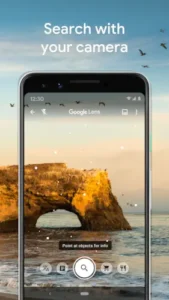

Typing a description into a search engine is slow and often inaccurate. Google Lens solves that. Point your camera. The app recognizes what you are looking at. It gives you information instantly. No typing required.
What is Google Lens exactly?
You are looking at a visual search and image recognition tool by Google LLC that lets you search what you see using your camera, photos, or screenshots to identify objects, read and translate text, find products, get homework help, and more.
Google Lens uses AI and neural networks to analyze what is in your camera view or image and then surfaces relevant information, products, translations, and actions. It is integrated into the Google app, Google Photos, Android system features like Circle to Search, and Chrome, so you can use it from multiple places, not just a standalone app. Its main purpose is to help you search with your eyes instead of typing queries, making it useful for shopping, travel, studying, and everyday tasks.
Google Lens holds a 4.9 star rating from more than 2.8 million reviews. The app size is roughly 150 MB. The age rating is Everyone. The app is completely free with no in app purchases.
A visual search and image recognition tool that lets you search what you see
The category matters here. Google Lens is not a game. It is not a social app. It is a utility tool. You point your camera at something. The AI analyzes the image. It returns information, translations, product links, or actions. The process is simple and fast.
Who this tool was built for
Not every mobile user will need Google Lens. Here is who will find it useful.
Travelers who need instant translations and landmark information
You are in a foreign country. You cannot read the menu. You do not recognize the building. Google Lens translates text in real time. It identifies landmarks and gives you historical facts.
Students who need homework help and research assistance
You are stuck on a math problem. You need to research a topic. Google Lens scans the problem and gives step by step solutions. It finds relevant articles and resources.
Shoppers who want to find products from photos
You see a jacket you like. You do not know where to buy it. Google Lens identifies the product and shows you where to purchase it.
Anyone who wants to copy text or identify objects from the real world
You need to copy text from a poster. You want to identify a plant. Google Lens does both. The tool is versatile.
Google Lens Main Features
Visual search to identify objects, landmarks, plants, animals, and products
Point your camera at anything. Google Lens identifies it. Objects. Landmarks. Plants. Animals. Products. The identification is fast.
Real time translation of text in over 100 languages with on screen overlays
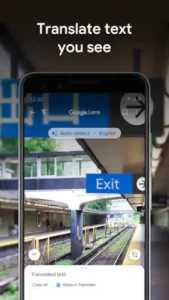
Point your camera at text. The app translates it in real time. The translation appears as an overlay on your screen. The feature works for signs, menus, and documents.
Smart text copy from the real world such as receipts, posters, and Wi‑Fi labels
You can copy text from the real world. Receipts. Posters. Wi‑Fi labels. The text is copied to your phone. You can paste it anywhere.
Shopping and style search to find similar clothes, furniture, and home decor
Take a photo of an item. Google Lens finds similar products. Clothes. Furniture. Home decor. The shopping feature is useful for finding items you like.
Homework help for math, science, and history problems with step by step explanations
Scan a problem. Google Lens gives step by step explanations. Math. Science. History. The homework help is a useful learning tool.
Barcode and QR scanning without a separate app
You can scan barcodes and QR codes. The information is displayed instantly. No separate app required.
Landmarks and places identification with ratings, hours, and historical facts
Point your camera at a building. Google Lens identifies the landmark. It shows ratings, hours, and historical facts.
Menu and dining insights based on Google Maps reviews
Point your camera at a menu. Google Lens shows popular dishes. The insights are based on Google Maps reviews.
Create mode to change style with AI prompts and refine product searches with text
You can change the style of a photo with AI prompts. You can refine product searches with text. The create mode adds flexibility.
Circle to Search on supported Android devices to search anything on screen
On supported Android devices, you can circle anything on screen. Google Lens searches it immediately. The feature is fast and convenient.
Google Lens Graphics and Design
Clean, minimal interface focused on the camera viewfinder and result cards
The design is clean. The focus is on the camera viewfinder. Result cards are clear and easy to read.
Filters and modes appear as simple icons or chips for easy switching
Modes appear as icons or chips. You switch between text, translate, shopping, and homework modes easily. The switching is intuitive.
Design is consistent with Google’s Material Design language
The design is consistent with Google’s Material Design. The typography is clear. The icons are intuitive. The layout is uncluttered.
Where the design works well
The app is fast. The interface is responsive. The design supports quick use.
Where reliance on internet connection and occasional misidentification affect the experience
Google Lens requires an internet connection. The tool works best with a strong connection. Misidentifications occur occasionally. The accuracy is not perfect.
What users say about the Google Lens App
The parts people enjoy
Positive reviews often mention the speed. The translations are praised. The shopping feature is useful.
The parts people complain about
No utility tool escapes criticism. Here is what comes up most often.
Relies on an internet connection for most features
Google Lens requires an internet connection. The tool does not work offline. The reliance on connectivity is a limitation.
Occasional misidentification in poor lighting or with obscure items
The accuracy is not perfect. Poor lighting affects results. Obscure items may be misidentified.
Limited shopping sources for some regions or products
Shopping results vary by region. Some products may not be available. The coverage is not universal.
Some results may not be perfectly accurate
The AI is not infallible. Some results may be incorrect. The tool is a starting point, not a definitive answer.
How the Google Lens app mechanics work
Open Lens via Google app, Photos, or camera integration
You can open Lens from multiple places. The Google app. Google Photos. The camera. The integration is seamless.
Point, capture, or upload an image
You can point the camera at something. You can capture a photo. You can upload an existing image. The input is flexible.
Choose a mode or filter such as Text, Translate, Shopping, or Homework
You can choose a mode. Text. Translate. Shopping. Homework. The mode tailors the results.
View results including identifications, translations, products, and explanations
The results are displayed clearly. Identifications. Translations. Products. Explanations. The information is useful.
Take actions like copy text, open links, or save information
You can take actions. Copy text. Open links. Save information. The actions are practical.
Lens compares objects to other images and ranks them by relevance
Lens compares your image to other images. The results are ranked by relevance. The ranking is based on similarity.
Looking for another visual search tool that helps you identify objects from photos? Check out Curio – Antique Identifier, a specialized tool for identifying antiques and vintage items.
Google Lens Tips
You can start using Google Lens app and identify your first object in seconds. Getting the most accurate results and using all the features effectively takes a little technique. These tips help you get better identifications and more useful information.
Use good lighting and steady framing when scanning text or small objects
Here is a question. Why do some users get accurate results while others get vague guesses? Photo quality.
Google Lens tips from experienced users all say the same thing. Use good lighting. Hold the camera steady. Frame the object properly. A user with good photos gets accurate results. A user with poor photos gets poor results.
For translations, use live camera mode on signs and menus for instant overlays
Translations are a key feature. The live camera mode is the fastest way to use them.
Point your camera at the text. The translation appears as an overlay. A user who uses live mode gets instant translations. A user who takes photos first wastes time.
Use Text mode to copy Wi‑Fi passwords, gift card codes, or long paragraphs
Google Lens similar apps sometimes struggle with text. This tool does not.
Use Text mode. The app recognizes the text. You can copy it. A user who uses Text mode saves time. A user who types manually wastes effort.
For shopping, try photo plus text refinements like blue striped dress to narrow results
Shopping searches are broad. Refine them with text.
Add details to the search. Blue striped dress. Leather sofa. Vintage lamp. A user who refines searches finds better matches. A user who uses only the photo gets broad results.
Use Homework help for math and science problems as learning aids
Google Lens app can solve problems. The solutions are step by step.
Use the solutions as learning aids. Do not just copy them. A user who learns from the solutions improves their skills. A user who copies without understanding misses the point.
On supported Android devices, use Circle to Search to look up anything on screen
Circle to Search is a fast feature. You circle anything on screen. Google Lens searches it.
Use Circle to Search for quick lookups. A user who uses the feature saves time. A user who ignores it misses a convenient tool.
Save frequent searches and results in Google Photos or browser for later reference
Google Lens codes for free features are not needed. The tool is already free. But you can save results.
Save searches in Google Photos. Save them in your browser. A user who saves results builds a reference library. A user who does not save loses the information.
If results are off, try cropping the image or focusing on the most distinctive part
Google Lens app is not perfect. Sometimes the results are off.
Crop the image. Focus on the distinctive part. A logo. A pattern. A unique feature. A user who crops images gets better results. A user who uses the full image gets less accurate results.
Apps similar to Google Lens
If you like Google Lens, here are five other apps worth your time. Each offers something similar with a different twist.
Curio – Antique Identifier
Curio is the most specialized comparison. Photo-based identification for antiques. Google Lens similar apps should start here. The difference is that Curio focuses on antiques and provides value estimates. Good for users who want specialized identification.
PictureThis and PlantNet
PictureThis and PlantNet identify plants from photos. The difference is the domain. Good for users who want to identify plants specifically.
Microsoft Bing Visual Search
Bing Visual Search is another general visual search tool. The difference is that it is integrated into Bing, not Google. Good for users who prefer the Microsoft ecosystem.
Amazon and eBay image search
Amazon and eBay have image search for products. The difference is that they are shopping focused. Good for users who want to find products to buy.
Other AR and visual search tools
Other tools like CamFind and ScreenShop offer similar features. The difference is in the specific capabilities. Good for users who want alternatives to Google Lens.
Google Lens Community
No built in social features like chats, feeds, or communities
No multiplayer. No chat. No leaderboards. The tool is for personal use.
Community aspect comes from shared tips, tutorials, and use cases on YouTube and blogs
Users share tips on YouTube. They post tutorials on blogs. They share use cases on social media. The community is external.
Integrates with Google services for sharing via Photos and Chrome
You can share results via Google Photos. You can share via Chrome. The integration is seamless.
No dedicated Lens social layer
The tool is for searching, not socializing. The lack of social features is by design.
Conclusion
Google Lens works for three types of people. First, travelers who need instant translations and landmark information on the go. Second, students who need homework help and research assistance with step by step solutions. Third, shoppers who want to find products from photos and compare prices.
Relies on an internet connection for most features. Occasional misidentification in poor lighting or with obscure items. Limited shopping sources for some regions or products. Some results may not be perfectly accurate.
Do you want a free visual search tool that can identify objects, translate text, find products, and help with homework, even if it requires an internet connection and the accuracy is not perfect? Or do you prefer specialized tools for specific tasks?
If the first one, Google Lens is one of the most versatile visual search tools available. If the second one, look at specialized apps like Curio for antiques or PictureThis for plants. Both answers are fine. Just know what you want.
FAQ
How do I get Google Lens download on my phone?
Go to the Google Play Store if you use Android. Search for Google Lens. The developer is Google LLC. Tap install or use the direct link to Download Google Lens from the Official Google Play Store.
Is Google Lens free to use, or do I need to pay?
Google Lens is completely free. There are no in app purchases. No subscription. No hidden costs. All features are available to all users. You just need an internet connection to use most features.
Where can I find the official website and help documentation?
The official Google Lens website has information about how the tool works and what it can do: Official Google Lens Website. For troubleshooting, user guides, and tips, check the Google Help Center or the community wiki: Google Lens Wiki.
I have a problem with the app. Who do I contact?
Google Lens does not have a dedicated support email. For issues, you can use the Google Help Center or leave feedback through the app. For account related problems, use the Google support portal. Here is the general Google support address: apps-help[at]google.com. For Google Lens download problems or installation issues, try clearing the Play Store cache or restarting your device.
Does Google Lens work offline?
No. Google Lens requires an internet connection for most features. The app sends images to Google’s servers for analysis. Without an internet connection, the app cannot identify objects, translate text, or provide product information. Make sure you have a data or Wi‑Fi connection before using Google Lens.