

InShot Is not like most mobile editors full of menus and buttons that make you spend more time searching than editing.
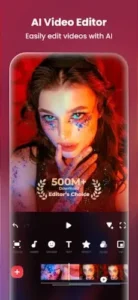

InShot has enough tools to make your videos look polished. Not so many that you feel lost. Trimming, music, text, transitions, filters, speed ramping, chroma key, and 4K export all live inside an interface that does not require a tutorial.
So here is the real question: why would you fight with desktop software when your phone can handle the whole job?
What Is InShot?
An all in one video and photo editing app built for your phone. That is the shortest answer. But let me break it down.
You open InShot. You import a clip from your camera roll. You trim the front and back. You add a music track. You drop in text captions. You layer a transition between scenes. You adjust the speed for a slow motion moment. You export in 4K. The whole process takes minutes, not hours.
The publisher, InShot Video Editor, designed this app specifically for short form social content. TikTok. Instagram Reels. YouTube Shorts. The aspect ratios match. The export settings match. The workflow matches how creators actually work.
Beginners find it approachable because the buttons are large and clearly labeled. Experienced creators find it useful because the tools are actually there when you need them. No hidden menus. No confusing icons. Just editing that moves at your pace.
What Tools Come Packed Inside
One or two tools would not be enough. InShot brings a full kit.
-
Trim, split, merge, and delete clips for core video editing
-
Music, sound effects, and voice overs for audio customization
-
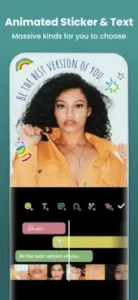
Text, captions, stickers, and emoji for social style edits
-
Transitions, filters, effects, and animation tools for a polished look
-
Speed control and speed ramping for slow motion or fast paced edits
-
Picture in Picture and overlays for layered content
-
Chroma key and background removal for green screen style edits
-
AI tools such as auto captions, auto background removal, and smart tracking
-
Photo editing and collage maker features for still images
-
4K export support highlighted in reviews
Each tool works independently. But they also work together. Add music, then layer a voice over. Remove a background, then add a picture in picture. Speed ramp a clip, then drop a transition at the peak. The combinations are what make InShot useful for more than just basic cuts.
How the Interface Keeps Editing Fast
A clean interface does not happen by accident. InShot earns its reputation here.
Large buttons. Readable labels. An editing layout that makes sense the first time you open it. TechRadar’s review specifically praises the interface for being intuitive and not difficult to navigate on phone or tablet.
The design focuses on speed and clarity rather than visual complexity. That matters because mobile editing already asks you to work on a small screen. The last thing you need is tiny icons and hidden gestures.
You import clips. You adjust settings. You preview changes. You never get lost in menus. That simplicity is why InShot stays popular even as new editors appear every year.
What Users Say
The positive feedback is consistent across thousands of reviews. People praise the ease of use above everything else. You do not need to watch a two hour tutorial to make your first edit. The wide toolset gets mentioned constantly. Music, text, transitions, speed controls, all of it works. Usefulness for social media videos is a recurring theme. TikTok creators, Instagram posters, YouTube Shorts editors all find value here. The free editing options give you real functionality without paying upfront. The workflow feels convenient, not clunky.
The criticisms are also fair. Some features sit behind the paid version. You cannot access everything without subscribing or buying the full app. Ads appear during editing for free users. That interrupts flow. The watermark on exported videos is the biggest drawback for free users. It says “InShot” in the corner of every video you make unless you pay.
Even with those limitations, the consensus holds. InShot remains strong value for casual and semi serious mobile editors. You get a lot before spending anything. And if you do pay, the watermark disappears and the full toolset opens up.
How the Editing Flow Actually Works
No complicated timeline jargon. No professional editing terms you need to look up. Here is the actual workflow.
Step one: import your video or photo clips
Open the app. Tap the edit button. Select clips from your camera roll. Video, photos, or both. The app accepts all of it.
Step two: cut and arrange clips on the timeline
Drag clips to reorder them. Tap a clip to trim the start or end. Split a long clip into two shorter pieces. Delete anything you do not want.
Step three: add effects, text, music, or overlays
Choose from the bottom toolbar. Music pulls from your library or the app’s collection. Text lets you type captions and choose fonts. Effects add filters and transitions. Overlays layer one clip on top of another.
Step four: adjust speed, transitions, or background
Speed control makes clips faster or slower. Speed ramping changes speed within a single clip. Transitions smooth the cut between clips. Background removal replaces what is behind the subject.
Step five: preview the result
Tap the play button. Watch your edit from start to finish. Catch any timing issues or missing pieces.
Step six: export in your chosen resolution and ratio
Select resolution up to 4K. Choose aspect ratio for the platform you are posting to. TikTok uses 9:16. YouTube uses 16:9. InShot remembers your last choice.
Why this loop works
Users move quickly from raw footage to polished result without advanced technical knowledge. No manual needed. No frustration. Just edit, preview, export, post. That speed is why millions of people open InShot instead of desktop software.
InShot tips : Small Changes That Improve Your Edits
These are not secrets. They are habits that separate videos people watch from videos people scroll past.
-
Start with trim and split before adding effects so your timeline stays clean. Effects on top of messy clips look messy. Clean the timeline first. Add polish second.
-
Use captions and text overlays to improve engagement on social platforms. Many people watch without sound. Captions keep them watching. No captions lose them in the first three seconds.
-
Try background removal or chroma key for more professional looking edits. Remove a messy room. Replace it with a solid color or a brand image. The shot looks cleaner instantly.
-
Use speed ramping to make action clips or transitions feel more dynamic. Normal speed then slow motion then normal again. That pattern draws attention. Use it on key moments.
-
Add PIP layers when you want reactions, face cams, or tutorial overlays. Picture in Picture keeps the main clip visible while you add commentary or a reaction face. Viewers see both at once.
-
Set the canvas ratio early so you do not crop later when editing for Reels or Shorts. Changing the ratio after adding text or effects can cut off important content. Set it at the start. Build inside that frame.
-
Use the app’s preview before export so you catch audio or text timing issues. Watching on the timeline is not the same as watching full screen. Preview always. Fix small mistakes before they go live.
InShot similar apps
| App | Main Similarity |
|---|---|
| CapCut | Mobile first video editing with AI tools and social templates. |
| VN Video Editor | Timeline based editing with a creator friendly workflow. |
| KineMaster | Layer based mobile editing with advanced controls. |
| Adobe Premiere Rush | Quick mobile and cross device video editing. |
| YouCut | Lightweight video editor for simple social clips. |
Each app shares a piece of what InShot app delivers. CapCut offers stronger AI features and trend based templates. VN Video Editor gives you more timeline control. KineMaster adds professional layering options. Try one or two and see which workflow fits your editing style.
Why Creators Keep Coming Back
InShot does not have an in app social network. You will not find feeds, followers, or comment sections inside the editor. But a strong creator community lives outside the app.
Tutorials on YouTube show you exactly how to achieve specific effects. Guides on blogs break down advanced techniques into simple steps. Social media posts share templates, transitions, and before after comparisons. Creators help each other learn faster than trial and error alone.
InShot is widely used for Instagram, TikTok, and YouTube content. That means when you learn InShot, you are learning tools that apply directly to the platforms where your audience actually watches. The app naturally fits into the creator ecosystem even without feeds or public comments.
You are not just editing videos. You are joining a workflow that millions of other creators already trust. That shared knowledge makes problem solving faster and inspiration easier to find.
Conclusion
You do not need desktop software to make clean, watchable videos. That is the core value. A phone in your hand and ten minutes of focused work can produce something worth posting.
The question is not whether you have the right equipment. You already do.
The question is whether you want to spend hours learning a complex editor with menus stacked inside menus. Or whether you want to open an app, make your cut, add your music, and export in time for your scheduled post.
One path feels like work. The other feels like creating.
Choose your path. Open InShot. Start editing.

FAQ
Where is the official place to get InShot download?
Download InShot from the official Google Play Store
Where can I read official news, feature updates, and release notes?
The official InShot website posts everything. New AI tools, export improvements, sticker packs, and bug fixes all appear there first. Check it when you notice something new in the app.
I ran into a crash, a bug, or an export failure. Who actually responds?
The developer email address for support: inshot.android[at]inshot.com . Attach a screen recording if you can. Mention your device model, operating system version, and what you were doing before the problem appeared. Short and polite messages get faster replies.