

Talker ACR is not trying to be a simple voice memo app.

Talker ACR is built for people who need to capture actual phone conversations and VoIP calls from apps like WhatsApp, Skype and WeChat. It currently holds a 4.3 star rating from over 41,900 reviews on Google Play, with 5 million+ downloads. The install size sits around 50 MB to 80 MB depending on your device, and the age rating is Everyone. it is a feature rich tool for recording conversations, but the free trial prompts, Bluetooth limitations and ad load have frustrated some users.
What Is Talker ACR
Joicoo Limited built this app around a specific need: capturing calls that the system recorder cannot reach. Native Android call recording is restricted in many regions and VoIP calls from third party apps are even harder to capture.
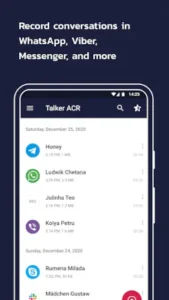
The core value of Talker ACR is its VoIP coverage. It supports WhatsApp, Viber, Skype, Facebook Messenger, WeChat, Slack, LINE, Kakao and IMO. If you need to record a WhatsApp call, this app is one of the few tools on the market that can actually do it.
Talker ACR Mechanics of Recording and Managing Calls
Phone and VoIP Recording
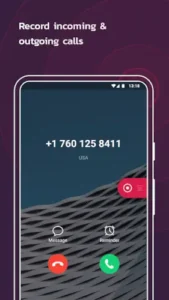
The app records both standard phone calls and VoIP conversations. You can record incoming and outgoing calls and the VoIP support covers the major messaging apps. Call recording in Talker ACR is not done through system level internal recording. It relies on microphone pickup, so audio quality depends on your background noise and microphone placement.
Automatic vs Manual Recording
You can configure the app to start recording automatically at the beginning of every call, or record selected calls manually. Automatic recording in Talker ACR is convenient for people who need to log all calls, but it also means your storage fills up fast.
Contacts Exclusion
You can mark contacts whose calls you prefer not to record. This is useful for keeping private conversations out of your archive. The contact exclusion feature in Talker ACR lets you record only work calls and skip family calls.
In-App Playback and Management
You can re-listen to recordings directly in the app, mark essential calls as starred, and call contacts back directly. Premium users can play, share, rename, or delete recordings instantly after a call.
How to Record Calls on Your Android Phone
Android has tightened call recording permissions since Android 9, and built-in recording has been removed on many devices. Call recording in Talker ACR relies on microphone pickup, not system internal recording. This means you need to turn on the speakerphone during a call or make sure the microphone can clearly pick up the other person’s voice.
The process: open the app, grant microphone, phone, storage and contacts permissions, then choose “Automatic Recording” or “Manual Recording” in settings. Automatic recording starts at the beginning of every call. Manual recording requires you to tap the record button on the call screen.
How to Record WhatsApp Calls on Android
WhatsApp calls are VoIP calls and do not go through the carrier’s phone network. WhatsApp recording in Talker ACR relies on microphone pickup, not system internal recording. You need to turn on the speakerphone so the microphone can pick up both sides of the conversation.
The process: before the WhatsApp call starts, open Talker ACR and confirm it is in recording mode, then answer the call. If you answer first and open the app later, you may miss the first few seconds. VoIP support in Talker ACR covers WhatsApp, Viber, Skype, Facebook Messenger, WeChat and other major apps, but recording quality depends on your microphone and background noise.
Talker ACR Premium Features and Storage
Cloud Backup
Premium users can back up recordings to Google Drive or elsewhere. Cloud backup in Talker ACR is practical for people who need to keep recordings long term, because local storage will fill up eventually.
Intelligent Storage Management
The app can auto delete old conversations and filter short calls. This keeps your storage from filling up with calls that lasted three seconds.
PIN Lock Protection
You can secure recordings with a PIN. The PIN lock in Talker ACR is essential for people whose recording files contain sensitive information.
Shake to Mark
You can mark highlights during a call by shaking the device. This is useful for flagging important moments in a long conversation.
Talker ACR Privacy and Data Safety
The app may share app activity and device or other IDs with third parties. It may collect app activity, app info and performance and device or other IDs. Data is encrypted in transit, but data cannot be deleted. The developer states it does not collect, store or disclose your contact list to third parties.
The privacy design of Talker ACR is not perfect. It collects some device and activity data, but promises not to touch your contacts. If you are extremely sensitive to data collection, this is a point to consider.
Talker ACR Design and Interface
The UI is clean and user friendly. The in-app playback interface gives you easy access to recordings, starred calls and callbacks. Premium features are integrated into the UI.
The trade-off is setup complexity and ad load. Some users find the app requires a lot of settings and has too many ads. The interface design of Talker ACR prioritizes function over minimalism.
What Users Say About Talker ACR App
What users like
Users praise it as user friendly and intuitive. Some report it works well for calls on speaker.
Were users say it needs work
Some users report being pushed into a free trial or payment flow before using the app. Bluetooth is not supported since Android 9, so it does not work with Bluetooth earbuds. Some users find the app requires a lot of settings and has too many ads.
Talker ACR Tips
Use Automatic Recording for Convenience
Automatic recording is its core selling point, but the default state is not always what you want. You can configure it to start recording every time a call begins without tapping a button.
A frequent Talker ACR tip on Reddit is this: turn on automatic recording first, then add the contacts you do not want to record to the exclusion list. Doing it in the reverse order is troublesome because you might record conversations you did not intend to while you are still setting up the exclusion list. Automatic recording means you will not miss important content because you forgot to press a button, but the downside is it eats up your storage fast.
Use Contacts Exclusion for Privacy
This is your first line of defense for privacy. You can mark specific contacts so their calls are not recorded.
A practical use case: add family and personal friends to the exclusion list and only record work calls and unknown numbers. This way your recording library only contains the content you actually need to keep, without private conversations you never want to replay. The contact exclusion feature in Talker ACR is not perfect privacy protection, because if the other person calls from a different number, you will still record it. But it at least reduces the majority of unnecessary recordings.
Use In-App Playback for Quick Review
After a call ends, you do not need to dig through a file manager. The app has a built-in player and you can listen directly from the recording list.
A user of the app Talker ACR mentioned that they spend five minutes before leaving work each day skimming through the day’s recordings and marking follow-up items. This habit is far more effective than “record and forget, dig through it later when you need it,” because memory fades. The sooner you listen back, the easier it is to recall the context.
Use Starred Calls for Important Conversations
You can mark important calls with a star for quick access later.
The starred calls feature in Talker ACR is especially useful for people who need to keep evidence. If you agreed on a verbal contract with a client or confirmed a repair time with your landlord, star that recording. If a dispute arises later, you do not have to dig through hundreds of recordings. Stars are not encryption. They are just labels. But labels save you a lot of retrieval time.
Use Premium Features for Better Management
The paid version unlocks cloud backup, storage management, PIN lock, and more audio formats. If you only occasionally record a call, the free version is enough. If you record a high volume of calls daily, the cloud backup and auto cleanup features are worth considering.
The most practical of the premium features in Talker ACR is auto deleting old recordings. Your phone storage is limited. If you do not clean up, recording files will fill your space within months. Setting a rule like “auto-delete recordings older than 30 days” is much easier than manual cleanup.
How to Exclude Certain Contacts From Being Recorded
The contact exclusion feature in Talker ACR is in settings. You can choose “Exclude Contacts” and add the contacts you do not want to record. Their calls will not be recorded automatically.
This feature is useful for privacy protection. You can add family and personal friends to the exclusion list and only record work calls and unknown numbers. Contact exclusion in Talker ACR is not perfect privacy protection, because if the other person calls from a different number, you will still record it. But it at least reduces most unnecessary recordings.
How to Recover Deleted Call Recordings
Talker ACR does not have a built-in recycle bin. Recordings you delete disappear directly from storage. There is no “restore” button in the app.
If you need to recover deleted recordings, the only way is to find them in cloud backup (if you enabled it), or use a third party data recovery tool to scan storage. Recording recovery in Talker ACR is most reliable when you enable cloud backup in advance, not when you scramble for a tool afterward.
Be Mindful of Bluetooth Limitations
This is its biggest weakness. Since Android 9, Talker ACR does not support recording through Bluetooth earbuds. If you take a call on Bluetooth earbuds, the recording may be empty or only capture your side of the conversation.
The Bluetooth issue in Talker ACR is not a bug. It is an Android system level restriction. Most third party call recorders have hit the same problem since Android 9. The workaround is to use the speakerphone or wired headphones during the call. If you must use Bluetooth, this app is not for you.
Be Mindful of the Free Trial Flow
This is the most concentrated complaint in user feedback. Some users open the app, get guided into a free trial flow, enter payment information and get charged automatically when the trial ends.
The free trial in Talker ACR is not a scam, but the wording is not clear enough. If you just want to try the app, do not linger on any page asking for payment information. If you have already entered it, note the trial end date and cancel early.
How to Password Protect Your Call Recordings
The PIN lock in Talker ACR is a paid feature. You can enable it in settings and after that, opening the app requires a PIN to see the recording list.
This feature is essential for people whose recordings contain sensitive information. If someone else uses your phone, or if you often open the recording app in public, the PIN lock prevents someone from casually scrolling through your recordings. But note that the PIN lock only protects access inside the app. If someone finds the recording files directly through a file manager, the PIN lock does nothing.
Talker ACR Similar Apps
Talker ACR vs All Call Recorder
All Call Recorder is a basic call recording tool with fewer features and a simpler interface. Talker ACR adds VoIP support, contact exclusion, starring, and cloud backup. If you only need to record regular phone calls, All Call Recorder is enough. If you need to record WhatsApp or Skype, Talker ACR is one of the few options that can do it.
Talker ACR vs Right Dialer
The core of Right Dialer is dialing and call management, not recording. It is more of a replacement for your system dialer. The core of Talker ACR is recording and file management. If you want a better dialer, Right Dialer is the right path. If you want a recording tool, Talker ACR fits better.
Talker ACR vs Call Recorder – Auto Recording
Auto Recording is simpler with fewer features, but its free version may have fewer limitations. Talker ACR offers more VoIP support and management tools, at the cost of more settings and ads. If you want a “install and use” tool, Auto Recording is lighter. If you need VoIP and advanced management, Talker ACR is more complete.
Talker ACR vs Easy Voice Recorder
Easy Voice Recorder is a general recording tool for meetings, memos, and ambient sound. It is not designed for call recording. Talker ACR is built for call recording. They solve different problems and cannot replace each other. If you need to record calls, Easy Voice Recorder is not the answer.
If you want a simpler call recording tool with fewer ads, the basic route of All Call Recorder is another direction, but it lacks VoIP support.
Where Do Call Recordings Get Saved?
Recording files in Talker ACR are saved by default to a folder in internal storage. The exact path depends on your device and app version. You can check the save path in the app settings, or search for .m4a or .mp3 files with a file manager.
If you have cloud backup enabled (a paid feature), recordings sync to Google Drive or your specified cloud drive. Cloud backup in Talker ACR is practical for people who need to keep recordings long term, because local storage will fill up eventually.
Will a Call Recorder Slow Down My Phone?
Usually not. The performance footprint of Talker ACR is very low when running in the background. It does not do real time transcoding or uploading. You might feel slight warmth during a call, but that is the microphone and the call itself working, not the recording app.
If you notice your phone getting slow, check your storage space first. Recording files take up a lot of space. When storage drops below 10%, Android starts to slow down. Cleaning up old recordings regularly or turning on auto delete, is more effective than switching apps.
Do Call Recorders Work With Google Meet or Zoom?
Talker ACR support for Google Meet and Zoom is limited. These apps route audio through different channels, and Talker ACR’s microphone pickup may not clearly capture the other person’s voice.
A practical test: start a short test meeting and confirm the recording captures both sides. If you only hear your own voice, the microphone pickup is not covering the other person’s audio channel. Workarounds: use the speakerphone, or use a second device to record the meeting.
Does Call Recording Drain Your Phone Battery?
Yes, but the extent depends on how long you record. Battery consumption in Talker ACR comes mainly from the microphone staying active and the background recording process. If you record a few short calls a day, the battery impact is negligible. If you record hours of meetings or long distance calls every day, the drain becomes noticeable.
A practical tip: if you are recording a long call, keep your charger plugged in. Recording itself is not the biggest power draw. The microphone running continuously plus the screen staying on adds up to more drain than usual.
Do Call Recorders Notify the Other Person?
It depends on your region and the method you use. Talker ACR does not actively notify the other person. It does not play a beep during the call and it does not send a notification to the other party. But many regions have laws requiring consent for call recording. The recording feature in Talker ACR does not change the legal requirement. You need to confirm the regulations in your region before recording.
If you are in a region that requires two party consent, the safest approach is to say at the start of the call: “I am recording this call for follow-up purposes,” so the other person knows.
Why Is My Call Recorder Only Recording One Side?
This is the most common problem with Android call recording. Talker ACR recording only one side usually comes down to two reasons. First, you did not turn on the speakerphone. The microphone can only pick up sound close to it. If you hold the phone to your ear, the other person’s voice comes out of the earpiece, and the microphone picks it up at very low volume. Second, Android restricts third party apps from internally recording call audio, so the app can only rely on microphone pickup.
The fix: turn on the speakerphone during the call, or use wired headphones so the microphone can pick up both sides. Bluetooth earbuds do not support internal recording after Android 9, so Bluetooth recording usually fails.
Call Recording App Keeps Stopping: How to Fix It
A recording app that keeps stopping usually comes down to three reasons. First, battery optimization. Android limits battery consumption for background apps, causing the recording process to be killed. Go into system settings and add Talker ACR to the battery optimization whitelist. Second, permissions revoked. If you recently updated your system or cleared permissions, microphone or phone permissions may have been turned off. Third, insufficient storage. When the recording file cannot be written, the app stops recording.
The troubleshooting order for recording interruptions in Talker ACR is: first check battery optimization settings, then check permissions and finally check storage space.
Conclusion
Who Talker ACR Is For
People who need to record regular phone calls and VoIP conversations. Users who want automatic recording and in-app playback. Anyone who needs WhatsApp, Skype and other platform recording support.
Who Should Look Elsewhere
People who need to record with Bluetooth earbuds. People who want a simple, ad-free tool without trial prompts. Anyone extremely sensitive to privacy data collection.
FAQ
Where is the safest place to download the Talker ACR app and is it free?
Download Talker ACR from the Official Google Play Store. The app is free to download and install, but it relies on ads and offers a premium subscription for advanced features. You can record basic phone calls without paying, though you may hit paywalls for cloud backup or advanced management tools.
Does Talker ACR work with Bluetooth earbuds?
No. Since Android 9, third party call recording apps cannot record through Bluetooth earbuds. You need to use the speakerphone or wired headphones.
Can I record WhatsApp calls with Talker ACR?
Yes. It supports WhatsApp, Viber, Skype, Facebook Messenger, WeChat and other major VoIP apps. But recording quality depends on your microphone and background noise.
How do I contact support if I lose my recordings or have a billing issue?
For technical support or billing disputes, the developer’s support email is talker.acr[at]gmail.com. You can usually find this address at the bottom of the Google Play listing. If you are reporting a bug, include your device model and Android version to help them diagnose the issue faster.
Why am I being asked for a free trial?
The app may guide you into a free trial flow on first launch. It is not mandatory and you can skip it. If you do not want to be charged, do not enter payment information, or note the trial end date and cancel early.
Can I exclude specific contacts from recording?
Yes. In settings, find “Contact Exclusion” and add the contacts you do not want to record. Their calls will not be recorded automatically.