

Most photo editors focus on sliders and filters. VSCO does that too. But it also gives you a community.

VSCO is a place to share your work. A place to find inspiration. A place with no likes and no public comment counts. The question is whether that creative environment makes the app worth paying for when free alternatives exist.
What is VSCO exactly?
You are looking at a polished photo and video editing app built around film inspired presets, manual editing tools, and a creator community.
VSCO is designed for photographers, content creators, and casual users who want high quality edits without a complicated workflow. The app includes free presets, RAW editing, and premium tools for users who want deeper control over color and style. Unlike basic editors, VSCO also works as a creative platform. You can edit photos, edit video, build mood boards, join challenges, and connect with other creators through Discover, Spaces, and messages.
On Google Play, VSCO holds a 3.0 star rating from more than 1.33 million reviews. The app size comes in at roughly 179 MB. The age rating is 12 and up, with mentions of user generated content and online interactions. The app is free with in app purchases and offers a membership called VSCO Membership.
A polished photo and video editor with film inspired presets
The category matters here. VSCO is not just a filter app. It is not just a social network. It sits in the middle. You get professional editing tools. Curves. HSL. Split tone. Grain. Borders. You also get a creative community where you can post your work, join Spaces, and message other creators. The editing tools are designed to produce film like aesthetics. Soft tones. Subtle grain. Muted highlights. The VSCO look is recognizable.
Who this app was built for
Not every mobile photographer will enjoy VSCO. Here is who will.
Photographers who want stylish, film like edits
Do you prefer muted tones over saturated ones? Do you like grain and fade in your photos? VSCO presets are designed to mimic film stocks. Portra. Ektar. Tri X. The results are subtle, not aggressive. Photos look edited but not over processed.
Content creators who need consistent aesthetic across posts
Your Instagram feed has a look. Your TikTok has a style. Maintaining that consistency across dozens of posts is hard without a repeatable editing workflow. VSCO Recipes let you save your edits. One tap applies the same preset, same grain, same fade to any new photo. Your feed stays consistent without manual tweaking every time.
Casual users who want more than basic filters
You have outgrown Instagram filters. You want more control. But Lightroom feels too complex. VSCO sits in the middle. Presets as a starting point. Sliders for fine tuning. No curves or histograms unless you want them. The learning curve is gentle.
Creators who enjoy community without like counts
VSCO is not Instagram. There are no like counts. No public comment sections on posts. The focus is on creation, not competition. You can still share work, join Spaces, and message others. But the pressure to perform is lower.
VSCO Main Features you will use
The app offers editing tools and community features. Here are the ones that matter most.
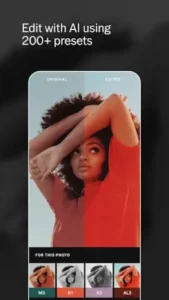
10 free presets and 200 plus presets with membership
The free version includes 10 presets. Enough to get started. The membership unlocks more than 200 presets. Film emulations. Color grading packs. Seasonal collections. The paid presets are the reason most people subscribe.
RAW photo editing support
VSCO reads RAW DNG files. You get more flexibility with exposure and white balance. Recover details from shadows and highlights. The RAW editing tools are not as deep as Lightroom, but they are sufficient for most mobile photographers.
Manual tools like Contrast, Saturation, Grain, Fade, Crop, Skew
Beyond presets, VSCO includes manual sliders. Adjust exposure and contrast. Add grain for texture. Use Fade to lift blacks. Crop and skew to fix composition. The tool set covers 90 percent of what casual photographers need.
HSL, Split Tone, Borders, and advanced film style editing
For deeper color control, HSL lets you adjust individual color channels. Shift the hue of greens. Desaturate the blues. Split Tone adds different colors to shadows and highlights. Borders add a white or black frame. These advanced tools are for users who want to move beyond presets.
Recipes to save and recreate favorite edits
Edit a photo. Get it exactly right. Tap save as Recipe. Name it. That Recipe now appears in your library. Apply it to future photos with one tap. Recipes are like presets you create yourself. Essential for maintaining a consistent feed.
AI photo editing tools and object removal
Recent updates added AI tools. Remove unwanted objects from photos. The feature works similarly to healing brushes in other apps. Select an object. The AI fills the space. Results are good on simple backgrounds.
Video editor with cinematic tools, slow motion, film effects, compositing
VSCO edits video too. Apply presets to video clips. Add grain and fade. Use slow motion. Composite multiple clips. The video tools are not as deep as dedicated video editors, but they are enough for social media content.
Montage tool for layered photo video collages
Montage lets you combine photos and videos into a single frame. Layer images. Adjust opacity. Add video clips that play within the collage. Montage is popular for mood boards, before and after comparisons, and artistic social posts.
Discover feed, journal style content, and community challenges
The Discover feed shows work from other creators. Journal posts include behind the scenes content and editing walkthroughs. Weekly challenges encourage you to shoot and edit around a theme. The feed is curated. No algorithm chasing. No rage bait.
Messages, Spaces, reposts, and collaborative galleries
Spaces are collaborative galleries. A group of creators uploads images around a shared theme. Under the rim for basketball photography. Street scenes for urban photography. You can join Spaces, upload your work, and see what others are making. Messages let you talk to other creators. Reposts share someone else’s work to your profile.
VSCO Graphics and Design
Minimal, modern interface that keeps attention on the image
VSCO looks clean. Dark backgrounds. Thin fonts. No clutter. The photo fills most of the screen. Tools appear as icons at the bottom. Sliders appear on the side.
Clean editing screen with understated layout
The editing screen has no flashy graphics. No animations. No distractions. The focus is on your image and your adjustments.
Analog and film aesthetic throughout
The app’s design matches its presets. Soft. Muted. Minimal. The visual identity is consistent from the logo to the interface to the exported photos.
Where the design works well
Speed is the priority. Tools open instantly. Adjustments apply in real time. The app feels responsive even on older phones.
Where paywall limits free experience
The free version is limited. Only 10 presets. No HSL. No split tone. No advanced tools. Popups encouraging membership appear regularly. The free experience feels like a trial.
What users say about the VSCO app
The parts people enjoy
Positive reviews often mention preset quality. The VSCO look is distinctive and hard to replicate in other apps. The community is praised for being supportive and low pressure. Video editing tools are called a nice bonus. Recipes are highlighted as a time saver.
One user wrote: “The presets are beautiful. No other app has the same film look. The community is actually positive.”
The parts people complain about
No freemium app escapes criticism. Here is what comes up most often.
Monetization and paywall frustration
Many basic tools are now behind the membership. Tools that were once free now require payment. Long time users feel alienated.
Basic tools now behind subscription
HSL used to be free. Split tone used to be free. Advanced presets used to be free. The paywall has expanded over time. New users may not notice. Old users remember what they lost.
Free experience feels limited
10 presets. No advanced color tools. No Recipes. Popups everywhere. The free version feels like an extended demo, not a standalone product.
Subscription price point for advanced features
VSCO membership costs money monthly or yearly. The price is not high, but it is another subscription. Some users feel the value does not match the cost.
How the editing mechanics work
Import photo or video from camera roll
Open VSCO. Tap the plus icon. Choose a photo or video from your gallery. Or tap the camera icon to shoot within the app.
Apply preset as starting point
Browse presets. Tap one. The preset applies instantly. Adjust the intensity slider if the effect is too strong or too weak.
Fine tune with manual tools and sliders
Tap the edit icon. Adjust exposure, contrast, and saturation. Add grain. Apply fade. Use crop and skew. The manual tools are straightforward.
Save edit as Recipe for reuse
After editing, tap the save icon. Choose Save as Recipe. Name it. Your Recipe appears in the Recipes tab. Apply to future photos with one tap.
Use Montage for layered collages
Tap Montage. Choose a background photo or video. Layer additional images on top. Adjust opacity and position. Export as a single image or video.
Edit video with cinematic tools and film effects
Import a video. Apply presets. Adjust grain and fade. Use slow motion. Composite multiple clips. Export in high resolution.
Export or share to Discover or external platforms
Tap the share icon. Save to your camera roll. Or post to Discover for the VSCO community. Or share to Instagram, TikTok, or messaging apps.
Looking for another photo editing app with a strong community focus? Check out Snapseed, a free, ad free editor with professional tools but no social features.
VSCO Tips that actually help
You can open VSCO and apply a preset in seconds. Getting a distinctive, film inspired look that feels consistent across your whole feed takes a little practice. These tips separate users who develop a recognizable aesthetic from users whose photos look like they used a random filter.
Start with a preset before fine tuning contrast, grain, and saturation
Here is a question. Why do some VSCO edits look cohesive while others look like a mess of random sliders?
VSCO tips from experienced users all say the same thing. Pick a preset first. Let the preset do the heavy lifting. Then fine tune. Adjust exposure if the image is too dark or too bright. Add grain for texture. Increase or decrease fade. The preset gives you a direction. The manual adjustments nudge the image toward your personal taste. Starting from scratch with no preset is like navigating without a map.
Use Recipes to save your favorite editing style for future photos
You spend ten minutes editing a photo. You love the result. The next photo needs the same treatment. Do you manually adjust every slider again? No.
VSCO app lets you save Recipes. After editing, tap the save icon. Choose Save as Recipe. Name it. Your Recipe appears in your library. Apply it to future photos with one tap. Build a library of Recipes. One for golden hour portraits. One for gloomy city streets. One for bright food photos. Your feed stays consistent without repeating work.
Try RAW editing when you need more control over highlights and shadows
VSCO photo editing app supports RAW files. Most phone cameras save JPG by default.
RAW captures more data. A JPG has limited room for adjustment. Brighten a dark JPG and you see noise. Recover highlights from a blown out JPG and you see grey mush. A RAW file holds more information. You can lift shadows without noise. You can recover highlights without losing detail. Switch your camera to RAW before important shoots. Import into VSCO. The difference is visible in difficult lighting.
Use HSL and Split Tone for more advanced color grading
Presets get you 80 percent of the way. HSL and Split Tone get you the remaining 20 percent.
HSL adjusts individual color channels. Desaturate the blues for a moody sky. Shift the greens toward yellow for a vintage look. Make the oranges more intense for skin tones. Split Tone adds different colors to shadows and highlights. Warm highlights, cool shadows creates contrast. Cool highlights, warm shadows creates a dreamy look. These tools are for users who have mastered presets and want more control.
Keep edits subtle for the classic VSCO look
VSCO photo app presets are not aggressive. The classic VSCO look is subtle. Slightly faded blacks. Slightly desaturated colors. Soft grain.
Cranking every slider to maximum defeats the purpose. A photo should look edited but not over processed. If someone notices the editing before noticing the subject, you have gone too far. Apply a preset at 50 to 70 percent intensity. Add grain at 20 percent. Add fade at 15 percent. Small adjustments add up.
Experiment with Montage for social posts or mood boards
Montage is underused. It lets you layer photos and videos into a single frame.
Use Montage for before and after comparisons. Show the original photo next to your edited version. Use Montage for mood boards. Layer images that share a color palette or theme. Use Montage for storytelling. Combine a video clip with a still image. The tool is flexible. Experiment with different layouts and opacities.
Explore Discover and Spaces to see how others build their aesthetic
You do not have to figure out your style alone.
VSCO community features include Discover and Spaces. Discover shows curated work from creators around the world. Notice patterns. Which presets appear often? How much grain do they use? Are the edits warm or cool? Spaces are themed galleries. A group of creators uploads images around a shared topic. Study the work. Ask questions in messages. Learning from others is faster than learning alone.
Use consistent borders and film style presets for a recognizable feed
A consistent editing style is one thing. A consistent presentation is another.
Add a white border to every photo before posting. Or a black border. Or a thin line. The border creates separation between your image and the social media background. It also makes a grid of your posts look cohesive. Film style presets, borders, and a consistent aspect ratio. 4×5. 1×1. 16×9. These small choices add up to a recognizable feed.
Apps similar to VSCO
If you like VSCO, here are five other apps worth your time. Each offers something similar with a different twist.
Snapseed
Snapseed is Google’s free photo editor. Professional tools. RAW support. Selective adjustments. No community features. VSCO similar apps should start here. The difference is that Snapseed has no presets and no social layer. Good for users who want powerful editing without a subscription.
Lightroom Mobile
Lightroom Mobile is the professional standard. Deep color tools. RAW support. Cloud sync. The difference is that Lightroom has a steeper learning curve and requires a subscription for advanced features. Good for users who outgrow VSCO’s toolset.
Picsart
Picsart combines photo editing with graphic design and social features. Add text. Make collages. Apply stickers. The difference is that Picsart has more creative tools but a less curated community. Good for users who need editing plus design in one app.
Afterlight
Afterlight focuses on film style editing and texture overlays. Dust. Scratches. Light leaks. The difference is that Afterlight has a smaller user base and no community features. Good for users who want the VSCO aesthetic without the social layer.
Adobe Express
Adobe Express is designed for social media content creation. Templates. Fonts. Quick edits. The difference is that Adobe Express is more about graphic design than photo editing. Good for users who create social posts with text overlays.
VSCO Community
VSCO has one of the strongest community systems among photo editors.
Post to Discover feed and join Spaces
Discover is the main feed. Curated work from creators. You can post your own photos. Other users can see them. There are no like counts. No public comment sections. The focus is on the art, not the engagement metrics.
Spaces are collaborative galleries. A group of creators uploads images around a shared theme. Under the rim for basketball photography. Street scenes for urban photography. You can join Spaces, upload your work, and see what others are making.
Message other creators and repost work
You can send direct messages to other users. Ask about their editing process. Share tips. The messaging feature is basic but functional. Reposts let you share someone else’s work to your profile. A way to highlight creators you admire.
Weekly challenges and collaborative galleries
VSCO runs weekly challenges. A theme. A prompt. A deadline. Users submit their best work. The results are posted in Discover. Challenges push you to shoot and edit outside your comfort zone.
No likes or public comment counts
This is the most distinctive feature. VSCO does not show like counts on posts. There are no public comment sections. Users cannot see how many people have liked your photo. The pressure to perform is lower. The focus stays on creation, not competition.
Conclusion
VSCO works for three types of people. First, photographers who want film inspired presets and a distinctive aesthetic. Second, content creators who need consistent editing across many posts and value Recipes. Third, users who want a creative community without the pressure of likes and comment counts.
If you fit any of those, the download is worth trying.
Monetization and paywall frustration are the biggest complaints. Basic tools that were once free are now behind the membership. The free experience feels limited with only 10 presets. Subscription price feels high for the advanced features. Long time users remember when more tools were free.
None of these are deal breakers for the right user. But they are honest warnings.
Do you want a photo editor with film presets and a supportive creative community, and are you willing to pay a subscription for full access? Or do you prefer a free, ad free editor with no social features?
If the first one, VSCO offers a unique combination of editing tools and community. If the second one, Snapseed is a powerful free alternative. Both answers are fine. Just know what you want.

Frequently asked questions about VSCO
How do I get VSCO download on my phone?
Go to the Google Play Store if you use Android. Search for VSCO Photo Editor. The developer is VSCO. Tap install. The download size is roughly 110 MB. Or use the direct link to download VSCO from the Official Google Play Store
Is VSCO free to use, or do I need to pay?
The app is free to download. You get 10 presets, basic editing tools, and access to the community Discover feed. VSCO Membership unlocks 200+ presets, advanced tools like HSL and Split Tone, Recipes, AI object removal, and video editing features. Membership is a subscription, either monthly or yearly. The free version is usable, but the membership is where the app’s full power lives.
Where can I find the official website and help documentation?
The official VSCO website has feature guides, preset collections, and community information: Official VSCO Website .
I have a problem with the app. Who do I contact?
Send an email to the VSCO support team. They handle account issues, billing problems, bug reports, and feature requests. Here is the address: info[at]vsco.co. For VSCO download problems or installation issues, that same email applies. Include your device model, app version, and a description of the problem.
Does VSCO have likes or public comments on posts?
No. VSCO intentionally does not show like counts or public comments on user posts. You can see how many people have saved or reposted an image, but there are no visible like numbers. There are no public comment sections. Direct messages exist, but comments are not displayed publicly. This design choice reduces social pressure and keeps the focus on creativity rather than competition. It is one of the main reasons photographers choose VSCO over Instagram.