

WardenCam turns your old smartphones into security cameras. No expensive hardware. No monthly fees for cloud storage. Just two devices, a Google account, and a live feed you can watch from anywhere.
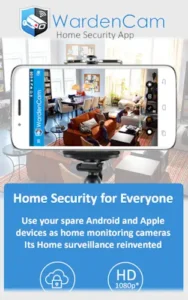

WardenCam app solves a practical problem. You have spare phones sitting in drawers. Instead of collecting dust, they can monitor your home, watch your pets, or keep an eye on the office. WardenCam makes this possible with a straightforward setup and cloud storage that uses your own Google Drive or Dropbox account.
-
Rating: 4.3 stars on Google Play (based on over 61,800 reviews)
-
Downloads: 10 million+
-
Size: Approximately 68 MB
-
Age Range: Rated 17+
-
Similar Tool: Check out AlfredCamera
What Is WardenCam?
WardenCam is a DIY home security app that repurposes your old phones and tablets into live security cameras. You install the app on two devices. One becomes the Camera, capturing video. The other becomes the Viewer, letting you watch the feed remotely.
The app works across Android and iOS devices. It includes live streaming, motion detection, cloud recording, and two-way audio. The cloud storage uses your own Google Drive or Dropbox account, so you control your footage without paying for proprietary cloud services.
How WardenCam Works: The Setup Process
Installing and Pairing Devices
Download WardenCam on both devices from the Google Play Store or Apple App Store. Choose Camera role for the device that will record video. Choose Viewer role for the device you will use to watch the feed.
Pairing uses Google sign-in for secure encrypted access. This eliminates complicated network configuration. Once signed in, the devices connect automatically. Start monitoring immediately.
Camera Placement Tips
Position the Camera device with a clear view of what you want to monitor. Keep it steady on a flat surface or mount it securely. Plug it into a constant power source so it does not run out of battery.
Ensure the device connects to a stable Wi-Fi network. Wi-Fi is required for streaming and cloud uploads. Lighting matters too. Position the camera to avoid direct sunlight or backlighting that washes out the image.
The Viewer Experience
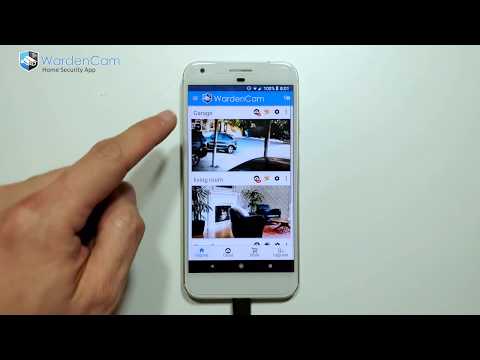
Open the Viewer app to see your live feed. You can watch from anywhere with internet access. The app supports multiple camera views, so you can switch between devices if you have several set up. The interface is functional and straightforward. Tap any camera tile to expand the feed.
WardenCam Key Features Worth Knowing
Live Monitoring and Motion Alerts
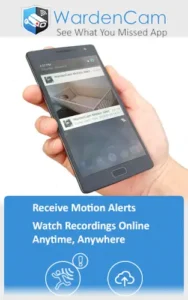
Watch real time video from any connected device. Motion detection sends push notifications and email alerts when something moves in the camera’s view. Sensitivity settings let you adjust how easily motion triggers alerts. This helps reduce false notifications from pets or moving shadows.
Cloud Storage Integration
WardenCam stores motion-triggered clips directly to your Google Drive or Dropbox account. No proprietary cloud fees. You control your footage and storage limits. The free cloud storage options are generous enough for basic monitoring needs.
Two Way Audio
Speak through the Camera device and listen to audio from its microphone. This feature deters intruders, calms anxious pets, or lets you communicate with family members at home. The audio is clear enough for basic conversations.
Night Vision and Low Light Enhancement
Software based low light enhancement improves visibility in dark conditions. The app uses digital processing rather than infrared hardware. Night mode helps you see what is happening even when the lights are off.
Motion Schedule and Controls
Set active monitoring hours to limit alerts during certain times. Turn off notifications during daytime home activity. Enable them only when you are away or asleep. This prevents alert fatigue from routine movement.
Who Is WardenCam For?
Homeowners and Renters
WardenCam offers affordable home security. Monitor entry points, watch for package deliveries, and check on your home while on vacation. The app is a low-cost alternative to dedicated security systems.
Pet Owners
Watch your pets while at work. Use two way audio to calm anxious animals. Motion alerts notify you when your pet is active. Recording lets you review behavior patterns.
Parents and Caregivers
Baby monitoring is a common use case. The app works as a nanny cam alternative. Check on elderly relatives who live alone. The system provides peace of mind while you are away.
Small Business Owners
Monitor your office or shop remotely. Check employee safety and activity. Review after-hours footage for security incidents. The system helps protect your business without expensive surveillance equipment.
What We Like on WardenCam and What Could Be Better
Strengths
Free to use with basic features. No subscription required for live viewing, motion detection, and alerts.
Repurposes old devices. Phones that would otherwise sit unused become valuable security tools.
Google Drive and Dropbox storage. No proprietary cloud fees. You control your footage.
No monthly cloud fees. Unlike many competitors, WardenCam does not charge for storage.
Multiple camera support. Set up several cameras in one system for wider coverage.
Limitations
Ads on free version. The free experience includes advertisements.
Setup complexity for some users. Google sign-in is straightforward, but some users find the process less intuitive than competitors.
Requires stable internet. Both devices need reliable Wi-Fi. The system does not work offline.
Device battery and charging considerations. The Camera device needs constant power. Overheating can be an issue with older phones.
Less polished interface than competitors. The design is functional rather than flashy.
Best Security Camera App for Pet Monitoring at Home
Watching your pets while you are away is one of the most common uses for DIY security cameras. WardenCam handles this job well, and here is why.
Pet monitoring requires specific features. You need live viewing to check on them anytime. Motion alerts to know when they are active. Two way audio to calm anxious animals or call them away from trouble. Cloud recording to review what happened while you were gone.
WardenCam delivers all of these. The live feed shows you what your pet is doing in real time. Motion detection sends alerts when your pet moves around, so you know they are safe or if something is wrong. Two-way audio lets you speak through the camera, which can soothe a nervous dog or call a cat away from furniture.
The Google Drive and Dropbox storage integration means you can review footage later. Check what your pet did during the day. Share clips with family members. Keep a record of behavior patterns.
Here are some practical pet monitoring tips with WardenCam:
Place the camera at pet level. Dogs and cats are closer to the ground than humans. Position the camera where it captures their activity zone. A countertop view misses everything happening on the floor.
Adjust motion sensitivity for pet size. Small pets may not trigger motion detection at default settings. Increase sensitivity to capture their movement. Larger pets may trigger too many alerts, so lower sensitivity to reduce notifications.
Use two-way audio wisely. Some pets respond well to hearing your voice. Others get confused or anxious. Test this feature before relying on it. Speak calmly and use familiar phrases.
Set a motion schedule. If your pet sleeps during certain hours, disable alerts during those times. This reduces notification fatigue and preserves battery life on both devices.
Position the camera to cover food and water bowls. This helps you check that your pet is eating and drinking normally. It also shows if the water bowl needs refilling.
Review daily clips for health signs. Changes in behavior often show up first on camera. Reduced activity, pacing, or unusual positions can indicate health issues. Catching these early matters.
The app works well for pet owners because it does not require expensive hardware. That old phone on your desk becomes a dedicated pet monitor. You can set up multiple cameras to cover different areas of your home.
WardenCam stands out among pet monitoring apps because of its storage model. You own your footage. No proprietary cloud fees. No subscription required for basic pet monitoring. The free tier works for most pet owners.
If you need professional-grade pet monitoring with advanced AI behavior detection, dedicated pet cameras offer more features. But for simple, affordable monitoring, WardenCam delivers solid value.
WardenCam vs Other Security Camera Apps
WardenCam is not the only option for turning old devices into security cameras. Several alternatives exist, each with different strengths depending on what you need to monitor and how you prefer to store footage.
| App / Service | Main similarity |
|---|---|
| AlfredCamera | Turns spare phones into home security cameras with live viewing and motion alerts. Offers a more polished interface and easier setup for beginners. |
| Manything | Remote monitoring and motion alerts from old devices. Focuses on cloud storage with paid plans for extended features. |
| Presence | DIY security camera and home monitoring app. Offers similar functionality with family sharing options. |
| AtHome Camera | Live video monitoring and motion detection. Supports multiple camera setups across devices. |
The key difference between WardenCam and its competitors is storage. WardenCam uses your own Google Drive or Dropbox account, eliminating proprietary cloud fees. AlfredCamera and Manything store footage on their own servers, which often requires a subscription for extended storage. If you already pay for Google Drive or Dropbox, WardenCam saves you money.
If you want a deeper dive into WardenCam alternatives, check out the dedicated comparison article: AlfredCamera: Old Phone Security Camera App.
Getting Better Results With WardenCam
Device Setup Tips
Choose a device with consistent charging capability. Older phones with degraded batteries may overheat or shut down during extended monitoring. Plug the Camera device into a wall charger and position it on a stable surface.
Placement determines everything. Position the camera at eye level for the best viewing angle. Avoid pointing it at windows or direct light sources that create glare. Ensure the lens is clean for clear footage.
Wi-Fi connection quality affects streaming reliability. Place the Camera device within range of your router. Weak signals cause buffering and missed motion events. Consider using a Wi-Fi extender if coverage is spotty.
Device overheating is a real concern. Older phones running continuously can get hot. Remove cases that trap heat. Keep the device in a well ventilated area. Some users place a small fan nearby for cooling.
Storage Integration
Link Google Drive or Dropbox early so motion recordings are saved automatically. The app prompts you during setup, but you can also configure it later in settings. Choose the account you want to use for storage.
Check your storage limits regularly. Free accounts have capacity limits. Delete old clips you do not need. Download important footage to your device for offline storage. This keeps your cloud storage available for new events.
Motion clips are saved with timestamps, making it easy to find specific events. You can access footage directly from your cloud storage app without opening WardenCam. This is useful for sharing clips with others.
Reducing False Alerts
Adjust motion sensitivity to filter out small movements. Lower sensitivity for areas with occasional movement. Increase it for spaces where you want to catch every detail. Test different settings to find the sweet spot.
Use the motion schedule to limit alerts during specific times. Turn off notifications during daytime home activity. Enable them only when you are away or asleep. This prevents alert fatigue from routine movement.
Position the camera carefully to avoid high traffic areas that trigger unnecessary alerts. Point it away from windows where passing cars or changing light conditions cause false triggers.
Test the system before leaving home. Walk through the camera’s view to confirm alerts arrive on your Viewer device. Check that recordings save to your cloud storage correctly. This prevents surprises when you actually need the system.
Security Best Practices
Google sign-in provides secure encrypted access between devices. This is more secure than simple QR code pairing because it uses Google’s authentication infrastructure. Your camera feed is protected from unauthorized access.
Regular password updates protect your Google account. Change your password periodically. Use a strong, unique password that is not used for other services. Enable two factor authentication for additional security.
Review connected devices regularly. Check which devices are linked to your WardenCam account. Remove any devices you no longer use. This prevents old devices from accessing your feeds.
The app uses encrypted communication between Camera and Viewer devices. This protects your video feed from interception. You can also enable app lock for an additional layer of protection if other people have access to your Viewer device.
Is WardenCam Free? Pricing & Plans Explained
The short answer: yes, WardenCam has a free version. But understanding what you get and what costs money helps you decide if the app fits your needs.
The Free Tier
WardenCam offers a free version with core features. You can:
-
Set up one Camera device and one Viewer device
-
Watch live streaming from anywhere
-
Receive motion detection push notifications
-
Receive email alerts for motion events
-
Record motion triggered clips
-
Store clips in Google Drive or Dropbox
-
Use two-way audio communication
-
Adjust motion sensitivity settings
-
Set motion schedules
This free version works well for basic monitoring. Pet owners, parents checking on babies, and homeowners wanting simple security will find the free tier sufficient. The app does not limit the number of clips stored, only your cloud storage capacity.
What You Get for Free (In Practical Terms)
The free version gives you a functional security camera system. You can monitor one camera feed at a time. Motion clips save to your personal cloud accounts. Alerts reach your phone instantly. Setup takes minutes.
For many users, this is enough. The free tier does not water down the core functionality. You are not pushed into a paid plan for basic features.
The Cost of Upgrading
WardenCam offers paid plans that remove ads and add features:
Remove Ads – One-time payment to remove advertisements from the app. This does not add new features. It simply improves the user experience.
Pro Features – Unlocks additional capabilities:
-
Higher resolution video streaming
-
Longer cloud clip storage
-
Faster motion detection response
-
Multiple camera support
-
Priority processing
Why the Free Version Works
WardenCam’s business model differs from competitors. The free tier provides real value without constant pressure to upgrade. You get live monitoring, motion alerts, cloud recording, and two-way audio without paying anything.
The free version does have ads. This is how WardenCam generates revenue from free users. The ads appear in the Viewer app. Some users find this acceptable. Others prefer to pay for an ad-free experience.
When to Consider Upgrading
Upgrading makes sense in these situations:
You need multiple cameras. The free version supports a limited number of cameras. Upgrading allows more extensive coverage.
You want higher video quality. Free version streams at standard definition. Upgrading gives you HD footage with better detail.
You dislike ads. The ad-free upgrade improves the experience without adding features.
You record frequently. Free version storage depends on your cloud account limits. Upgrading does not increase storage, but it ensures your clips are available when needed.
Comparison with Competitors
AlfredCamera charges a monthly subscription for Premium features. Manything has a free tier with paid plans for extended recording. Presence offers similar paid tiers.
WardenCam’s pricing structure is simpler. Pay once to remove ads. Pay for Pro features if you need them. The free tier stands out as one of the most generous in this category.
The Verdict on Pricing
WardenCam is genuinely free for basic use. You can monitor your home, pets, or office without spending money. The free version includes the features most users need. Paid upgrades are optional and reasonably priced.
For pet owners, parents, and homeowners wanting simple security, the free version works well. For users needing multiple cameras, HD quality, or advanced features, the paid upgrades are worth considering.
Conclusion
WardenCam is a practical home security solution that turns old phones into monitoring cameras with cloud storage you control. It works for homeowners, pet owners, parents, and small business owners who want affordable surveillance without paying for proprietary cloud services.
What it does best: repurposing old devices, Google Drive and Dropbox storage integration, and no monthly cloud fees. The app has 10 million downloads and a 4.3 star rating from over 61,800 reviews, reflecting its popularity and reliability. The storage model sets it apart from competitors who charge monthly fees for cloud access.
What it does not do: professional-grade security, offline recording, or a polished interface. Free tier ads and setup complexity may push some users toward competitors. The interface is functional rather than flashy, which some users find less appealing than alternatives.
Final recommendation: WardenCam is worth downloading if you have spare phones and need basic home monitoring with cloud storage you control. The free version provides enough functionality for most casual users. The Google Drive and Dropbox integration makes it a cost-effective choice for users who already have these accounts. Start with a single camera, test the setup, and expand as needed. For a more polished experience, compare with AlfredCamera or other alternatives.
FAQ
Where does WardenCam store my recorded footage?
WardenCam stores motion triggered clips directly to your own Google Drive or Dropbox account. You control your footage and storage limits. No proprietary cloud fees. This is a key difference from competitors who charge monthly fees for cloud access. Your recordings remain accessible through your cloud storage apps even if you uninstall WardenCam.
What is the WardenCam download process like?
The WardenCam download is available on the Official Google Play Store for Android devices and the Apple App Store for iOS devices. Search for WardenCam, tap install, and the app downloads within minutes. The app is free to download and install. After installation, sign in with your Google account and choose Camera or Viewer role. The download size is approximately 68 MB, varying by device.
Can I watch my camera feed from anywhere?
Yes. You can access your camera feed from any location with internet access. The Viewer app works on Android, iOS, and web browsers. The live feed updates in real time. Motion alerts reach your device regardless of your location. This makes WardenCam useful for monitoring your home while at work, on vacation, or anywhere else with an internet connection.
Who do I contact if I need support or have questions?
For technical support, account issues, or bug reports, contact the WardenCam team directly at support[at]wardencam360.com. The support team handles setup questions, troubleshooting, and feature requests. For general inquiries, visit the official website at wardencam360.com. Additional resources include the help center, setup guides, and community forums. The developer is responsive to user feedback.