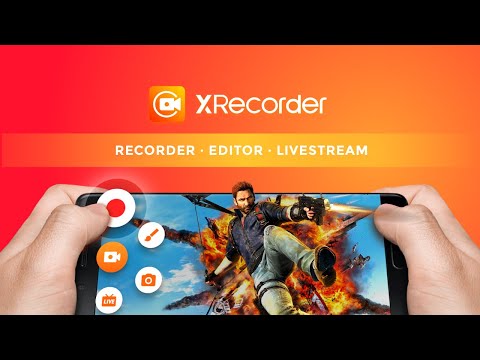
XRecorder is not like most screen recording apps on Android that either leave watermarks, limit recording time, or hide basic features behind paywalls.
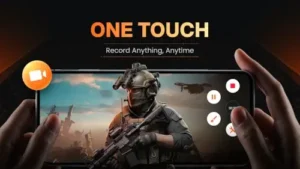

XRecorder takes a different approach. Tap a floating button, record what is on your screen, and get a clean video with no logo stamped on it. No root access needed. No complicated setup. The question is whether simple and free means reliable, or whether you get what you pay for.
What is XRecorder exactly?
You are looking at a mobile screen recorder for Android from InShot Inc., the same developer behind the popular InShot video editor.
XRecorder focuses on smooth HD recording, simple controls, internal audio capture, and built in editing tools. The app lets you record your phone screen with just a tap on a floating control. It is positioned as an easy way to capture gameplay, tutorials, video calls, and other on screen activity without needing root access or complicated setup. The core appeal is convenience instead of acting as a full professional editing suite.
On Google Play, XRecorder holds a 4.8 star rating from more than 7 million reviews. The app size comes in at roughly 45 MB, making it lightweight and quick to download. The age rating is Everyone. The app is free with ads and optional in app purchases.
A mobile screen recorder for Android with simple controls
The category matters here. XRecorder is not a game. It is not a social media platform. It is a utility app that does one thing well. Record your screen. The controls are minimal. A floating button sits over your other apps. Tap it to start recording. Tap it again to stop. That simplicity is the selling point. No menus to dig through. No confusing settings to adjust before every recording.
Who this app was built for
Not every Android user needs a screen recorder. Here is who will find XRecorder useful.
Mobile gamers who want to record gameplay clips
Do you play mobile games and want to save your best moments? Recording your screen with XRecorder captures everything exactly as you see it. No watermarks. No time limits. The floating button stays on top of your game so you can start and stop without leaving the app.
Tutorial and how to content creators
Making tutorial videos for YouTube or social media? XRecorder captures your screen while you explain steps. You can record internal audio or add your voice through the microphone. The built in editor lets you trim mistakes without opening another app.
Casual users who need quick screen captures
Sometimes you need to record a video call. Or show a family member how to fix a phone setting. Or save a funny moment from a streaming app. XRecorder handles these quick, everyday recording needs without fuss.
Anyone who wants no watermark recordings
Many free screen recorders stamp a logo on your video. XRecorder does not. Your recordings come out clean. No branding. No text at the bottom. That matters if you plan to share the video publicly or repurpose it for content.
XRecorder main features you will use
The app offers several useful tools. Here are the ones that matter most.
HD screen recording for smooth video capture
XRecorder supports high definition recording. You can choose resolutions up to 1080p or higher depending on your phone. The frame rate is adjustable. Higher frame rates capture smoother motion, which matters for fast paced games. Lower frame rates save storage space for longer recordings.
Floating button for quick start and stop control
The floating button is the main control. It stays on top of any app. Tap once to start recording. Tap again to stop. The button is movable. Drag it to any corner of the screen so it does not block important content.
No watermark on recorded videos
This is a key feature. Many free recorders add a logo. XRecorder does not. Your videos are clean. Professional looking. No extra text or graphics stamped on the output.
Internal audio recording on supported Android versions
You can record internal audio on Android 10 and above. That means capturing game sounds, music app audio, or video call voices directly from the system. No microphone needed. Just enable internal audio in settings.
Facecam support for reaction recording
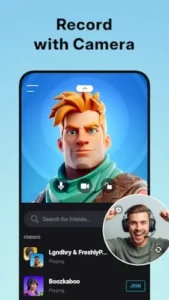
Want to record your face while playing a game or making a tutorial? XRecorder supports facecam. A small window shows your camera feed overlaid on the screen recording. Adjust the size and position. Perfect for reaction videos or commentary.
Built in video editor with trim, merge, speed, and music
After recording, you can edit without leaving the app. Trim the beginning or end. Merge multiple clips. Speed up or slow down footage. Add background music. The editor is basic but covers the most common needs.
Brush tools for drawing on screen during recording
Need to highlight something on your screen while recording? Use the brush tool. Draw circles, arrows, or freehand lines. The drawing appears in the recorded video. Good for tutorials where you need to point at specific buttons.
Screenshot capture
XRecorder also takes screenshots. Tap the floating button and choose screenshot mode. Capture exactly what is on your screen. No need for a separate screenshot app.
Adjustable resolution, frame rate, and bit rate
Advanced users can tweak recording settings. Lower resolution saves space. Higher resolution looks better. Frame rate affects smoothness. Bit rate affects quality and file size. Find the balance that works for your phone and storage.
No recording time limit and no root required
Some screen recorders limit recording length unless you pay. XRecorder does not. Record as long as your storage permits. No root access needed. Works on any Android phone running a compatible version.
Pause and resume control with countdown timer
Need to pause a recording? Tap pause. Resume when ready. A countdown timer before recording starts gives you time to switch to the app you want to capture.
Live streaming support through YouTube and RTMP
XRecorder supports live streaming. Stream your screen directly to YouTube or any RTMP compatible platform. Useful for gamers who want to broadcast live without third party software.
XRecorder interface and design
Clean utility style interface
The app looks like a tool, not a toy. Menus are straightforward. Settings are labeled clearly. No flashy animations. No unnecessary graphics.
Floating ball or floating window as main control
The floating control is a small circle that stays on top of other apps. It is unobtrusive. You can make it semi transparent. Drag it out of the way when not recording. Tap it when you need it.
Practical and clutter free design
XRecorder does not overwhelm you with options. The main screen shows the floating button control. Additional settings are in a menu. You do not have to configure anything to start recording. Default settings work for most users.
Where the design works well
Simplicity is the strength. Open the app. Grant permissions. Tap the floating button. Record. Stop. Trim. Share. The workflow is short and logical.
Where ads may interrupt the experience
XRecorder is free with ads. After stopping a recording, an ad may play. Before exporting a video, an ad may appear. The ads are present but usually not intrusive. Users who find ads annoying can pay for an ad free version.
What users say about the XRecorder app
The parts people enjoy
Positive reviews often mention the no watermark feature. The clean output is praised. Recording quality is called good. The floating button is described as convenient. Built in editing gets positive notes for saving time.
One user wrote: “No watermark. Easy to use. Best screen recorder I have tried on Android.”
The parts people complain about
No free app escapes criticism. Here is what comes up most often.
Occasional recording failures
Some users report that recordings stop unexpectedly. The app may crash mid recording. The saved video may be corrupted. These issues appear in reviews but affect a minority of users.
Dropped video quality on some devices
On older or lower end phones, recorded video quality may drop. Frame skipping. Pixelation. Audio sync issues. Higher settings may cause performance problems. Lowering resolution and frame rate helps.
App stops unexpectedly for some users
Crashes happen. Some users report the app closing during long recordings. Others say the floating button disappears after a crash. Clearing cache or reinstalling often fixes these issues.
Ads present but usually manageable
Ads appear after recordings and before exports. Most users find them acceptable. Some users find them annoying. The paid version removes ads.
How the XRecorder recording workflow works
Grant permissions on first launch
When you open XRecorder for the first time, it asks for permissions. Overlay permission to show the floating button. Storage permission to save recordings. Microphone permission if you want voice recording. Grant them all for full functionality.
Choose recording settings (resolution, frame rate, bit rate)
Open settings. Choose your preferred resolution. 720p saves space. 1080p looks sharper. Choose frame rate. 30 fps is standard. 60 fps is smoother for games. Choose bit rate. Higher bit rate means better quality and larger files.
Tap floating button to start recording
The floating button stays on your screen. Tap it. A countdown timer appears. 3. 2. 1. Recording starts. The button changes to show recording is active.
Record screen activity
Use your phone normally. Open games. Navigate menus. Make video calls. XRecorder captures everything on screen. The floating button stays visible but can be dragged out of the way.
Tap floating button to stop
When finished, tap the floating button again. Recording stops. A preview screen shows your video.
Trim or edit in built in editor
From the preview screen, tap edit. Trim the beginning or end. Cut out mistakes. Merge clips. Add music. Speed up or slow down. The editor handles basic tasks.
Export or share the final video
Save the video to your gallery. Or share directly to YouTube, TikTok, Instagram, or other apps. XRecorder exports in common formats that work on most platforms.
Looking for another screen recording app with similar features? Check out AZ Screen Recorder, a popular alternative with no watermark, floating controls, and internal audio support.

XRecorder Tips that actually help
You can start recording with XRecorder in under a minute. Getting the best quality and avoiding common issues takes a little setup. These tips separate users who get reliable recordings from users who wonder why their videos look choppy or have no sound.
Turn on floating button for quick start and stop
The floating button is the most convenient way to control XRecorder. But some users disable it and use the notification panel instead.
Here is a question. Why make recording harder than it needs to be? Keep the floating button enabled. It stays on top of games, apps, and videos. One tap to start. One tap to stop. No swiping down notifications. No navigating away from what you are recording. If the button blocks content, drag it to a corner. The floating button is the feature that makes XRecorder fast.
Choose resolution and frame rate that match your phone
Higher settings look better but require more processing power. A budget phone struggling to record at 1080p 60fps will drop frames. The video will look choppy.
Match your settings to your phone’s capability. For most users, 720p at 30fps is the sweet spot. It looks good on phones and social media. It does not overwhelm older devices. For gaming on a flagship phone, 1080p at 60fps works well. Test a short recording first. If the video stutters, lower your settings.
Use internal audio for cleaner sound on supported Android versions
XRecorder tips from experienced users all say the same thing. Internal audio sounds much better than microphone audio.
Internal audio captures exactly what your phone plays. Game sounds. Music. Video call voices. No background noise. No echo. No room ambience. The catch is that internal audio only works on Android 10 and above. Check your Android version in settings. If you have Android 10 or newer, enable internal audio in XRecorder settings. Your recordings will sound professional.
Trim unnecessary parts before sharing
XRecorder app includes a built in editor. Use it.
Long recordings often have dead time at the beginning and end. The countdown timer. The moment after you stop recording. Trim those parts out. The editor is simple. Drag the handles to select the part you want to keep. Delete everything else. Shorter videos are easier to share. They load faster. They hold viewer attention better. Trim before you export.
Test a short recording first for reliability
Nothing is worse than recording a 30 minute gameplay session only to find the video corrupted.
Test first. Record 30 seconds of any screen activity. Stop. Play back the video. Check for audio sync issues. Check for frame drops. Check for unexpected stops. If the test works, longer recordings will likely work too. If the test fails, adjust settings or restart your phone. Testing takes one minute. Rerecording a lost session takes much longer.
Use facecam only when it adds value
XRecorder screen recorder includes facecam. A small window shows your camera feed overlaid on the recording.
Facecam is great for reaction videos and tutorials where your face adds context. It is unnecessary for straight gameplay or app demos. Facecam also eats processing power. Recording gameplay plus facecam can cause frame drops on mid range phones. Ask yourself whether your face genuinely adds value. If yes, use facecam. If no, turn it off for better performance.
Enable countdown timer to prepare before recording
The countdown timer gives you three seconds to switch to the app you want to record.
Without the timer, recording starts immediately. You might capture the home screen or the XRecorder settings menu. With the timer, you have time to switch to your game or tutorial app. The timer also gives you a moment to compose yourself if you are recording voice commentary. Enable it in settings. Three seconds makes a difference.
Keep storage space free for HD clips
How to record screen on Android phone without running out of space? Check your storage first.
One minute of 1080p recording uses roughly 30 to 50 MB of storage. A 30 minute gameplay session could use 1 to 1.5 GB. If your phone is near full, recordings may fail mid way. XRecorder does not always warn you before storage runs out. Keep at least 2 GB free if you plan long recordings. Clear old videos after uploading or sharing.
Apps similar to XRecorder
If you like XRecorder, here are five other screen recording apps worth your time. Each offers something similar with a different twist.
AZ Screen Recorder
AZ Screen Recorder is one of the most popular alternatives. No watermark. Floating controls. Internal audio support. The difference is that AZ has a slightly cleaner interface and fewer ads. XRecorder similar apps should start here. Both are excellent. Try both and see which you prefer.
Mobizen Screen Recorder
Mobizen offers facecam, drawing tools, and video editing. Similar feature set to XRecorder. The difference is that Mobizen includes a built in video player and file manager. Good for users who want an all in one recording and management suite.
DU Recorder
DU Recorder is another popular option. No watermark. Live streaming support. Built in editing. The difference is that DU Recorder uses a toolbar instead of a floating button. Some users prefer the toolbar. Others find it less convenient. Personal preference.
Screen Master
Screen Master focuses on screenshots with recording as a secondary feature. The difference is that Screen Master has more annotation tools for marking up screenshots. Good for users who take many screenshots and only occasionally record video.
ADV Screen Recorder
ADV Screen Recorder is lightweight and open source. No ads. No watermark. The difference is that ADV has fewer features than XRecorder. No facecam. No built in editor. But it is completely free with no ads. Good for users who want a simple, private, no frills recorder.
XRecorder Community
XRecorder is a tool, not a social platform. The community exists around what you create with it, not inside the app.
Used by creators, gamers, and tutorial makers
XRecorder shows up in many content creator workflows. YouTubers use it to record mobile gameplay. TikTokers use it to capture screen tutorials. Twitch streamers use it for mobile content. The app is part of the creation process, not the distribution platform.
Content created for YouTube and social media
The most common output from XRecorder is videos uploaded to other platforms. YouTube. TikTok. Instagram. Reddit. Discord. The community shares recordings, not within the app, but across the internet.
Indirect community through shared recordings
When someone watches a tutorial recorded with XRecorder, they are indirectly engaging with the app. When a gamer clips a victory and shares it, they are representing the tool they used. The community is the sum of all the videos created with XRecorder.
No direct in app social features
There is no XRecorder social network. No profile. No followers. No feed. The app does one thing. It records your screen. Where you share that recording is up to you.