

MacroDroid turns your Android phone into a smart assistant that reacts to your environment, schedule and habits without you lifting a finger.
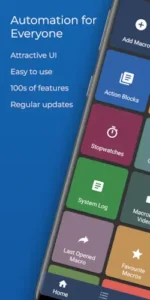

Developed by ArloSoft, MacroDroid is a powerful automation app has earned a 4.3 star rating from over 94,000 reviews and has been downloaded more than 10 million times on Google Play. The app requires approximately 88 MB of storage, is rated for ages 3 and up and uses a simple trigger → actions → constraints model that requires no coding.
What Is MacroDroid?
MacroDroid is a free Android automation app that lets you automate almost anything on your phone using a simple trigger → actions → constraints model, with no coding required. It is designed for both beginners (via templates and a friendly UI) and power users (via variables, scripting and plugin support), making it one of the most popular Android automation tools available.
The core concept is straightforward. A macro is a set of instructions that runs automatically when certain conditions are met. You choose what starts the macro (the trigger), what happens next (the actions) and when it is allowed to run (the constraints). The app handles the rest.
Trigger → Actions → Constraints
The trigger is what starts the macro. Examples include entering a geofence, connecting to car Bluetooth, receiving a notification, shaking the phone or pressing a Quick Settings tile. MacroDroid offers over 120 triggers covering location, sensors, connectivity, device status and manual inputs.
The actions are what the macro does. A sequence of steps can toggle settings, launch apps, send messages, speak text aloud, manipulate files, call plugins and more. With over 200 actions available, you can build automations that cover almost any scenario.
The constraints are when the macro is allowed to run. Additional filters like time of day, day of week, battery level, current app and location determine whether the macro fires. For example, “Only enable office Wi-Fi during working hours.” The trigger fires, constraints are checked, and if all pass, actions run in order.
Templates and Ease of Use
The built-in Template store gives you hundreds of ready made macros shared by the community. Install with one tap, then tweak to fit your needs. This is ideal for users new to automation who want to see what is possible before building their own.
The Template store is visually oriented with categories like driving, battery and notifications, making discovery straightforward . You can install a macro, see how it is built, and customize it to fit your specific needs. This hands-on learning approach is one of the fastest ways to become comfortable with automation.
Free vs Pro Version
The free version is ad-supported and limited to 5 macros. For users with multiple scenarios (work, home, travel, night, etc.), the cap fills up quickly. The Pro upgrade is a one time payment (around $4-5) that removes ads and unlocks unlimited macros. No subscription required. The free tier is generous for testing and the Pro payment is a small one time fee that users appreciate.
MacroDroid Core Features
120+ Triggers
Location triggers (GPS, cell towers, geofences). Device status (battery level, app launch, data usage). Sensors (shake, light, proximity, fold angle). Connectivity (Bluetooth, Wi-Fi, notifications, webhooks). Manual triggers (home screen shortcuts, Quick Settings tiles).
200+ Actions
Connect/disconnect devices, toggle Wi-Fi/Bluetooth. Adjust volume/brightness, speak text aloud. Send SMS/messages, control media playback. Take screenshots, launch apps, run plugins. File operations (copy, move, delete).
80+ Constraints
Limit macros to specific days, times, locations. Battery states, app states, connectivity states. “Only enable office Wi-Fi during working hours.”
Templates and Template Store
Built-in Template store with hundreds of ready made macros. Install with one tap, then tweak to fit your needs. Community shared templates for common scenarios.
Wear OS Companion
Trigger and interact with macros from your smartwatch. Watch face complications for quick access. Phone app required.
Advanced Capabilities
User variables, dictionaries, arrays. IF/THEN/ELSE, AND/OR conditions, loops. Intents, scripting for power users. Tasker/Locale plugin support. AI assistance for existing macros.
Quick Settings and Sidebar Integration
Macros exposed as Quick Settings tiles. Sidebar shortcuts with custom icons/labels. One tap access to frequently used macros.
MacroDroid Graphics and Design
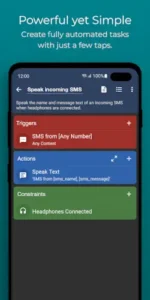
MacroDroid features a clean, utilitarian UI with macro cards that display clear sections for triggers, actions and constraints. Icons and plain English labels make it easier for non technical users to understand what each macro does. The Template browser is visually oriented with categories, making discovery straightforward. Macros can be exposed as Quick Settings tiles and sidebar shortcuts with custom icons and labels, blending into Android’s system UI.
What Users Say About MacroDroid App
What Works
Users consistently praise MacroDroid for being powerful yet approachable, offering “Tasker-level” automation with a much gentler learning curve. Common wins include driving mode automations, battery saving, custom notification profiles, file cleanup and calendar based behaviors. The free tier is generous for testing, and the Pro upgrade is a small one time fee with no subscription, which users appreciate.
Where The App Could Improve
Common criticisms include stability issues with macros “stopping” after weeks, often due to aggressive battery optimization or OEM background restrictions. The free version’s 5 macro cap fills up quickly for users with multiple scenarios. Despite being easier than Tasker, some new users still feel overwhelmed until they lean on templates, the wiki and community guides.
Check out Tasker for more advanced automation options, or explore the full collection of Android apps to find your next productivity tool.
How to Automate Your Android Phone Without Coding
Automating your Android phone without coding is easier than you might think. Apps like MacroDroid use a simple trigger → actions → constraints model that anyone can understand, regardless of technical background .
The three step process is straightforward. First, you pick a trigger, something that starts the automation. MacroDroid offers over 120 triggers, including location (GPS, geofences), device status (battery level, app launches), sensors (shake, light, proximity) and connectivity (Bluetooth, Wi-Fi, notifications). Second, you choose your actions, what happens next. With over 200 actions available, you can toggle settings, launch apps, send messages, control media and much more . Third, you add constraints to fine tune when the macro runs. These filters limit automations to specific days, times, locations or device states .
The Template store gives you a head start. Hundreds of ready made macros shared by the community are available for one tap installation. You can install one, see how it is built and tweak it to fit your needs. This hands-on learning approach is the fastest way to become comfortable with automation.
Practical examples you can set up in minutes. You can automate your phone to auto reject calls when you are in a meeting (synced with your calendar). You can have it read incoming messages aloud while driving and reply hands free. You can set it to switch on Bluetooth and start your music the moment you enter your car. You can even automate file copy, move and delete tasks to keep your storage tidy. The possibilities are virtually endless, and none of it requires writing a single line of code.
The free version of MacroDroid is ad-supported and lets you create up to 5 macros. This is generous for testing and learning. Upgrade to Pro with a small one time payment to remove ads and unlock unlimited macros.
MacroDroid Tips
Getting started with MacroDroid is straightforward, but a few smart choices early on will save you time and help you build automations that actually work. Here is what to focus on first.
Beginner Advice
Start with built-in templates for common scenarios. The Template store is your best resource. Browse categories like driving, battery, notifications and file cleanup. Install a template with one tap, see how it is built and tweak it to fit your needs. This hands-on learning approach is the fastest way to become comfortable with automation.
Use constraints to avoid macro conflicts. Constraints prevent macros from firing at the wrong time. Add time, location or app constraints so your automations do not interfere with each other. For example, “only enable loud notification profile when not in a calendar meeting.” Constraints make your automations smarter and less intrusive.
Disable battery optimization for MacroDroid. On aggressive OEMs like Samsung and Xiaomi, battery optimization kills background apps. Go to your system settings, find MacroDroid and disable battery optimization. This prevents macros from stopping after a few days or weeks. Many users report macros “stopping” due to battery restrictions and fixing this usually involves tweaking system settings rather than reinstalling the app.
Follow dontkillmyapp.com guides for OEM settings. Different phone manufacturers handle background apps differently. The website dontkillmyapp.com provides specific instructions for each brand. Follow the guide for your device to keep MacroDroid running reliably.
Turn frequently used macros into Quick Settings tiles. Quick Settings tiles give you one tap access to your most used macros. Add a tile for “Work Mode,” “Night Mode” or “Focus Timer.” Tapping the tile runs the macro instantly without opening the app. This makes automation feel like a native system feature.
Test one macro at a time before adding more. Do not build five macros simultaneously. Start with one simple automation, test it thoroughly, confirm it works then add the next. Testing one at a time makes debugging easier. If something does not work, you know exactly which macro is causing the issue.
Read the macro description to understand what it does. Templates come with descriptions explaining what they do. Read them. Understanding the trigger, actions and constraints helps you customize effectively. A well documented macro is easier to modify than one you have to reverse engineer.
Use plain-English labels for your macros. Name your macros descriptively. “Toggle Wi-Fi at Work” is clearer than “Macro 1.” When you have multiple macros, clear labels help you find what you need quickly. Plain English labels also make troubleshooting easier.
Start with simple automations (toggle Wi-Fi, launch app). Do not start with complex, multi action macros. Begin with a single action like toggling Wi-Fi when you connect to a specific network. Once that works, add more actions gradually. Building complexity incrementally reduces frustration.
Explore the Template store for inspiration. The Template store is not just for installing macros. Browse it for ideas. See what others have built. You might discover automations you did not know were possible. The community templates are a great source of inspiration.
Advanced Strategy
Use variables for complex logic and data storage. Variables let you store and manipulate data inside macros. Use them for counters, timers or conditional logic. For example, a variable can track how many times a macro has run today. Variables unlock more sophisticated automations.
Add IF/THEN/ELSE conditions for branching logic. Not all automations are linear. Use IF/THEN/ELSE to create branches. If the battery is below 20% do one thing. If it is above 80%, do something else. Branching logic makes your automations context aware and more useful.
Combine macros with Tasker plugins for extended functionality. MacroDroid supports Tasker plugins. If you need functionality not available in MacroDroid, find a Tasker plugin that provides it. This extends MacroDroid’s capabilities without switching apps.
Set up file management automations (Downloads folder). Watch your Downloads folder and auto move files by extension, rename with timestamps or delete old files after a set number of days. File management automations keep your storage organized without manual effort.
Create driving automations with Bluetooth triggers. When you connect to your car’s Bluetooth, automatically enable Do Not Disturb, launch your music app, read messages aloud and disable Wi-Fi. This makes driving safer and more convenient.
Use webhooks for smart home integration. Webhooks let MacroDroid communicate with smart home systems. Tap a Quick Settings tile to turn off lights, adjust the thermostat or trigger a routine. The possibilities are extensive.
Experiment with loops for repeated actions. Loops let you repeat actions a set number of times. Use them for tasks that need repetition, like sending multiple notifications or checking a condition repeatedly. Loops add another layer of automation power.
Use AI assistance for existing macro improvements. The in-app AI help feature can suggest improvements or explain complex setups. Use it when you are stuck or want to optimize an existing macro. The AI assistance is a recent addition that enhances the user experience.
Create seasonal macros for different times of year. Seasonal macros adapt to changing routines. A summer macro might adjust your thermostat schedule. A winter macro might change your morning routine. Automating seasonal changes saves you from remembering to adjust settings manually.
Share your macros with the community. The MacroDroid community is active on the official forum and Reddit. Share your macros, learn from others and discover new use cases. Collaboration makes the ecosystem better for everyone.
Best MacroDroid Macros for Daily Life
Here are some of the most practical automations you can set up to save time and reduce friction in your daily routine.
Smart power saving that understands context. Instead of a blunt all or nothing battery saver, set up a macro that only kicks in when you actually need it. Create a trigger for battery level below 20%, then add a constraint for your home Wi-Fi network set to “Disconnected”. This way, your phone only starts rationing itself when you are away from a charger. Add actions to turn on power saving and turn off Bluetooth. Your phone behaves sensibly, when you are home with a charger nearby, it leaves everything alone, but if you are outside and your battery crosses that line, the routine kicks in immediately .
Auto mute at work. This macro adjusts your notification volume based on how close you are to your desk. Set your trigger to a Bluetooth Event when your device connects to your work desktop or speaker. Then add a Volume Change action to drop the ringer and notification sliders to 0% . The second you step away, the connection drops and your volume comes back on, so you will not miss a call because you forgot to unmute. Build a second macro mirroring the first, but using the Bluetooth Device Disconnected event as the trigger to slide the ringer and notifications back up to around 70%.
Driving mode that handles your app stack. This macro turns your phone into a hands free driving setup the moment you get in the car. As soon as your phone connects to your car stereo over Bluetooth, it automatically opens your music app, starts playing, maxes out the media volume and pulls up your navigation app. When you shut the engine off and disconnect, it pauses the music and goes back to your home screen, ready for normal use .
Context aware macros that understand your day. MacroDroid can read the situation instead of just the clock. For example, you can set up macros that only run when you are in a specific location, connected to a particular device or at a certain time of day. This makes your phone feel genuinely smart because it adapts to what you are doing rather than just following a fixed schedule.
MacroDroid Similar Apps
MacroDroid sits between ultra-simple tools (IFTTT, Google routines) and ultra powerful ones (Tasker). Here is how it compares.
| App | Best for | Learning curve | Free tier | Paid model |
|---|---|---|---|---|
| MacroDroid | Beginners to intermediate users who want powerful but approachable automation | Gentle | 5 macros, ads | ~$4-5 one time Pro |
| Tasker | Power users who want maximum control and scripting | Steep | 7 day trial | ~$3-4 one time |
| Automate (LlamaLab) | Visual thinkers who like flowcharts | Moderate | Limited blocks | One time premium |
| IFTTT / Make | Web/service automation (cloud workflows) | Easy | Limited applets | Subscription for advanced |
MacroDroid is the easiest “serious” automation app on Android for most users. It offers Tasker level automation with a much gentler learning curve. For users who need more control, Tasker remains the gold standard. For users who want visual workflow builders, Automate is a good middle ground.
Who Is MacroDroid For?
MacroDroid is for beginners who want powerful automation without coding. If you have never used an automation app before, MacroDroid is the best place to start. The template store gives you ready made examples and the plain English interface makes understanding macros easy.
Power users who need advanced logic and scripting will find MacroDroid’s variables, IF/THEN/ELSE conditions, and Tasker plugin support sufficient for complex automations. While Tasker offers more depth, MacroDroid covers most use cases with less complexity.
Users who want a one time payment instead of a subscription will appreciate MacroDroid’s pricing model. Pay once, get unlimited macros and remove ads. No recurring fees. The free tier is generous for testing, and the Pro upgrade is affordable.
People who value templates and community support will find MacroDroid’s Template store and active forum valuable. The community shares macros, answers questions and provides inspiration. This collective knowledge makes learning automation faster and easier.
If you want a powerful, approachable automation app for Android, MacroDroid is worth trying.
Conclusion
MacroDroid delivers a powerful Android automation experience that stands out for its balance of power and usability. The trigger actions constraints model is intuitive and accessible. The Template store gives beginners a head start. The advanced features (variables, branching, plugins) serve power users. The one time Pro payment is affordable and transparent.
The app has limitations. The free version’s 5 macro cap fills up quickly. Battery optimization on some devices can kill background macros. The learning curve, while gentler than Tasker, still takes time. Some users report macros “stopping” after weeks, requiring system tweaks to fix.
For users willing to invest the time to learn the system and configure their device properly, MacroDroid offers a compelling automation solution. It does not try to be the most powerful app (that is Tasker) or the simplest (that is IFTTT). It strikes the best balance between power and usability for most Android users.
If you want to automate your Android phone without coding, MacroDroid is worth downloading.
Your phone can do more. MacroDroid makes it happen.
MacroDroid FAQ
How do I download MacroDroid and is it really free?
MacroDroid is completely free to download and use. You can Download MacroDroid from the Official Google Play Store. The app requires approximately 77 MB of storage space and is rated for ages 3 and up. While the free version is ad-supported and limited to 5 macros, it is generous enough for testing and learning. The Pro upgrade is a one time payment (around $4-5) that removes ads and unlocks unlimited macros with no subscription required.
Where can I find guides, tips, and community resources?
The official MacroDroid forum is the best place for questions, macro sharing, feature requests and troubleshooting. The built-in Template store effectively acts as a community macro repository where users share macros as text files for others to import. The MacroDroid wiki provides detailed guides and documentation. The MacroDroid Reddit community (r/macrodroid) is also active with user discussions, tips, and support.
What if I encounter a problem or need support?
For technical issues, bug reports, or general questions, the official MacroDroid forum is the primary support channel. The developer (ArloSoft) and community are active on the forum, providing troubleshooting and tips. You can also check the MacroDroid wiki for detailed guides and documentation. For email support: support[at]macrodroid.com, the developer can be contacted through the forum or the app’s settings menu.
What is the difference between MacroDroid Free and Pro?
The free version is ad-supported and limited to 5 macros at a time. This is generous for testing, but users with multiple scenarios (work, home, travel, night, etc.) will quickly hit the limit. The Pro upgrade is a one time payment (around $4-5, varies by region) that removes all ads and unlocks unlimited macros. There is no subscription, making it a great value for power users. The Template store and all core features are available in both versions.
Can I use MacroDroid on Wear OS and with other automation apps?
Yes. MacroDroid has a Wear OS companion app that lets you trigger and interact with macros from your smartwatch. You can also add watch face complications for quick access. MacroDroid supports Tasker and Locale plugins, allowing you to extend functionality using existing plugin ecosystems. This makes it a flexible automation tool that can integrate with other apps and services.