

NFC Tools turns your phone into a powerful NFC reader, writer, and automation tool that lets you read, write, program, and manage NFC tags with just a tap.

Developed by wakdev, NFC Tools versatile utility app has earned a 4.6 star rating from 58,900 ratings on the App Store and over 10 million downloads across platforms. The app is available on Android, iOS, Desktop (Mac with NFC reader), and Flipper Zero, with a file size optimized for mobile devices and rated for ages 4 and up.
What Is NFC Tools?
NFC Tools is a versatile utility app that lets you read, write, and program tasks on NFC tags and other compatible NFC chips, with a simple and intuitive interface for recording standard information (text, URLs, contacts, social profiles, locations) and automating device actions (Bluetooth toggle, alarm setting, volume control, WiFi sharing) that were once boringly repetitive. The app is available on Android, iOS, Desktop, and Flipper Zero, making it one of the most comprehensive NFC tools on the market.
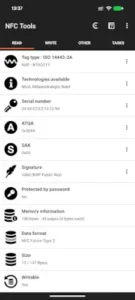
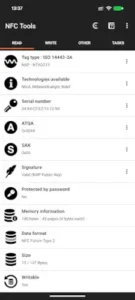
The core functionality involves passing your device near an NFC chip to interact with its content. The “Read” section displays detailed tag information (maker, type, norm, technology, serial number, size, writability, NDEF data). The “Write” section allows you to record standardized data (text, link, email, phone, address, geolocation, WiFi, Bluetooth, social profiles, Bitcoin, etc.) compatible with any NFC device. The app goes further to program tasks on NFC tags for automation via the companion NFC Tasks app.
Read, Write, and Program NFC Tags
When you pass your device near an NFC tag, NFC Tools reads everything about it. You see the manufacturer, tag type, NFC standard, technology, serial number, memory size, and whether the tag is writable. The app also displays all NDEF data on the tag in a scrollable list with per-record detail views.
Writing is equally straightforward. You can write text, URLs, contacts (vCards), phone numbers, SMS messages, email addresses, WiFi configurations, Bluetooth pairings, geolocation coordinates, social profiles, Bitcoin addresses, Facetime contacts, and search engine shortcuts. The app also supports custom data records for proprietary applications. Everything is standardized NDEF content, so it works with any NFC device.
For automation, the companion NFC Tasks app (Android only) lets you program tags to toggle Bluetooth, set alarms, control volume, share WiFi and more. Tasks are categorized for easy selection, making automation accessible even for beginners.
Wide Chip Support and Advanced Features
NFC Tools supports a wide array of NFC chip types including NTAG (203, 210, 212, 213, 215, 216, 413 DNA, 424 DNA), Ultralight, Mifare Classic (1K, 4K), ICODE (SLI, SLIX, SLIX2, SLIX-S, SLIX-L, ICODE 3), DESFire (EV1, EV2, EV3 NDEF), FeliCa, and ISO 14443-3A generic tags. This broad compatibility ensures you can work with almost any NFC hardware.
Advanced users will appreciate the memory dump functionality with ASCII view, password protection for NTAG21x chips, tag locking for permanent read only protection, and NFC commands for sending raw APDU commands. The app also supports dynamic variables like {TAG-ID}, {TAG-NAME}, {TAG-TYPE}, {UUID}, and {DATETIME} for building adaptive tags with personalized experiences.
Cross Platform and Free with Pro Upgrade
NFC Tools is available on Android, iOS, Desktop (Mac with NFC reader like ACR122U), and Flipper Zero (open source GitHub project). The free version includes core read/write functionality, detailed diagnostics and basic automation. The optional Pro upgrade adds multiple profiles, import NFC tags, shortcut tasks without tags, and other advanced features for power users.
Can I Write NFC Tags With My Phone?
Yes, you absolutely can write NFC tags with your phone, provided it has NFC hardware. Most modern Android devices come with NFC built-in, and you can use apps like NFC Tools to write data to blank tags.
The process is straightforward. You need three things: an NFC enabled phone, blank writable NFC tags (like NTAG213 or NTAG216) and an NFC writing app . NFC Tools is one of the most popular and well-regarded options for this purpose .
The writing process takes just a few steps. First, enable NFC in your phone’s settings. Then open the NFC Tools app, select the “Write” section, choose the type of data you want to write (URL, text, contact, WiFi, etc.), enter the information, and hold your phone near the tag when prompted.
What can you write? You can write URLs, plain text, contact information (vCards), WiFi network credentials, phone numbers, email addresses, geolocation data, social media profiles and even automation tasks via the companion NFC Tasks app. The app supports standardized NDEF records, which means anything you write will work with any other NFC compatible device.
Not all phones support NFC writing. If your phone does not have NFC hardware or you are unsure, check your device settings for an NFC option. Older phones or budget models may lack this feature.
NFC Tools Core Features
Detailed Tag Diagnostics
Display manufacturer, tag type, NFC standard, technology. Serial number, memory size, writability. NDEF data display, UID, SAK, ATQA. Version, free memory, block count.
NDEF Record Reading and Writing
Text records for plain text. URL records for websites and social profiles. Contact records (vCards), Phone/SMS, Email. WiFi, Bluetooth, Geolocation records. Social profiles, Bitcoin, Facetime. Search engine shortcuts, custom data.
Automation Tasks via NFC Tasks App
Bluetooth toggle (on/off/change). Alarm setting on device. Volume control. WiFi sharing. Task categories for easy selection. Android-only companion app.
Tag Management (Format, Erase, Clone, Lock)
Format tag (write 0x00 on memory). Erase tag (clear NDEF content). Copy and clone tags. Lock tag (permanent read-only, NTAG21x). Password protection (NTAG21x).
Memory Dumps and ASCII View
Full memory dump of tag. ASCII view for visualization. Memory details (version, free memory, block count). Sectors/pages analysis.
Dynamic Variables in Records
{TAG-ID} insert tag ID dynamically. {TAG-NAME} insert tag name dynamically. {TAG-TYPE} insert tag type dynamically. {UUID} insert UUID dynamically. {DATETIME} insert date/time dynamically. Adaptive tags for personalized experiences.
Cross Platform Support
Android full-featured app. iOS read/write functionality. Desktop for Mac with NFC reader. Flipper Zero open-source version. Compatible with ACR122U and other NFC readers.
Wide NFC Chip Support
NTAG: 203, 210, 212, 213, 215, 216, 413 DNA, 424 DNA. Ultralight, Ultralight C, Ultralight EV1. Mifare Classic 1K, 4K. ICODE SLI, SLIX, SLIX2, SLIX-S, SLIX-L, ICODE 3. DESFire EV1, EV2, EV3 NDEF. FeliCa, ISO 14443-3A generic.
Simple, Accessible Interface
Simple and lightweight user interface. Dark mode for low light usage. Sufficient contrast, reduced motion options. Clean design with icons. Organize saved tags into groups.
Free Version with Pro Upgrade
Free version with core read/write functionality. Pro upgrade for advanced features. Multiple profiles management. Import NFC tags. Shortcut tasks without tags.
NFC Tools Graphics and Design
NFC Tools features a simple, lightweight, accessible interface with dark mode, sufficient contrast, reduced motion options, and clean design with icons for easy identification and smooth usage. The design philosophy focuses on user friendly interface and easy navigation, making it accessible for all users including those with accessibility needs.
All features are depicted with an icon, ensuring easy identification and smooth usage. The app is organized with tabs for Read, Write, Tasks, and Other functions. Scrollable record lists provide detailed views, and QR code display is available for compatible records.
What Users Say About NFC Tools App
What Works
Users consistently praise the simple, lightweight, accessible interface that makes NFC operations easy. Detailed tag diagnostics provide comprehensive information about NFC tags. NDEF record reading and writing supports a wide range of data types. The broad NFC chip support (NTAG, Ultralight, Mifare, ICODE, DESFire, FeliCa) ensures compatibility. Automation tasks via the companion NFC Tasks app enable practical use cases. No root is required for NFC operations. Tag formatting, erasing, cloning, and locking provide complete control. Memory dumps and ASCII view serve advanced users. Dynamic variables enable adaptive tags. Cross platform support covers Android, iOS, Desktop and Flipper Zero.
Where The App Could Improve
Common criticisms include the Pro version cost being a consideration for some users. The NFC Tasks companion app is Android-only, limiting iOS automation capabilities. The Desktop version requires an external NFC reader like ACR122U, adding cost. The Flipper Zero version requires hardware hacking knowledge. Dynamic variables may be complex for beginners. Memory dump and ASCII view may be complex for casual users. Password protection is limited to NTAG21x chips. Locking is limited to NTAG21x chips. Unit.Link dependency requires an external service. Erase, lock, and format functionality is permanent with no undo.
Check out NFC Tasks for the companion automation app (Android only), or explore the full collection of utility apps to find your next NFC tool.
NFC Tools Tips For Getting Started
Getting started with NFC Tools is straightforward, but a few smart choices early on will save you time and help you get the most out of the app. Here is what to focus on first.
Beginner Advice
Start with simple NFC tags (e.g., NTAG213). Do not try to program complex tags immediately. Start with a basic NTAG213, which is widely available and affordable. These tags are compatible with most phones and have enough memory for text, URLs, and basic automation. Once you understand how they work, you can explore more advanced tags like NTAG215, NTAG216, or ICODE.
Read tag info before writing. Before you write anything to a tag, read it first. Tap the “Read” section and hold your phone near the tag. Check the manufacturer, tag type, serial number, memory size, and writability. This tells you what you are working with and whether the tag has any existing data you might overwrite. A quick read prevents accidental data loss.
Write simple text or URL for testing. Your first write should be something simple. Write a plain text message like “Hello, NFC!” or a URL like your favorite website. These are the easiest records to create and test. Once you confirm they work, you can move on to more complex records like contacts, WiFi, or automation tasks.
Test with another NFC device for compatibility. Just because your phone can read a tag does not mean every phone can. Test your written tag with another NFC-enabled device. This confirms your tag works across devices and helps you identify compatibility issues early.
Use NFC Tasks for automation (Android only). If you are on Android, download the NFC Tasks companion app. This is where the real power of NFC Tools shines. You can program tags to toggle Bluetooth, set alarms, control volume, share WiFi, and more. Tasks are categorized for easy selection, so you can find what you need quickly.
Start with simple Bluetooth toggle task. Your first automation task should be simple. Program a tag to toggle Bluetooth on and off. Place it near your desk or car. When you tap it, Bluetooth changes state. This gives you immediate, practical value and teaches you how task programming works.
Backup tags with copy/clone functionality. Before you modify a tag, back it up. Use the copy or clone functionality to save its contents. This way, if something goes wrong, you can restore the tag to its original state. Backups are especially important for tags with unique data like serial numbers or cryptographic keys.
Organize tags into groups for better management. As you collect more tags, organization becomes important. Create groups for different projects or use cases. Move tags between groups as your needs change. This keeps your tag library manageable and makes it easy to find what you need.
Import/export NFC commands for sharing and backup. The import/export functionality lets you share commands with others or backup your work. Export commands to a file and save it somewhere safe. Share it with colleagues or friends who also use NFC Tools. This is especially useful for professional workflows.
Read knowledge base articles and how-to guides. The wakdev website has a comprehensive knowledge base with articles, how-to guides, videos, and troubleshooting. Take advantage of it. Reading the documentation before you start saves time and prevents common mistakes.
Advanced Strategy
Master dynamic variables for adaptive tags. Dynamic variables like {TAG-ID}, {TAG-NAME} and {DATETIME} let you create adaptive tags that change behavior based on who scans them or when . For example, a tag that logs the time and tag ID every time it is scanned. This is powerful for attendance tracking, inventory management, and personalized experiences.
Optimize NDEF records for cross-device compatibility. Not all NFC readers handle NDEF records the same way. Keep records simple and well-structured. Use standard record types (text, URI, vCard) whenever possible. Avoid custom formats that might not be recognized by other devices.
Develop complex automation tasks via NFC Tasks. As you grow comfortable, build more complex automation workflows. Program a tag to toggle Bluetooth, set an alarm, and adjust volume in one tap. Combine tasks to create powerful automations. The only limit is what you can imagine.
Set up professional NFC workflows for digital marketing. NFC tags are powerful tools for digital marketing. Program tags with short URLs (using Unit.Link) and place them on posters, product packaging, or business cards. Track engagement with analytics. Create social media profiles that link to all your channels. The possibilities are vast.
Use Unit.Link extensively for short URLs and analytics. Unit.Link integration gives you short, trackable URLs. Use it for every URL you write to an NFC tag. The analytics tell you how many people scanned the tag, when, and from where. This data is invaluable for marketing campaigns.
Customize with branding using custom keychains. For professional use, consider custom keychains or NFC.CARDS with your branding. These make great giveaways and are more durable than sticker tags. They also look more professional and create a stronger impression.
Integrate Bitcoin address storage for cryptocurrency. If you accept cryptocurrency payments, program an NFC tag with your Bitcoin address. Tapping the tag pastes the address into the user’s wallet app. This is faster and less error prone than typing or scanning QR codes.
Use Facetime and Facetime Audio for iOS contacts. For iOS users, Facetime records let you share contact information that opens directly in Facetime. This is a convenient way to share your contact details with other iPhone users. Tap the tag, and they can instantly call or message you.
Develop custom data records for proprietary applications. If you are building proprietary applications, create custom data records that your app can read. This lets you store application specific data on NFC tags without interfering with standard NDEF records. Your app reads your custom records, and other NFC readers ignore them.
Use erase/lock/format strategically for security. Erase sensitive data from tags before discarding them. Lock tags that should be read only to prevent accidental or malicious overwrites. Format tags to clear all memory when you need a fresh start. These operations are permanent, so use them carefully.
What’s the Best NFC Tools App for Android?
When it comes to NFC apps for Android, NFC Tools (by wakdev) is widely considered the best option, with a 4.6 star rating from over 10,000 reviews on Google Play. The developer, wakdev, has a strong reputation for quality apps.
Why NFC Tools stands out:
-
Comprehensive functionality. NFC Tools lets you read, write, format, erase, clone, lock and password protect NFC tags. It supports a wide range of chip types including NTAG, Ultralight, Mifare Classic, ICODE, DESFire, and FeliCa.
-
Simple, lightweight interface. The app is designed to be accessible for beginners while still offering advanced features for power users. One reviewer noted that it works “much better than 5 other apps I’ve tested”.
-
Automation via NFC Tasks. The companion app, NFC Tasks, lets you program tags to automate actions like toggling Bluetooth, setting alarms, or sharing WiFi. This turns simple tags into powerful automation tools.
-
Active development and support. The developer regularly updates the app and provides support through email at apps[at]wakdev.com. Release notes are available at release-notes.nfctools.wakdev.com.
-
Free version with Pro upgrade. The free version covers all core functionality. The Pro edition adds profile management, tag import, shortcut tasks without tags, tag emulation, conditional blocks and over 200 tasks for infinite combinations.
Alternatives to consider. While NFC Tools is the top recommendation, other options like NXP TagWriter and Trigger are also popular . However, NFC Tools consistently receives praise for its balance of simplicity and power, making it the best choice for most users .
NFC Tools Similar Apps
NFC Tools sits in a crowded space of NFC utilities, but its comprehensive diagnostics and cross platform support set it apart. Here is how it compares.
| App | Similarity | Key Difference |
|---|---|---|
| NFC Tasks | Companion app for NFC automation | Android only. NFC Tools has broader platform support. |
| NFC Tools for Desktop | Desktop version for Mac | Requires external NFC reader (ACR122U). NFC Tools has mobile versions. |
| NFC Tools for Flipper Zero | Open source version for hardware hacking | Requires hardware hacking knowledge. NFC Tools is more accessible. |
| Other NFC reader/writer apps | NFC read/write functionality | May lack wakdev’s wide chip support and dynamic variables. |
| NFC tag management apps | Tag formatting, erasing, cloning | May lack comprehensive diagnostics and memory dumps. |
| NFC automation apps | NFC task automation | May lack NFC Tasks companion app integration. |
NFC Tools is closest to the other wakdev apps (NFC Tasks, Desktop, Flipper Zero) because they share a consistent interface, wide chip support and dynamic variables. It differs from other NFC reader/writer apps through its comprehensive diagnostics, memory dumps, dynamic variables and cross platform support. For users who need a complete NFC toolkit across multiple platforms, NFC Tools is the most complete option.
Who Is NFC Tools For?
NFC Tools is for NFC enthusiasts who want detailed tag diagnostics and complete control over their NFC tags. If you are curious about what is on an NFC tag or need to verify tag specifications before using them, the “Read” section gives you everything you need. The diagnostic information is comprehensive and accessible.
Developers who need wide chip support and memory dumps will find NFC Tools invaluable. The memory dump with ASCII view lets you inspect tag contents at a low level. The wide chip support means you can work with almost any NFC hardware. The NFC commands feature lets you send raw APDU commands for advanced operations.
Automation users who want task programming will appreciate the NFC Tasks companion app. Programming tags to toggle Bluetooth, set alarms, or share WiFi is straightforward. The task categories make it easy to find the right action for your needs.
Digital marketers and smart home installers will find professional use cases. Program tags with short URLs and track engagement with Unit.Link analytics. Use tags to share WiFi credentials with guests. Create social media tags that link to all your profiles. The practical applications are endless.
If you are an NFC enthusiast, developer, automation user, or digital marketer, NFC Tools is worth trying.
Is NFC Tools App Safe and Legit?
Yes, NFC Tools is a legitimate app developed by wakdev, a known and reputable developer with a long history of NFC related apps. It has been downloaded millions of times and has a strong user rating of 4.6 stars from over 10,000 reviews on Google Play.
Privacy and data safety. According to the Google Play data safety section, NFC Tools does not share any data with third parties and does not collect any user data. The app only requires permissions necessary for NFC operations, such as NFC control and vibration.
User feedback is overwhelmingly positive. Many users recommend the app for both personal and professional use. One review notes that the app works “much better than 5 other apps I’ve tested” and is used for selling NFC keychains at marketing events. Another user, a beginner hobbyist programmer, found the app “so simple to write nfc tags, that I could do it even without any programming skills”.
Third-party safety assessments vary. Some third party sites like JustUseApp give NFC Tools a low safety score based on their NLP analysis, but this appears to be an outlier. The Exodus Privacy report for the app shows zero trackers, meaning the app does not include tracking software that monitors your activity. The app store rating (4.6/5) and positive reviews from real users are strong indicators that the app is both safe and trustworthy.
Support is available if you need it. The developer provides support via email at apps[at]wakdev.com. Users who encounter problems can contact them directly, and release notes are published regularly.
The bottom line. NFC Tools is a legitimate, safe, and well regarded app for NFC operations. It does not collect or share your data, contains no trackers and has a strong track record of user satisfaction.
Conclusion
NFC Tools delivers a comprehensive NFC reader/writer experience that stands out for its detailed diagnostics, wide chip support, and cross platform availability. The simple interface makes NFC operations accessible to beginners. The detailed tag diagnostics provide comprehensive information. The NDEF record reading and writing supports a wide range of data types. The automation tasks via NFC Tasks enable practical use cases. The cross platform support covers Android, iOS, Desktop and Flipper Zero.
The app has limitations. The Pro version cost may be a consideration for some users. The NFC Tasks companion app is Android only, limiting iOS automation. The Desktop version requires an external NFC reader like ACR122U, adding cost. The Flipper Zero version requires hardware hacking knowledge. Dynamic variables may be complex for beginners. Memory dump and ASCII view may be complex for casual users. Password protection is limited to NTAG21x chips. Erase, lock, and format functionality is permanent with no undo.
For users willing to invest in the Pro version or work within the free version’s limitations, NFC Tools offers a compelling NFC toolkit. It does not try to be the flashiest app. It focuses on providing comprehensive NFC functionality with a simple interface. And for NFC enthusiasts, developers and automation users, that focus works.
If you want a complete NFC reader/writer toolkit, NFC Tools is worth downloading.
Tap. Read. Write. Automate. The power of NFC is in your hands.
NFC Tools FAQ
How do I download NFC Tools and is it really free?
Yes is free and you can Download NFC Tools from the Official Google Play Store. The app requires approximately 50 MB of storage space and is rated for ages 4 and up. While the base version is free with all core functionality, a Pro upgrade is available for users who want advanced features like multiple profiles, tag import and shortcut tasks without tags. The app does not collect or share your personal data and contains no trackers.
Where can I find guides, tips, and community resources?
The official wakdev website has a comprehensive knowledge base with articles, how-to guides, videos and troubleshooting. The NFC Tools release notes provide detailed information about updates and new features. For community discussions and user tips, the NFC Reddit community is active with NFC enthusiasts sharing their projects and experiences. The GitHub repository is also available for the open source Flipper Zero version.
What if I encounter a problem or need support?
For technical issues, bug reports or general questions, contact wakdev customer support directly at apps[at]wakdev.com. The developer is responsive and regularly provides support to users. You can also check the release notes at release notes.nfctools.wakdev.com for information on recent updates and known issues. For community support, the NFC subreddit is a helpful resource.
What NFC tag types does NFC Tools support?
NFC Tools supports a wide range of NFC chip types, making it one of the most compatible apps available. Supported chips include NTAG (203, 210, 212, 213, 215, 216, 413 DNA, 424 DNA), Ultralight (Ultralight, Ultralight C, Ultralight EV1), Mifare Classic (1K, 4K), ICODE (SLI, SLIX, SLIX2, SLIX-S, SLIX-L, ICODE 3), DESFire (EV1, EV2, EV3 NDEF), FeliCa (Sony FeliCa) and ISO 14443-3A generic tags. The app also supports NXP originality signature verification for ICODE SLIX2, ICODE 3, and DNA chips.
Can I use NFC Tools to automate tasks with NFC tags?
Yes. NFC Tools works with the companion NFC Tasks app (Android only) to program tags for automation. You can program tags to toggle Bluetooth, set alarms, control volume, share WiFi and more. Tasks are categorized for easy selection, making automation accessible even for beginners. The Pro version adds even more capabilities, including conditional blocks, tag emulation and over 200 tasks for infinite combinations. On iOS, the NFC Tools app provides read/write functionality, though automation is more limited due to iOS restrictions.