NFC Tasks turns your Android phone into an automation machine where tapping an NFC tag triggers pre-configured actions, from toggling Wi-Fi to launching apps or sending webhooks.
Developed by wakdev, NFC Tasks app has earned a 4.5 star rating from over 4,800 reviews on Google Play and has been downloaded more than 1 million times . The app requires approximately 10 MB of storage, is rated for ages 3 and up and works exclusively on Android devices.
What Exactly Is NFC Tasks?
NFC Tasks is a free Android companion app that executes automation “tasks” you have pre-written onto NFC tags using the main NFC Tools (or NFC Tools Pro) app. In practice, you configure what should happen when a tag is tapped (e.g., toggle Wi-Fi, launch an app, send an HTTP request), then anyone with NFC Tasks installed can trigger those actions just by tapping their phone to the tag.
The workflow is simple: write tasks in NFC Tools, execute with NFC Tasks. The app is positioned as a utility/automation tool rather than a game, and it is designed to work hand in hand with wakdev’s NFC Tools ecosystem for reading and writing NFC tags. Think of it as the execution engine that brings your NFC tags to life.
The Execution Engine for NFC Tags
NFC Tasks reads and executes tasks pre-written onto NFC tags. When you tap your phone to a tag, the app reads the stored task payload and executes it. This is the core of the automation pipeline: trigger (NFC tap) → payload (task data on tag) → executor (NFC Tasks).
The process is seamless. You tap the tag and the action happens. Whether you are toggling Bluetooth, setting an alarm or launching your favorite app, NFC Tasks handles the execution without requiring you to open the app manually. It runs in the background, making the automation feel instantaneous.
Companion to NFC Tools
You must use NFC Tools or NFC Tools Pro to write and configure tasks onto tags. NFC Tasks only executes them, it does not write or configure tasks. This two-app ecosystem gives you complete control over your NFC automation workflow. You write once, execute many times.
The separation of concerns is intentional. NFC Tools provides the rich interface for configuring tasks (choosing action types, setting parameters, writing to tags). NFC Tasks provides the lightweight, always ready execution engine that runs in the background. Together, they create a complete automation solution.
Free and Privacy Focused
NFC Tasks is completely free to use with no data collection and no third party sharing of user data. The developer states the app does not collect user data and does not share data with third parties. This makes it a trustworthy choice for users concerned about privacy.
The app is lightweight and designed to be a background automation runner. It stays out of your way until you need it, then executes tasks reliably. Advanced tag writing features live in the Pro version of NFC Tools, not in NFC Tasks, keeping the execution app focused on its core purpose.
What Can You Actually Do With NFC Tags?
NFC tags are small, inexpensive stickers or tokens that let you trigger actions on your phone with a simple tap. The possibilities are surprisingly broad and they cost as little as a few dollars each.
Control your smart home. Tap an NFC tag to dim the lights, turn on the TV and start your favorite streaming app for movie night. You can also set up tags to turn off all the lights and switch on a smart plug for your white noise machine before bed. Some people have even programmed tags so they have to leave their phone out of reach to start a movie, helping them avoid distractions.
Simplify everyday tasks. Place a tag in your kitchen to instantly open a music app when you’re cooking. Put one near your router to let guests connect to your Wi-Fi with a tap (though they’ll need an NFC app installed). You can also start a timer for cooking without fumbling through menus.
Automate your phone. Program a tag to toggle Bluetooth, launch your navigation app and start your favorite driving playlist all at once. Or set one by your bed to turn on Do Not Disturb, dim the screen, and set your morning alarm with one tap. For repetitive tasks you do daily, this turns minutes of navigation into a split second action.
Make your physical environment work for you. You can use everyday objects like credit cards, transit passes or even Amiibo figures as triggers. Some people use wearable NFC rings to switch between phone profiles by tapping their hand to the tag.
NFC tags are essentially physical buttons for your digital shortcuts. The key is identifying the repetitive tasks in your daily routine and connecting them to a tangible trigger.
NFC Tasks Core Features
Task Execution Engine
Runs all task types from NFC Tools (including Pro-only tasks). Executes pre-configured actions when tag is tapped. Supports connectivity toggles, app launches, HTTP requests.
Companion to NFC Tools
Requires NFC Tools or Pro to write/configure tasks. NFC Tasks only executes, not writes. Seamless integration with wakdev ecosystem.
Settings and Configuration
Configure user variables for task execution. Adjust permissions and security options. Control notification behavior for task execution.
Broad Task Support
Toggle Wi-Fi and Bluetooth connectivity. Launch apps and URLs. Send intents and HTTP requests. Various device actions supported by Android.
Privacy and Data Safety
No user data collection by the app. No third party data sharing. Developer privacy policy ensures data protection.
Free to Use
App itself is completely free. Advanced tag-writing features in Pro version of NFC Tools. No cost for executing tasks.
NFC Tasks Graphics and Design
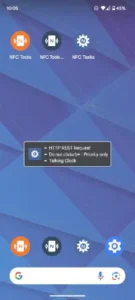
NFC Tasks features a utility first UI with minimal, functional design. The interface is focused on permissions, settings and execution status rather than flashy visuals. It is a lightweight companion app designed to be small and unobtrusive; most of the “design work” (task configuration, tag writing) happens in NFC Tools, which has a more feature-rich UI.
There are no game style graphics, animations, themes or visual effects beyond standard Material Design elements. The clean, no-nonsense design stays out of your way, which is a plus for a background automation runner.
NFC Tasks Tips
Getting started with NFC Tasks is straightforward once you understand the workflow, but a few smart choices early on will save you time and frustration. Here is what to focus on first.
Beginner Advice
Start with NFC Tools to write simple tasks (toggle Wi-Fi, launch app). NFC Tasks only executes tasks, it does not write them. You need NFC Tools or NFC Tools Pro to configure and write tasks onto tags. Start with simple actions like toggling Wi-Fi or launching your favorite app. These are easy to test and give you immediate feedback on how the system works.
Install NFC Tasks on all devices that will tap the tags. This is the most important limitation to understand. If you want a tag to work for other people, they must also have NFC Tasks installed. For personal use, install it on your own devices. For shared environments, ensure everyone who will use the tags has the app.
Label your NFC tags physically so you know what each does. NFC tags look identical. A simple label maker or permanent marker saves you from guessing which tag does what. Write the action on the tag itself or use color coded stickers for different categories.
Test tasks with a single tag before deploying multiple. Do not write a dozen tags at once. Start with one tag, test it thoroughly and confirm it works as expected. Once you are confident, scale up to multiple tags. Testing early prevents wasted tags and frustration.
Grant required permissions for reliable execution. NFC Tasks needs certain permissions to execute tasks. Toggle Wi-Fi requires location permission on newer Android versions. Launch apps requires app access. Check the permissions screen and grant everything the app needs. Denying permissions breaks automation.
Adjust notification settings for feedback on task execution. NFC Tasks can show notifications when tasks run. Enable them. Notifications give you confirmation that the task executed and help you debug issues. You can always disable them later once you trust the system.
Use simple tasks first before complex automations. Do not start with HTTP requests or webhooks. Begin with basic toggles and app launches. Build confidence with the system before moving to advanced actions.
Understand that NFC Tasks only executes, does not write. You cannot configure tasks inside NFC Tasks. All task configuration happens in NFC Tools. NFC Tasks is purely the execution engine. Make sure you have both apps installed.
Check that NFC is enabled on your device. NFC must be turned on for tags to work. Check your quick settings or system settings. Without NFC enabled, tapping a tag does nothing.
Start with one-tap scenes like “Work mode” or “Night mode.” Think of tasks as scenes that change your device state. Work mode toggles Wi-Fi on, Bluetooth off and launches your calendar. Night mode sets Do Not Disturb and dims the screen. These scenes are practical and easy to set up.
Advanced Strategy
Pair with NFC Tools Pro for advanced tasks (HTTP/API calls). The Pro version of NFC Tools unlocks more powerful task types. HTTP requests let you trigger webhooks, smart home routines and API calls. This is where NFC automation becomes truly powerful.
Use NFC tags for smart home integration via webhooks. Write a URL task that hits your Home Assistant or other smart home API. Tap the tag to turn lights off, adjust thermostats, or trigger routines. The possibilities are endless.
Create “one-tap scenes” for work, night, or car modes. Program a tag for each mode. Work mode sets Wi-Fi on, Bluetooth off, launches calendar. Car mode launches navigation and music. Night mode sets Do Not Disturb and dims screen. One tap changes everything.
Integrate with Home Assistant or other smart home APIs. Home Assistant supports webhook triggers. Write a task that sends an HTTP request to your Home Assistant instance. Tapping the tag executes any automation you have configured.
Use tags for parking reminders with location saving. Program a tag to save your current location and start a timer. Tap it when you park, and it records where you left your car. This is a popular and practical use case.
Combine with Tasker for more complex automations. Tasker can intercept NFC tag scans and execute complex actions. Use NFC Tasks to trigger a Tasker profile, then let Tasker handle the heavy lifting. This combination gives you unlimited automation possibilities.
Use webhook URL tasks to trigger smart home routines. Many smart home platforms support webhooks. Write a URL task that triggers a webhook, and your smart home does the rest. No need for complex integrations.
Implement conditional blocks in Pro for complex workflows. NFC Tools Pro supports conditional logic in tasks. You can check device state before executing actions. For example, toggle Wi-Fi only if it is currently off. This makes your automations smarter.
Use tags for quick access to frequently used settings. Program tags for settings you change often. Brightness, volume, Do Not Disturb, and battery saver are all good candidates. Tapping a tag is faster than navigating menus.
Share automation ideas with the NFC community. The NFC community is active on Reddit and other forums. Share your automations, learn from others, and discover new use cases. Collaboration makes the ecosystem better for everyone.
How to Set Up NFC Tags for Home Automation
The setup process depends on your phone and smart home platform.
You need two apps. On Android, you write tasks onto NFC tags using NFC Tools or NFC Tools Pro. Then you install NFC Tasks to execute those tasks when you tap the tag. The write app configures what happens. The execution app performs it.
For Android users: First, write your task in NFC Tools. Choose the action type (e.g., toggle Wi-Fi, launch an app, send an HTTP request), configure the parameters and write it to a blank NFC tag. Then ensure NFC Tasks is installed, has the necessary permissions and is running in the background. When you tap the tag, the task executes .
For smart home integration: Home Assistant offers the most powerful NFC tag integration. You use the companion app to scan and register each tag. Home Assistant creates a tag ID that can trigger any automation you’ve built. Because the automation is registered in Home Assistant, you can even reprogram what the tag does without rewriting the physical tag, you just change the automation it triggers. It’s like having programmable “buttons” scattered around your house. Apple Home and Google Home also support NFC triggers, though the setup is more limited.
Place tags where they’re useful. Stick tags to a desk, bedside table, coffee table or keychain . The physical location is part of the automation, it reminds you to use it. When you tap the tag in that location, it becomes a frictionless way to trigger a routine. Tag placement matters for reducing friction, especially for people who need support with remembering routine tasks.
NFC Tags for ADHD: Simple Automation Ideas That Actually Help
NFC tags are a practical support tool for people with ADHD because they reduce cognitive load and executive function demands. The mental effort of “remember to do the thing” is replaced by a physical tap.
Automate the small, frequent tasks. Open an app, send a quick message, set a reminder, log a habit, these “tiny thumbs tasks” happen dozens of times a day. A tag can execute them instantly, removing the friction of navigating through your phone. For example, tap a tag on your nightstand to start your sleep mode automation. Tap one by your front door to send a partner “I’m on my way home” and start your leave home scene (turn off lights, set the thermostat).
Use tags as physical reminders. Place a tag on your water bottle to log hydration. Put one on your laundry machine to start a timer for when it finishes. Tap the tag at your desk to start a focus mode that silences notifications and opens your work apps. The tags themselves serve as memory aids.
Set up a single tag for a complex task. Instead of trying to remember three or four things at once (start audiobook, log medication, set a reminder), tap one tag that does all of them. This turns a chain of small failures into a single moment of success.
Start with one tag. Pick the most frequent point of friction in your daily routine. Attach an NFC tag to that location. Set up a single automation that solves that specific moment. When the tag works reliably, add another. The goal isn’t automation for its own sake, but reducing the number of times you have to manually perform a task that could be automatic.
NFC Tasks Similar Apps
NFC Tasks is a focused tool for executing NFC-triggered automations. Here is how it compares to other options.
| App | Similarity | Key Difference |
|---|---|---|
| NFC Tools (wakdev) | Companion app for writing tasks | NFC Tools writes tasks. NFC Tasks executes them. |
| Tasker | General automation with NFC triggers | Tasker is more powerful but complex. NFC Tasks is simpler and focused. |
| MacroDroid / Automate | Easier Tasker like automation | Visual workflow builders. NFC Tasks is dedicated to NFC execution. |
| NFC Flow (iOS) | iOS NFC automation with JSON programs | iOS-focused. NFC Tasks is Android only . |
| NFC-Shortcut Application (iOS) | Quick app launches via NFC | Simpler, focused on shortcuts. NFC Tasks has broader automation . |
| Apple Shortcuts (with NFC) | System level iOS automation with NFC | Deep iOS integration. NFC Tasks is Android focused . |
NFC Tasks is the simplest dedicated NFC task executor on Android, especially for users already in the wakdev NFC Tools ecosystem. For users who need more than NFC execution, Tasker or MacroDroid offer broader automation capabilities.
Who Is NFC Tasks For?
NFC Tasks is for users who already use NFC Tools for writing tags. If you are already in the wakdev ecosystem, NFC Tasks is the natural companion app for executing the tasks you configure. The two apps work seamlessly together.
Smart home enthusiasts and automation hobbyists will find NFC Tasks invaluable. Placing NFC tags around your home or office lets you trigger routines instantly. Tapping a tag is faster and more intuitive than opening an app or using voice commands.
Power users who want one tap automation triggers will appreciate the simplicity. Configure once, tap to execute. No menus, no navigation, no friction. Just tap and go.
People willing to place NFC tags around their environment will get the most value . Tags on your nightstand, desk, car and front door create a network of automation triggers. The more tags you deploy, the more convenient your life becomes.
If you are an NFC Tools user, smart home enthusiast, power user, or automation hobbyist, NFC Tasks is worth trying.
What Users Say About NFC Tasks App
What Works
Users consistently praise NFC Tasks for working as intended for NFC automation. Those who understand the NFC Tools + NFC Tasks workflow find it reliable for running pre-configured tasks. It is good for experimentation and hobby automation, even for users who do not yet have a strong real world use case. The app is lightweight, privacy focused and free.
Where The App Could Improve
Common criticisms include the requirement that the person tapping the tag must also have NFC Tasks installed. This affects use cases like guest Wi-Fi setup or shared tags in public spaces, reducing the “plug and play” feel. Some users note that Android restrictions limit deep automations that would require system level changes. A subset of reviewers say it is fun for novelty but have not found many everyday scenarios where it replaces other automation methods.
Check out NFC Tools for writing tasks to NFC tags or explore the full collection of Android apps to find your next automation tool.
Conclusion
NFC Tasks delivers a focused execution engine for NFC automation that stands out for its simplicity and integration with the wakdev ecosystem. The app is lightweight, privacy focused, and free. It executes tasks reliably when tags are tapped. The integration with NFC Tools creates a complete automation workflow.
The app has limitations. The requirement that every device tapping a tag must have NFC Tasks installed is a significant barrier for shared use cases. Android permission limits restrict deep automations. The novelty may wear off for casual users who do not have a clear use case. The app is Android only, excluding iOS users.
For users willing to invest in the NFC Tools ecosystem and place tags around their environment, NFC Tasks offers a compelling automation solution. It does not try to be a general automation app. It focuses on executing NFC triggered tasks reliably. And for smart home enthusiasts and power users, that focus works.
If you want a simple, reliable NFC task executor for Android, NFC Tasks is worth downloading.
Tap. Trigger. Automate. Your NFC tasks are waiting.
NFC Tasks FAQ
How do I download NFC Tasks and is it really free?
NFC Tasks is completely free to download and use. You can Download NFC Tasks from the Official Google Play Store. The app requires approximately 10 MB of storage space and is rated for ages 3 and up. While the app itself is free, advanced tag writing features are available in the Pro version of NFC Tools, not in NFC Tasks. The app does not collect or share your personal data .
Where can I find guides, tips, and community resources?
The official wakdev website provides release notes and updates for NFC Tasks. For community discussions and user tips, the NFC Reddit community is active with NFC enthusiasts sharing their automation projects and experiences. Smart home and automation forums also have guides on using NFC tags with Home Assistant and other platforms. For detailed information on specific tasks, the NFC Tools knowledge base covers task configuration options.
What if I encounter a problem or need support?
For technical issues, bug reports, or general questions, contact wakdev customer support directly at apps[at]wakdev.com. The developer is responsive and regularly provides support to users. You can also check the release notes on the wakdev website for information on recent updates and known issues. For community support, the NFC subreddit is a helpful resource where users share troubleshooting tips.
Do I need NFC Tools to use NFC Tasks?
Yes. NFC Tasks only executes tasks that have been pre-written onto NFC tags using the main NFC Tools app. You must use NFC Tools or NFC Tools Pro to write and configure tasks onto tags. NFC Tasks does not have writing capabilities, it is purely an execution engine. The two apps work together as a complete automation ecosystem: write in NFC Tools, execute in NFC Tasks.
Can someone tap my NFC tag and run tasks without NFC Tasks installed?
No. Anyone who taps an NFC tag programmed with NFC Tasks must also have NFC Tasks installed on their device for the automation to run. This is an important limitation for shared use cases like guest Wi-Fi setup or public tags. The tag itself only contains the task data; it does not contain the execution engine. For guests or shared environments, ensure all intended users have the app installed before expecting the tag to work.