


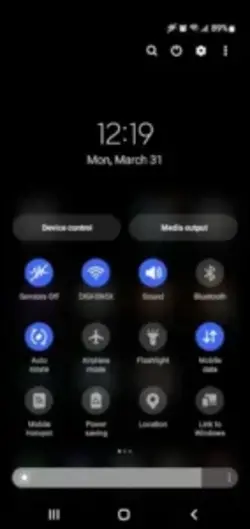
Ever found yourself swiping through endless menus just to toggle Bluetooth? Your Android’s Quick Settings panel is supposed to be a shortcut – but out of the box, it’s often anything but quick.

Here’s the good news: with a few taps, you can turn that Quick Settings panel dropdown into a precision tool that puts every essential function exactly where your thumb expects it. No special apps, no risky mods – just smart customization that should’ve been enabled by default.
Quick Settings: What It Is & Why Customize?
That panel that drops down when you swipe from your screen’s top edge? That’s your control center for everything from screen brightness to emergency alerts. While basic functionality hasn’t changed much since Android 6.0 introduced proper customization, Android 12’s Material You overhaul transformed tiles from boring toggles into dynamic elements that match your wallpaper.
Customizing isn’t just about looks:
- Speed: Your most used toggles should be one swipe away, not buried
- Logic: Group related controls (like Internet + Hotspot)
- Personality: Make your phone feel truly yours with color matched tiles
Step by Step Customization Guides
Quick Settings Method 1: Built-in Editor (Works Everywhere)
- Swipe down twice to fully expand Quick Settings
- Spot the pencil icon? Tap it. No pencil? Try the three dot menu → Edit
- Now the magic happens:
- Move tiles: Press hold and drag your top 6 most critical toggles to the front
- Add hidden gems: Scroll down – tiles like Dark Mode often lurk below
- Trash the clutter: Drag useless tiles (looking at you, “NFC”) to the remove zone
Quick Settings Method 2: System UI Tuner (For Older Androids)
- Pull down your notification shade
- Long press the settings gear icon until it spins and notifies you
- Find the new “System UI Tuner” in your main Settings menu
- Here you can:
- Disable tiles you’ll never use
- Add developer options like “Force GPU rendering”
Quick Settings Method 3: Third Party Boosters
When stock options aren’t enough:
- Custom Quick Settings: Add direct shortcuts to specific Wi-Fi networks
- Power Shade: Skin your panel with custom colors/fonts (Samsung users rejoice)
Pro Tips for Power Users
Long Press = Secret Menu
- On Bluetooth: Jump straight to connected devices
- On Internet: Toggle between Wi-Fi/Mobile Data without opening Settings
The Space Saving Internet Tile (Android 12+)
Why waste two slots? This combo tile handles both connections. Long-press to choose networks.
Wallpaper Controlled Themes
Changed your background? Your Quick Settings colors auto update to match – but only if you’re on Android 12 or later. Pro tip: Use solid color wallpapers for bold, readable tiles.
Troubleshooting & Limitations
When Quick Settings misbehaves:
- Frozen tiles? Force-stop Android System UI in Settings → Apps → Show System Apps
- Missing edit button? On some Xiaomi/Huawei devices, you’ll need to pinch the Quick Settings panel
- Battery drain concerns? Disable battery optimization for Settings and System UI
Hard limits to know:
- Visible tiles: Stock Android shows 6 (portrait) or 8 (landscape)
- OEM variations:
- Samsung’s OneUI: Edit button hides under ⋮ at top right
- MIUI: Some tiles can’t be removed (like Mi Remote)
Native vs. Third Party: Quick Comparison
| What You Need | Android’s Tools | Custom Quick Settings |
|---|---|---|
| Move default tiles | ✓ | ✓ |
| Add website shortcuts | ✗ | ✓ |
| Match wallpaper colors | ✓ (Android 12+) | ✗ |
| No extra permissions | ✓ | ✗ (needs accessibility access) |
When to go third party:
- Need quick links to specific web pages
- Want custom icons for tiles
- Use Android 11 or older and crave Material You styling
Where to Learn More
For creative layouts:
- Reddit’s r/AndroidTips – Users share screenshot breakdowns of their most efficient setups
For early features:
- Join Android Beta Program to test tile changes before public release
For OEM specific tricks:
- XDA forums have device specific mods (e.g., adding missing tiles on OnePlus)
Conclusion :
Keep it simple if:
- You just want faster access to standard settings
- Your phone runs Android 12+ with Material You
Get Power Shade when:
- You theme everything (custom fonts, tile shapes)
- Stock customization feels too restrictive
Ready to optimize? Pull down your shade and hit that edit button – your future self will thank you.
FAQ
How do I edit the Quick Settings panel on Samsung devices?
Swipe down twice, tap ⋮ (More options) → Edit. Drag tiles to rearrange. Full Samsung guide here.
Can I add custom tiles without third party apps?
Stock Android limits additions, but apps like QuickShortcutMaker can help. Download here.
Why do some tiles disappear after updates?
OEMs occasionally remove tiles (e.g., “Sensors Off”). Check community wiki for workarounds or see more guides and how-tos.
How to fix unresponsive Quick Settings tiles?
Restart your device or clear cache for System UI in Settings → Apps.
What’s the max number of Quick Settings tiles on Samsung?
OneUI shows 12 tiles when fully expanded.