

Smart Launcher 6 solves a problem most launchers ignore: you should not have to organize your apps manually.
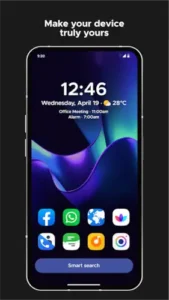

Smart Launcher 6 ad-free Android home screen replacement automatically sorts your apps into categories, adapts its colors to your wallpaper and puts your most used actions within easy reach. Developed by Smart Launcher Team, it has been downloaded more than 50 million times and holds a 4.7 star rating from nearly 700,000 reviews on Google Play. The app is rated for ages 3 and up and works on most modern Android devices.
What Is Smart Launcher 6?
Smart Launcher 6 is a free, ad-free Android home screen replacement that automatically organizes your apps into categories, adapts its colors to your wallpaper and puts your most used actions within easy reach. Unlike traditional grid only launchers, it uses a modular page system with separate pages for home, apps, widgets and news, plus an auto sorted app drawer that keeps your phone tidy without requiring manual folder maintenance.
The core idea is simple. Most launchers hand you a blank grid and expect you to build everything from scratch. Smart Launcher 6 does the heavy lifting first, then lets you customize what matters. Your apps land in categories. Your colors match your wallpaper. Your widgets stack efficiently. The result is a home screen that feels organized from day one, not after an hour of configuration.
Automatic App Categorization
As soon as you install an app, Smart Launcher 6 sorts it into a category. Communication, Media, Games, Utilities and several others. You do not have to drag anything into folders. You do not have to decide where things belong. The launcher makes the call based on the app’s type and purpose.
That automatic sorting saves real time. Instead of scrolling through a long alphabetical list, you tap the Communication category and see your messaging and calling apps. Tap Media and see your streaming and music apps. If the automatic categorization gets something wrong, you can move apps between categories or create custom folders for special cases. But most users find the defaults accurate enough to leave alone.
Adaptive Theming and Modular Pages
Adaptive theming is where Smart Launcher 6 starts to feel personal. The launcher pulls colors from your wallpaper and applies them across the interface automatically. Change your wallpaper and the entire theme shifts with it. The full theme editor goes further, with thousands of Google Fonts, adjustable icon shapes and sizes, blur effects and transparency controls .
The modular page system keeps everything separated. A Home page for your main layout. An Apps page for the categorized drawer. A Widgets page for your stackable widgets. A News page for RSS feeds. Each page has a specific role, so no single screen becomes cluttered. If you want extra pages for different contexts like work or travel, the Pro upgrade unlocks that.
Free and Ad-Free
The free version includes the core launcher experience. Automatic categorization, adaptive theming, basic widgets, search, gestures and one home page. There are no ads, which is rare in the launcher space. Nova Launcher introduced ads in its free version. Many others have premium tiers. Smart Launcher 6 gives you the full core experience without charging or showing ads.
The Pro upgrade is available for users who want more. Additional home pages, multi row docks, pop-up widgets, blur effects and separate layouts for foldables all require Pro. Pricing ranges from small individual feature purchases up to around $29.99 for lifetime Pro, depending on region and store. The free version is not crippled. It is a complete launcher that happens to have an optional upgrade.
Smart Launcher 6 Core Features
Smart Launcher 6 does not try to out customize Nova or out minimize Niagara. It picks a different battle entirely: automatic organization. Everything in this launcher is built around the idea that your phone should sort itself. Here is what actually matters and why each feature earns its place.
Automatic App Categorization
The moment you install an app, Smart Launcher 6 files it away. Communication, Media, Games, Utilities and a handful of other categories catch almost everything you install. You do not drag anything into folders. You do not decide where things belong. The launcher makes the call, and most of the time it gets it right.
This is the feature that saves you the most time. Most launchers hand you a blank grid and expect you to build structure from scratch. Smart Launcher 6 builds the structure for you. If the automatic categorization gets something wrong, you can move apps between categories or create custom folders for edge cases. But most users find the defaults accurate enough to leave alone, which is the whole point.
Modular Pages
Instead of cramming everything onto one home screen, Smart Launcher 6 separates functions into distinct pages. A Home page for your main layout. An Apps page for the categorized drawer. A Widgets page for your stackable widgets. A News page for RSS feeds . Each page has a specific role, so no single screen becomes cluttered.
If you want extra pages for different contexts, Pro unlocks that. A work page, a travel page, a weekend page. Switching between them takes seconds. The modular approach means you never have to compromise between having everything accessible and keeping the screen clean.
Adaptive Theming
Adaptive theming is where Smart Launcher 6 starts to feel personal. The launcher pulls colors from your wallpaper and applies them across the interface automatically. Change your wallpaper and the entire theme shifts with it. The full theme editor goes further, with thousands of Google Fonts, adjustable icon shapes and sizes, blur effects, and transparency controls.
You do not have to be a designer to make this look good. The automatic palette handles the hard part. Manual controls are there if you want to fine tune. The combination of automatic and manual creates a theme that feels intentional without requiring hours of tweaking.
Icon Packs and Adaptive Icons
Smart Launcher 6 supports thousands of third party icon packs. Not all of them cover every app on your phone. That is where adaptive icons come in. They generate a matching icon for any app the pack misses, so your grid never has an ugly outlier. The result is a consistent look across everything you have installed, even the obscure apps.
This is a small detail that makes a big difference. A home screen with five mismatched icons looks unfinished. A home screen where every icon follows the same visual language looks designed. Smart Launcher 6 handles that automatically.
Gestures and Hotkeys
Gestures let you trigger actions without tapping through menus. Swipe up to open the app drawer. Pinch to see recent apps. Double tap to lock the screen. You can also map hardware hotkeys, like long pressing volume buttons, to specific actions. Some gestures require the optional Accessibility API, which is disabled by default and does not collect data.
The gesture system is not as deep as Nova’s, but it covers the essentials. For users who want to reduce navigation steps without configuring dozens of gesture combinations, Smart Launcher 6 offers the right balance.
Smart Search
The search bar does more than find apps. It searches contacts, performs web queries, runs calculations and triggers common actions directly from the launcher. Type a math problem and get the answer. Type a contact name and call them without opening the phone app. Customizable search providers let you tailor the behavior if you have Pro.
This turns the search bar into a quick command center. For users who value efficiency, it means fewer app switches and fewer context shifts. You stay in the launcher and get what you need.
Built-In Responsive Widgets
Smart Launcher 6 includes a set of built-in widgets: weather, photos, calendar, battery, music, notes and more. They are resizable and stackable. Widget stacks let multiple widgets share the same space and you scroll between them. This is one of the most underrated features in the app. Instead of dedicating half your home screen to widgets you glance at occasionally, you stack them in one area and swipe through when you need them.
Popup Widgets (Pro)
Popup widgets are locked behind Pro, but they are worth understanding. Double tap an app icon and a small widget appears, showing music controls, a calendar snippet or other micro interfaces without opening the full app. It is a small interaction that saves a surprising amount of time. If you use music controls or check your calendar frequently, popup widgets are a genuine workflow improvement.
Notification Badges and Private Apps
Notification badges show which apps have active notifications directly on their icons, without requiring extra plugins. You see at a glance what needs attention. The private apps feature goes further: you can hide sensitive apps and protect them with a PIN. For users who share their phone with family or use it in professional settings, this adds a layer of privacy that most launchers do not offer.
Built-In News Reader (RSS)
The news page lets you follow your favorite sources via RSS . You customize which feeds appear. It is a useful feature for users who want a quick news digest on their home screen. Some users report issues with certain feeds, particularly Microsoft news and limited ability to fully disable the news page in the free version. If you do not use it, you can minimize its presence or upgrade to Pro for more control over pages.
Privacy and Data Safety
Smart Launcher 6 states no data is shared with third parties. The app may collect app activity, app info and performance data and device IDs. Data is encrypted in transit and can be deleted on request. The Accessibility API is optional, used only for features like screen-off gestures and the developer states no data is collected through it.
The trade-off is similar to most launchers. You get a free, ad-free experience and in exchange the app collects some data about how it is used. If that balance works for you, Smart Launcher 6 delivers genuine value. If not, open source alternatives like Lawnchair offer a different privacy posture.
Smart Launcher 6 Graphics and Design
Smart Launcher 6 uses an adaptive, wallpaper driven design that pulls colors from your home screen background and applies them across the interface. The result is a cohesive look without manual theming. Manual theme controls let you fine tune fonts, icon shapes, blur and transparency if the automatic palette does not match your taste.
The modular, category oriented layout keeps different functions visually separated. The home screen, apps drawer, widgets and news each have their own space. Widget stacks allow multiple widgets in one area, reducing clutter. Popup widgets add micro interfaces on top of icons for quick actions. There are no ads even in the free version, which makes the visual experience cleaner than many alternatives.
What Users Say About Smart Launcher 6
What Works
Users love that apps are sorted into categories automatically, saving time and keeping the drawer tidy without manual folders. Built-in widgets and the ability to stack multiple widgets in one space are frequently highlighted as fantastic for productivity and space saving. Many reviewers specifically note the absence of ads as a major plus compared to other launchers. Themes, icon packs, gestures and hotkeys are praised for making the launcher feel fast and tailored to individual workflows.
Where The App Could Improve
Common criticisms include Pro-locked features. Some users feel extra home pages, docks, popup widgets and blur effects should be free. Others accept Pro as fair given the no-ads policy. The built-in news reader has complaints about certain feeds, especially Microsoft news and limited ability to fully disable the news page in the free version. Foldable and large screen support is still evolving. Occasional bugs and freezes are reported. Some users want automatic alphabetical sorting inside custom folders, which is currently manual.
Check out Microsoft Launcher for Microsoft 365 productivity integration.
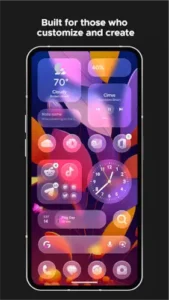
Smart Launcher 6 Tips
Beginner Advice
Let auto sorting work for you at first. Do not fight the automatic categorization on day one. Install your apps, let Smart Launcher 6 file them into categories and use the launcher normally for a week. You will quickly see whether the defaults match how you think about your apps. Most of the time, they do. If something is mislabeled, you can fix it later. Starting with manual organization defeats the purpose of using this launcher.
Use widget stacks to save space. Instead of placing five widgets across your home screen, stack them in one area and swipe between them. Calendar, weather, battery, music, notes. One stack replaces five separate widget blocks. This frees up the rest of your home screen for apps or a cleaner wallpaper.
Enable experimental settings and the new settings UI. Some users recommend turning on experimental settings for a cleaner, more powerful configuration experience. The new settings UI is more intuitive than the older one. You can find these options in the launcher’s settings menu.
Configure gestures early for common actions. Map double tap to lock the screen, swipe up to open the app drawer and pinch to see recent apps. The gestures become muscle memory within a day. Every gesture you set up removes a tap or two from your daily routine. The sooner you configure them, the sooner they start saving you time.
Tune or disable news if you do not use it. The built-in news reader is useful for some users, but it can be a distraction for others. If you do not read the news page, minimize its cards or adjust which feeds appear. Pro users have more control over pages, including the ability to disable the news page entirely.
Consider Pro if you need extra pages or docks. The free version includes one home page. If you want separate layouts for work and personal life, multiple dock rows or popup widgets, the Pro upgrade unlocks those features. Pricing ranges from small individual purchases to around $29.99 for lifetime Pro. If you use this launcher daily, the upgrade pays for itself in added functionality.
Hide and protect private apps with PIN. The private apps feature lets you hide sensitive apps behind a PIN. Banking apps, work tools, personal messages. This is useful if you share your phone with family members or use it in professional settings. The apps disappear from the drawer until you authenticate.
Test adaptive theming with different wallpapers. Adaptive theming pulls colors from your wallpaper. Try a few different wallpapers to see how dramatically the launcher’s look changes. A dark, moody wallpaper produces a different theme than a bright, colorful one. This helps you understand how much control you have over the aesthetic without manually adjusting every setting.
Explore built-in widgets for common needs. Smart Launcher 6 includes weather, calendar, battery, music, notes and photo widgets. Before installing third party widgets, try the built-in ones. They are designed to match the launcher’s style and integrate cleanly with the theme system.
Check permissions to understand what each enables. Smart Launcher 6 requests permissions for Accessibility API, notifications, contacts and other functions. Each permission enables a specific feature. Review them and decide which you are comfortable granting. Denying some reduces functionality but does not break the launcher.
Advanced Strategy
Create custom folders only for special cases. The automatic categories handle most apps well. Custom folders are for edge cases, like grouping your work apps into a single folder that does not fit neatly into the standard categories. Overusing custom folders defeats the purpose of automatic sorting.
Stack related widgets for space efficiency. A calendar widget and a task widget pair naturally in a stack. A weather widget and a battery widget work together. Group related widgets so the swipe between them feels intentional. Unrelated widgets in the same stack feel jarring.
Map gestures to reduce navigation steps. Beyond the basics, assign gestures to your most used apps or actions. Swipe up on the home screen to open the camera. Swipe down to open notifications. Pinch to open recent apps. Every gesture you configure makes the phone feel faster.
Use popup widgets for quick app actions. Popup widgets are a Pro feature, but they are worth the upgrade if you use them. Double tap the music app icon to see playback controls without opening the app. Double tap the calendar icon for a quick schedule view. These micro interactions save seconds that add up over hundreds of daily interactions.
Set up multiple home pages for work and personal. With Pro, you can create separate home pages for different contexts. A work page with email, calendar and task widgets. A personal page with social media, entertainment and photos. Switching between them takes one swipe.
Use private apps for sensitive content. If you have apps you do not want visible in the drawer, hide them behind the private apps PIN. This is useful for banking apps, health apps or anything you would prefer not to display in public.
Customize search providers for your workflow. Pro users can customize which search providers appear and how the search bar behaves. If you rely on a specific search engine or a particular contact search method, adjust the search settings to match your habits.
Test on foldables for screen-space optimization. Smart Launcher 6’s foldable support is still evolving, but Pro adds some improvements. If you use a foldable phone, test the launcher on both the inner and outer screens. Adjust grid size and page layout for each configuration.
Share setups with the Smart Launcher community. The r/smartlauncher subreddit is active with users sharing themes, widget stacks and configuration tips. Seeing what others have built can inspire changes you would not have considered. The community is also a good place to ask questions and troubleshoot issues.
Track updates for new features and bug fixes. Smart Launcher 6 receives regular updates. Following the changelog helps you know what is new and what has been fixed. Some updates add features you did not know you wanted. Others resolve issues you have been living with. Staying current is part of getting the most from the launcher.
Smart Launcher 6 Similar Apps
| App | Best for | Key Difference |
|---|---|---|
| Smart Launcher 6 | Automatic app organization plus customization | Category oriented pages, adaptive themes, widgets. Free, no ads. Pro for extra features . |
| Nova Launcher | Deep customization, former Nova users | Traditional grid, highly configurable. Free with ads or Prime subscription. More feature depth but ad-supported. |
| Niagara Launcher | Minimalism with one handed ergonomics | Vertical list plus wave alphabet. Ad-free. Different interaction model than Smart Launcher 6. |
| Lawnchair | Pixel look with extra customization, open source | Pixel like grid, Material You, icon packs. Fully free, no ads. Beta status. No auto sorting. |
| Microsoft Launcher | Microsoft 365 users, productivity feed | Traditional grid, Microsoft style feed. Fully free, no ads. Deep Outlook and To Do integration . |
Smart Launcher 6 is the best choice for users who want automatic app sorting, strong widgets and good customization without ads. Nova offers deeper customization but now carries ads and tracking concerns. Niagara changes the interaction model entirely. Lawnchair offers a Pixel style experience without automatic organization. Microsoft Launcher leans into Microsoft 365 productivity. Each solves a different problem. Smart Launcher 6 solves the problem of wanting an organized phone without manual maintenance.
Who Is Smart Launcher 6 For?
Smart Launcher 6 is for users who want automatic app organization. If you have ever spent an afternoon dragging apps into folders and then never touched those folders again, this launcher is for you. It sorts your apps automatically and keeps them organized without requiring ongoing effort.
Productivity focused users who want widgets and modular pages will find Smart Launcher 6 delivers. The widget stacks save space. The modular pages keep functions separated. The smart search handles quick tasks. For users who treat their phone as a productivity tool, this launcher provides the structure without the manual overhead.
Users who want an ad-free launcher with customization will appreciate Smart Launcher 6’s approach. No ads. No premium tier hiding core features. The customization options cover the essentials. If you want a clean experience without paying or seeing ads, this launcher fits.
People who dislike manual folder maintenance will feel at home immediately. The automatic categorization removes the need to organize apps yourself. The categories update as you install new apps. The system maintains itself. For users who want a launcher that stays organized without their intervention, Smart Launcher 6 is the answer.
If you want your phone to organize itself, Smart Launcher 6 is worth trying.
Conclusion
Smart Launcher 6 offer an organization focused Android launcher experience that stands out for its automatic app categorization, adaptive theming and ad-free model. The launcher sorts your apps for you. The theme adapts to your wallpaper. The widgets stack efficiently. And the core experience is free without ads.
The app has limitations. Some advanced features require Pro. The news reader has issues with certain feeds. Foldable support is still evolving. Occasional bugs and freezes appear in user reports. Custom folders do not auto sort alphabetically.
For users willing to accept the trade-offs, Smart Launcher 6 offers a compelling launcher experience. It does not try to be the most customizable launcher or the most minimal. It tries to be the most organized launcher without requiring you to organize it. And for a specific kind of user, that is exactly what they want. If you want a launcher that keeps your apps sorted and your home screen clean, Smart Launcher 6 is worth downloading.
Your apps, sorted. Your home screen, organized. Your time, saved.

FAQ
How do I download Smart Launcher 6 and is it really free?
Smart Launcher 6 is completely free to download from the Official Google Play Store. The app has been downloaded more than 50 million times and holds a 4.7 star rating from nearly 700,000 reviews. The free version includes the core launcher with automatic app categorization, adaptive theming, basic widgets, search, gestures and one home page. There are no ads even in the free version. The Pro upgrade is available for users who want additional home pages, multi row docks, popup widgets, blur effects and more.
What if I encounter a problem or need support?
For technical issues, bug reports, or feature requests, contact Smart Launcher support directly at support[at]smartlauncher.net. The developer is responsive and regularly updates the app based on user feedback. For account or billing issues related to Pro purchases, contact support through the same email with your order details.
What makes Smart Launcher 6 different from other Android launchers?
Smart Launcher 6 is built around automatic organization. Instead of handing you a blank grid and expecting you to build structure from scratch, it sorts your apps into categories the moment you install them. Communication, Media, Games, Utilities and more. The modular page system keeps home, apps, widgets and news separated. Adaptive theming pulls colors from your wallpaper automatically. And the entire core experience is free without ads, unlike Nova Launcher which introduced ads in its free version. If you dislike manually maintaining folders, Smart Launcher 6 removes that burden entirely.
Can I use Smart Launcher 6 without the Pro upgrade?
Yes. The free version is a complete launcher, not a crippled trial. You get automatic app categorization, adaptive theming, basic widgets including weather and calendar, smart search, gestures, notification badges and private apps with PIN protection. What you miss without Pro is additional home pages, multi row docks, popup widgets, advanced two finger gestures, blur effects and separate layouts for foldables. For most users, the free version covers everything they need. Upgrade to Pro only if you specifically want those extra features.