

You’ve just taken the perfect photo, but it needs that extra polish before hitting Instagram. Cropping and filters won’t cut it. You need precise edits, maybe even a complete style transformation, without spending hours in complex software. This is where Hypic – Photo Editor & AI Art steps in.
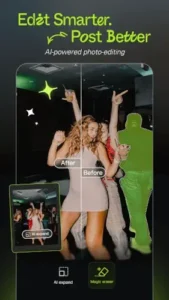

Hypic, with a 4.4 star rating from over 100,000 reviews and a mobile first design that works seamlessly on phones, tablets, and Chromebooks, Hypic has become a go to for casual creators and social media enthusiasts alike.
Hypic Stands Description :
AI That Works
Most photo editors slap “AI” on basic filters, but Hypic delivers tools that feel genuinely smart:
-
One Tap Background Removal – Clean, precise cuts without jagged edges.
-
AI Skin Retouching – Smooths imperfections without that unnatural “plastic” look.
-
Photo Restoration – Fixes old, grainy images surprisingly well.
The real game changer? AI Art Generation. Type a prompt like “cyberpunk avatar” or “watercolor portrait,” and Hypic generates original artwork in seconds, perfect for unique profile pics or creative projects.
Efficiency Meets Creativity
Time is the one thing you can’t edit back into a photo. Hypic gets this:
-
Batch Editing – Apply the same filter or adjustment to 50 photos at once. Ideal for influencers and small businesses.
-
Trending Templates – Need a cohesive Instagram grid or a TikTok thumbnail? Pre-made layouts match current aesthetics.
-
No Forced Sign-Ups – Start editing immediately. No emails, no passwords, just open and create.
Flexibility Without the Bloat
Some apps overwhelm with endless sliders and menus. Hypic keeps it streamlined but powerful:
-
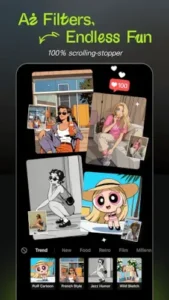
300+ Filters & Effects – From vintage film to neon glow, sorted by mood and style.
-
Layer Support – Overlay text, stickers, or even another photo with adjustable opacity.
-
Social-Ready Exports – Optimized dimensions for Instagram, TikTok, and Pinterest.
What Users Say (The Good & The Frustrating)
The Love
-
*”I restored a 20 year old family photo, it looks like it was taken yesterday.”*
-
“The AI cutout tool saves me hours compared to other apps.”
-
“Finally, an editor that doesn’t watermark free exports.”
The Complaints
-
“Sometimes the app forgets my favorite filters until I restart it.”
-
“High res photos lose sharpness after saving, annoying for print projects.”
-
“Why no video editing? Even basic trimming would help.”
Hypic vs. The Competition
| Feature | Hypic | Remini | Picsart |
|---|---|---|---|
| AI Tools | Excellent | Best for restoration | Good, but cluttered |
| Ease of Use | Super intuitive | Moderate | Overwhelming |
| Social Focus | Strong (templates) | Weak | Very strong |
| Price | Freemium | Subscription heavy | Freemium |
Best Alternative? Try PhotoRoom if you need pro-level background removal without extras.
Pro Techniques Most Users Miss
The Art of Subtle Edits
Hypic’s sliders are powerful but dangerous in untrained hands. Here’s how pros use them:
-
Skin Smoothing: Never push beyond 30-40% strength unless you want that unnatural “mannequin” look
-
Exposure Adjustments: Bump shadows +15 before touching brightness to avoid washed-out colors
-
Color Grading: Apply “Vintage” filters at 50% opacity for a subtle, not overpowering, effect
Batch Editing Like a Content Creator
Editing 50 product photos individually? That’s 2023 thinking. Here’s the smarter workflow:
-
Edit one photo perfectly
-
Tap “Save Preset” and name it (e.g., “Summer Product Theme”)
-
Select all other photos → “Apply Preset”
-
Make minor tweaks to individual shots as needed
Layering Without the Headache
Want to create collages or composite images without Photoshop?
-
Step 1: Import base image
-
Step 2: Add secondary image as layer
-
Step 3: Adjust opacity to 30-70% depending on desired blend
-
Step 4: Use “Cutout” tool to remove unwanted parts of top layer
Staying Ahead of Trends
Hypic’s “Trending” section updates every Thursday. Set a weekly reminder to:
-
Check new templates before they go viral
-
Save seasonal filters (e.g., “Cozy Winter” in November)
-
Note which color palettes dominate the “Editor’s Picks”
The Uncomfortable Truths About Hypic
The Free Version Has Teeth…But Not All of Them
While Hypic offers impressive free tools, power users will hit walls:
-
Premium filters (marked with gold crowns) can’t be used in batch edits
-
Some collage templates apply watermarks on free tier
-
AI art generation limits: 5 creations/day without subscription
The Export Quality Trap
Many users complain about blurry exports because they miss these steps:
-
Always select “Maximum Quality” in save settings
-
For prints, export as PNG not JPEG
-
Check dimensions match your platform’s requirements
Can Hypic Edit Video? The Hard Reality
Despite user requests, Hypic remains photo-only. Your alternatives:
-
CapCut (for TikTok style edits)
-
InShot (basic trimming and filters)
-
Adobe Premiere Rush (for serious creators)
Who Should Really Be Using Hypic?
The Perfect User Profile:
-
Instagram influencers needing daily content
-
Small business owners creating product shots
-
Teens editing memes and social posts
-
Bloggers making Pinterest graphics
The Misfits:
-
YouTubers (no video support)
-
Professional photographers (limited RAW editing)
-
Artists needing precise brush control
Conclusion :
Hypic delivers where it matters most, making great edits accessible. Its AI tools outperform many paid apps, and the interface stays refreshingly simple. Just know its limits:
-
Best for: Quick social media content, AI experiments, batch edits
-
Not for: Professional workflows, video projects, fine art prints
FAQs
Where can I download Hypic?
Download Hypic from Google Play Store
How to use Hypic AI art generator effectively?
Type clear prompts like “cyberpunk portrait” or “watercolor landscape,” then adjust style intensity. For support, email: retouchpics.support[at]bytedance.com
Are Hypic’s premium filters worth it?
If you edit daily, yes, they unlock advanced color grading and exclusive templates. Casual users can thrive with free options.
Why do my exports look blurry?
Always select “Maximum Quality” in settings and use PNG format for critical images. Check resolution matches your platform’s requirements.
Can I use Hypic on desktop?
Mobile/tablet only, but Chromebooks with Android support work well. For desktop editing, try Photopea.