

Microsoft Launcher turns your Android home screen into a productivity command center by integrating Outlook calendar, To Do lists, Sticky Notes and OneDrive documents directly into a swipe left feed.

Microsoft Launcher is developed by Microsoft Corporation, this free and ad-free launcher has been downloaded more than 50 million times and holds a 4.7 star rating from over 1.7 million reviews on Google Play . The app is rated for ages 3 and up and works on Android 7.0 or higher.
What Is Microsoft Launcher?
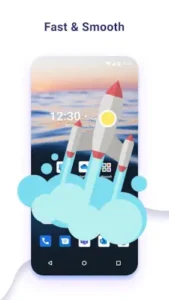
Microsoft Launcher is a free, ad-free Android home screen replacement designed to boost productivity and integrate tightly with Microsoft 365 services. It replaces your stock home screen, dock and app drawer with a customizable layout plus a personalized feed that shows your calendar, tasks, recent documents, news, and commute info.
The result is a launcher that feels less like a phone interface and more like a dashboard for your day. If you already live in Outlook, To Do and OneDrive, Microsoft Launcher brings all of that to the surface. If you do not, it still offers solid customization and a clean, professional look without any ads or premium tier.
Customizable Home Screen and App Drawer
Microsoft Launcher gives you control over your home screen layout. Adjustable grid size, icon size, dock height and folder styles let you shape the space to fit your habits. You can import your current home screen layout from another launcher or start fresh. Icon packs and adaptive icons are supported, giving you a consistent look across all apps.
The customization depth is not at Nova Launcher’s level, but it covers the essentials most people want. Grid adjustments, icon shapes, dock configuration and folder styling. If you want a clean, functional home screen without diving into hundreds of settings, Microsoft Launcher delivers that balance.
Personalized Feed and Microsoft Integration
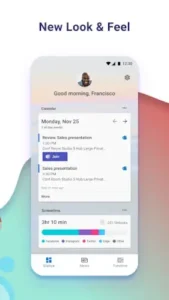
The personalized feed is what sets Microsoft Launcher apart. Swipe left from the home screen and you get a scrollable panel showing your Outlook calendar events, To Do tasks, Sticky Notes, recent documents from OneDrive and SharePoint, news, weather and commute information. It is your day at a glance without opening multiple apps.
Signing in with a Microsoft account unlocks deeper sync. Outlook calendar, To Do lists, Sticky Notes, Edge continue-on-PC and clipboard history all flow through the launcher. The core launcher works without signing in, but many of the feed features require it. If you are privacy sensitive, you can still use the launcher without an account, but you lose the productivity integration that makes it special.
Bing search and Copilot integration round out the Microsoft experience. The bottom search bar uses Bing, and Microsoft’s AI assistant handles assistant style queries . Speech to text enables hands free search when typing is not convenient.
Free and Ad-Free
Microsoft Launcher is completely free with no ads and no in-app purchases . There is no premium tier hiding features behind a paywall. The developer states no data is shared with third parties, though the app may collect personal info and app activity. Data is encrypted in transit and can be deleted on request.
That combination is rare in the launcher space. Nova Launcher introduced ads in its free version. Many other launchers have premium tiers. Microsoft Launcher delivers the full experience without charging or showing ads. The trade-off is that you are using a Microsoft product and the integration points to Microsoft services. If that works for you, the price is hard to beat.
Microsoft Launcher Core Features
Customizable Home Screen and App Drawer
The foundation is a standard Android home screen with adjustable grid size, icon size, dock height and folder styles. You can import your current layout from another launcher or start fresh. That flexibility matters because switching launchers is disruptive. Microsoft Launcher softens the transition by letting you bring your existing home screen with you. Once you are set up, the grid and icon controls give you enough room to shape the space without drowning in options.
The balance here is deliberate. Nova Launcher gives you more knobs. Microsoft Launcher gives you the right knobs. For most users who want a functional, clean home screen that just works, this is the sweet spot.
Icon Packs and Adaptive Icons
Third-party icon packs are supported and adaptive icons keep everything visually consistent across your app drawer. Themes include light, dark and a transparent option with blur sliders that create a subtle glass like look. This is where Microsoft Launcher quietly outperforms many alternatives. The transparent theme with adjustable blur is not something every launcher offers and it gives the home screen a modern, cohesive feel without requiring you to install a custom launcher or theme engine.
The icon pack support means you can change the entire visual language of your phone in a few taps. Adaptive icons fill in the gaps for apps that do not have a matching icon in your chosen pack, so you never end up with a mismatched grid.
Gestures
Swipe, pinch and double tap gestures can trigger actions like opening apps, locking the screen or showing recent apps. Some gestures require the optional Accessibility Service, which is disabled by default. The gesture system is not as deep as Nova’s, but it covers the essentials. Double tap to lock is the most commonly used gesture and it works reliably once enabled.
For users who want to reduce navigation steps without diving into complex configuration, Microsoft Launcher’s gestures offer a practical middle ground. You get the productivity benefits without the learning curve of a more advanced system.
Personalized Feed
The personalized feed is the feature that defines Microsoft Launcher. Swipe left from the home screen and you get a scrollable panel showing your Outlook calendar events, To Do tasks, Sticky Notes, recent documents from OneDrive and SharePoint, news, weather and commute information. Each card can be toggled on or off depending on what you find useful.
This is not a widget. It is a live view into your Microsoft 365 account. Your afternoon meeting, the document you were editing yesterday, the task you flagged this morning. All of it lives one swipe away. For anyone who juggles work and personal life on the same device, the feed turns the home screen into a genuine command center.
Microsoft Account Sync
Signing in with a Microsoft account unlocks the full depth of the launcher. Outlook calendar, To Do lists, Sticky Notes, Edge continue on PC and clipboard history all flow through the feed and the launcher itself. The core launcher works without signing in, but the productivity features that make it special require an account.
That trade-off is worth understanding. If you are privacy sensitive and do not want to sign in, you still get a solid launcher with customization and gestures. If you are already in the Microsoft ecosystem, signing in transforms the experience into something no other launcher can match.
Bing Search and Copilot Integration
The bottom search bar uses Bing and Microsoft’s AI assistant (Copilot) for assistant style queries. Speech to text enables hands free search when typing is not convenient. This is the feature that draws the most criticism from Android purists who prefer Google Search and Assistant.
Bing search works fine for basic queries, but it is not Google. If you rely heavily on Google services, the Bing bar may feel like a downgrade. If you are neutral on search engines or already use Microsoft services, it integrates cleanly with the rest of the launcher. You can also set Google as your default browser search engine while keeping the Bing bar for quick launcher queries.
Widgets and Cards
The weather widget requires location permission but delivers at a glance conditions. The calendar card surfaces upcoming events. Other Microsoft centric widgets integrate directly into the feed. The widget system is not as rich as Nova’s, but it covers the essentials without requiring you to hunt through a widget drawer.
Privacy and Data Safety
Microsoft Launcher states no data is shared with third parties. The app may collect personal info and app activity, but data is encrypted in transit and can be deleted on request. Permissions are explained transparently and all of them are optional with reduced functionality if denied. This is more transparent than many launchers, though some users will note that Microsoft is still a large company collecting data for its ecosystem.
The trade-off is clear. You get a free, ad-free launcher with deep Microsoft 365 integration. In exchange, the app collects some data about how you use it. If that balance works for you, Microsoft Launcher delivers real value. If not, open source alternatives like Lawnchair offer a different privacy posture.
Microsoft Launcher Graphics and Design
Microsoft Launcher uses a clean, professional UI that feels consistent with Microsoft’s desktop and web apps. The emphasis is on readability and productivity over flashy visuals. Light, dark, and transparent themes are available, with transparency and blur sliders that let you create a subtle, glass like look.
Icon packs and adaptive icons allow a consistent visual style across all apps. Grid and dock adjustments let you create anything from a minimal layout to a dense productivity hub. There are no ads or paywalled visuals. Everything is available for free. The design is professional and productivity oriented, with enough visual customization to look good without overwhelming you.
What Users Say About Microsoft Launcher
What Works
Users who rely on Outlook, To Do, OneDrive and Edge love having their calendar, tasks, notes and recent documents a swipe away on the home screen . Reviewers appreciate the ability to tweak icons, grids, gestures and themes without paying or seeing ads. Many describe the UI as clean and smooth, with efficient battery usage compared to some other heavy launchers. The personalized feed with calendar, tasks, news and weather is frequently highlighted as practical and useful.
Where The App Could Improve
Common criticisms include periodic freezes and lag, especially on certain devices. Some users report blank screen hangs and occasional unresponsiveness. The Bing search bar widget has complaints about crashing, being slow or being less capable than Google Search. Backup and restore is described as unreliable or finicky by some users, especially when switching phones. New users sometimes find the initial setup and feed configuration confusing. Power users note fewer advanced app drawer organization options compared to Nova Launcher.
Check out Lawnchair for a free, open source Pixel style launcher without Microsoft integration.
Can I Use Microsoft Launcher on a Samsung Phone?
Yes, absolutely. Microsoft Launcher works on any Android phone running Android 7.0 or higher and Samsung devices are no exception. In fact, Samsung phones are one of the most common devices where Microsoft Launcher gets installed, largely because Samsung’s default One UI launcher is functional but not everyone loves it.
Here is what you need to know about running Microsoft Launcher on a Samsung phone.
One UI will still be there underneath. Microsoft Launcher replaces your home screen, app drawer and dock. It does not replace Samsung’s One UI system. Your notification shade, settings menus and system apps remain exactly as Samsung designed them. Microsoft Launcher sits on top as a layer, and everything underneath keeps working normally.
Samsung-specific features that work fine. Edge panels, Samsung Pay, Secure Folder and Bixby routines all continue to function. You can still access them through shortcuts or the app drawer. Some Samsung widgets may not render perfectly in the Microsoft Launcher grid, but most modern Samsung apps work without issue.
Samsung features that might feel different. Bixby Home and Samsung Daily are replaced by Microsoft Launcher’s personalized feed. If you use Samsung Daily regularly, you will lose that specific integration. The Microsoft feed offers similar functionality, just through Microsoft services instead.
Performance on Samsung devices. Microsoft Launcher generally runs well on Samsung phones, including mid range models like the Galaxy A series. On older or lower spec Samsung devices, you may notice occasional lag compared to the stock One UI launcher. If that happens, simplifying your home screen by removing widgets and feed cards usually fixes it.
The setup process on Samsung. When you first install Microsoft Launcher on a Samsung phone, the app will ask to be set as your default launcher. Samsung will show a confirmation dialog. Once confirmed, the home button takes you to the Microsoft home screen instead of One UI. If you want to switch back, you can do so anytime through Settings.
The short answer: yes, Microsoft Launcher works great on Samsung phones. The main trade-off is losing Samsung Daily in favor of the Microsoft feed. For most users, that is a reasonable exchange.
Does Microsoft Launcher Drain My Phone Battery?
Microsoft Launcher uses slightly more battery than a stock launcher, but not in a way that most users will notice during normal daily use. Here is what actually affects battery consumption and how to manage it.
The personalized feed is the main battery consumer. The swipe left feed pulls data from Outlook, To Do, OneDrive and other Microsoft services in the background. It refreshes periodically to keep your calendar and tasks current. That background sync costs some battery, though the amount is modest on modern phones. If you do not use the feed, disabling it or reducing its refresh frequency saves meaningful battery.
Widgets and live cards add to the cost. Weather widgets, calendar cards and other live elements on the home screen refresh periodically. Each refresh is small, but they add up over a day. Users who fill their home screen with widgets will see higher battery usage than users who keep it minimal.
Gestures and Accessibility Services have minimal impact. The optional Accessibility Service used for gestures like double tap to lock does not consume noticeable battery. It runs only when you trigger a gesture.
Performance feedback from users. Many reviewers describe Microsoft Launcher’s battery usage as efficient compared to other heavy launchers. Some users report no noticeable difference from stock. Others on older devices notice a small drop. The launcher itself is not a battery hog, but it is not the lightest option either.
How to reduce battery impact. If battery life matters to you, here are the practical steps. Disable feed cards you do not use. Reduce the number of widgets on your home screen. Turn off automatic wallpaper changes if you have daily Bing wallpaper enabled. Keep the launcher updated, since performance improvements often ship in updates. On Samsung phones specifically, check that Microsoft Launcher is not being restricted by Samsung’s aggressive battery optimization, which can actually cause more drain by forcing the launcher to restart repeatedly.
The bottom line. Microsoft Launcher will not drain your battery in a dramatic way. The drain is real but modest and it scales with how much you use the feed and widgets. If you keep things simple, you will barely notice. If you pack your home screen with live cards and sync features, expect slightly higher usage.
Microsoft Launcher Tips
Microsoft Launcher is one of those apps where the default experience is already good, but a few deliberate choices make it significantly better.
Beginner Advice
Sign in with Microsoft account if you use Microsoft 365. This is the single most important step. The personalized feed, Outlook calendar integration, To Do sync, Sticky Notes, OneDrive document access and Edge continue on PC all require a Microsoft account . Without signing in, you get a solid launcher but miss the features that make it stand out. If you already use Outlook for work or personal email, signing in transforms the home screen into a genuine command center.
Customize the feed to show only what matters. The feed can display calendar events, To Do tasks, Sticky Notes, recent documents, news, weather and commute information. Not all of these are useful to everyone. Disable the cards you do not need. Keep the ones that actually help you start your day. A focused feed is faster to scan and less distracting than one packed with irrelevant cards.
Use gestures for common actions. Microsoft Launcher supports swipe, pinch and double tap gestures on the home screen. Map your most used actions to gestures. Double tap to lock the screen is the most popular. If you check your calendar every morning, assign it to a gesture. Every gesture you configure removes a tap or two from your daily routine. Over a year, those seconds add up.
Leverage icon packs and themes for consistent look. Install a high quality icon pack from the Play Store, then enable adaptive icons so all apps match visually. The transparent theme with blur sliders creates a modern, glass like aesthetic that feels polished without requiring a custom ROM. The light and dark themes sync with your system settings if you prefer automatic switching.
Set up backup early once layout is finalized. Microsoft Launcher has a backup and restore feature that saves your home screen setup locally or to the cloud. Once you have a layout you like, create a backup. If you experiment with a new design and do not like it, restoring the old one takes seconds. Backups also carry your setup to a new phone when you upgrade.
Tune Bing and Copilot usage to your preference. The bottom search bar uses Bing by default. If you prefer Google, you can still set Google as your default browser search engine while using the Bing bar for quick launcher queries. The Copilot integration handles assistant style tasks. Decide how much you want to use these features and adjust accordingly.
Monitor performance and simplify if lag occurs. Some users report freezing, lag or blank screen hangs, especially on certain devices. If you experience performance issues, try simplifying your home screen. Fewer widgets and feed cards mean fewer resources consumed. Keep the launcher updated to the latest version, which may include performance fixes.
Explore the transparent theme for a modern look. The transparent theme with adjustable blur sliders is one of Microsoft Launcher’s most underappreciated features. It creates a subtle, glass like aesthetic that feels more premium than the default theme. Adjust the transparency and blur to your preference. The effect works particularly well with high quality wallpapers.
Check permissions to understand what each enables. Microsoft Launcher requests permissions for microphone, photos and files, notifications, contacts, location, phone and calendar. Each one enables a specific feature. Review them and decide which you are comfortable granting. Most are optional, though denying some reduces functionality.
Test after Android updates to catch regressions. Major Android updates sometimes break launcher features or reset permissions. After updating your phone, spend a few minutes using Microsoft Launcher normally. Check that gestures work, the feed loads correctly and icons render properly. Reporting regressions helps Microsoft fix them faster.
Advanced Strategy
Disable unnecessary feed cards to reduce clutter. The feed is only as useful as the cards you keep enabled. News, for example, is a card many users disable because it distracts from productivity. Keep calendar, tasks and weather. Drop everything else. A clean feed that shows only what matters is faster to scan and more likely to become a daily habit.
Map gestures to reduce navigation steps. Beyond the basic double tap to lock, assign gestures to your most used apps or actions. Swipe up on the home screen to open the camera. Swipe down to open notifications. Pinch to open recent apps. Every gesture you set up makes the phone feel faster, even if the hardware has not changed.
Use adaptive icons with icon packs for a cohesive look. Not all apps have icons in your chosen pack. Adaptive icons fill in the gaps by generating a matching icon based on the pack’s style. The result is a consistent visual grid where nothing looks out of place. This is a small detail that makes a big difference in how polished the home screen feels.
Set up multiple backups for different layouts. If you use your phone differently in different contexts, create separate backups. One for work with calendar and tasks front and center. One for weekends with entertainment and social apps. One for travel with maps and weather. Switching between them takes seconds and gives you purpose built home screens without manual rebuilding.
Test on older devices for performance comparison. Microsoft Launcher runs on Android 7.0 and higher, but performance varies by device. If you have an older phone, test the launcher to see how it performs. If lag is an issue, simplify the layout or consider a lighter launcher like Lawnchair or KISS Launcher for that device.
Share setups with the Microsoft Launcher community. The r/MicrosoftLauncher subreddit and Microsoft Community forums are places where users share layouts, tips, and workarounds. Seeing what others have built can inspire changes you would not have considered. The community is smaller than Nova’s, but it is active and helpful.
Compare against Nova for feature gaps. Nova Launcher offers deeper customization options, including granular gesture mapping, complex scrolling effects and advanced app drawer organization. Microsoft Launcher does not match Nova at that depth. Before committing, check whether Microsoft Launcher covers your needs. For most users, it does. For power users who want every knob and toggle, Nova remains the answer.
Use the search bar for quick web queries. The Bing search bar is not just for finding apps. It handles web searches, image searches and quick calculations. For quick lookups, the search bar is faster than opening a browser. If you prefer Google, you can still use voice search or open Chrome directly.
Enable the weather widget for at a glance info. The weather widget requires location permission but delivers current conditions right on the home screen. For users who check the weather every morning before leaving, this saves a step. The widget integrates cleanly with the rest of the feed and the Microsoft design language.
Track updates for new features and bug fixes. Microsoft Launcher receives regular updates. Following the changelog helps you know what is new and what has been fixed. Some updates add features you did not know you wanted. Others resolve issues you have been living with. Staying current is part of getting the most from the launcher.
How Do I Set Microsoft Launcher as My Default Launcher?
The process takes about thirty seconds. Here is exactly what to do, with notes for different Android versions and manufacturers.
The basic steps. First, install Microsoft Launcher from the Google Play Store. Open the app. It will walk you through a short setup process, including a welcome screen and permission requests. At some point during setup, the app will prompt you to set Microsoft Launcher as your default home app. Tap the option to confirm.
If the prompt does not appear. Open your phone’s Settings app. Search for “Default apps” or “Home app” or “Default home.” The exact wording varies by manufacturer. Tap the current default launcher, then select Microsoft Launcher from the list. On Samsung phones, this is usually under Settings > Apps > Choose default apps > Home app. On Pixel and stock Android, it is under Settings > Apps > Default apps > Home app. On Xiaomi and other MIUI devices, it is under Settings > Home screen > Default launcher.
The home button test. Once you have set Microsoft Launcher as default, press your home button. If you land on the Microsoft Launcher home screen, you are set. If you still see your old launcher, the change did not take. Go back to the default apps setting and try again.
Switching back. If you want to return to your stock launcher later, repeat the same process but select the original launcher from the list. Microsoft Launcher does not lock you in. You can switch back and forth as often as you want.
One thing to watch on Samsung phones. Samsung sometimes asks for confirmation twice when changing the default launcher. If the first confirmation does not stick, check that you tapped “Always” or “Set as default” rather than “Just once.” That is the most common reason the change does not persist.
What happens after switching. Your old launcher stays installed and keeps its settings. If you switch back, everything is exactly as you left it. Microsoft Launcher does not delete or modify your previous launcher. The two coexist. You just control which one appears when you press the home button.
Microsoft Launcher Similar Apps
| App | Best for | Key Difference |
|---|---|---|
| Microsoft Launcher | Microsoft 365 users, productivity feed | Traditional grid, Microsoft style feed, themes. Fully free, no ads. Deep Outlook and To Do integration. |
| Nova Launcher | Deep customization, former Nova users | Traditional grid, highly configurable. Free with ads or Prime subscription. More feature depth but ad-supported. |
| Smart Launcher 6 | Automated organization plus customization | Auto sorts apps into categories. Strong customization, less Microsoft centric. |
| Niagara Launcher | Minimalism with one handed ergonomics | Vertical list plus wave alphabet. Ad-free. Different interaction model than Microsoft Launcher. |
| Lawnchair | Pixel look with extra customization, open source | Pixel like grid, Material You, icon packs. Fully free, no ads. Beta status. |
Microsoft Launcher is the best free, ad-free launcher for people deeply invested in Microsoft 365. Nova offers deeper customization but now carries ads and tracking concerns. Smart Launcher handles organization automatically. Niagara changes the interaction model entirely. Lawnchair offers a Pixel style experience without Microsoft integration. Each solves a different problem. Microsoft Launcher solves the problem of wanting your calendar, tasks and documents on your home screen without paying for the privilege.
Conclusion
Microsoft Launcher is for Microsoft 365 users who want their calendar and tasks on the home screen. If you open Outlook every morning to check your schedule, the personalized feed puts that information one swipe away. If you use To Do for task management, those tasks appear without opening the app. If you work in OneDrive and SharePoint, your recent documents are always accessible.
Productivity focused users who want a command center will find Microsoft Launcher delivers. The feed is not a widget you configure and forget. It is a live view into your work and personal life. Calendar events, tasks, notes and documents all surface in one place. For anyone who juggles multiple responsibilities, that integration is genuinely useful.
Users who want a free, ad-free launcher with customization will appreciate Microsoft Launcher’s approach. No ads. No in-app purchases. No premium tier. The full experience is available without paying. The customization options cover the essentials for most people. If you want a clean, functional launcher without strings attached, Microsoft Launcher fits.
People who value Microsoft ecosystem integration will feel at home immediately. The launcher is designed for people who live in Outlook, To Do, OneDrive and Edge. If that describes you, Microsoft Launcher brings your ecosystem to the surface of your phone in a way no other launcher does.
Your home screen should work as hard as you do. Microsoft Launcher makes that happen.
FAQ
How do I download Microsoft Launcher and is it really free?
Microsoft Launcher is completely free to download from the Official Google Play Store. There are no ads, no in-app purchases and no premium tier. Every feature is available without paying. The launcher is rated for ages 3 and up and works on Android 7.0 or higher.
Where can I find community resources?
The Microsoft Launcher support page is the official resource for setup guides, feature explanations and troubleshooting. For community discussions and setup inspiration, the r/MicrosoftLauncher subreddit is active with users sharing layouts, tips and workarounds. The Microsoft Community forums also have threads dedicated to launcher questions. YouTube has walkthroughs and reviews demonstrating the personalized feed, gestures and Microsoft 365 integration.
What if I encounter a problem or need support?
For technical issues, bug reports, or feature requests, contact Microsoft Launcher support directly at microsoftlauncherfb[at]microsoft.com. This is the official feedback email listed on the Play Store. Microsoft also provides support through the in-app feedback option and the Microsoft Community forums. If you experience crashes, freezing or feed loading problems, reporting the issue with your device model and Android version helps the team troubleshoot.
What makes Microsoft Launcher different from other Android launchers?
Microsoft Launcher is built around productivity and Microsoft 365 integration. The swipe left personalized feed shows your Outlook calendar events, To Do tasks, Sticky Notes, recent OneDrive documents, news, weather and commute information in one place. Signing in with a Microsoft account unlocks deeper sync across devices. The launcher is also completely free with no ads, unlike Nova Launcher which introduced ads in its free version. If you live inside Microsoft’s ecosystem, no other launcher brings your calendar, tasks and documents to the home screen the way Microsoft Launcher does.
Can I use Microsoft Launcher without signing in with a Microsoft account?
Yes. The core launcher works without signing in. You get the customizable home screen, app drawer, icon packs, themes, gestures and basic widgets. What you miss without signing in is the personalized feed with Outlook calendar, To Do tasks, Sticky Notes, recent OneDrive documents and Edge continue on PC. Those features require a Microsoft account because they pull data from Microsoft services. If you are privacy sensitive and do not want to sign in, you still get a solid free launcher. If you already use Microsoft 365, signing in is where the real value lives.