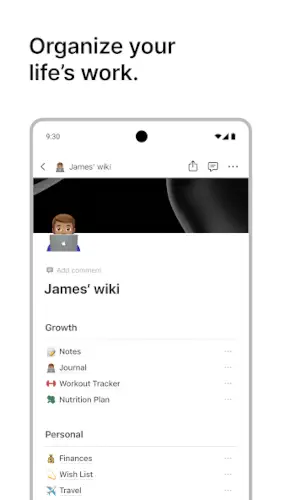
Notion puts everything in one place. Notes, databases, tasks, wikis, and project tracking.
All connected. All customizable. The Notion app is not just a note taker. It is a workspace. The question is whether this flexibility makes it the ultimate productivity tool or just overwhelming.
What is Notion?
You are looking at an AI powered, all in one workspace app by Notion Labs, Inc. that combines notes, docs, databases, tasks, wikis and project tracking with built in AI writing, summarizing, and Q&A features.
Notion positions itself as a unified AI workspace where you can write, plan, track and automate work using both your own content and AI agents that answer questions, assign tasks and generate reports. It started as a powerful note taking and wiki tool, but has evolved into a knowledge base plus project management plus AI assistant platform used by millions of users and 98 percent of the Forbes Cloud 100 companies.
The app is available on Android, iOS, web and desktop, with core features in a generous free tier and paid plans for teams, enterprises, and advanced AI usage.
Notion holds a 4.8 star rating from more than 375,000 reviews. The app size is roughly 113 MB. The age rating is Everyone. The app is free with optional in app purchases for Pro plans.
An AI powered all in one workspace app with notes, databases, tasks, wikis, and project tracking
The category matters here. Notion is not just a note taking app. It is not just a project management tool. It is an all in one workspace. You can write notes. You can build databases. You can track tasks. You can create wikis. You can manage projects. The AI adds writing, summarizing, and Q&A capabilities.
Who this tool was built for
Individuals who want a single place for notes, tasks, and knowledge management
If you have notes everywhere, Notion consolidates them. The tool is for personal knowledge management.
Teams and businesses that need collaborative docs, wikis, and project tracking
Teams can collaborate in real time. Shared docs. Company wikis. Project trackers. The tool is for team productivity.
Students who need to organize study notes, schedules, and research
Students can organize notes. They can track assignments. They can manage research. The tool is for academic organization.
Creators who want to build public wikis, portfolios, or content hubs
Creators can build public pages. Portfolios. Content hubs. The tool is for publishing.
Notion Main Features
Notes and Docs with rich, block based pages
Pages are block based. Text. Images. Embeds. Code. The blocks are flexible.
Databases and Tables with kanban boards, calendars, filters, views, and relations
You can build custom databases. Kanban boards. Calendars. Tables. The views are flexible.
Tasks and Projects with list, board, calendar, and timeline views
Tasks and projects have multiple views. List. Board. Calendar. Timeline. The views help you track progress.
AI Powered Tools to summarize, draft, extract tasks, and answer questions
The AI can summarize pages. Draft content. Extract action items. Answer questions. The AI is integrated.
Custom Agents to automate recurring workflows
You can create AI agents. They automate workflows. Meeting notes. Status reports. Task routing. The agents save time.
Templates and Gallery with thousands of community and official templates
Templates are available. Thousands of options. Official and community created. The templates help you get started.
Collaboration with sharing, comments, assignments, and real time editing
You can share pages. Comment on content. Assign tasks. Edit in real time. The collaboration is seamless.
Web Clipper to save web pages and articles directly into Notion
You can save web pages. Articles. Research. The clipper is convenient.
Cross Platform Sync across mobile, desktop, and web
Your content syncs across platforms. Mobile. Desktop. Web. The sync is seamless.
Integrations with Slack, GitHub, Figma, and more
You can integrate with other tools. Slack. GitHub. Figma. The integrations extend functionality.
Notion Graphics and Design
Clean, minimal, block based design where every element is a block that can be dragged and reorganized
The design is clean. The blocks are flexible. You can drag and reorganize. The design is intuitive.
Interface is intentionally flexible and customizable with icons, covers, and colors
You can customize pages. Icons. Covers. Colors. The customization is extensive.
Beautiful, modern UI, especially calendar and database views
The UI is modern. The calendar view is clean. The database views are polished. The design is praised.
Where the design works well
The app is beautiful. The customization is flexible. The views are useful.
Where performance issues and weak offline support affect the experience
Large pages can be slow. Offline support is weak. The performance is a limitation.
What users actually say about the Notion app
The parts people enjoy
Positive reviews often mention the flexibility. The databases are praised. The AI is useful.
One user wrote: “Notion is the most flexible tool I have ever used. Databases and AI are game changers.”
The parts people complain about
Steep learning curve; many users need tutorials or templates to get started
The tool is complex. New users feel overwhelmed. Tutorials are needed. The learning curve is steep.
Performance issues on large pages and databases; mobile apps can lag
Large pages are slow. Mobile apps lag. The performance is a frustration.
Weak offline support; frustrating for travelers or unreliable Wi‑Fi
Offline support is limited. The tool is online first. The offline experience is weak.
Feature bloat and complexity; may feel heavy compared to simpler apps
The tool does everything. Some users find it heavy. The complexity is a trade off.
Billing, cancellation, and support concerns on Trustpilot
Some users report billing issues. Cancellation problems. Support concerns. The Trustpilot ratings are lower.
How the Notion app mechanics work
Create pages and databases to capture notes, projects, and knowledge
You start by creating pages. You can also create databases. The pages and databases are the foundation.
Organize with views and link content via relations and rollups
You can organize content with views. Relations link content. Rollups aggregate data. The organization is flexible.
Use AI to summarize, draft, extract tasks, or answer questions from your own content
The AI works with your content. Summaries. Drafts. Tasks. Q&A. The AI is integrated.
Collaborate with others via sharing, comments, assignments, and real time editing
You can share pages. Comment on content. Assign tasks. Edit in real time. The collaboration is seamless.
Automate workflows using AI agents and integrations
AI agents automate workflows. Integrations connect to other tools. The automation saves time.
Looking for another all in one workspace tool with notes, databases, and project tracking? Check out ClickUp, a similar platform with task management and collaboration features.
How to Build a Job Application Tracker in Notion
Most people track their job search in a spreadsheet, a notes app or a mess of browser bookmarks. Notion gives you something better: a single database where every application becomes a page you can open, add interview notes to and connect to the people you talk to.
Start with a database, not a page. Create a new page, type /database and choose Table. The table is your foundation. Add these properties: Company (text), Position (text), Status (select: Applied, Interviewing, Offer, Rejected, Follow-up), Date Applied (date), Salary Range (text) and Notes (text) .
Use views to see your search from different angles. A table view shows everything at once. Switch to Board view and group by Status. Your applications become cards that move from “Applied” to “Interviewing” as you drag them across columns. This gives you a visual pipeline of your search without any extra setup.
Make each application its own page. Click into any row and you’re inside a page for that company. Add a checklist for interview prep, paste the job description, write notes from your calls and link to the resume version you sent. One Notion user described exactly this setup: “I have a table database with all the schools I’m interested in and pertinent info… I love that each school is also its own Notion page, so I can open the page and take more detailed notes”.
Add a second database for contacts. Track recruiters, hiring managers and anyone you talk to. Link them to the application pages so you always know who to follow up with.
If you want to skip the setup, start with a template. Notion’s template gallery has ready made job application trackers. The “Easy Automated Job Application Tracker” includes quick action buttons, auto populated fields and an application status graph. The “Job Application Tracker” template offers customizable categories and integrated task lists. Duplicate one, tweak it to fit your search and you’re running in minutes.
For the technically inclined: You can automate the whole thing. A GitHub project connects Gmail to Notion using Google Apps Script. It scans your inbox for job related emails, extracts company names and status updates and logs them into your Notion database automatically. You set it to run daily and your tracker updates itself.
The core idea is simple: one database, multiple views and a page for every application. That’s it. Notion handles the rest.
Notion for Beginners: Everything You Need to Know
Notion can feel overwhelming when you first open it. A blank page stares back at you and everyone online seems to be building elaborate life dashboards. Here is the truth that cuts through the noise: Notion has two building blocks and once you understand them, everything else falls into place.
Pages and databases. That’s it. A page is where you write, plan and organize. A database is a collection of pages with shared properties. You can nest a database inside a page. You can nest a page inside a database. You can go as deep as you want. Everything in Notion is built from these two pieces.
Start with a page. Click the “+” in the sidebar, name it “My First Page,” and hit enter. You now have a page. Type some text. Hit enter and type more. You’re already using Notion.
Learn the slash command. Type / anywhere on a page and a menu appears. This is how you add everything: headings, bullet lists, checkboxes, images, databases, dividers. Type /todo and hit enter for a checklist. Type /h2 for a heading. The slash command is the single most important shortcut to learn .
Blocks are everything. Every element on a Notion page is a block. A paragraph is a block. A heading is a block. A database is a block. Click the six dot handle on the left of any block to drag it, delete it, or turn it into something else. Once you see everything as blocks, Notion stops feeling mysterious.
Don’t build a life dashboard on day one. The most common beginner mistake is trying to organize everything at once. Start with one thing. A to-do list. A reading log. A simple project page. Get comfortable with that. Then add another page. Then another. One Notion user put it plainly: “Start small – get used to the idea of database… once you understand, you can do most things in notion”.
Explore templates when you’re ready. Notion’s template gallery has thousands of ready made setups for every use case. When you find one you like, duplicate it and poke around. See how the database is structured. Look at the properties. Templates are the fastest way to learn how Notion actually works under the hood.
The official Notion Academy is free. Notion’s own learning platform has short video lessons on navigating, building databases and using AI features. The “Building basics” lesson covers the fundamentals in about 20 minutes. Start there if you prefer structured learning.
One practical warning: Notion is online first. It requires an internet connection to work, and offline access is limited. For critical information, keep a backup somewhere else. Export pages you can’t afford to lose.
The beginner’s path: Create a page. Use the slash command. Make a simple database. Add a second view. Explore a template. That’s your first week. Everything else comes after.
Notion Tips
You can start Notion app and create your first page in minutes. Building a workspace that actually works for you takes a little strategy. These tips help you get organized without getting overwhelmed.
Start with templates to avoid building from scratch
Here is a question. Why do some users give up on Notion after a week? They try to build everything themselves.
Notion tips from experienced users all say the same thing. Start with templates. The template gallery has thousands of options. A user who starts with templates builds quickly. A user who builds from scratch gets overwhelmed.
Master databases and views to turn Notion into an operating system for your work
Notion similar apps have databases. This tool has powerful databases.
Master databases. Learn views. Table. Board. Calendar. Timeline. Gallery. A user who masters databases creates a powerful workspace. A user who only uses basic pages misses the depth.
Use AI strategically to summarize long pages, generate drafts, or extract action items
Notion app has AI. Use it wisely.
Let AI summarize long pages. Let it generate first drafts. Let it extract action items. A user who uses AI strategically saves time. A user who ignores AI misses a key feature.
Keep pages focused; split complex topics into multiple linked pages for performance
Large pages are slow. Performance suffers.
Keep pages focused. Split complex topics into multiple pages. Link them together. A user who keeps pages focused maintains performance. A user who crams everything into one page slows down.
Leverage the web clipper to save articles and research directly into Notion
Notion codes for free features are not needed. The web clipper is already free.
Use the web clipper. Save articles. Save research. A user who uses the clipper builds a knowledge base. A user who does not misses content.
Use calendar and board views for task and project management
Notion app has multiple views. Calendar. Board. Timeline.
Use calendar view for deadlines. Use board view for workflows. A user who uses views manages projects effectively. A user who only uses list view misses visual context.
Set up AI agents for repeatable work like meeting notes and reports
AI agents automate workflows. Meeting notes. Status reports. Task routing.
Set up agents for repeatable work. A user who sets up agents saves time. A user who does manual work wastes effort.
Be realistic about offline use; treat Notion as a primarily online tool
Notion app is online first. Offline support is limited.
Be realistic. Treat Notion as an online tool. A user who prepares for offline use avoids frustration. A user who expects full offline functionality is disappointed.
What Can You Actually Do With Notion? Cool Ideas to Try
Notion is not just for work. People use it for everything from planning parties to running small businesses. Here are some ideas that go beyond to-do lists.
Plan a party like a project manager. Create a “party hub” page with a cover image and emoji. Add a guest database with RSVP tracking and dietary preferences. Build a mood board in gallery view for decor ideas. Track your menu with a mini table for dishes, ingredients and prep times. Link a playlist. After the event, turn the page into a keepsake with photos and what worked.
Run a small business database. A car dealership uses Notion to track inventory, customers and orders. They built three connected databases: cars, customers and orders. When a customer trades in a vehicle, it creates records in all three. They use rollups to aggregate data and templates to auto populate reports. The principle scales to any small business: one database per entity, link them together, use views to see different angles.
Track your entire life in one place. One Reddit user keeps databases for health metrics, plants they want to grow, local restaurants, books and browser bookmarks organized by topic. Another built a “life dashboard” that manages most aspects of their life, from project management to personal planning. The key is starting with one database and adding more as you need them.
Build a personal CRM. Track the people in your life: friends, colleagues, contacts. Add notes on your last conversation. Set reminders to follow up. Link people to projects they’re involved in. Notion users describe using it as a “decent CRM” for personal and professional relationships .
Create a reading or media log. Add a database for books, movies or games. Track what you’ve finished, what’s in progress and what’s next. Add ratings, notes, and quotes. Gallery view shows covers. Table view shows everything at a glance.
Design a knowledge wiki. Notion’s wiki feature lets you build a personal encyclopedia. One user moved “most of my browser bookmarks into pages based on related topics with notes and highlights of important information” . Another created “a page for crafts with sub pages for fiber arts, paper craft, pens etc.”. Your wiki can be as simple or as elaborate as you want.
Use it for creative projects. Writers use Notion to store long notes and writing projects. One user keeps “writing projects, long notes, and track my personal life” in Notion . Another uses it for “project management and CRM” alongside “PKM and for my notes”. If you have a creative practice, Notion can hold the research, the drafts, and the final output.
Automate repetitive work with Custom Agents. Notion’s newer AI features include Custom Agents that can run on a schedule or respond to triggers. They automate repeat work and reduce everyday busywork. If you find yourself doing the same thing in Notion over and over, an agent might handle it for you.
The best idea is the one you’ll actually use. One experienced user put it simply: “experience is the best teacher here. If you know what you want to see in your page, start there”. Don’t build a system because it looks impressive. Build something that solves a problem you actually have.
Apps similar to Notion
If you like Notion, here are four other apps worth your time. Each offers something similar with a different twist.
Obsidian and Logseq
Obsidian and Logseq are the closest comparison for knowledge management. Linked notes. Local storage. Notion similar apps should start here. The difference is that Obsidian and Logseq are offline first and markdown based. Good for users who want privacy and local control.
ClickUp and Monday.com
ClickUp and Monday.com focus on project management. Tasks. Workflows. Collaboration. The difference is that they are less flexible for note taking and wikis. Good for users who prioritize project management over knowledge management.
Evernote and OneNote
Evernote and OneNote are traditional note taking apps. The difference is that they are less flexible and less powerful for databases. Good for users who want simple note taking without the complexity.
Airtable
Airtable focuses on databases. The difference is that Airtable is more spreadsheet like and less focused on notes and docs. Good for users who want powerful databases without the full workspace.
Conclusion
Notion works for three types of people. First, individuals who want a single place for notes, tasks and knowledge management with flexibility. Second, teams and businesses that need collaborative docs, wikis and project tracking. Third, students who need to organize study notes, schedules and research.
Steep learning curve; many users need tutorials or templates to get started. Performance issues on large pages and databases; mobile apps can lag. Weak offline support; frustrating for travelers or unreliable Wi‑Fi. Feature bloat and complexity; may feel heavy compared to simpler apps. Billing, cancellation and support concerns on Trustpilot.
Do you want a flexible, all in one workspace with powerful databases and AI, even if it has a steep learning curve and weak offline support? Or do you prefer simpler, offline first tools for notes and tasks?
If the first one, Notion offers one of the most flexible productivity platforms available. If the second one, look at Obsidian or Evernote. Both answers are fine. Just know what you want.
FAQ
How do I get Notion download on my phone?
Go to the Google Play Store if you use Android. Search for Notion Notes Tasks AI. The developer is Notion Labs, Inc. Tap install or use the direct link to Download Notion from the Official Google Play Store.
Is Notion free to use, or do I need to pay?
The app is free with generous limits. You can create unlimited pages and blocks and share with up to 10 guests. The free version is sufficient for most individuals and small teams. Paid plans add unlimited file uploads, version history, and AI features. You can start with the free version and upgrade as your needs grow.
Where can I find the official website and help documentation?
The official Notion website has information about features, templates, and use cases: Official Notion Website Link. For troubleshooting, user guides and community discussions, check the Notion Help Center.
I have a problem with the app. Who do I contact?
Send an email to the Notion support team. They handle account issues, billing problems, bug reports, and technical support. Here is the address: team[at]makenotion.com. For Notion download problems or installation issues, that same email applies. Include your device model, app version, and a description of the problem.
Does Notion work offline?
Notion is primarily an online tool. Offline support is limited. You can view recently opened pages without an internet connection, but you cannot create new content or edit existing pages offline. For heavy offline use, consider alternative tools like Obsidian or OneNote. If you need offline access regularly, be aware of Notion’s limitations.