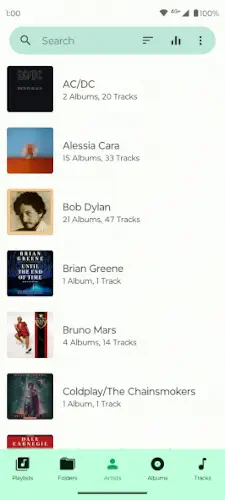
Fossify Music Player strips the act of playing music down to its purest state.
Fossify Music Player is not interrupting your tracks with ads, no push notifications telling you about “playlists you might like” and no background analytics tracking how many times you listened to a specific song. It currently holds a 4.6 star rating from over 1,260 reviews on Google Play, with 100,000+ downloads. The install size is tiny, sitting around 10 MB to 15 MB and the age rating is Everyone. it is not a streaming replacement. It is a local music player for the files you already own.
What Is Fossify Music Player
It is a free, open source music player for Android. The core features include offline playback, an equalizer, playlist management and customizable widgets. These sound basic, but the value is in the lack of strings attached.
Most free music players trade ads for free access, push notifications for retention and data collection for personalized recommendations. Fossify takes a different path. It does not collect data, does not request unnecessary permissions and does not insert ads into the playback screen. The Play Store data safety declaration states “no data collected, no data shared with third parties” and the source code is public on GitHub for anyone to verify. The privacy promise of Fossify Music Player is a hard restriction at the permission level, not marketing speak.
Fossify Music Player Mechanics of Playback and Customization
Core Playback
You can play local files with shuffle, repeat, skip and forward controls. There is no buffering and no waiting for an ad to load. Tap a song and it plays. The playback experience in Fossify Music Player is zero interference. You will never be interrupted by a five second ad when switching tracks.
Audio Customization
The equalizer is its most underrated feature. It includes multiple presets covering rock, pop, classical, bass boost and other scenarios. You can adjust frequency bands based on your headphones or speakers to match your listening preference. The equalizer in Fossify Music Player does not require a premium unlock. Everything is open.
The sleep timer is also there, though some users report it is buried deep. The function exists. You can set music to stop after a certain number of minutes, which is more practical for anyone who listens before bed than any flashy recommendation algorithm.
Playlist Management
You can create and manage playlists and edit song info and tags. But there is a pain point mentioned repeatedly in user reviews: when adding songs to a playlist, you can only add one at a time. There are no checkboxes for bulk selection. If you want to move fifty songs from “All Music” to a “Running” playlist, you tap fifty times. This is the most obvious weakness in its user experience.
Privacy and Transparency
It requests only the permissions necessary to read and write audio files. No location, no contacts, no network data. The permission list for Fossify Music Player is short enough to read in under a minute.
What Users Say About Fossify Music Player App
What users like
What users appreciate most is no ads, no tracking, no unnecessary permissions. Basic playback is stable, the app is lightweight and it does not slow down your phone. Customization options for widgets and interface colors let people who like to tinker adjust the player to their liking. Open source transparency keeps privacy conscious users around.
Were users say work is need it
Playlist management is the most concentrated complaint. Adding one song at a time with no bulk option. The Now Playing screen feels outdated and lacks an album grid. Some users report the sleep timer is “missing” or “hard to use” even though the official description says it exists. These are small issues, but they add up for people who use the app daily.
How to use Fossify Music Player
Open the app and you will see the main screen. At the bottom, there are usually three tabs: Songs, Albums and Playlists. If you just copied music files to your phone, the first time you open it, it might take a few seconds to scan the media library.
The basic playback logic is this: tap a song, it starts playing and the control bar appears at the bottom. The playback experience in Fossify Music Player is “tap and play.” No buffering ads, no recommendation popups. If you want to add a song to a playlist, long press the song and select “Add to playlist.” The problem is it does not support bulk selection. You have to add them one by one.
Fossify Music Player Tips
Use the Equalizer
The equalizer is one of its most underrated features and the most practical tool in the free version. Built-in presets cover rock, pop, classical, bass boost and more. You can adjust frequency bands based on your headphones or speakers.
A frequent Fossify Music Player tip on Reddit is this: pick a preset close to your preference first, then fine tune the lows and highs. Do not start by maxing out every band. That only distorts the sound. If you are using cheap earbuds, boosting the mids can make vocals clearer. If your headphones are bass heavy, trimming the low end prevents the sound from becoming muddy.
Use the Sleep Timer
The sleep timer is hidden in the settings or the three dot menu on the Now Playing screen. The exact location depends on your version. Once set, the music stops automatically after a specified time.
This feature is especially useful for people who listen before bed because it saves you from manually closing the player. Reviews on the app Fossify Music Player mention that the timer is “buried a bit deep” but once you find it, it becomes a nightly staple. If you cannot find it, check the three dot menu on the Now Playing screen or search “sleep” in settings.
Organize Playlists by Directory
This is the most practical workaround for the “one song at a time” pain point. Instead of adding songs individually inside the player, organize your music into folders in a file manager first. For example, create folders for “Running,” “Commute” and “Bedtime.” Then load that folder directly as a playback queue in Fossify Music Player.
Playlist management in Fossify Music Player does not support bulk selection, but organizing by folder is a lower level solution. Your file system already supports batch operations. The player just reads it.
Customize Widgets and Colors
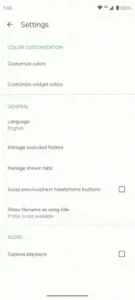
Widgets and interface colors are customizable. You can put playback controls on your home screen and pick a color scheme that matches your wallpaper.
This is not essential, but for an app you open several times a day, visual comfort affects whether you want to use it. The customization options in Fossify Music Player are not as deep as some commercial players, but what it offers is enough to make the interface look decent and there are no ads next to your theme selection.
Use Offline Mode
Fossify Music Player is an offline player by nature. It works without a network. That means on a plane, on the subway or in a dead zone, playback is the same as at home.
The Fossify Music Player app does not secretly connect to the internet in the background and it does not push ads while you listen. Its “offline mode” is not a toggle. It is the default state.
Fossify Music Player Similar Apps
Fossify Music Player vs Musicolet
Musicolet has more features. It supports multiple playback queues, bulk playlist editing and more detailed tag management. But it includes ads and its privacy policy is not as clean as Fossify’s. If you need bulk editing and multiple queues, Musicolet is the better choice. If you just want a quiet, ad-free player that does not collect data, Fossify fits better.
Fossify Music Player vs Music Player – MP3 & Audio
MP3 & Audio is a basic player, free but ad-supported. Its feature set is similar to Fossify, but ads interrupt your listening. Fossify offers the same basic playback without ads. If you just need a tool that plays local files, both work, but Fossify is cleaner.
Fossify Music Player vs Tunesimo
Tunesimo focuses on music discovery and playback. It recommends new songs, organizes playlists and offers discovery features. Fossify does none of that. Tunesimo is for people who want to be recommended to. Fossify is for people who want to listen to what they already have. They solve different problems.
Fossify Music Player vs IDAGIO
IDAGIO is a classical music streaming service with a massive library and professional curation. Fossify is a local player and provides no streaming content. If you want a streaming library for classical music, IDAGIO is the answer. If you already own classical music files and need a player, Fossify fits better.
If you want a more feature complete local player with a more modern interface, the feature route of Musicolet is another direction, but the trade-off is ads.
Best open source music player Android
If you are looking for an open source music player, Fossify is one option, but not the only one.
Musicolet has more features. It supports multiple playback queues and bulk playlist editing, but it is not fully open source and it includes ads. Vinyl Music Player is another open source option with a more native Material Design interface, but its update frequency is not as high as Fossify. Phonograph was once popular, but maintenance has stalled.
Fossify’s advantage is that it is actively maintained, the code is public on GitHub and there are no ads or in-app purchases. The open source positioning of Fossify Music Player is not “most features.” It is “cleanest.” If you just need a player that does not collect data and does not show ads, it is the most direct choice.
Best ad free music player Android
“Ad-free” in the music player category has two meanings. The first is “no ads during playback.” The second is “the app itself contains no ads and does not collect data.” Fossify is the second kind.
The free version of Fossify Music Player has no ads at all. You do not watch ads for features and there is no “watch an ad to unlock the equalizer” design. All features are open at once, including the equalizer and sleep timer.
If you want a more feature complete ad-free player, Musicolet’s free version also has no ads, but it does collect some anonymous data. If you are sensitive to data collection, Fossify is cleaner. In discussions about the best ad free music player, Fossify and Musicolet are often compared side by side. The difference is whether you care more about features or privacy.
Fossify Music Player equalizer
The equalizer is in the settings menu, or accessible from the three dot menu on the playback screen. Built-in presets include rock, pop, classical, bass boost and more. You can adjust frequency bands manually.
The equalizer in Fossify Music Player is a free feature. No premium unlock required. A practical tip: pick a preset close to your preference first, then fine tune the lows and highs. Do not max out every band at once. That only distorts the sound. If you are using cheap earbuds, boosting the mids can make vocals clearer.
Fossify Music Player sleep timer
The sleep timer is hidden in the settings or the three dot menu on the Now Playing screen. The exact location depends on your version, but the feature exists.
Once set, the music stops automatically after a specified time. The sleep timer in Fossify Music Player is especially useful for people who listen before bed because it saves you from manually closing the player. If you cannot find it, search for “sleep” or “timer” in settings, or tap the three dots in the top right corner of the Now Playing screen.
If you want a more feature complete local player with a more modern interface, the feature route of Musicolet is another direction, but the trade-off is ads and data collection.
Fossify Music Player not showing songs
This is the most common issue for new users. Songs not showing up usually comes down to three reasons.
First, your music files are not in the system media library. Fossify reads the Android system’s media scan results, not folders directly. If you just copied files to your phone, go to Settings > Storage and manually trigger a media scan or just restart your phone.
Second, the file format is not supported. It supports common formats like MP3, AAC, FLAC, OGG and WAV, but some obscure codecs may not be read.
Third, permissions are not fully granted. Go to your system settings, find Fossify Music Player and confirm that “Files” or “Audio” permission is enabled. Users on the app Fossify Music Player have reported this on Reddit. In most cases, re-granting the permission solves it.
Conclusion
Who Fossify Music Player Is For
People who own local music files and do not want to be interrupted by ads. People on de-Googled systems or custom ROMs who need a reliable default player. Users who care about auditable open source code. And anyone who just wants a player that opens, plays and closes without drama.
Who Should Look Elsewhere
People who rely on streaming services and cloud music libraries. Users who need bulk playlist editing and album grid views. Anyone with high expectations for a modern Now Playing screen. And anyone expecting smart recommendations or synchronized lyrics.
FAQ
Where is the safest place to get the Fossify Music Player download and is it free?
You can download Fossify Music Player from the Official Google Play Store. The app is completely free, with no ads, no premium tiers and no subscriptions. If you prefer to install it manually, the official GitHub repository hosts the APK files. There are no hidden paywalls or “pro” versions to unlock. (but we recomand to use the Official Play Store Link)
Does Fossify Music Player collect any data?
No. The Play Store data safety declaration states “no data collected, no data shared with third parties.” It does not request network permission, so technically it cannot send your listening habits anywhere. The source code is public on GitHub, so anyone can verify it.
Can I use the equalizer without premium?
Yes. The equalizer is a free feature. All presets and manual adjustments require no payment.
How do I contact support if I find a bug or need technical help?
The fastest way to report a bug or request a feature is to open an issue on the official GitHub page or by email at: hello[at]fossify.org. If you prefer a more conversational approach, posting in the Telegram channel or the subreddit usually gets a quick response from the developer or experienced users.
Why is adding songs to a playlist so slow?
Because the current design only supports adding one song at a time, with no checkboxes for bulk selection. This is the most common pain point in user feedback. The workaround is to organize your music by folder first, then load the folder as a playback queue.
Where is the sleep timer?
It is in the settings menu or the three dot menu on the Now Playing screen. The exact location depends on your version, but the feature exists. If you cannot find it, try searching “sleep” or “timer” in settings.
Can I customize the interface and audio settings?
Yes. As shown in the settings menu, you can customize colors and widget styles, swap headphone buttons and enable gapless playback. The app also includes a built-in equalizer with presets for different genres. You can access these features without any premium subscription, keeping the experience fully open and customizable.