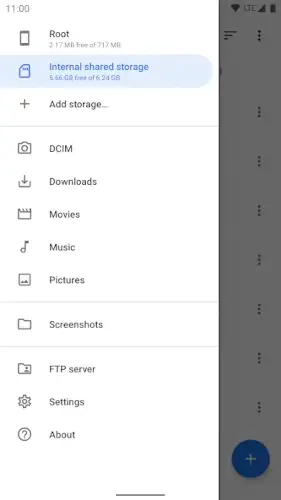
Material Files operates on a principle of straightforward utility.
Material Files developed by Hai Zhang, its primary identity is that of an open source, privacy focused application. The fact that its code is publicly available provides immediate assurance for users concerned about what their file manager might be doing in the background. Its adherence to Material Design is more than a visual choice; it is a functional commitment to creating an interface that is predictable, clear, and easy to navigate. The core value is exactly what it promises: a reliable, no nonsense tool for handling files without ads, tracking, or bloatware. This makes it a strong candidate for anyone searching for a Material Files APK download from a trusted source, as its open nature allows for verification of its security.
Material Files Functional Depth: Features Beyond the Basics
While many file managers handle the basics, Material Files distinguishes itself with a layer of advanced capabilities. The foundational operations are all present and executed efficiently: copying, moving, renaming, deleting, and sharing files work as expected without fuss. Where the app truly excels is in its support for advanced access. For users with rooted devices, it offers full root file system access, allowing for deep system modifications and management that most apps cannot provide. Equally important is its robust network support. The ability to connect to Network Attached Storage (NAS) via protocols like SFTP, SMB, and WebDAV transforms your phone into a genuine remote file management terminal, a must-have feature for tech-savvy users or anyone with a home server.
This functionality is bolstered by genuine system awareness. The app properly recognizes and handles Linux file permissions, symbolic links, and SELinux context, which is crucial for avoiding errors when moving system files or working within complex directory structures. Beyond these power features, thoughtful utility additions include built in archive management for ZIP files and an intelligent breadcrumb navigation system that makes moving through deep folder hierarchies significantly faster than repeatedly tapping the back button.
Material Files : The Material Design Interface
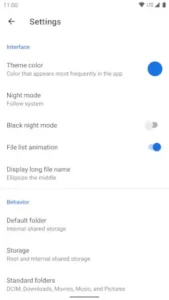
The visual and interactive design is a direct reflection of its purpose. The interface is a clean, minimalist interpretation of Material Design principles. It uses clear typography, distinct icons, and a logical layout that makes finding features intuitive rather than a hunt through menus. The design actively supports functionality by reducing visual clutter and placing the most important controls within easy reach. Customization options like a true black night mode and various color themes further enhance usability by allowing users to tailor the experience to their preference, reducing eye strain during extended use.
However, a balanced perspective requires acknowledging some interface quirks noted in user reviews. The built in image viewer, for instance, has been reported to occasionally misinterpret touch gestures, which can be a minor frustration. These are not major flaws but rather small friction points in an otherwise highly polished user experience.
Material Files : Consensus and Considerations
The consensus among its substantial user base is overwhelmingly positive, reflected in its high rating and volume of reviews. The aspects most frequently praised are the very pillars of its design: the open source nature, the complete absence of advertisements, the clean and modern interface, and the inclusion of powerful features like root and NAS access. For a specific audience, this combination is nearly ideal.
The considerations from users often highlight trade offs rather than outright flaws. The absence of a dual pane view, a feature found in some competitors, means managing files between two locations isn’t as seamless. Some users also note a desire for more robust thumbnail previews or a tile view for certain file types. These are typically concessions to the app’s focused, minimalist philosophy rather than oversights.
Material Files Optimizing Use: Getting the Most from the App
To fully leverage what Material Files offers, a bit of configuration goes a long way. For users with rooted devices, carefully enabling root access within the app’s settings unlocks its full potential for system file management. This is a powerful feature but should be used with a clear understanding of the risks involved. The breadcrumb navigation bar at the top is more than a path display; tapping any segment in the trail instantly jumps you to that directory, making it one of the most efficient ways to navigate and a key feature for any Material Files tutorial on advanced usage.
Setting up network storage connections is straightforward within the app’s sidebar menu. Taking the time to correctly configure an SMB connection to a home NAS or an SFTP connection to a remote server pays dividends, creating seamless access to large libraries of files directly from your phone. Finally, enabling the true black dark theme isn’t just an aesthetic choice; it can significantly reduce battery consumption on devices with OLED screens, making it a practical setting for prolonged use.
Material Files Community, Development, and Alternatives
The development of Material Files is a testament to the open-source model. The project is hosted on GitHub, where its code is publicly available for anyone to inspect, contribute to, or fork. This transparency is the bedrock of its trustworthiness; there are no hidden processes or secret data collections. The community contributes through bug reports, feature suggestions, and translations, making the app a collaborative effort rather than a solely proprietary product. For user support, the developer, Hai Zhang, can be reached via email, and issues are often discussed and tracked directly on the project’s GitHub repository, creating a public log of resolutions.
When evaluating Material Files, its position becomes clearest when compared to other leading options. Solid Explorer, for instance, is often praised for its polished dual pane interface and seamless cloud storage integrations, but it is a closed source, paid application. FX File Explorer offers powerful features and a strong focus on privacy but utilizes a more traditional, less minimalist interface design. This comparison is useful for determining your priorities. If you value a modern, clean interface and the fundamental assurance of open source transparency above all else, and you are willing to forgo some convenience features like dual pane view, then Material Files occupies a specific and valuable niche. It is for the user who chooses intentional design and verifiable security over a longer list of bells and whistles.
Conclusion :
So, who is the ideal user for Material Files? The answer is specific and hinges on a clear set of priorities. This app is an excellent, purpose built choice for a particular type of individual: the user who values digital privacy, prefers open source software for its transparency and security, and appreciates a clean, modern design language. It is particularly well suited for those who require, or simply want the option for, advanced capabilities like root access for system level file management or robust NAS support for handling files on a home server.
Its strengths are undeniable and form a compelling package for this audience. The combination of being ad-free, open-source, and privacy respecting provides a level of trust that is rare in the category. The core feature set is robust, covering everything from basic file operations to advanced network and system tasks, all wrapped in an intuitive Material Design interface.
However, its appeal is tailored. The trade offs are real. The absence of a dual-pane mode means managing files between two locations is less efficient than in some competitors. The approach to certain features, like its image viewer, is functional but may lack the polish of more commercial alternatives. Therefore, your satisfaction will directly correspond to how much you value its core principles. If you want a file manager that is transparent, respectful of your attention, and powerful where it counts, you will likely find it to be a superb tool. If your priority is having every possible convenience feature immediately at hand, you might find its minimalist approach limiting.
For the right person, it’s not just a file manager; it’s a statement about preferring software that is trustworthy, focused, and designed with intention. Understanding the Material Files most used tips is part of embracing this philosophy, mastering its breadcrumb navigation for faster browsing, configuring its true black theme for OLED battery savings, and properly setting up its SMB and SFTP connections to integrate remote storage seamlessly into your workflow. These aren’t just tricks; they’re about leveraging a focused toolset to its maximum potential, which is the entire point of choosing it over a more bloated alternative.