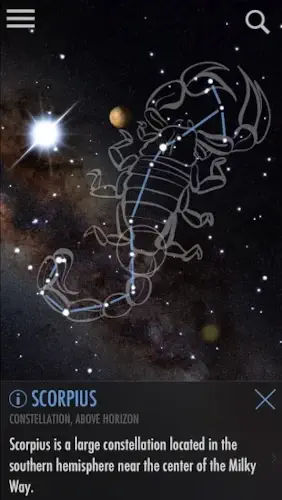
SkyView removes that traditional stargazing barrier. You don`t need to know which direction to face. You don`t need to understand which dots are stars and which are planets.
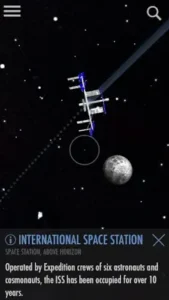
SkyView app overlays names, lines, and labels directly on your camera view. That bright dot near the moon? Venus. That cluster of stars over there? The Pleiades. That moving object crossing the frame? The International Space Station.
No charts. No prior knowledge. Just your phone and a clear night.
So here is the real question: why would you ever guess what you are looking at again?
What Is SkyView?
An augmented reality stargazing app. That is the shortest answer. But let me explain what that actually means.
SkyView uses your device camera, GPS, compass, and gyroscope to overlay celestial information on the live sky view in real time. You open the app. You point your phone upward. The screen shows your camera feed with labels floating over the stars, planets, and constellations visible above you.
The publisher, Terminal Eleven LLC, built this app for two audiences. Casual stargazers who want a quick answer to “what is that bright thing in the sky?” Deeper explorers who want time travel, object tracking, sky paths, and event alerts to plan their observing sessions.
You can use SkyView for five seconds to identify a single planet. Or you can spend an hour tracing sky paths and learning how the stars move across seasons. The app scales to your curiosity.
What You Can See and Do with SkyView
SkyView turns your phone into an interactive sky guide. Here is what it offers.
-
AR sky recognition for stars, planets, constellations, and satellites
-
Night mode with red or green filters to protect night vision
-
Sky paths to trace the movement of celestial objects across the sky
-
Time travel to view the sky at different dates and times
-
Event alerts for upcoming celestial events
-
Object details and Wikipedia links for more context on what you are viewing
-
Apple Watch support and a Today widget on iOS
-
Camera capture and sharing features for saving and sharing sky images
The AR recognition is the main attraction. Point, identify, learn. But the time travel feature surprises most new users. You can set the date to last month or next year. The app shows you exactly where the planets will be. That is useful for planning photography or just understanding how the sky changes.
How the AR Design Makes Astronomy Intuitive
SkyView uses a clean, visually driven interface centered around the live camera feed and the overlay of sky data.
The AR presentation is the app’s biggest design strength. Why? Because it makes astronomy feel immediate and intuitive. You do not have to imagine where a constellation sits. The app draws the lines directly over your camera view. You do not have to remember which star is which. The name floats right next to it.
The interface is also practical. Night view options switch the screen to red or green tones. That keeps the app usable outdoors in low light without ruining your night vision. Readable labels mean you do not have to squint or tap repeatedly to understand what you are seeing.
Calibration matters. The app relies on your phone’s compass. If the compass is off, the labels will drift. But when set correctly, the visuals are clear and satisfying. Stars stay aligned with their labels. Planets track accurately as you move the phone.
What Users Say about SkyView
The positive feedback focuses on ease of use first. Reviewers consistently say SkyView is simple enough for children and adults alike. AR accuracy comes second. The app correctly identifies objects in real time without noticeable lag. The ability to identify objects quickly gets frequent praise. You do not need to tap through menus or search databases. Just point and read. Many users call it excellent for casual observers and beginners who feel overwhelmed by traditional star charts.
The criticisms are minor but consistent. Occasional compass calibration issues appear in negative reviews. Sometimes the labels drift slightly off from the actual object. Some users want better zoom or alignment control for fine tuning. The app works well out of the box, but power users notice these small imperfections.
Even with those small issues, the core experience works well and feels impressive. Most users recommend SkyView to friends and family. That word of mouth is why the app has maintained high ratings across both major app stores for years.
How the SkyView App Actually Works
No complicated setup. No manuals. Here is how you use SkyView.
Step one: open the app
Tap the icon. The app requests camera and location access immediately.
Step two: allow camera and location access
Both are required. Camera captures the sky view. Location tells the app where you are on Earth. Without either, the AR overlay will not work correctly.
Step three: calibrate your compass if prompted
The app may ask you to move your phone in a figure eight pattern. This calibrates the compass for better accuracy. Do it. It takes ten seconds and improves the experience significantly.
Step four: point your phone at the sky
Raise your device. The camera feed appears. Labels start appearing over celestial objects within seconds.
Step five: watch as labels appear over stars, planets, and constellations
No tapping required. The app automatically identifies what is in frame and adds labels. Stars get names. Planets get labels. Constellations get drawn lines connecting the stars.
Step six: tap any object for more details and Wikipedia links
Curious about Jupiter? Tap its label. A card appears with basic information and a link to Wikipedia for deeper reading.
Step seven: move your phone to explore different parts of the sky
Sweep left or right. Tilt up or down. The app updates in real time. New objects enter the frame. New labels appear.
Why the discovery loop works
You move your device to explore the sky and follow object paths. That creates a discovery loop similar to a visual guide rather than a game challenge. There is no score. No timer. Just curiosity and the sky above you. That simplicity is why SkyView works for both five minute sessions and hour long stargazing nights.
SkyView tips: Small Changes That Improve Your Stargazing
These are not secrets. They are habits that separate a frustrating night of compass drift from a smooth evening of discovery.
-
Calibrate your compass before using the app for the best accuracy. The figure eight motion feels silly. Do it anyway. Calibrated compass means labels stay aligned with actual stars.
-
Enable night mode when observing outside to preserve dark adaptation. White light blinds your night vision for twenty minutes. Red or green mode keeps your eyes ready to see faint stars.
-
Use the app in an open area with a clear sky for better object detection. Trees and buildings block the GPS signal and the camera view. Find a field, a rooftop, or a backyard with open sightlines.
-
Try the time travel feature to learn how the sky changes across dates and seasons. Set the date to last summer. See where Saturn sat. Set it to next winter. Compare the difference. That builds mental maps of the sky.
-
Use object descriptions and Wikipedia links to deepen your astronomy knowledge. The app gives you a name. The links give you context. Read one article per stargazing session. Your knowledge compounds quickly.
-
Check the alert or event tools before heading out for stargazing events. Meteor showers. Planetary alignments. Space station flyovers. The app tells you when they happen. Show up prepared.
-
Compare the app view with what you see through binoculars or a telescope to improve identification skills. Binoculars show craters on the moon. Telescopes reveal Jupiter’s moons. Use SkyView to confirm what you are seeing through the lens.
SkyView similar apps: If You Want Something Different
| App | Main Similarity |
|---|---|
| Stellarium Mobile | Realistic star map and sky identification. |
| Star Walk 2 | AR astronomy app with interactive sky exploration. |
| Sky Guide | Sky mapping and object identification. |
| SkySafari | More advanced astronomy and observing tools. |
| Stellarium Web | Browser based sky map companion. |
Each app shares a piece of what SkyView app delivers. Stellarium Mobile offers a more realistic non AR view. Star Walk 2 adds a cleaner AR interface. Sky Guide focuses on quick identification. SkySafari gives you telescope controls. Try one or two and see which interface fits your observing style.
How Users Share and Learn Together
SkyView includes sharing tools that let users capture and share sky images with friends and family. That gives it a light social element even though it is not a community driven app in the usual social media sense. You see something amazing. Jupiter next to the moon. The space station crossing Orion. You capture the screen. You send it to a friend. They download the app to see it themselves.
The broader community exists among astronomy enthusiasts who use SkyView for stargazing, learning, and event watching. Wikipedia links, event tools, and object information support a knowledge sharing culture around astronomy. One user spots a comet. They post the coordinates in a forum. Others open SkyView, time travel to that date, and look for it themselves.
You are not just using an app. You are joining a global network of people who look up and wonder what they are seeing. SkyView gives you the answer. The community gives you the conversation.
Conclusion:
Ease of use. Real time object identification. Night mode that protects your eyes. Extra learning tools like sky paths and time travel. Those four pieces make SkyView worth keeping on your phone.
But every stargazer faces the same question. Do you want to learn the night sky through traditional charts that require study and patience? Or do you want to learn through your camera lens, with labels appearing instantly over whatever you point at?
Charts work. They always have. But they ask more of you.
SkyView asks almost nothing. Just a phone, a clear night, and a few seconds of curiosity.
Open the app. Point it at the brightest thing in the sky. Read the name. Then look up again.
That dot will never feel anonymous again.
FAQ
Where is the official place to get SkyView download?
Download SkyView from the official Google Play Store
Where can I read official news, version updates, and feature announcements?
The official SkyView website posts everything. New AR features, sky catalog expansions, bug fixes, and platform updates all appear there first. Check it when you notice something different in the app.
I ran into a crash, a tracking issue, or a compass problem. Who actually responds?
The developer email address for support: contact[at]terminaleleven.com. Mention your device model, operating system version, and what you were trying to identify when the problem appeared. Screenshots help.