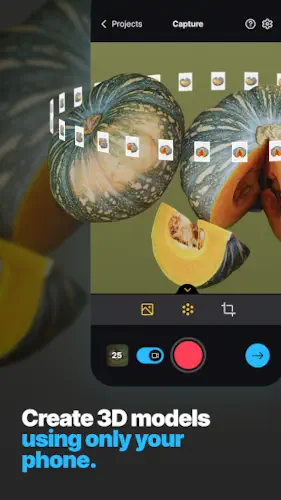
RealityScan puts professional grade 3D scanning in your pocket. No expensive hardware. No complex setup. Just your phone, a steady hand, and a subject worth capturing.
Epic Games built RealityScan app to make photogrammetry accessible. You take photos of an object, the app uploads them to the cloud, and you get back a textured 3D model ready for games, portfolios, or 3D printing. The entire process happens on your device with AR guidance telling you exactly where to point next.
Here is what the numbers look like as of this post:
-
Rating: 4.5 stars on Google Play (based on over 3,710 reviews)
-
Size: 32 MB on Android
-
Age Range: PEGI 3
-
Similar Tool: Check out Polycam
What Exactly Is RealityScan?
RealityScan is Epic Games’ free 3D scanning app for Android and iOS. It uses photogrammetry, a technique that stitches together multiple photos to build a three dimensional model with color and texture. The app processes everything in the cloud, so your phone handles the capture while Epic’s servers handle the heavy lifting.
The app connects directly to Sketchfab, allowing one tap uploads to share your models privately or publicly. You can also export models directly to your device. On iOS, you get OBJ format. On Android, you get GLB.
RealityScan is completely free to use, including for commercial work, for individuals and companies with gross annual revenue under $1 million USD. Students and educators can use it at no cost regardless of revenue.
How RealityScan Works: The Capture Process
Setting Up Your First Scan
Device requirements are straightforward. Android users need ARCore capable devices. An internet connection is required throughout the capture and processing workflow since all images upload to Epic’s cloud.
Creating a project is simple. Open the app, name your scan, and you are ready to start capturing photos. The app saves your projects to a library for later access and management.
The Capture Interface
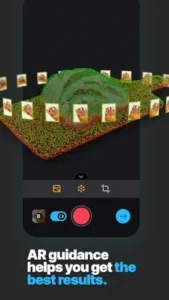
The camera feed shows AR overlays directly on your subject. Photo position markers appear as you move around the object, showing where you have already captured. Coverage quality indicators use green, yellow, and red dots to show how well your photos cover the object. Green means good coverage. Yellow means okay. Red means lacking.
Auto Capture vs Manual Mode
Auto capture mode takes photos automatically as you move around the subject. This reduces manual shutter presses and helps maintain consistent coverage. Manual mode gives you control over when each photo is taken, which can be useful for tricky angles or subjects with complex surfaces.
Camera settings are adjustable. You can control focus, flash, shutter speed, ISO, and white balance to match your lighting conditions.
Processing and Preview
After capture, the app uploads your images to Epic’s cloud. Processing time depends on the number of photos and their resolution. Once complete, you can inspect the point cloud, check the model preview, and decide whether to export or refine further.
RealityScan Works Key Features Worth Knowing
Real Time Point Cloud Feedback
Colored coverage dots appear as you scan. Green dots confirm good coverage. Yellow indicates areas that need more attention. Red shows gaps that require additional photos. This feedback loop helps you understand what the app sees before processing begins. Revisit red and yellow areas with perpendicular shots or closer distances to improve coverage.
AR Guidance and Capture Paths
AR mode displays photo positions around your object, helping you maintain even spacing between shots. Keep each new shot close to the previous one, work your way around at different heights, and avoid moving the object mid-scan. Good capture technique directly affects model quality.
Automatic Object Masking
The app separates your subject from the background automatically. This improves mesh resolution and texture quality by focusing the reconstruction on what matters. Background elements can confuse the photogrammetry algorithm, so proper masking helps produce cleaner results.
Crop Tools and Scan Area Control
On-device cropping lets you tell the app which part of the scene to reconstruct. This reduces noise and keeps the model focused on your subject. In version 1.5 and later, cropping happens directly on the device, making the workflow faster and less dependent on server-side adjustments.
Export Options
RealityScan supports multiple export paths:
-
iOS direct export: OBJ format saved to your device
-
Android direct export: GLB format saved to your device
-
Original photo export: Archive your source images for use in other tools
-
Sketchfab upload: One tap upload with private storage by default
Sketchfab can transcode models into other formats like FBX and USDZ, extending your workflow options.
Project Management
The project list shows scan names, creation dates, and sizes. Version 1.5 redesigned this interface to be more efficient and informative. Use the library to store and manage all your captures.
Who Is RealityScan For?
Game Developers
Create realistic assets from real objects. Capture reference materials for modeling. The app integrates directly with Epic’s ecosystem, making Unreal Engine workflows seamless.
3D Artists
Build portfolio pieces from everyday subjects. Generate textured models for Blender, Maya, or Cinema 4D. Use scans as starting points for sculpting and refinement.
Hobbyists and Beginners
RealityScan offers a free entry point to photogrammetry. The guided capture process with AR overlays and color feedback helps newcomers understand the technique. It serves as a learning tool before moving to more complex workflows.
Educators and Students
Classroom demonstrations become interactive. Project-based learning gains a 3D dimension. The free pricing removes barriers to entry for educational institutions.
What We Like and What Could Be Better
Strengths
Completely free for most users, including commercial use for individuals and companies under $1 million USD in annual revenue. No subscription fees, no hidden costs.
Real time guidance with colored coverage feedback helps you understand what the app sees before processing begins.
Auto capture reduces manual effort and helps maintain consistent coverage during scanning.
Direct Sketchfab integration provides one-tap upload with private storage by default.
No ads or subscription pressure means you can focus on scanning without interruptions.
Limitations
Constant internet connection required for all captures and processing. Offline scanning is not supported.
Time-consuming process for high-quality results. The app recommends up to 200 photos for detailed models, which takes careful movement and patience.
Limited on-device editing means most refinement happens after export. You cannot do significant cleanup within the app.
Cloud processing dependency means results depend on server availability and upload speeds.
Not ideal for small objects or highly reflective surfaces. Glass, metal, and wet materials produce poor results. Full room scanning is also not recommended.
RealityScan vs Other 3D Scanning Options
| App / Tool | Main similarity |
|---|---|
| Polycam | Mobile photogrammetry with LiDAR and export options |
| Luma AI | AI-enhanced 3D capture from mobile |
| 3D Scanner App (iOS) | LiDAR based room and object scanning |
| RealityCapture (desktop) | Epic’s advanced photogrammetry software |
Getting Better Results With RealityScan
Capture Tips for Better Results
Lighting determines whether your scan succeeds or fails. Even, diffuse light gives the photogrammetry algorithm clean data to work with. Overcast days produce better results than direct sunlight because clouds soften harsh shadows. Indoors, turn on every available light source and position your subject away from single-point lighting that creates hard shadows.
Photo overlap strategy matters more than you might think. Each new shot should overlap the previous one by 60 to 80 percent. Move slowly around your subject, keeping the same distance throughout. Think of it like painting: each stroke covers part of the previous one, building complete coverage gradually.
Object positioning affects everything. Place your subject on a non-reflective, matte surface. Avoid glass tables, polished wood, or anything that creates reflections. These surfaces confuse the software and produce distorted geometry. If you cannot avoid reflective backgrounds, use a plain sheet or fabric underneath your subject.
Common mistakes ruin good scans quickly. Moving too fast creates gaps in coverage. Not taking enough photos leaves holes in the mesh. Rushing the capture process leads to misaligned frames. Switching away from the app during processing interrupts the upload. Moving the object mid-scan breaks the reconstruction entirely. Avoid these errors and your results improve immediately.
Understanding Point Cloud Colors
The colored dots overlaying your subject tell you exactly what RealityScan sees. Green coverage means the app has sufficient data from that angle. Yellow indicates partial coverage that needs more photos. Red shows areas with no coverage at all.
How to improve problem areas: Revisit red zones with perpendicular shots taken from different heights. Lower your phone for low angle captures. Raise it above the subject for high angle shots. Move closer to fill the frame with detail. Each additional photo from a new angle turns red dots green.
The color feedback works in real time, so you know immediately whether you have enough coverage before processing begins. This guidance system eliminates guesswork.
Photo Quantity and Quality
RealityScan recommends up to 200 photos for detailed models. That number might sound high, but it ensures the software has enough reference points to reconstruct fine details and complex surfaces.
Different height angles matter. Most new users stay at eye level. That is a mistake. Take photos from low angles, high angles, and everything in between. These varied perspectives give the algorithm the information it needs to calculate depth accurately.
Fill the viewfinder with your subject. Leave minimal empty space around the object. The more pixels dedicated to your subject, the better the final model. This applies to every single photo you take.
What to Avoid Scanning
Shiny and reflective surfaces produce terrible results. Glass, polished metal, varnished wood, and glossy paint create reflections that the algorithm interprets as real geometry. Your model ends up with phantom surfaces that do not exist.
Transparent objects confuse the software completely. Glass bottles, clear plastic, and crystal cannot be scanned reliably because the algorithm cannot distinguish between the object and what is behind it.
Wet or glossy materials create the same problem. Rain, condensation, or any liquid coating makes surfaces reflective and unpredictable. Wait for items to dry before scanning.
Very small objects lack enough surface detail for good reconstruction. RealityScan works best with objects that fill the frame. Tiny items with minimal texture produce noisy, low-resolution models.
Full room scanning is outside the app’s design. RealityScan captures objects, not environments. For interior spaces, you need LiDAR based tools like Polycam or dedicated room scanners. RealityScan serves a different purpose entirely.
Conclusion
RealityScan is a free 3D scanning tool from Epic Games that turns smartphone photos into textured 3D models. It works best for medium to large objects with matte surfaces and even lighting. Game developers, 3D artists, hobbyists, and educators will find it useful for asset creation, reference materials, and learning photogrammetry.
What it does best: guided capture with AR overlays, real-time feedback on coverage quality, free pricing for most users, and direct Sketchfab integration for sharing and export. The color coded point cloud system eliminates guesswork and helps beginners understand what the software needs to produce good results.
What it does not do: offline scanning, complex on-device editing, small object capture, or full room scanning. It also requires careful technique to achieve good results, and processing depends on cloud servers. Users who need professional-grade editing or offline functionality should explore other options.
Final recommendation: If you need a free, guided way to capture objects as 3D models for games, art, or visualization, RealityScan delivers. The free version gives you access to all core features without subscription pressure. Download it, try it on a simple object first, and refine your technique as you go. The guided feedback system helps you improve with every scan.
FAQ
Is RealityScan really free to use for commercial projects?
Yes. RealityScan is completely free for students, educators, and individuals and companies with gross annual revenue under $1 million USD. Commercial use is permitted below this threshold. For larger companies, licensing fees apply through Epic’s RealityCapture ecosystem. The free version includes all features with no watermarks or limitations on export quality.
What file formats can I export from RealityScan?
iOS devices export in OBJ format. Android devices export in GLB format. The app also offers one-tap upload to Sketchfab, where models can be transcoded into FBX, USDZ, and other formats. You can also export the original photos used to generate your scan for archiving or use in other photogrammetry tools. The direct device export feature was added in version 1.5, making the workflow faster and more convenient.
Where can I get the RealityScan download and start scanning?
You can get the RealityScan download from the Official Google Play Store. The app is free to install with all features included. Visit the official website at realityscan.com for detailed information, tutorials, and system requirements. A comprehensive wiki page is also available covering everything from first capture to advanced export techniques.
How does the AR guidance help me get better results?
The AR guidance system shows photo positions around your object, helping you maintain even spacing between shots. Colored point cloud overlays appear in real time, showing green for good coverage, yellow for partial coverage, and red for areas that need more photos. This feedback loop tells you exactly where to point next, eliminating guesswork and improving your results with every scan.
Who do I contact if I need support or have questions?
For technical support, feature requests, or bug reports, contact the development team at realityscan-realityscan-feedback[at]epicgames.com. Epic Games provides customer support for the app. For partnership inquiries, press requests, or enterprise questions, use the contact form available on the official website. Community support is also available through the Epic Developer Community forums and various tutorial creators on YouTube.