Polycam turns your phone into a 3D scanner. No expensive equipment. No desk full of gear. Just you, your device, and the objects or spaces you want to capture.
Polycam app uses two main technologies. Photogrammetry works on both Android and iOS, stitching together photos into detailed 3D models . LiDAR, available on Pro iPhones and iPads, uses laser pulses to measure distance and build room scans in real time . Think of it as taking a 3D photograph that you can walk around inside.
-
Rating: 4.2 stars on the Google Play Store (based on over 24,000 ratings)
-
Downloads: Over 1+million users worldwide
-
App Size: Approximately 144 MB
-
Age Range: Rated for users PEGI 3
-
Similar Tool: Check out RealityScan
What Is Polycam?
Polycam is a mobile 3D scanning application available on both Android and iOS. It lets you capture real world objects, rooms, and even entire buildings as detailed 3D models, floor plans, and point clouds. Architects, designers, contractors, and 3D artists use it to bring physical spaces into their digital workflows.
The core promise is simple: point your camera, move around the subject, and let the app handle the rest. On devices with LiDAR, the process is faster and more accurate for interiors. On standard phones, photogrammetry delivers detailed object scans with impressive visual fidelity.
How Polycam Works: The Capture Process
The app offers three main capture modes, each designed for different subjects and outcomes .
Photogrammetry Mode (All Devices)
This mode works on any smartphone. You take multiple photos of an object from every angle, ensuring 60-80% overlap between each shot . The app analyzes these images, finds common points, and reconstructs a 3D mesh. For complex subjects, you might need anywhere from 20 to over 150 images . Processing happens either on your device or in the cloud, depending on your plan.
LiDAR Scanning (Apple Devices Only)
LiDAR, short for Light Detection and Ranging, sends out pulses of infrared light and measures how long each takes to return . This creates a real time 3D map as you move through a space.
On Pro iPhones (12 and later) and iPads (2020 and later), Polycam uses LiDAR for Space Mode and Floorplan Mode . The app generates a 3D mesh, a virtual walkthrough, and a floor plan from a single scan session . The typical accuracy for interior captures is within half an inch .
360 Capture (Apple Devices)
This mode creates immersive panoramas by rotating your iPhone in a complete circle. The app stitches the images together, and AI fills any gaps in the final image . This works well for virtual tours and sharing spaces without needing precise 3D geometry.
Polycam Key Features Worth Knowing
Editing Tools
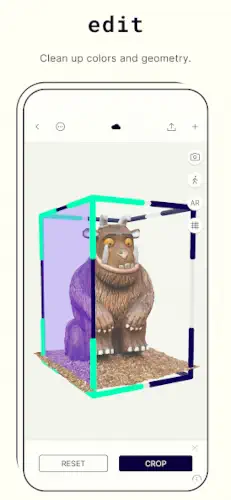
You can crop, rotate, and rescale models directly in the app . Measurement tools let you check distances and dimensions on-site, so you can verify accuracy before leaving the space .
Export Options
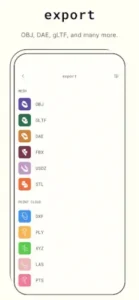
Polycam Pro unlocks multiple export formats :
-
Mesh data: .obj, .dae, .fbx, .stl, .gltf
-
Point clouds: .dxf, .ply, .las, .xyz, .pts
-
Floor plans: .png, .dae, .pdf, .svg
Free accounts are restricted to GLTF export only .
Polycam Pro Features
The Pro subscription includes unlimited captures, all export formats, private sharing, and higher processing limits . Business plans add floor plan editing, shared team libraries, and georeferenced exports .
Web Platform
You can access Polycam on desktop to edit and enhance models with cloud synced libraries . The web platform supports creating Scenes, which combine multiple captures into a single environment . You can export these scenes as .glb files.
Who Is Polycam For?
Architects and Designers
Floor plan generation is a standout feature for this group. Space Mode produces 2D and 3D floor plans with measurements and room labels automatically . The Floor Plan Editor lets you adjust walls, add doors and windows, and place furniture from a library of 70+ objects . DXF exports drop directly into AutoCAD, Revit, or SketchUp . For renovation planning and space documentation, Polycam provides a practical alternative to manual measuring and drafting.
3D Artists and Game Developers
Object Mode serves as a quick way to capture real-world reference models. The photogrammetry pipeline supports high detail meshes suitable for Blender, game engines, and 3D printing workflows . Artists can use the Gaussian Splat processing option for photorealistic rendering where traditional meshes fall short .
Contractors and Real Estate Professionals
Contractors use Polycam to document existing conditions before starting work. The app supports on-site measurement verification, which helps catch issues before they become problems . Real estate professionals use the floor plan and spatial report features to create property listings and client deliverables. The property reports include room by room square footage, wall dimensions, window areas, and object measurements .
Photographers and Content Creators
Polycam expands your service offerings beyond still images. You can deliver 3D models and floor plans as part of your portfolio, or use the Explore community to share captures and discover new techniques
What We Like and What Could Be Better
Strengths
-
Results quality: The output quality holds up for a mobile scanning app, especially when using LiDAR on Pro devices or photogrammetry with good capture technique .
-
Export variety: Professional workflows benefit from the range of export formats, with OBJ, FBX, STL, PLY, LAS, and DXF all available on Pro plans .
-
Room Mode: For floor plans and interior documentation, the Room Mode and Floorplan Mode features set Polycam apart from competitors .
-
Active community: The Explore gallery and tutorial ecosystem help new users learn what is possible .
Limitations
-
Hardware dependency: LiDAR features require Apple Pro devices (iPhone 12 Pro or later, iPad Pro 2020+) . Standard iPhones cannot generate floor plans.
-
Pricing structure: Pro plans have increased over time, and the most professional features have moved to the Business tier at approximately $400 per year per user .
-
Learning curve: Photogrammetry requires good capture technique to get clean results. Poor lighting or movement can produce noisy models .
-
Processing time: Complex captures with high photo counts can take time to process, even with cloud options .
Polycam vs Other 3D Scanning Options
| App / Tool | Main similarity |
|---|---|
| RealityScan / RealityCapture | Photogrammetry-based 3D scanning from photos. |
| 3D Scanner App (iOS LiDAR) | Mobile LiDAR scanning of rooms and objects. |
| Scaniverse / Luma AI | 3D scanning and AI-enhanced reconstruction for objects and spaces . |
| Professional photogrammetry (Metashape) | Complex desktop 3D reconstruction workflows from photos. |
Getting Better Results With Polycam
Capture Tips for Better Results
Lighting makes or breaks a Polycam scan. Harsh shadows confuse the photogrammetry algorithm. Flat, even light gives it clean data to work with. Overcast days work better than direct sunlight. Indoors, turn on all available lights and avoid mixing warm and cool color temperatures.
Photo overlap matters more than you might think. Aim for at least 60 to 80 percent overlap between consecutive images. Move around your subject in a circular pattern, keeping your distance consistent. Take photos from multiple height levels too, not just eye level. Low angles and high angles give the software more reference points.
Object positioning affects what you can capture. Place your subject on a non-reflective surface. Avoid glass, polished metal, or anything shiny. These surfaces create reflections that the software interprets as real geometry, leading to distorted results. If you cannot avoid reflective surfaces, dust them with a light coating of temporary spray.
Common mistakes ruin good scans quickly. Moving too fast between photos creates gaps in the data. Not enough photos leaves holes in the mesh. Poor lighting produces noisy point clouds. Holding the phone too close or too far from the subject reduces resolution. Taking photos in a straight line rather than orbiting the subject limits the software’s ability to reconstruct depth.
Choosing the Right Export Format
Mesh formats work best when you need a solid, watertight model. OBJ and FBX are the industry standards for animation, game engines, and 3D printing. STL is the go-to for 3D printing specifically. GLTF is ideal for web-based 3D viewers and AR applications.
Point clouds excel in surveying, BIM workflows, and large-scale spatial documentation. PLY and LAS formats preserve color information and spatial accuracy. DXF integrates with CAD software for architectural and engineering work. XYZ is a simple text-based format useful for custom data processing.
Software compatibility drives your format choice. Blender handles OBJ, FBX, and STL natively. SketchUp works with DAE and SKP. AutoCAD and Revit prefer DXF and DWG. Unreal Engine and Unity use FBX and GLTF. Plan your export format based on where the model needs to go.
File size considerations affect workflow speed and storage. Point clouds take up more space than meshes. High-polygon meshes load slower in editing software. Exporting lower-resolution versions for previews saves time during iteration. Use the Polycam Pro processing options to balance quality against file size for your specific use case.
Free vs Pro: Making the Decision
The free version of Polycam gives you access to basic capture, viewing, and GLTF exports. Public sharing works through the Explore community. Cloud processing limits apply, with a cap on how many captures you can process per month. This is fine for testing the app and learning the workflow.
Pro features unlock what makes Polycam useful in professional settings. All export formats become available. Processing limits increase significantly. Private sharing lets you control who sees your captures. Team collaboration tools appear in the business tier. For architects, designers, and contractors sending deliverables to clients, Pro is the practical starting point.
The free trial period exists through the App Store or Google Play subscription model. New users get a limited number of free captures before the limits apply. This gives you enough room to test the app on real projects and decide whether Pro fits your workflow. Most professionals find the subscription cost acceptable compared to the price of a dedicated 3D scanner or laser measuring tool.
Conclusion
Polycam is a mobile first 3D scanning tool that does one thing well: it captures real world objects and spaces as usable digital assets. Architects use it for floor plans and interior documentation. 3D artists use it for reference models and game assets. Contractors use it for on-site measurement and existing condition reports.
What it does best: turning a smartphone into a practical 3D scanner without requiring expensive hardware or extensive training. The LiDAR features on Apple Pro devices produce accurate room scans in minutes. The photogrammetry pipeline on Android delivers detailed object captures that integrate with professional workflows.
What it does not do: professional-grade surveying, aerial mapping, or compliance documentation for legal purposes. Treat it as a visualization and design tool, not a certified measurement instrument. For construction-grade accuracy, dedicated hardware and software remain necessary.
If you need quick floor plans, object scans, or reference models for creative work, Polycam delivers. The free version gives you enough to evaluate the workflow. Pro unlocks the formats and features that make it practical for client work and professional projects. Download it, try it on a simple object first, and scale up as you get comfortable with the capture technique.
FAQ
What file formats can I export from Polycam?
Polycam supports a wide range of export formats for both meshes and point clouds. Mesh formats include OBJ, GLTF, DAE, FBX, USDZ, and STL. Point cloud formats include DXF, PLY, XYZ, LAS, and PTS. The free version limits you to GLTF exports. Pro unlocks everything else. Choose OBJ or FBX for Blender and game engines. Choose STL for 3D printing. Choose DXF or PLY for CAD and surveying workflows.
Can I edit my scans inside the Polycam app?
Yes. The app includes basic editing tools for refining your captures. You can crop unwanted sections, reset the view, and clean up colors and geometry. The AR view lets you place your model in a real-world environment to check scale and positioning. For more advanced editing like AI texture generation, you will need to use the Polycam web platform on a desktop computer.
Where can I get the Polycam download and start scanning?
You can get the Polycam download directly from the Official Google Play Store for Android devices. iOS users can find it on the Apple App Store. The app is free to install with basic features included. Visit the official website at poly.cam for detailed feature breakdowns, pricing information, and workflow guides.
Does Polycam work without an internet connection?
Basic capture works offline. You can take photos or LiDAR scans without an internet connection. Processing, however, typically requires cloud access for photogrammetry reconstruction. Some processing happens on-device depending on your device and capture mode. For reliable results, a stable internet connection is recommended during processing and export.
Who do I contact if I need support or have questions?
For technical support, feature requests, or bug reports, contact the development team directly at contact[at]polycam.ai. The team is responsive and actively incorporates user feedback into product updates. For partnership inquiries, press requests, or enterprise questions, use the contact form available on the official website. Community support is also available through the Polycam Explore gallery and various tutorial creators on YouTube.