Fossify Notes – The Open Source Note App That Respects Your Data

Table of Contents

Fossify Notes is not trying to be Evernote.
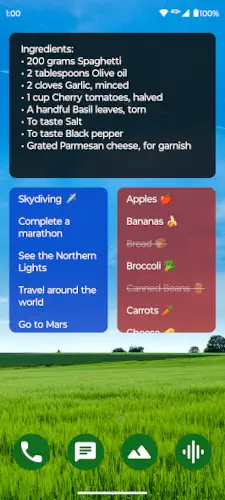
fossify notes widgets recipe checklist

Fossify Notes it does not have cloud sync, it does not have rich text formatting and it does not have AI summarization. It is a place to write things down and check them off and it does that without asking for your email address or your data. It currently holds a 4.5 star rating from over 500 reviews on Google Play, with 10,000+ downloads. The install size is tiny, sitting around 10 MB to 15 MB and the age rating is Everyone. It is a tool for people who want to capture ideas without being tracked, even if that means giving up the bells and whistles of mainstream productivity apps.

What Is Fossify Notes

Most note apps want to be your second brain. They want to sync across devices, collaborate with teams and use AI to organize your thoughts. Fossify Notes does none of that. It is built on a simple premise: your notes are your business.

The core value of Fossify Notes is its zero network permission. Technically, it cannot upload your notes anywhere because it does not request internet permission at all. For anyone writing private journals, recording password hints or handling sensitive work information, that is a clear security boundary.

Fossify Notes Mechanics of Note Taking and Organization

Quick Note Taking

You open the app, tap the plus button and start typing. There is no loading screen, no sync delay and no account login. The quick capture in Fossify Notes is “open and write,” with no extra steps. For recording fleeting ideas or shopping lists, it is the most direct experience.

Automatic Saving

Every edit is saved automatically. You do not need to hit a save button and you do not need to worry about closing the app and losing your work. The automatic saving in Fossify Notes lets you exit anytime without worrying about whether you saved.

Checklists

You can create checklists for tasks and to-dos. Mark items as complete, reorder them and keep track of what is done. The checklist feature in Fossify Notes is enough for shopping lists, travel packing, or daily task management.

Simple Organizer

The layout is straightforward. You see your notes and lists and you tap into them. There is no complex folder structure and no tagging system. The organization in Fossify Notes is “simple and direct,” suited for people who do not want to spend time categorizing.

Task Management + Note Taking: Can One App Do Both?

Fossify Notes handles both, but in a basic way. Task management and note taking in Fossify Notes are not separate features. You create a note and if you need a checklist, you use the checklist format. It is not a full task manager with due dates, reminders or recurring tasks.

For simple to-dos and shopping lists, it works. For complex project management, it does not. The app is designed for quick capture, not for managing a team or tracking dependencies.

Fossify Notes Customization and Widgets

Colorful Note Taking Widget

You can add a widget to your home screen to access lists and manage tasks without opening the app. The widget in Fossify Notes saves frequent users the step of opening the app just to check a shopping list or to-do item.

Custom Colors and Fonts

You can change the colors and fonts to match your style. The customization options in Fossify Notes are not deep, but they are enough to make the interface look decent.

Material Design and Dark Theme

The design is clean and modern, with dark theme support for low light use. The dark mode in Fossify Notes reduces eye strain for people writing notes at night.

How to Customize Your Notes App for Maximum Productivity

The customization in Fossify Notes is limited to colors, fonts and widgets. Customizing Fossify Notes for productivity is mostly about widget placement. Put the widget for your daily checklist on your home screen so you see it immediately. Change the font to something easy to read. Use the dark theme if you write at night.

There is no productivity dashboard, no tagging system and no folder hierarchy. The “customization” is visual. The productivity gain comes from the fact that there is nothing to configure, so you just open the app and write.

Fossify Notes Privacy and Security Features

Offline Operation

The app works entirely offline. It does not request internet permission, so it technically cannot send your notes anywhere. The offline nature of Fossify Notes is not “it works when you are disconnected.” It is “it never needed a network in the first place.”

No Data Collection

The developer states no data is shared with third parties and no data is collected. It requests only the permissions necessary to function as a note app. The permission list for Fossify Notes is short enough to read in under a minute.

Open Source Transparency

The source code is available on GitHub. If you do not trust the statement “we do not collect data,” you can look at the code yourself. The open source transparency of Fossify Notes makes the privacy promise verifiable.

How to Sync Notes Across Your Devices Without Cloud Storage

You cannot sync automatically with Fossify Notes. There is no cloud account, no background sync and no server storing your data. Syncing notes without cloud storage in Fossify Notes requires manual export and import or using a local sync tool like Syncthing.

If you want to move a note to another device, you export it as a file and transfer it via USB, Bluetooth, or a local network share. It is not seamless. But the trade-off is that your notes never touch a third party server. You control every step of the transfer.

What Users Say About Fossify Notes App

What users like

Users appreciate the no-ads, no-permissions, no data collection model. Basic note taking works reliably and without frills. Customization options for colors and fonts earn consistent mention.

Were work is need it

The feature set is limited compared to mainstream note apps. The app is in beta, so bugs or missing features may be present. User complaints about Fossify Notes focus on missing features and beta instability, not the core note-taking experience.
fossify notes security backup settings

Fossify Notes Tips

Use Widgets for Quick Access

The home screen widget is the fastest way to interact with the app. You can place a widget for a specific list or note directly on your home screen. A frequent Fossify Notes tip on Reddit is to set up a widget for your shopping list or daily to-dos. This way, you do not have to open the app to see what you need to do. You just glance at your home screen.

Use Checklists for Task Management

While you can write free-form notes, the checklist feature is where the app shines for daily use. The checklist feature in Fossify Notes is straightforward: you create a list, add items and check them off. It is perfect for grocery runs, packing for a trip, or managing simple daily routines. The app automatically moves checked items, keeping your list clean and focused on what is left to do.

Use Custom Fonts for Readability

You can change the font of your notes. The custom font feature in Fossify Notes is useful if you have a hard time reading the default font or just want a different look. Choose a font that is easy on your eyes, especially if you use the app to write longer notes or journal entries.

Use Dark Theme for Comfort

The app supports a dark theme. The dark mode in Fossify Notes is not just a visual preference. If you write notes at night or in low light environments, the dark theme reduces eye strain and makes the app more comfortable to use. You can set it to follow your system settings or enable it manually.

Best Note App for People Who Hate Complicated Software

If you hate complicated software, Fossify Notes is a strong candidate. It opens to a list of notes. You tap to create a new one. You type. It saves automatically. Fossify Notes is for people who hate complicated software because it strips away the onboarding, the account creation and the settings menus.

There is no “workspace” to set up and no “template” to choose. You just write. The lack of features is the feature. If you have ever opened Evernote or Notion and felt exhausted by the options, Fossify Notes will feel like a relief.

How to Move All Your Notes to a New App Safely

Fossify Notes does not have a built-in export feature for all notes at once. Moving notes to a new app from Fossify Notes requires manual work. You can copy the text from each note and paste it into the new app, or you can use a file manager to find the app’s database file if you have root access.

If you are moving to another local note app, the process is straightforward but tedious. If you are moving to a cloud app, you need to copy the text and paste it into the new service. There is no one click migration.

How to Share Notes With Others Without Cloud Services

You can share a note by copying the text and sending it via SMS, email or any messaging app. Sharing notes in Fossify Notes without cloud services does not include a built-in sharing button that sends a link. You copy the text and paste it into the other app.

If you want to share a file, you can export the note as a text file and send it as an attachment. It is not as smooth as a cloud share link, but it keeps your data out of a third party server.

Local vs. Cloud Notes: Which Is Right for You?

Local vs. cloud notes in Fossify Notes is a choice between control and convenience. Local notes stay on your device. They are private, fast and do not require an internet connection. But they do not sync automatically and they are lost if you lose your device.

Cloud notes are convenient. You can access them from anywhere and they sync across devices. But they live on a server and you are trusting a company to keep them private. If you write personal journals or sensitive information, local notes are safer. If you need access across multiple devices and do not mind the cloud, a cloud app is more practical.

How to Keep Your Notes Private on Android

Keeping notes private in Fossify Notes starts with the app itself. It does not request internet permission, so it cannot send your data anywhere. It does not have analytics or trackers. The source code is open for anyone to verify.

On the device level, you should have a lock screen password. If someone gets your unlocked phone, they can open the app and read your notes. Fossify Notes does not have a built-in app lock. For an extra layer of security, you can use Android’s built-in app locking feature or a secure folder if your phone supports it.

Fossify Notes Similar Apps

Fossify Notes vs Standard Notes

Standard Notes offers strong encryption and cross platform sync. It is built for people who want to access their notes on multiple devices securely. Fossify Notes keeps everything local, with no internet permission. If you need sync across devices, Standard Notes is the better choice. If you want complete local control without any network access, Fossify Notes is the right path.

Fossify Notes vs Color Notes

Color Notes is a popular note taking app that focuses on colorful designs but includes ads. Fossify Notes offers the same basic experience without ads or tracking. If you just want a simple note app and do not want to pay with your data, Fossify is the better option.

Fossify Notes vs Weekly Planner

Weekly Planner focuses on weekly planning and diary entries. It is designed for people who want a structured way to plan their week. Fossify Notes focuses on quick capture and checklists. If you need a detailed planner, Weekly Planner is more suitable. If you just need to jot things down fast, Fossify is lighter.

Fossify Notes vs Habit Project

Habit Project is built for tracking habits and building routines. Fossify Notes is for general note taking and to-dos. If your goal is to build a new habit, Habit Project has the tools for that. If you just need a place to write down your tasks, Fossify does the job.

If you want a notes app with rich features and don’t mind the data collection, Standard Notes offers a different set of trade-offs with encryption and cross-platform sync.

Conclusion

Who Fossify Notes Is For

People who want a private notes app with no ads and no cloud sync. Users who value open-source software and local data control. Anyone who needs basic note taking and checklists without paying.

Who Should Look Elsewhere

Users who rely on cloud sync and cross-device access. People who want rich text editing or media attachments. Anyone frustrated by beta bugs or a limited feature set.

FAQ

Where is the best place to get the Fossify Notes downloaded on my phone?

You can download Fossify Notes directly from the Official Google Play Store. The app is completely free, with no ads, no premium tiers and no subscriptions.

Does Fossify Notes collect any data?

No. The Play Store data safety declaration states “no data collected, no data shared with third parties.” It does not request network permission, so technically it cannot send your notes anywhere. The source code is public on GitHub, so anyone can verify it.

What is the official website and where do I find community resources?

The project is hosted on GitHub at github.com/FossifyOrg, where you can review the source code and track updates. For practical advice and troubleshooting, the Fossify Notes reddit is highly active. You can also join the official Telegram channel to get release notes directly from the developer.

Why is the app still in beta?

Because it is still in development. Fossify apps are often released as beta and refined based on user feedback. Beta status means there may be bugs, but it also means the app is actively being improved.

How do I contact support if I find a bug or need technical help?

The fastest way to report a bug or request a feature is to open an issue on the official GitHub page or if you want you can send an email to developer at: hello[at]fossify.org. If you prefer a more conversational approach, posting in the Telegram channel or the subreddit usually gets a quick response.

How do I add the widget to my home screen?

Long press on an empty area of your home screen, select “Widgets,” find Fossify Notes in the list and drag the widget to your desired location. You can then choose which note or list to display.

Can I password protect my notes and prevent accidental deletion?

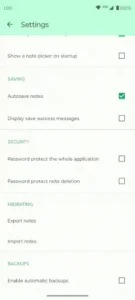
Yes. In the settings menu, you can enable “Password protect the whole application” to require a PIN or pattern every time you open the app. You can also turn on “Password protect note deletion” to prevent someone from swiping away your important notes without authorization.

Can I back up my notes and move them to a new phone?

Yes. Fossify Notes includes built-in export and import tools under the “Migrating” and “Backups” sections in the settings. You can export your notes as files, transfer them to a new device and import them. You can also enable automatic backups to ensure your data is safe locally.

📱

Never miss a post

Get the latest Android apps, games, and guides straight to your inbox.

Subscribe To Our Newsletter

Leave a Comment