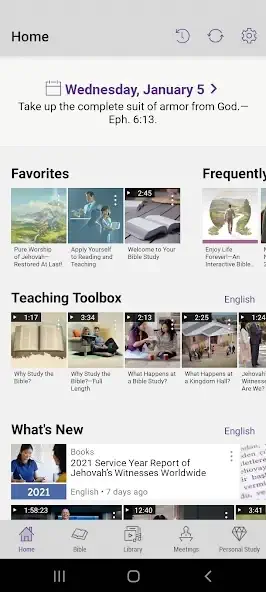
if you’ve ever lugged around a stack of Bibles, study guides, and meeting workbooks, you’ll appreciate what JW Library does.
The JW Library free app from Jehovah’s Witnesses (launched in 2013) condenses an entire spiritual library into your smartphone, and yes, it works even when you’re off the grid. With 50+ millions of downloads and a near perfect 4.9 star rating, it’s clearly more than just another Bible app. But what makes it stand out? Let’s break it down.
JW Library Features
Bible Translations: No More Flipping Pages
You get the New World Translation (the Jehovah’s Witnesses’ official version) alongside other popular translations like the King James Version or New International Version. The killer feature? Side by side comparison. Tap a verse, and you can instantly see how it reads across different translations, no swapping books or apps.
A Library That Fits in Your Pocket
We’re not just talking about the Bible. JW Library includes:
-
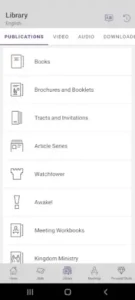
The Watchtower and Awake! magazines (current and archived)
-
Meeting workbooks (for congregation study)
-
Brochures and tracts (handy for ministry)
All available in over 100 languages. Ever tried carrying that in a backpack?
Multimedia That Doesn’t Need Wi-Fi
Bible stories, documentaries, even songs, download them once, and they’re yours offline. This is a game changer for:
-
Traveling (no roaming charges for study)
-
Remote areas (where internet is spotty)
-
Kids (Bible dramas and animations keep them engaged)
Study Tools You’ll Actually Use
-
Highlighting and notes: Mark up verses or jot down thoughts.
-
Bookmarks: Save key passages for quick reference.
-
Search: Find anything from a single verse to a full publication.
Meeting Support (No More Forgotten Workbooks)
The app syncs with congregation meeting schedules, displays song lyrics, and lets you follow along with the workbook. Forget paper, just open your phone.
User Experience: Simple, But Not Basic
The Interface: No Frills, No Clutter
JW Library keeps it clean:
-
Adjustable fonts and themes (light/dark mode for late-night reading)
-
Easy navigation (tap to jump between Bible, publications, or media)
Where It Shines
-
Offline access: Download what you need, and you’re set.
-
Regular updates: New content and fixes roll out often.
Where It Stumbles
-
Syncing notes across devices? Not yet. You’ll need to manually back them up.
-
Large publications (like bound volumes) can slow down search on older phones.
Pros and Cons from Users
The Praise
-
“I use this daily, it’s replaced my physical library.”
-
“The offline access saved me during a trip with no internet.”
The Complaints
-
“Wish my notes synced between my phone and tablet.”
-
“Searching the entire library can take a few seconds.”
If you need a free, comprehensive, offline ready Bible study tool, JW Library delivers. If you’re looking for social features or advanced note syncing, you might hit limits.
How to Use JW Library for Offline Study (Step by Step)
-
Download Before You Go:
-
Open the app and tap the download icon (cloud with arrow) next to Bibles, publications, or media.
-
Pro tip: Prioritize what you’ll need most (e.g., current meeting workbook + a Bible translation).
-
-
Organize Your Library:
-
Use collections to group frequently used items (e.g., “Ministry Tools” for tracts and brochures).
-
-
Access Without Internet:
-
Once downloaded, everything appears under “My Library”, no Wi-Fi needed.
-
-
Save Data on the Go:
-
Turn off “Auto Download” in settings to avoid surprises if you’re on a limited plan.
-
JW Library vs. The Competition: Which Bible App Actually Fits Your Needs?
Most Bible apps overlap in basic features, but JW Library carves out a unique space. Here’s how it compares to popular alternatives, plus practical tips to use it.
JW Library vs. Alternatives: The Clear Comparison
| Feature | JW Library | YouVersion | MySword | Olive Tree |
|---|---|---|---|---|
| Official JW Content | Full Watchtower/Awake! library | No JW publications | ||
| Meeting Tools | Workbooks, schedules, songs | |||
| Offline Access | Full publications + media | Bibles only | Custom modules | Premium content |
| Study Features | Highlighting, notes, compare | Social sharing, plans | Advanced Greek/Hebrew | Commentaries, maps |
| Languages | 100+ | 1,000+ (but fewer JW resources) | 50+ | 20+ |
| Cost | Free | Free (premium options) | Free | Free (paid add-ons) |
Why JW Library Wins for Witnesses:
-
It’s the only app with official Jehovah’s Witnesses publications updated weekly
-
Meeting integration lets you follow along with your congregation’s schedule
-
True offline access – download entire magazines, not just scriptures
Where Others Beat It:
-
YouVersion has more translations (helpful for interfaith study)
-
Olive Tree offers deeper commentary from non-Witness scholars
Expert Tips: Get More From JW Library
Offline Prep: Never Be Without Study Material
-
How to Download Watchtower Magazines for Offline Use:
-
Open the app → Tap “Publications”
-
Find the latest Watchtower → Tap the download icon (cloud with arrow)
-
Wait for the checkmark (means it’s saved)
-
Access anytime under “My Library”
Pro Tip: Set a monthly reminder to download new issues. Older magazines are in the “Archive” section.
-
-
Travel Ready Setup:
-
Before trips, download:
-
Current meeting workbook
-
2-3 Bible translations
-
Frequently used brochures
-
-
Check storage (Settings → Storage) to avoid phone clutter
-
Study Hacks for Deeper Understanding
-
Verse Comparison: Press/hold a scripture → Select “Compare” to see it in multiple translations
-
Bookmark System:
-
Create folders like “Ministry Answers” or “Personal Study”
-
Tag key scriptures with emojis
-
Meeting Prep Like a Pro
-
Workbook Notes:
-
Open the meeting workbook → Tap a paragraph → Add your notes
-
Use abbreviations (e.g., “Q” for questions to research)
-
-
Song Lyrics:
-
Download the music pack → Practice with lyrics during commutes
-
10 Hidden Study Tricks Most JW Library Users Never Find
1. Create an Emoji Based Priority System for Bookmarks
Instead of plain text bookmarks, use emojis as visual tags. This lets you scan your saved list in half a second.
-
🔴 = Urgent / For next meeting
-
🟡 = Research later
-
✅ = Answered question
-
📍 = Ministry talking point
-
❓ = I do not understand this yet
How to do it: When bookmarking a verse or paragraph, type the emoji at the start of the bookmark name.
2. The “Two Finger” Compare Trick for Deeper Verse Analysis
You already know press and hold a verse, then tap “Compare” to see other translations. But here is the hidden layer: after the split screen appears, tap the three dots on the right panel and select “Compare Again.” You can stack three or four translations side by side, not just two.
3. Turn Your Meeting Workbook into a Searchable Question Bank
Open the current meeting workbook. Tap the search icon (magnifying glass). Type a question mark ? followed by a keyword, for example ? baptism. The app returns every paragraph in that workbook that contains the word baptism, including the study questions. This works faster than scrolling through 20 pages.
4. Offline Ministry “Quick Deck” Using Collections
Most users download publications one by one. Instead, create a Collection called “Door to Door.” Inside it, add:
-
One short brochure (e.g., Good News From God)
-
Three tracts
-
One video under 2 minutes
-
A single Bible verse (like Psalm 37:29)
Then download the entire collection at once. When you are in the ministry with no signal, you open the Collection, not the main library. Everything is in one folder.
5. The Audio Speed Secret for Dramatic Bible Readings
Go to any Bible chapter. Tap the audio icon (headphones). Before pressing play, tap the 1x button. You can increase speed to 1.5x or 2x for fast review, or decrease to 0.75x for a slow, dramatic reading. Most users never change this from the default.
6. Use the “Share” Function to Export Notes as Plain Text
Your notes are trapped inside JW Library unless you know this trick. Open any note you have written. Tap the share icon (square with arrow). Choose “Copy” or “Mail.” The note exports as clean plain text. Paste it into Google Keep, Notion, or even a text message to a study partner.
7. The Hidden “Reading Plan” That Does Not Appear in Menus
On the iOS version only: Open the Bible. Tap the clock icon in the top bar (not the settings gear). A reading calendar appears. You can set a daily verse goal. The app will remind you at the same time each day. This feature exists on iOS but is not listed in any official help file.
8. Restore Deleted Highlights (Within 30 Days)
Accidentally removed a highlight? Go to Settings → Backup and Restore → Restore Notes and Highlights. You will see a list of automatic backups from the last 30 days. Pick a date before you deleted the highlight. The app reverts only your markings, not your downloaded content.
9. Parallel Study with Two Different Publications
Open a Watchtower article. Tap the split screen icon (two rectangles). Then tap “Choose Publication” and select a different magazine, for example an Awake! issue. You can now read both side by side. This works with any two publications, not just Bible translations.
10. The “No Wi-Fi” Installation Trick for New Devices
You have a new tablet but no internet at home. On your old device (with JW Library already installed), go to Settings → App Management → Share App. It generates a link or file. Transfer that file to the new device via Bluetooth or USB cable. Install from the file. No Play Store, no login, no Wi-Fi required. The app will ask for credentials when you open it.
Community & Support: What to Expect
Help When You Need It
-
JW.org Help Section: Solutions for common issues (syncing problems, downloads)
-
No Social Features: By design – keeps focus on personal/group study
Update Schedule
-
Weekly: New Watchtower/Awake! issues
-
Annual: Major meeting releases (convention workbooks)
-
Bug Fixes: Typically monthly
JW Library: Your Complete Guide for Every Device
The iOS version (4.8★, 250K+ ratings) offers seamless integration with Apple’s ecosystem:
-
Key Features:
-
iCloud sync for notes and highlights across iPhones/iPads
-
Apple Pencil support for handwritten notes
-
Handoff capability to continue reading on Mac
-
-
Setup Tips:
-
Download from App Store (requires iOS 15+)
-
Enable “Automatic Downloads” in Settings
-
Use Split View on iPad for parallel Bible study
-
-
Optimization:
-
Reduce text size for better readability on iPhone
-
Use background audio for dramatic Bible readings
-
Enable “Reading Goals” in Settings for daily reminders
-
JW Library for Windows Devices
The Windows app (version 12.3) shines for desktop users:
-
Installation Options:
-
Microsoft Store (recommended for automatic updates)
-
Direct download from jw.org
-
-
Pro Features:
-
Multi window view for comparing translations
-
Keyboard shortcuts (Ctrl+F for search)
-
High DPI support for 4K monitors
-
-
Troubleshooting:
-
If videos won’t play, install Media Feature Pack
-
Reset cache through Help menu if slow performance
-
The Fire OS version (4.6★) works best with these adjustments:
-
Getting Started:
-
Enable “Apps from Unknown Sources”
-
Sideload from jw.org (Amazon Appstore version lags behind)
-
-
Fire Tablet Tips:
-
Use Blue Light Filter for evening reading
-
Download videos for offline convention use
-
Disable auto updates during assemblies
-
-
Fire TV Tricks:
-
“Read aloud” function works with Alexa
-
Pair with Bluetooth speaker for better audio
-
Use screensaver mode for scripture displays
-
Cross Platform Syncing
All versions share core functionality:
-
Same user interface across devices
-
Unified sign in with JW account
-
Cloud backup of personal study notes
-
Download management for offline content
Conclusion: Who Should (and Shouldn’t) Use JW Library
Best For:
-
Jehovah’s Witnesses (obviously)
-
Multilingual families (easy language switching)
-
Ministry workers needing offline access to tracts
Not For:
-
Those wanting social features (no chat/forums)
-
Academic Bible scholars needing critical commentaries
JW Library isn’t trying to be everything for everyone – it’s a specialized tool that does a few things exceptionally well. For Witnesses, it’s like swapping a heavy briefcase of books for one lightweight phone.
FAQ
Where can I download JW Library?
Download JW Library from the Official Google Play Store or visit JW.org for iOS/web access. The JW Library Wiki has troubleshooting tips.
Does JW Library support sign language content?
Yes! Visit JW Library Sign Language . The app includes signed videos and publications for deaf users under the “Video” section.
How do I download Watchtower magazines for offline reading?
Go to “Publications” → Select a magazine → Tap the download icon (cloud with arrow). Find downloaded items in “My Library.”
Can I use JW Library without an internet connection?
Absolutely. Download Bibles, magazines, and videos beforehand – they’ll appear in “My Library” for offline access. Perfect for ministry or travel.
Why can’t I find some older publications?
The archive shows only select older items. For complete historical libraries, check JW.org’s online library.
Are There Restrictions on Working Holidays as a Jehovah’s Witness?
The short answer is no, there are no blanket restrictions against working on holidays. However, the decision is guided by personal Bible based conscience and specific circumstances.
What Does “Not Celebrating” Mean?
Jehovah’s Witnesses do not participate in holiday celebrations themselves. This includes activities like parties, gift exchanges, singing, or decorating. This stance is based on their understanding that many holidays have pagan origins or promote unscriptural teachings
So Can You Work on a Holiday?
Yes. Jehovah’s Witnesses are permitted to work on holidays. Their ministry (preaching and teaching) is their primary focus, and secular work is viewed as a secondary necessity. This is based on the example of the apostle Paul, who worked as a tentmaker to support himself while also being a full time minister.
There is no rule against working on holidays. The decision is a personal conscience matter based on Bible principles. A Witness will consider:
-
Are they directly promoting false worship or a condemned practice?
-
What is their degree of involvement?
-
Will their conscience allow them to do it?
Ultimately, each individual aims to “maintain a clear conscience before God and men” in their employment choices
1 thought on “JW Library – The Features Regular Users Never Discover”