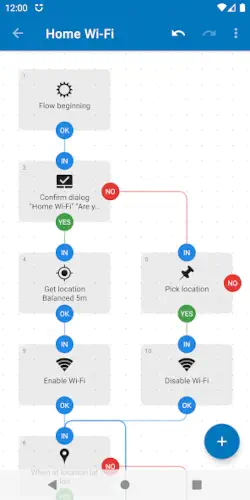
Automate lets you build Android automations by drawing flowcharts instead of writing code, connecting blocks with lines on a visual canvas.
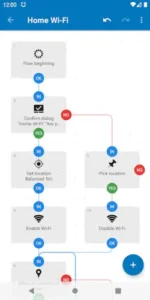
Developed by LlamaLab, Automate app has earned a 4.6 star rating from over 30,000 reviews on Google Play and has been downloaded more than 5 million times. The app requires approximately 15 MB of storage, is rated for ages 3 and up and offers over 410 built-in blocks for triggers, actions and logic.
What Is Automate?
Automate is a free visual Android automation app that lets you build “flows” (automated routines) by drawing flowcharts out of reusable blocks. Instead of writing code or wrestling with complex profiles, you drop triggers, actions and logic blocks onto a canvas and connect them, making it especially appealing to visual thinkers and anyone who likes seeing their automation as a diagram.
The app sits between simple tools like IFTTT and powerful ones like Tasker. It gives you deep on-device control without requiring you to write full scripts, which makes it a strong middle ground for users who want serious automation but prefer a visual approach.
Blocks and Flows
Blocks are the basic units of automation . Each block performs one function: a trigger (e.g., “Time is 07:00”), an action (e.g., “Set Wi-Fi on”) or logic (e.g., “If”, “Loop”). You drag blocks onto the canvas and connect them with lines to define the order of operations.
Flows are complete automations built by connecting blocks. A flow defines when to start, what conditions to check, what actions to perform and in what order. The drag and drop editor makes building flows intuitive and the visual connections show exactly how each step relates to the next.
410+ Built-In Blocks
The block library is comprehensive. Triggers cover time, location (geofencing), calendar events, app in foreground, Wi-Fi network, battery level, physical activity, heart rate, steps, Bluetooth connections, NFC tags and hardware buttons. Actions cover file management, backups, SMS, MMS, email, Gmail, call management, system settings (volume, brightness, Do Not Disturb, Wi-Fi, hotspot, airplane mode), camera operations, screenshots, audio/video recording, TTS, OCR, QR code generation and more. Logic blocks include IF, loops, variables, and expressions for advanced behavior.
Free vs Premium
The free version is fully functional but limited to 30 blocks running simultaneously in a flow. For moderate automations, this is generous. The Premium upgrade is a one time in-app purchase (no subscription) that removes the 30-block limit and unlocks additional features. Users appreciate the one time payment model over subscriptions.
Automate Core Features
Flowchart Editor
Drag and drop blocks, connect with lines. Configure parameters in a visual workflow. Predefined options for novices, expressions for advanced users. Branches, loops and parallel flows visible at a glance.
Context Aware Automation
Run recurring tasks based on time, location, calendar. Current app, connected Wi-Fi, battery state. Physical activity, heart rate, steps. Hundreds of conditions for smart automation.
Manual Triggers
Home screen widgets and shortcuts. Quick Settings tiles. Notifications and floating buttons. Media buttons, volume buttons, hardware buttons. NFC tags for one tap execution.
File Management and Backups
Delete, copy, move, rename files on device, SD card, USB. Extract and compress ZIPs. Process text, CSV, XML. Daily backups of apps and files. Upload/download to Google Drive, OneDrive, FTP.
Communications and Networking
Send SMS, MMS, email, Gmail. Manage incoming calls and perform call screening. Built-in cloud messaging. Built-in web server for HTTP requests and webhooks.
Camera, Sound and Media
Take photos, screenshots, record video/audio. Speech recognition and TTS playback. Bulk image processing (crop, scale, rotate). OCR text in images, QR code generation, barcode scanning.
Device Configuration and App Integration
Change system settings: volume, brightness, Do Not Disturb. Mobile network mode, Wi-Fi, hotspot, airplane mode. Locale/Tasker plugin integration. Start app activities, send broadcasts, execute shell commands.
What Users Say About Automate App
What Works
Users consistently praise Automate for being powerful and flexible, handling almost any Android task from simple toggles to complex multi step workflows. The visual flowchart approach is a major strength, especially for those with node based workflow or coding experience. The generous free tier (30 blocks) is often enough for moderate automations and the one time premium (no subscription) is well received. Real world wins include auto launching games when a controller connects, sleep timers for media, custom notification profiles, file backups and location based automations.
Where The App Could Improve
Common criticisms include a learning curve for beginners, with some users finding it initially difficult to design flows and requiring trial and error until they grasp the block logic and connections . Compared to MacroDroid’s template driven approach, Automate can feel more “technical” and less plug and play for absolute newcomers. Occasional stability issues occur after OS updates or aggressive battery optimization, requiring proper permissions and background settings.
Check out MacroDroid for a more beginner friendly automation approach or explore the full collection of Android apps to find your next productivity tool.
Automate Tips
Getting started with Automate is easier when you lean on the community and build gradually. Here is what to focus on first.
Beginner Advice
Start with community flows from the in-app Community section. Do not build from scratch. The Community section has ready made flows you can download and study. Install one, see how the blocks connect and tweak it to fit your needs. This hands-on approach teaches you the block logic faster than reading documentation.
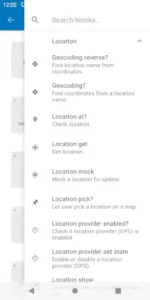
Use block search to find the exact trigger or action. The block library has over 410 blocks, which can feel overwhelming. Use the search function. Type “bluetooth” to find Bluetooth triggers. Type “calendar” to find calendar blocks. Search saves time and helps you discover blocks you did not know existed.
Keep flows modular by splitting complex automations into sub flows. A single massive flow becomes hard to read and debug. Break complex automations into smaller sub flows that call each other. This modular design makes your flows easier to understand, test and reuse.
Mind the 30-block limit if on the free version. The free version limits you to 30 blocks running simultaneously in a flow. Design your flows to stay under this limit. If you need more, the Premium upgrade removes the limit with a one time purchase.
Disable battery optimization for Automate on aggressive OEMs. On Samsung, Xiaomi and other aggressive OEMs, battery optimization kills background apps. Go to your system settings, find Automate, and disable battery optimization. This prevents flows from stopping after a few days.
Follow dontkillmyapp.com guides for OEM settings. Different manufacturers handle background apps differently. The website dontkillmyapp.com provides specific instructions for each brand. Follow the guide for your device to keep Automate running reliably.
Expose frequently used flows as Quick Settings tiles or widgets. Quick Settings tiles and widgets give you one tap access to your most used flows. Add a tile for “Work Mode,” “Backup Now” or “Night Routine.” Tapping the tile runs the flow instantly without opening the app.
Test one flow at a time before adding more. Do not build five flows simultaneously. Start with one flow, test it thoroughly, confirm it works, then add the next. Testing one at a time makes debugging easier.
Read flow descriptions to understand what they do. Community flows come with descriptions explaining what they do. Read them. Understanding the trigger, actions and logic helps you customize effectively.
Explore the community website for inspiration. The community website has additional flows with descriptions and ratings. Browse it for ideas. You might discover automations you did not know were possible.
Advanced Strategy
Use function blocks for reusable logic across flows. Function blocks let you define reusable logic that can be called from multiple flows. If you have a sequence of actions you use repeatedly, turn it into a function. This keeps your flows clean and reduces duplication.
Add expressions and variables for complex calculations. Variables let you store and manipulate data inside flows. Expressions let you perform calculations. Use them for counters, timers and conditional logic. For example, a variable can track how many times a flow has run today.
Combine with HTTP server blocks for custom integrations. The built-in web server accepts incoming HTTP requests. Use it to create custom integrations. A flow can respond to a webhook, return data or trigger actions based on external events.
Use webhooks for smart home and API integration. Webhooks let Automate communicate with smart home systems and APIs. Tap a Quick Settings tile to turn off lights, adjust the thermostat or trigger a routine. The possibilities are extensive.
Set up file and backup automations (daily backups, Downloads cleanup). Schedule daily backups of apps and files. Auto clean your Downloads folder by extension or age. Sync important folders to cloud storage. File management automations keep your storage organized without manual effort.
Create location based flows for home and work modes. Use geofencing triggers to run flows when you arrive at or leave specific locations. Arriving home can turn on Wi-Fi and adjust brightness. Leaving work can enable Do Not Disturb and start your commute playlist.
Use Tasker/Locale plugins for extended functionality. Automate supports Tasker and Locale plugins. If you need functionality not available in Automate, find a plugin that provides it. This extends Automate’s capabilities without switching apps.
Experiment with loops and branches for complex workflows. Loops let you repeat actions a set number of times. Branches let you create conditional paths. Use them for tasks that need repetition or decision making.
Leverage NFC tags for one tap flow execution. Write an NFC tag to trigger a flow. Tap the tag to run your automation. This is perfect for routines you trigger frequently, like starting a focus session or beginning your workout playlist.
Share your flows with the community. The Automate community is active on the community website and Reddit. Share your flows, learn from others, and discover new use cases. Collaboration makes the ecosystem better for everyone.
Automate Similar Apps
Automate sits between ultra simple tools and ultra-powerful ones, with a unique visual angle. Here is how it compares.
| App | Best for | Learning curve | Free tier | Paid model |
|---|---|---|---|---|
| Automate (LlamaLab) | Visual thinkers who love flowcharts | Moderate | 30 blocks running | One time premium |
| Tasker | Power users who want maximum control | Steep | 7-day trial | ~$3-4 one time |
| MacroDroid | Beginners to intermediate users | Gentle | 5 macros, ads | ~$4-5 one time Pro |
| IFTTT / Make | Web/service automation | Easy | Limited applets | Subscription for advanced |
Automate is the best flowchart based automation app on Android. It offers serious power without full scripting. For users who prefer a gentler learning curve, MacroDroid is the better choice. For users who want maximum control, Tasker remains the gold standard.
Who Is Automate For?
Automate is for visual thinkers who like seeing automation as diagrams. If you have ever drawn a flowchart to explain a process, Automate will feel natural. The block and flow model makes complex logic visible at a glance, which is a major advantage over text based automation tools.
Intermediate to advanced users who want deep control will find Automate powerful enough for complex workflows. The 410+ blocks cover almost any Android task. Variables, expressions and function blocks add programming like capabilities without requiring full scripts.
Users who prefer visual programming over text based profiles will appreciate the flowchart approach . MacroDroid uses trigger action constraint lists. Tasker uses text-based profiles. Automate uses visual diagrams. If you think visually, this is a significant advantage.
People who value a one time premium payment will appreciate Automate’s pricing model. Pay once, get unlimited blocks and remove the 30 block limit. No recurring fees. The free tier is generous for testing and the premium upgrade is affordable.
If you are a visual thinker, intermediate user, or someone who wants deep control without full scripting, Automate is worth trying.
Conclusion
Automate delivers a flowchart-based Android automation experience that stands out for its visual approach and deep control. The block and flow model makes complex logic visible at a glance. The 410+ blocks cover almost any task. The community flows give beginners a head start. The one time premium payment is affordable and transparent.
The app has limitations. The learning curve is steeper than MacroDroid. Building flows requires trial and error until you grasp the block logic. Occasional stability issues occur after OS updates or aggressive battery optimization. The free version’s 30-block limit may be restrictive for large flows.
For users willing to invest the time to learn the visual approach and configure their device properly, Automate offers a compelling automation solution. It does not try to be the simplest app (that is MacroDroid) or the most powerful (that is Tasker). It strikes a unique balance by making automation visual.
If you want to build automations by drawing flowcharts instead of writing code, Automate is worth downloading.
Draw your automation. Watch it run. The power is in the flowchart.
Automate FAQ
How do I download Automate and is it really free?
Automate is completely free to download and use. You can download Automate from the Official Google Play Store. The free version is fully functional but limited to 30 blocks running simultaneously in a flow. The Premium upgrade is a one time in-app purchase (no subscription) that removes the 30 block limit and unlocks additional features.
Where can I find guides, tips, and community resources?
The official Automate community website is the best starting point for downloading ready made flows and finding inspiration. The Automate documentation page provides detailed guides and block references. The Automate Reddit is active with user discussions, flow sharing, and troubleshooting. The in-app Community section also lets you browse and download flows directly from the app. For video tutorials, YouTube has extensive guides covering everything from beginner flows to advanced automation techniques.
What if I encounter a problem or need support?
For technical issues, bug reports, or general questions, contact LlamaLab customer support directly at automate[at]llamalab.com. The developer is responsive and regularly provides support to users. You can also check the official documentation for detailed guides and troubleshooting information. The Reddit community at r/AutomateUser is a helpful resource for community support and flow sharing.
What is the difference between the free and Premium versions?
The free version is fully functional but limited to 30 blocks running simultaneously in a flow. For moderate automations, this is generous. The Premium upgrade is a one time in-app purchase (no subscription) that removes the 30 block limit and unlocks additional features. There is no recurring fee. The Premium upgrade also supports the developer’s ongoing work on the app. For users with complex workflows that exceed 30 blocks, the Premium upgrade is worth considering.
Can I use Automate with smart home systems and other apps?
Yes. Automate supports HTTP server blocks that let you accept incoming HTTP requests and webhooks. This makes it possible to integrate with smart home systems like Home Assistant, trigger routines via API calls, and communicate with other apps. Automate also supports Tasker and Locale plugins, allowing you to extend functionality using existing plugin ecosystems. You can send SMS, MMS, email and Gmail messages, manage calls and execute shell commands. The integration possibilities are extensive.