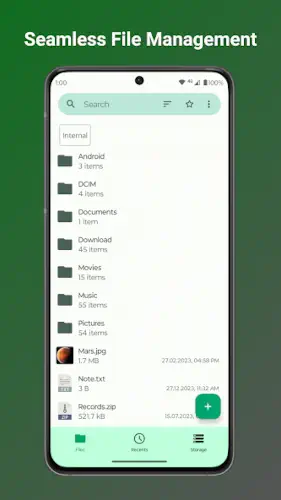
Fossify File Manager is a file explorer built for people who want to see their storage exactly as it is, without an algorithm guessing what they might want.
Fossify File Manager currently holds a 4.4 star rating from over 1,700 reviews on Google Play, with 100,000+ downloads. The install size is tiny, hovering around 10 MB to 15 MB depending on your device architecture and the minimum requirement is Android 8.0. The content rating is Everyone, which makes sense since this is a utility, not a game. These numbers point to a specific product: a file manager that refuses to connect to the internet, tracks nothing and asks for as few permissions as possible.
What Is Fossify File Manager
It is a free, open source file explorer that prioritizes local control over cloud convenience. You do not log in to an account. You do not sync folders to a server. You do not get ads for cloud storage you did not ask for. The source code is on GitHub, so anyone can verify that the app has no network permission and no hidden trackers.
The core positioning of Fossify File Manager is “a tool, not a platform.” It does not try to become your photo gallery, your document hub or your cloud drive entrance. It just lets you view files, move files, compress files and delete files. This restraint is rare among Android file managers today, where most apps try to cram in more features and then monetize those features with ads or subscriptions.
The Fossify File Manager Mechanics of Navigating and Managing Files
Fast File Navigation
Open the app and you see a standard file tree. Internal storage, SD cards and USB devices are listed on the side or at the top. Tap in and the file list loads instantly. You can set a frequently used folder as your “home” and pin your most opened folders to the top shortcut bar.
An underrated detail is USB device support. Many file managers put OTG support behind a paid tier. Fossify keeps it open. If you frequently use a flash drive to transfer files, this feature is more practical than any flashy interface.
Search and Sorting
Search is instant. You type a keyword and results appear immediately, without waiting for indexing or background scanning. Sorting can be done by name, date or size. These basic options are all there. The Fossify File Manager search speed is mentioned repeatedly in user reviews because it does not rely on the cloud or background services. It is pure local file system reading.
Compression and Transfer
Compression and decompression are built in. You can zip a folder or unzip an archive someone sent you without installing an extra tool. The logic for moving and copying files is standard: long press to select, tap move and choose the target folder. But there is a pain point mentioned in user feedback: the move target selection uses a popup instead of a full screen file browser. The popup has limited space and navigating deep path hierarchies becomes slow.
Storage Analysis
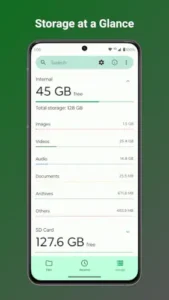
The storage analysis tool scans your internal storage and sorts folders by size, showing you what takes up the most space. This is especially useful when cleaning up photos, videos and cache files. The scan speed of Fossify File Manager storage analysis depends on file count, but it does not require internet access and it does not upload your file list to any server for analysis.
Light File Editing
The built-in lightweight editor can open text files, PDFs and other basic document formats. You can zoom, scroll and make simple edits. It is not a professional editing tool, but when you just want to change a line of configuration or read a PDF on your phone, you do not have to jump to another app.
Fossify File Manager Privacy and Security Features
No Internet Required
This is the core selling point. The app does not request network permission, so technically it cannot send your files, file names or file lists anywhere. The privacy promise of Fossify File Manager is not a slogan. It is a hard restriction at the permission level.
File and App Locking
You can lock specific folders with a PIN, pattern, or fingerprint or lock the entire app. The more practical approach is to lock only sensitive folders and keep daily files easily accessible. This works the same way as the locking logic in Fossify Gallery. The goal is to let you hand your phone to someone without uninstalling the app first.
Minimal Permissions
It requests only the permissions necessary to read and write files. No location, no contacts, no network data. The Play Store data safety declaration states “no data collected, no data shared with third parties.”
Open Source Transparency
The code is public on GitHub. If you do not trust the statement “we do not collect data,” you can look at the code yourself and see whether there are network requests. For a file manager, an app with sensitive permissions, this verifiability is more convincing than any privacy policy.
Fossify File Manager Design and Interface
The layout is Material Design, clean and modern. You can change themes, adjust colors and swap icons to match your taste. The app size is small, background usage is low and the impact on battery life is almost negligible.
The cost is that information density is low. Many users report that the spacing in the interface is too large and fixed elements take up space that could show more files. The floating “New” button in the bottom right corner covers part of the file list, blocking content when you are browsing long lists. These are not functional defects. They are design trade-offs, but they do affect daily ease of use.
What Users Say About Fossify File Manager App
What users like
What users appreciate most is the privacy stance: no ads, no unnecessary permissions, no data collection. Basic file management is stable without extra interference. Customization options for colors, themes and icons let people who like to tinker adjust the interface to their liking. The hash calculation feature is mentioned repeatedly by some users because it lets you verify file integrity, a feature most free file managers do not have. Open source transparency keeps privacy-conscious users around.
Were work is needed
Beyond information density and the floating button, there is a specific missing feature: favorites can only be folders, not individual files. If you frequently open the same PDF or document, you cannot pin it to the shortcut bar. You have to navigate into the folder every time. The move target selection uses a popup instead of a full-screen browser, which makes deep paths frustrating. These are small issues, but they add up for heavy users.
Best Free File Manager for Android Phones
“Best” depends on what you care about. If you care about not spending money, not being bothered and not handing over data, Fossify File Manager is one of the cleanest free options available. It is free, ad-free and has no in-app purchases. All features are open, with no “upgrade to unlock” buttons.
If you need advanced transfer protocols like FTP, SMB, or cloud drive mounting, Cx File Explorer is more feature complete, but the trade-off is ads and subscriptions. If you just want to view files, move files, compress files and clean up storage locally, Fossify is enough. It does not request network permission, so technically it cannot send your file list anywhere. The free tier of Fossify File Manager is not a crippled trial. It is the full feature set, open from the start. This is increasingly rare in the Android ecosystem.
Why Do I Need a File Manager on My Phone?
The built-in file manager usually does the bare minimum. It lets you see the Downloads folder and delete photos. But there are many things it cannot do.
For example, you want to find a PDF you downloaded three months ago. The system file manager may not have a search function. You want to compress a folder into a ZIP to send to a coworker. The system tool may not support it. You want to know which folder takes up the most space. System settings only give you a vague number, not the specific directory. Fossify File Manager solves the things that system tools cannot do but you frequently need. It lays out your storage, letting you move, copy, compress, lock and delete. These operations sound basic, but when you actually need them, the system tools often fall short.
Best Lightweight File Manager for Old Android Phones
The biggest fear with old phones is that the app itself eats too many resources. The install size of Fossify File Manager sits around 10 MB to 15 MB. Background usage is low and the impact on battery life is almost negligible. It does not request network permission, so it will not silently sync or upload in the background.
For older devices running Android 8.0 or higher, its minimum requirement covers them. The interface is Material Design. It is not flashy, but the smoothness on low end phones is acceptable. The performance of Fossify File Manager on older devices is more stable than most competitors because it does not load cloud services, pre-read thumbnails or do background indexing. You tap a folder and files appear instantly. No waiting.
How to Delete Files Permanently on Android
“Delete” has two meanings on Android. The first is moving to a recycle bin or trash. The second is actually wiping it from storage.
In Fossify File Manager, deleting a file removes it directly by default. It does not go to a recycle bin. If you want a buffer, you can look for the “Confirm before deleting” option in settings. Turning it on means every delete asks for confirmation. But if you want permanent deletion, meaning leaving no recoverable trace, you need to understand one thing. When Android’s file system deletes a file, it only marks that space as “overwritable.” The data itself remains until new data overwrites it. Fossify File Manager does not provide a “secure erase” feature. It performs standard file deletion. If you need to thoroughly wipe sensitive files, you need to pair it with a dedicated secure erase tool. For everyday cleaning of cache and old photos, standard deletion is enough.
Fossify File Manager Tips
Use Storage Analysis to Clean Up Space
The storage analysis tool is in the side menu or the main menu, not on the main screen. Tap it and it scans your internal storage, sorting folders by size so you can see immediately what is taking up the most space.
Most people clean their phones by opening the gallery and deleting random photos or clearing cache in settings. Fossify File Manager storage analysis takes a more direct approach. It lays out your entire storage, including folders you did not know existed. A practical habit is to run a scan once a week, especially in the Download folder and chat app cache directories, where hundreds of megabytes of expired files tend to pile up.
Compress Files and Folders
Compression is built in. You do not need to install an extra tool. Long press a folder, select compress and it generates a ZIP file in the same directory. This is especially useful in two situations. First, when you need to send a batch of photos or documents to someone. Zipping is faster than sending them one by one. Second, when you want to archive old files to save space instead of deleting them.
The compression speed of the Fossify File Manager app depends on file size, but because it does not connect to the internet, the entire process happens locally. You will not see an “uploading” wait. Decompression works the same way. You can open a ZIP someone sent you directly inside the app.
Lock Sensitive Files
You can lock specific folders with a PIN, pattern, or fingerprint, or lock the entire app. The path is in the security settings.
A more practical approach is to lock only the folder you do not want others to see, rather than locking the whole app. Locking the whole app means you have to verify every time you open it, which gets annoying fast. Locking specific folders means when you hand your phone to someone, they can browse your photos normally, but they cannot open the directory where you keep scanned IDs or work documents. A frequent Fossify File Manager tip on Reddit is exactly this compromise. It fits real usage better than full encryption.
Create Desktop Shortcuts
You can create desktop shortcuts for frequently used folders. Long press a folder, select “Create shortcut,” and it appears on your phone’s home screen. Tap it and you jump straight to that directory.
This is especially useful for folders like Downloads or Work Documents that you access every day. You do not have to open the file manager and tap through layers. You tap the icon on your home screen and you are there. Reviews of the app Fossify File Manager mention that after placing shortcuts for three frequently used folders on the home screen, they opened the file manager half as often.
Customize Themes and Icons
Colors, themes and icons can all be changed. The appearance options in settings are not extensive, but they are enough to make the interface look less like a default engineering tool.
This feature is not essential, but for an app you open several times a day, visual comfort affects whether you want to use it. The customization options in Fossify File Manager are not as deep as Cx File Explorer, but what it offers is enough to make the interface look decent and there are no ads next to your theme selection.
Join the Community
The official support channel for Fossify apps is Reddit and Telegram. The developer posts update logs there and users share configurations and bug fixes. If you run into a problem, search there first. Someone has likely asked the same question.
The Fossify File Manager reddit community frequently discusses issues like “why can I only favorite folders and not files.” The developer responds to feature requests faster than most commercial apps. If you have a clear need, bringing it up is useful.
Fossify File Manager Similar Apps
Fossify File Manager vs Cx File Explorer
Cx File Explorer is more feature complete. It supports FTP, SMB, cloud drive mounting and the interface is denser. But it includes ads, some features require a subscription and it collects data. Fossify has fewer features, but it does not connect to the internet, does not collect data and does not show ads. If you need network transfer protocols, Cx is the only choice. If you only need local file management, Fossify is cleaner.
Fossify File Manager vs EX File Manager
EX File Manager focuses on customization and transfer options. Its interface can be changed deeply, with more choices for themes, icons and layouts. It is free with ads and some features require a subscription. Fossify puts customization second and privacy first. If you are willing to tolerate ads for appearance, EX offers more choices. If you do not want to be interrupted by ads, Fossify is the better fit.
Fossify File Manager vs ZX File Manager
ZX File Manager is feature rich, supporting compression, decompression and remote transfer, but it also includes ads and subscriptions. Its positioning is closer to an “all-in-one tool,” while Fossify is positioned as a “basic tool that is absolutely clean.” If you need advanced transfer features, ZX is more complete. If you just need to view, move and compress files, Fossify is enough and lighter.
Fossify File Manager vs My Pixel App
My Pixel is a file manager for Pixel devices with deeper system integration and a more native Android interface. It does not collect data, but its feature depth is not as strong as Cx or ZX. Fossify’s advantage is that it is device agnostic. No matter what brand of Android phone you use, the experience is the same. If you only use a Pixel, My Pixel is enough. If you switch phones frequently or use non-Pixel devices, Fossify is more stable.
Conclusion
Who Fossify File Manager Is For
People who do not want their file lists handed to the cloud. People on de-Googled systems or custom ROMs who need a reliable default file manager. Users who care about auditable open source code. And anyone who just needs to view, move and compress files without cloud syncing or advanced transfer protocols.
Who Should Look Elsewhere
People who rely on cloud drive integration and cross-device syncing. People who need network transfer protocols like FTP or SMB. Users sensitive to interface density who want to see more files per screen. And anyone who frequently favorites individual files and needs PDFs pinned to the shortcut bar.
FAQ
Where is the safest place to get the Fossify File Manager?
You can download Fossify File Manager from the Official Google Play Store. The app is entirely free with no ads, no premium tiers and no subscriptions. If you prefer to install it manually, the official GitHub repository hosts the APK files. Since it is an open source project, there are no hidden paywalls or “pro” versions to unlock.
How do I contact support if I find a bug or need technical help?
The fastest way to report a bug or request a feature is to open an issue on the official GitHub page. If you prefer a more conversational approach, posting in the Telegram channel, sending an email at: hello[at]fossify.org or the subreddit usually gets a quick response from the developer or experienced users.
Does Fossify File Manager collect any data?
No. The Play Store data safety declaration states “no data collected, no data shared with third parties.” It does not request network permission, so technically it cannot send your file list anywhere. The source code is public on GitHub, so anyone can verify it.
Can I lock files with a password?
Yes. You can lock specific folders with a PIN, pattern, or fingerprint, or lock the entire app. The more practical approach is to lock only sensitive folders and keep daily files easily accessible.
Can I manage external storage like SD cards and USB drives with this app?
Yes. The app provides seamless navigation for internal storage, SD cards and USB devices. As shown in the storage overview, it breaks down your space usage by category (Images, Videos, Audio) across different drives, making it easy to see exactly where your files are living. You do not need root access to manage files on an SD card.
Why can I only favorite folders, not files?
This is one of the most common complaints in user feedback. The current design only allows favoriting folders, not individual files. If you need to pin a specific PDF or document, you have to navigate into the folder every time. This limitation of Fossify File Manager has been discussed multiple times on Reddit. The developer has not committed to changing it, but the community keeps bringing it up.
Why is the interface so simple compared to other file managers?
Fossify File Manager prioritizes privacy and speed over flashy features. It does not connect to the internet, collect analytics or show ads. The interface is designed to be lightweight and responsive. While it lacks cloud syncing or advanced FTP features, it offers a clean, ad-free experience that ensures your local files stay entirely on your device.