Fossify Gallery treats privacy as the product itself, not a marketing label slapped on a standard gallery app.
Fossify Gallery numbers on Google Play are straightforward: 4.7 stars from over 8,400 reviews, with 500,000+ downloads. The file size ranges roughly from 9 MB to 37 MB depending on your device architecture, it requires Android 8.0 or higher and it carries a content rating of Everyone. These figures reflect a simple positioning: no ads, no trackers and no requirement to trade your files for cloud convenience.
What is Fossify Gallery
It is a free, open source photo and video gallery for Android. When you open it, you see the photos and folders that actually exist on your phone, not an algorithmically rearranged feed of “memories.” It does not sync to the cloud, does not scan your photos to train models, and does not quietly collect data in the background.
The free version has no paywall. The editor, recycle bin, file locking and EXIF stripping are all open. The developer offers a $3 “Thank You” in-app purchase, but it only unlocks minor features like cross app global theme syncing. It does not affect the core experience. You do not pay for basic usability.
The Mechanics of Browsing and Managing Media
Fast and Organized Browsing
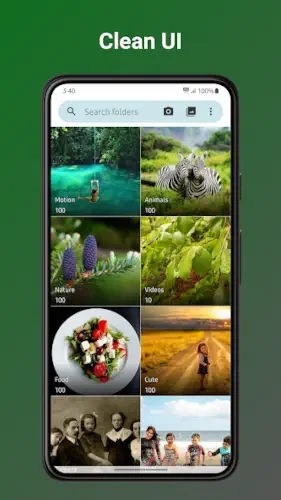
The home screen defaults to a folder view with grid and list layouts. You can reorder folders, pin your most used ones to the top and exclude folders you do not want to see. This logic is friendly to anyone used to desktop file management: your photos are where they are, and the app does not mix them into a timeline sorted by date or face detection.
Universal Format Support
It handles JPEG, PNG, MP4, MKV, RAW, SVG, GIF and JPEG XL. Video playback does not require jumping to an external player because the app has built-in playback. For anyone who watches local videos on their phone, skipping that extra step saves time.
The Recycle Bin
Deleted photos and videos go to the recycle bin instead of vanishing instantly. You can turn this feature off in settings, but having it on by default means a mistaken delete is not permanent. The feature is not new, but it is rare to see it enabled by default and stable in an open-source gallery.
Favorites and Tagging
Marking favorite photos makes them easier to find. However, user feedback points to a persistent issue: favorites sometimes disappear or become unmarked. This is not universal, but if you rely on favorites to organize important photos, knowing this beforehand is better than finding out later.
Editing and Privacy Features
Built-in Editor
Cropping, resizing, rotating, flipping, drawing and filters are all available. It is not meant to replace a professional editing suite. It exists so you can quickly adjust a photo before sharing it without importing it into another app that might collect data.
EXIF Metadata Stripping
This is the most practical security feature in Fossify Gallery. Photos carry GPS coordinates and device information by default, so sharing one is like attaching a location map. Fossify strips GPS data when you share a photo, but you should note that there is currently no manual toggle inside the app to strip EXIF. The feature triggers automatically during the share flow. If you need to completely clear all metadata, you may need another tool.
App and File Locking
You can use a PIN, pattern, or fingerprint to lock specific folders or the entire app. For situations where you hand your phone to someone, this splits the problem into “photos I do not want seen” and “the whole gallery,” which is more flexible than all or nothing encryption.
Minimal Permissions
It requests only the permissions needed to read and write files. No location, no contacts, no network data. The Play Store data safety declaration states “no data collected, no data shared with third parties.” The source code sits on GitHub, so anyone can verify that claim.
Customization and Design
Material You dynamic theming makes the app follow your system wallpaper colors. You can also manually select custom themes, including dark mode. Function buttons are adjustable, and the settings menu has more options than you might expect. One reviewer noted they had never seen a gallery app with that many options.
The trade-off is that it looks plainer than Samsung Gallery or Google Photos. No AI categorization, no face recognition, no auto generated collages. If you are used to those OEM gallery extras, Fossify will feel like it is missing something. But if you want a clean, controllable gallery that does not make decisions for you, its design logic is consistent.
What Users Say About Fossify Gallery App
What users like
Users most appreciate the privacy stance: no ads, no unnecessary permissions, no data collection. Basic editing tools are sufficient and fast. The recycle bin reduces the anxiety of accidental deletion. Customization options let people who like to tinker adjust the interface to their liking.
What needs work
Beyond the favorites issue, video thumbnails occasionally show as black boxes. Recycle bin behavior sometimes does not match expectations, with deleted videos appearing at the top of the gallery instead of being hidden. Users with SD cards report slow loading and crashes. Some users say plainly that it is not as polished as Samsung Gallery and lacks some OEM conveniences.
Fossify Gallery Tips
Enable EXIF Stripping by Default
This is the first thing worth handling. Fossify Gallery strips GPS coordinates and camera details when you share a photo, but that behavior happens during the share flow. There is no independent “global strip” toggle inside the app to rewrite the file on your device.
If you regularly send photos to others or upload them to public platforms, check the sharing settings to confirm stripping is active. But if you want to clear EXIF data from the local file itself, before a backup for example, you need a separate tool. Fossify intercepts at the share step, not at the file level. Knowing this distinction prevents you from assuming your local photos are already clean.
Use PIN or Fingerprint Locking
The file locking feature is not buried too deep, but many people download the app and never open it. The path is to long press a folder or photo, select “lock,” or go into the security settings and protect it with a PIN, pattern, or fingerprint.
A practical approach is to not lock the entire app, but only specific folders. Locking the whole app means you verify every time you open the gallery, which gets annoying fast. Locking specific folders is more flexible. Put ID photos, bank card screenshots or private albums behind the lock and leave the rest easily accessible. This protects sensitive content without sacrificing daily browsing speed. A frequent Fossify Gallery tip on Reddit is exactly this compromise. It fits real usage better than full encryption.
Rely on the Recycle Bin
The recycle bin is on by default, but its behavior has one detail worth noting: deleted videos sometimes appear at the top of the gallery instead of being fully hidden. This is a reported issue, and it looks like a bug, but the impact is small.
What really matters is when you clean out the recycle bin. Fossify does not empty it automatically, so files sit there and take up storage. If you shoot a lot of video and delete frequently, your phone storage will mysteriously shrink. Make a habit of checking the bin periodically. Once you confirm nothing needs recovery, empty it. This beats hunting for large files when storage runs out.
Customize Themes and Buttons
Material You dynamic theming lets the app follow your system wallpaper colors and it works well on newer Android versions. But what really affects daily use is customizing the function buttons. You can adjust which buttons appear in the bottom toolbar and put the operations you use most where you can see them.
If you edit often, move the edit button forward. If you mostly watch videos, bring playback controls up. The settings menu has more options than you might expect, but most are unrelated to the core experience. Reviews of the Fossify Gallery app mention that spending ten minutes going through settings makes the app feel much smoother, especially once you set up “hidden folder” rules, which can make the gallery view look like a different app entirely.
How to Edit Videos Directly in Your Gallery App
Fossify Gallery is built primarily for photo editing. If you open an image, you will see a toolbar with options to crop, rotate, flip, draw and apply filters. However, video editing is not built into this menu.
If you search for a Fossify Gallery video editor, you will not find one. The app does not have a timeline or trim tool for video files. You can long press a video to delete or share it, but you cannot cut it within the gallery interface.
The practical workaround is to use the app as your viewing hub, not your editing suite. Find the video in Fossify Gallery, tap share and send it to a dedicated video editor like CapCut or the built-in editor on your phone. This saves you from scrolling through your entire camera roll to find the file again. It is a quick handoff rather than a complete workflow.
How to Change Default Video Player in Your Gallery
This setting is buried but useful. Open the settings menu and look for the “Videos” section. You will see a toggle for “Play videos automatically” or an option to use the built-in player.
If you want to use an external player like VLC or MX Player, turn off the built-in player option. The next time you tap a video, your phone will ask which app you want to use. Select your preferred player and tap “Always” to set it as the default.
Keep in mind that the built-in player is faster for quick previews. It loads instantly without switching apps. If you are just scrolling through clips, the internal player is better. Switch to an external player only if you need subtitle support, specific codec compatibility or advanced playback controls.
How to Secure Your Gallery App with Password Protection
You can lock the entire app using a PIN, pattern, or fingerprint. Go to Settings, find the “Security” or “Privacy” section, and select “Lock app.” Set your PIN or pattern, and the app will require authentication every time you open it.
Locking the whole app is secure, but it can be annoying. Every time you want to show a friend a photo, you have to unlock it. A more practical approach is to lock only specific folders. Long press the folder you want to protect, select “Lock,” and set the verification method. This keeps your daily photos easily accessible while protecting sensitive content.
Users on the Fossify Gallery app reviews often mention this as the best balance. It gives you security without turning every photo viewing session into a login chore.
Fossify Gallery Similar Apps
Fossify Gallery vs Google Photos
Google Photos is built around cloud backup and AI organization. It sorts photos by people, places and things. It also generates collages and memories automatically. The cost is that your photos upload to Google’s servers and are used for training models and other purposes. Fossify takes the opposite path: photos stay local, no cloud sync, no AI sorting, no data collection. If you need the guarantee that “photos will never be lost,” Google Photos is safer. If you want “photos belong only to me,” Fossify is the more honest choice.
Fossify Gallery vs Samsung Gallery
Samsung Gallery is the benchmark for OEM galleries. It is deeply integrated with One UI, supports AI editing, automatic sorting and video editing and the interface is polished and feature complete. Fossify falls behind on all of these. But Fossify’s advantage is that it is open source, lightweight and not tied to any ecosystem. If you use a Samsung phone and are happy with One UI’s gallery, there is no reason to switch. If you use a non Samsung device or you simply do not want those extra features, Fossify is cleaner.
Fossify Gallery vs Simple Gallery
Simple Gallery is another direction in the same category. It is lightweight, open source and privacy first, but it has fewer features than Fossify. Fossify adds editing tools, file locking and a recycle bin on top of the basics. If you only need a gallery that displays images, Simple Gallery is enough. If you want basic editing and security features, Fossify is more complete.
Fossify Gallery vs Photomyne
Photomyne solves a completely different problem: scanning and organizing old printed photos. It turns paper photos into digital files with automatic cropping and enhancement. Fossify does not handle scanning. It manages digital media you already have. These two are not competitors. If you have a pile of paper photos to digitize, Photomyne is the tool. If you need to manage the photos on your phone, Fossify is the gallery.
Conclusion
Who Fossify Gallery Is For
People who do not want to hand their photos to the cloud. People willing to accept a plain interface in exchange for privacy and file control. Users who need EXIF stripping and folder locking. And anyone with a large local photo library who does not need AI organization.
Who Should Look Elsewhere
People who rely on Google Photos for automatic backup and search. People who want the polish and ecosystem integration of Samsung Gallery. People who need flawless favorites stability. And anyone who needs video thumbnails to display correctly every time.
Fossify Gallery turns “not bothering you” into a product feature. It does not push notifications, does not collect data and does not reorganize your files. You open it, see your files, finish what you need to do, and close it. The only cost is patience: accepting occasional bugs, accepting that it is not as smooth as OEM galleries and accepting that you manage your own folders. Are you willing to trade a slightly less polished gallery for complete control over your photos? If the answer is yes, it is worth installing.
FAQ
Where can I find the official Fossify Gallery download?
You can download Fossify Gallery from the Official Google Play Store. The app is completely free with no ads and no premium tiers. The developer offers a $3 “Thank You” purchase that unlocks minor cosmetic features like cross-app theme syncing, but it will not block you from editing photos, locking folders or using the recycle bin.
What is the official website and where do I find community resources?
The Official Fossify Gallery website, or the GitHub at github.com/FossifyOrg. For documentation and community support, the Fossify reddit is highly active. There is also an official Telegram channel where the developer posts update logs and users share tips on setting up custom themes. Since it is open source, you can also check the GitHub issues page to see if a bug you encountered is already being fixed.
How do I contact support if I find a bug or need help?
You can use the developer email at: hello[at]fossify.org or report bugs or request features is by opening an issue on the official GitHub page. If you prefer a more conversational route, joining the Telegram channel or posting on the subreddit usually gets a quick response from other users or the developer directly.
Can I customize the interface and hide specific folders?
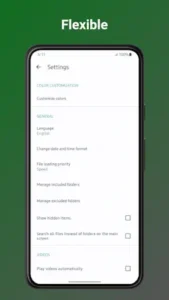
Yes. The app is highly customizable. As shown in the settings menu, you can change the color themes, adjust the date and time format and most importantly, manage which folders appear in your main gallery view. You can exclude specific directories (like app cache folders) so they do not clutter your screen, or hide hidden items entirely with a simple toggle.
Is Fossify Gallery free to use?
Yes. Core features are entirely free, with no ads and no subscription wall. The developer offers a $3 “Thank You” in-app purchase, but it only unlocks minor features like cross-app global theme syncing. It does not affect editing, locking, or the recycle bin. Searches for Fossify Gallery codes usually point to app store promo codes, but since Fossify does not rely on paid features, there is no discount to wait for.
Does Fossify Gallery collect any data?
No. The Play Store data safety declaration states “no data collected, no data shared with third parties.” It does not request network permission, location or contacts. The source code sits on GitHub, so anyone can verify this claim. This is rare among gallery apps.
Can I lock specific photos or the entire app?
Yes, both are supported. You can lock specific folders with a PIN, pattern, or fingerprint or lock the entire app. The more practical approach is to lock only sensitive folders so daily browsing stays smooth.
Does it support RAW and video formats?
Yes. It handles JPEG, PNG, MP4, MKV, RAW, SVG, GIF and JPEG XL. Video playback is built into the app, so you do not jump to an external player.
Why do some videos show black thumbnails?
This is a reported issue. Some videos fail to generate thumbnails and show as black boxes. The cause could be a video codec the system decoder does not support or a thumbnail cache that did not write correctly. If you hit this, try clearing the app cache or wait for a future update. It does not affect playback. Only the preview image fails to show.