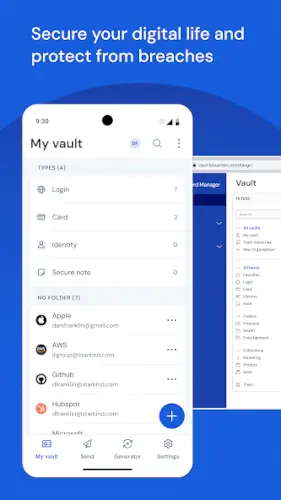
Bitwarden Password Manager solves the problem of too many passwords.
Bitwarden Password Manager remembers every login for you. Generates strong passwords. Fills them in automatically. Syncs across every device you own. The question is whether a free password manager can be trusted with your most sensitive data.
What is Bitwarden Password Manager ?
You are looking at a secure, cross platform password and passkey vault that helps you generate, store, autofill, and share credentials across devices.
Bitwarden Password Manager is designed to protect digital accounts with end to end encryption and strong credential management. The app highlights unlimited passwords and passkeys, unlimited devices, and secure sharing as core benefits, which makes it appealing for both personal and business use. Its biggest advantage is flexibility. You can use Bitwarden on mobile, desktop, and browser extensions, and the same vault syncs across all of them so your passwords are always available when you need them.
On Google Play, Bitwarden Password Manager holds a 4.9 star rating from more than 159,000 reviews. On the Chrome Web Store, it holds a 4.3 star rating from over 7.7 million users. The app size comes in at roughly 45 MB. The age rating is Everyone. The app is free with optional premium features for advanced users.
A secure, cross platform password and passkey vault
The category matters here. Bitwarden Password Manager is not a note taking app. It is not a document storage service. It is a dedicated password manager. Your credentials are stored in an encrypted vault. The encryption happens on your device before anything is sent to Bitwarden’s servers. Not even Bitwarden can read your passwords. The vault syncs across Windows, Mac, Linux, Android, iOS, and every major browser. Unlimited devices. Unlimited passwords.
Who this app was built for
Not everyone needs a password manager. Here is who will find Bitwarden Password Manager essential.
People who reuse passwords across multiple sites
Here is a question. How many of your accounts share the same password? If the answer is more than one, you are at risk.
A breach at one site exposes your credentials. Attackers try that same email and password combination on banking sites, social media, and email providers. Reusing passwords is the single biggest security mistake most people make. Bitwarden eliminates the need to reuse. Generate a unique password for every account. The app remembers them all.
Users who want to stop remembering every login
Your brain has better things to do than store 50 random passwords. Offload that task to Bitwarden.
Once your vault is populated, you never need to type a password again. Open a website. Bitwarden autofills the login. Create a new account. Bitwarden generates and saves the password. The mental load of password management disappears.
Families needing to share credentials securely
Sharing passwords over text message or email is dangerous. Those messages sit in plain text. Anyone who has access to your phone or email can read them.
Bitwarden includes secure sharing. Share a login with a family member. They get access through their own vault. You can revoke access at any time. The credential never passes through unencrypted channels.
Teams and businesses requiring organization policies
For teams, Bitwarden offers organization wide policies. Enforce password strength requirements. Control who can access which credentials. Audit who has viewed what. SSO integration. Directory sync. Event logs. The business features compete with premium enterprise password managers.
Bitwarden Main Features you will use
The app offers several features. Here are the ones that matter most.
Unlimited password and passkey storage across unlimited devices
No limits. No paywalls for basic functionality. Store as many passwords as you want. Use as many devices as you own. The free tier does not restrict either.
End to end encrypted vault for secure credential storage
Your vault is encrypted locally before syncing. AES 256 bit encryption. Salted hashing. PBKDF2 SHA 256. The same standards used by banks and governments. Bitwarden cannot read your data. Only you can.
Password and username generator for strong new logins
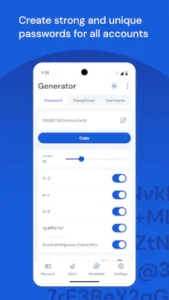
Tap the generator icon. Choose password length. Include numbers. Include symbols. Avoid ambiguous characters. The generator creates a random, unguessable string. One click saves it to the vault. You never see the password again. You do not need to.
Autofill support for websites and apps
Open a login page. Tap the password field. Bitwarden suggests the matching credential. Tap to fill. The app works across browsers and native mobile apps. Autofill is the feature that saves you time daily.
Passkey sync across mobile apps and browser extensions
Passkeys are the future of passwordless authentication. Bitwarden stores and syncs passkeys alongside passwords. Use biometrics like fingerprint or face recognition to log into sites that support passkeys. Faster. More secure.
Two factor authentication support including TOTP and hardware keys
Store 2FA codes in Bitwarden. No need for a separate authenticator app. The vault will fill the rotating code along with your password. Supports hardware security keys like YubiKey for vault access.
Secure sharing of sensitive data through the vault
Share individual credentials with other Bitwarden users. The recipient sees the login in their vault. You control access. You can revoke at any time. Great for shared streaming accounts or family Wi Fi passwords.
Import from many other password managers
Switching from LastPass, 1Password, Dashlane, or a CSV export? Bitwarden imports directly. No manual re entry. The import tool walks you through the process.
Business and enterprise features including SSO, SCIM, directory integration
For organizations, Bitwarden offers single sign on, automated user provisioning via SCIM, directory sync with Azure AD or Okta, and detailed event logs. The business tier scales from small teams to large enterprises.
Translations in more than 50 languages
Bitwarden supports over 50 languages. The interface, documentation, and support are translated by community volunteers. Accessible to users around the world.
Bitwarden Password Manager Interface and Design
Practical, minimal interface focused on usability
Bitwarden looks like a tool, not a toy. The interface is functional. Icons are clear. Labels are plain. The design gets out of your way.
Recent browser extension redesign improved navigation
The browser extension was recently updated. Faster navigation. Clearer organization. Easier access to generator, vault, and settings. The redesign addressed long standing complaints about clunky navigation.
Simple and functional mobile app
The mobile app mirrors the desktop experience. View vault. Generate passwords. Autofill in apps. The interface is consistent across platforms. Learn once. Use everywhere.
Where the design works well
Speed is the priority. Opening the vault is instant. Searching for a credential takes a second. Autofill works reliably. The app does not waste your time.
Where interface is less polished than premium competitors
1Password is prettier. Dashlane has nicer animations. Bitwarden prioritizes function over form. The interface is good enough but not beautiful. Power users appreciate the efficiency. Design focused users may wish for more polish.
What users actually say about the Bitwarden Password Manager app
The parts people enjoy
Positive reviews often mention the free tier. Unlimited devices for free is rare. The open source nature builds trust. Cross platform support is praised. Autofill reliability gets positive notes.
One user wrote: “Best free password manager. Works on everything. No limits. Can’t believe it is free.”
The parts people complain about
No free app escapes criticism. Here is what comes up most often.
Interface less polished than premium competitors
The design is functional but not modern. Users coming from 1Password or Dashlane notice the difference. The interface works well but does not feel premium.
UI is good enough but not beautiful
Bitwarden gets the job done without flair. Some users want more visual polish. Dark mode could be better. Icons could be sharper.
Some users want more modern design
The browser extension redesign helped. But the mobile app and desktop apps still feel dated. Users request a visual refresh.
Learning curve for advanced features
Basic features are simple. Advanced features like self hosting, organization policies, and directory integration require technical knowledge. Not plug and play for non technical users.
How the Bitwarden password management mechanics work
Create or import credentials into encrypted vault
Start from scratch. Add logins manually as you use them. Or import from another password manager. Or upload a CSV export. The vault builds over time.
Generate strong unique passwords for each new account
Whenever you sign up for a new service, open Bitwarden. Tap the generator. Choose settings. Copy the password. Paste into the signup form. Bitwarden offers to save the credential.
Autofill logins on websites and apps
Open a login page. Tap the username or password field. A popup appears with matching credentials. Tap to fill. The app also offers to save new logins automatically.
Sync vault across unlimited devices automatically
Add a credential on your phone. It appears on your laptop within seconds. Add on your work computer. It appears on your tablet. Sync is automatic and encrypted.
Share credentials securely with other users
Tap the share icon on any credential. Enter the email address of another Bitwarden user. They receive access. The credential appears in their vault. You can revoke access later.
Enable 2FA for additional vault protection
Turn on two factor authentication for your Bitwarden vault. Use an authenticator app, a hardware key, or email codes. Even if someone gets your master password, they cannot access your vault without the second factor.
Store and sync passkeys for passwordless login
For sites that support passkeys, Bitwarden stores them in your vault. Use biometrics to authenticate. The passkey syncs across devices. Passwordless login is faster and more secure than traditional passwords.
Looking for another password manager with a polished interface? Check out 1Password, a premium alternative with a modern design, family sharing, and robust business features.
Bitwarden Tips
You can install Bitwarden Password Manager and start saving logins in minutes. Getting the most out of autofill, passkeys, and secure sharing takes a little setup. These tips separate users who enjoy a seamless passwordless experience from users who still type passwords manually.
Turn on autofill for faster logins on mobile and desktop
Here is a question. Why install a password manager if you still type passwords by hand?
Bitwarden Password Manager tips from experienced users all say the same thing. Enable autofill everywhere. On Android, go to Settings > System > Languages & input > Autofill service. Select Bitwarden. On iOS, go to Settings > Passwords > AutoFill Passwords. Select Bitwarden. On desktop browsers, the extension prompts you to enable autofill during setup. Once enabled, logging in becomes a single tap. No typing. No copy paste. No frustration.
Use built in password generator for every new account
You know you should not reuse passwords. But creating unique, complex passwords manually is hard. So you reuse.
Stop. When you sign up for a new service, open Bitwarden. Tap the generator icon. Choose length and complexity. One click generates a random, unguessable string. One more click saves it to your vault. You never see the password again. You do not need to. The app fills it for you. Every new account gets a unique password. No exceptions.
Store passkeys in Bitwarden for a more passwordless workflow
Passkeys are faster and more secure than passwords. They use biometrics like fingerprint or face recognition. No typing. No forgetting.
Bitwarden Password Manager stores passkeys alongside traditional passwords. When a site offers passkey setup, Bitwarden saves it. Next time you visit, authenticate with your fingerprint. The passkey autofills. No password required. Enable passkey support in your Bitwarden settings. Start using passkeys whenever possible.
Set up 2FA on your vault for extra account protection
Your master password is strong. Your vault is encrypted. But what if someone steals your master password?
Two factor authentication adds a second layer. Even with your password, an attacker cannot access your vault without the second factor. Use an authenticator app like Google Authenticator or a hardware key like YubiKey. Go to Settings > Two Step Login in the Bitwarden web vault. Follow the setup. The extra minute of setup prevents hours of recovery after a breach.
Import old credentials early when switching from another manager
Switching password managers feels overwhelming. You have hundreds of logins. Re entering them manually is impossible.
Bitwarden Password Manager includes an import tool. Export your data from your old manager as a CSV or direct format. Open the Bitwarden web vault. Go to Tools > Import Data. Select your old manager. Upload the file. Your entire vault transfers in seconds. Clean up duplicates later. The hard part is done.
Use secure sharing carefully for family or team credentials
Sharing passwords over text message or email is dangerous. Those messages sit in plain text. Anyone with access to your phone or email can read them.
Bitwarden app includes secure sharing. Tap the share icon on any credential. Enter the email address of another Bitwarden user. They receive access through their own vault. The credential never passes through unencrypted channels. You can revoke access at any time. Use this for streaming service passwords, shared Wi Fi, or team accounts.
Keep notes and extra fields tidy so vault stays easy to search
Your vault will grow. Hundreds of logins. Notes. Payment cards. Identities.
Bitwarden Password Manager firefox extension and mobile app include search. But search only works if your data is organized. Use folders to group related logins. Add custom fields for security questions or backup codes. Keep notes concise. Delete old logins for services you no longer use. A tidy vault is a fast vault.
Use unlimited sync across devices as your main advantage
Other password managers limit free sync to one device type. Phone only. Desktop only. Browser only.
Bitwarden does not. Unlimited devices. Phone, tablet, laptop, work computer, home computer. Every device has the same vault. Add a password on your phone. It appears on your laptop within seconds. The unlimited sync is the feature that makes Bitwarden stand out from free tiers of competitors.
Apps similar to Bitwarden
If you like Bitwarden Password Manager, here are five other password managers worth your time. Each offers something similar with a different twist.
1Password
1Password is the premium alternative. Polished interface. Family sharing. Travel mode to remove vaults from devices when crossing borders. Bitwarden Password Manager similar apps should start here. The difference is that 1Password costs money and has no free tier. Good for users who want the most polished experience.
LastPass
LastPass was the original freemium password manager. It still has a large user base. The difference is that LastPass limits free users to one device type. Mobile or desktop, not both. Bitwarden offers unlimited devices for free. Good for users already locked into the LastPass ecosystem.
Dashlane
Dashlane includes a built in VPN with its premium plan. The interface is modern. The password generator is strong. The difference is that Dashlane’s free tier is very limited. Good for users who want an all in one security suite.
Proton Pass
Proton Pass comes from the Proton team behind ProtonMail and ProtonVPN. Privacy focused. Open source. The difference is that Proton Pass is newer with fewer platform integrations. Good for users who already trust the Proton ecosystem.
NordPass
NordPass comes from the NordVPN team. Simple interface. Passkey support. The difference is that NordPass has a smaller feature set than Bitwarden. Good for users who want a straightforward, no frills password manager.
Bitwarden Community
Bitwarden is not a social app. But its community is active and helpful.
Community translations and open documentation
Bitwarden is open source. The code is public. The community contributes translations in over 50 languages. The documentation is open and editable. Users help each other through forums and GitHub issues.
Knowledge sharing through forums and support site
The Bitwarden community forum is active. Users ask questions. Experienced users answer. The support site has detailed guides for every feature. Self hosting guides. Organization policies. API access. The community knowledge is extensive.
Organization policies for team collaboration
For teams, Bitwarden includes organization wide settings. Enforce password strength. Require 2FA. Control sharing permissions. Audit access logs. These features are for businesses, not casual social interaction.
Business focused rather than social focused
Bitwarden’s community features are about collaboration and security, not social networking. No feed. No likes. No comments. The community exists to help you secure your digital life, not to entertain you.
Conclusion
Bitwarden Password Manager works for three types of people. First, anyone who reuses passwords across multiple sites and wants to stop. Second, users who want a free password manager with unlimited devices and no restrictions. Third, teams and businesses that need organization policies and secure sharing.
Interface is less polished than premium competitors. UI is good enough but not beautiful. Some users want a more modern design. Learning curve for advanced features like self hosting and directory integration.
Do you want a password manager that is free, open source, and works on every device without limits? Or do you prefer a premium app with a polished interface and modern animations?
If the first one, Bitwarden offers the best free tier of any password manager. If the second one, 1Password or Dashlane are worth the subscription cost. Both answers are fine. Just know what you value.
Frequently asked questions about Bitwarden
How do I get Bitwarden download on my phone?
Go to the Google Play Store if you use Android. Search for Bitwarden Password Manager. The developer is Bitwarden Inc. Tap install. Or use the direct link to Download Bitwarden from the Official Google Play Store.
Is Bitwarden really free, or are there hidden costs?
Bitwarden is genuinely free for core features. Unlimited passwords. Unlimited devices. End to end encryption. Autofill. Password generator. Secure sharing. No ads. No selling your data. The free tier is not a trial. It is a fully functional password manager. Premium features include advanced 2FA options, emergency access, vault health reports, and priority support. But most users never need to upgrade.
Where can I find the official website and help documentation?
The official Bitwarden website has feature guides, security whitepapers, and download links for all platforms: Official Bitwarden Website. For user guides, troubleshooting, and community discussions, check the community wiki: Bitwarden Wiki
I have a problem with the app. Who do I contact?
Send an email to the Bitwarden support team. They handle account issues, billing problems, bug reports, and feature requests. Here is the address: info[at]bitwarden.com. For Bitwarden download problems or installation issues, that same email applies. Include your device model, app version, and a description of the problem. The support team is responsive and helpful.
Can I use Bitwarden on Firefox and other browsers?
Yes. Bitwarden works on Firefox, Chrome, Edge, Safari, Brave, Vivaldi, and Opera. The browser extension provides autofill, password generation, and vault access without leaving your browser. Install the extension from the Firefox Add ons store or Chrome Web Store. The extension syncs with your mobile and desktop apps instantly. Add a password on your phone. Use it on Firefox five seconds later. No manual transfer needed.