Discord it’s where gaming teams coordinate raids, study groups share notes, and friends watch movies together, all without leaving the platform.
Discord was originally built for gamers, it’s now the go to hub for any community that values real-time interaction, whether you’re into coding, music, or just meme sharing. With over 500 million downloads, 3.9 star and an Editors’ Choice badge, Discord has cemented itself as more than a trend, it’s a staple of digital communication.
Why Discord Stands Out (And Why You Might Actually Use It)
Communication Without Friction
-
Text, Voice, and Video, All in One Place
Unlike apps that force you to switch between tabs, Discord lets you jump from a text debate about game lore to a voice chat with a single click. Video calls support up to 25 people, making it viable for small team meetings or late night hangouts. -
No Call Voice Channels (The Best Feature Nobody Talks About)
Traditional apps make you “call” someone. Discord’s voice channels let you drop in and out like walking into a room. No ringing, no waiting, just instant conversation. Perfect for gamers mid match or coworkers who need quick feedback.
Customization That Actually Matters
-
Servers: Your Space, Your Rules
Create a server for your D&D group, coding club, or podcast community. Organize channels by topic (e.g., #game-strategy, #off-topic), assign roles (Moderator, VIP), and set permissions so trolls can’t wreck your chat. -
Emojis, Stickers, and Inside Jokes
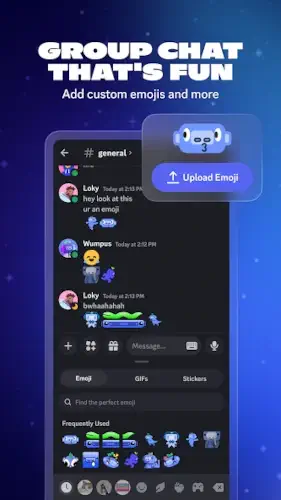
Upload custom emojis (like your friend’s face when they lose a game) or use soundboards to play meme sounds in voice chat. It’s these little touches that make servers feel like home.
Tools for Communities, Not Just Chats
-
Screen Sharing and Streaming
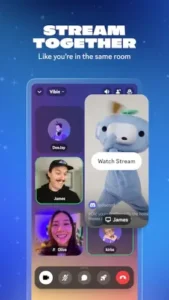
Watch YouTube videos together, stream gameplay in 1080p/60fps (with Nitro), or troubleshoot a friend’s PC by viewing their screen. Latency is low enough to feel like you’re in the same room. -
Built-In Activities
Play minigames like Poker Night or Chess directly in Discord. No extra downloads, just click and play. -
Cross-Platform, No Hassle
Start a chat on your PC, continue on your phone during lunch, and check notifications on your tablet. Everything syncs instantly.
Nitro: Is It Worth Paying?
Discord Nitro ($9.99/month) adds:
-
HD video streaming (free tier caps at 720p).
-
Bigger file uploads (up to 500MB vs. 25MB for free).
-
Animated emojis and custom tags.
Verdict? Worth it for streamers or large communities, but casual users can skip it.
The Good, The Bad, and The Glitchy
What Users Love
-
“Voice chat just works.”
Crisp audio, minimal lag, and no convoluted setup, unlike older apps like TeamSpeak. -
“My entire friend group lives here.”
From memes to movie nights, Discord replaces group texts and email chains. -
“Customization is unmatched.”
Few apps let you tweak everything from server colors to moderation bots.
What Frustrates People
-
“Free features keep disappearing.”
Recent cuts to file upload sizes and voice quality feel like pushes toward Nitro. -
“Updates break things.”
UI changes sometimes bury features, and bugs (like notification delays) linger. -
“Overwhelming for newbies.”
First time users might stare at a server list and wonder where to click.
Discord vs. Alternatives: Which Communication App Actually Fits Your Needs?
Discord dominates group chats, but it’s not the only option. Here’s how it stacks up against similar apps—and when you might want to switch.
TeamSpeak: The OG Voice Chat for Hardcore Gamers
-
Best For: Ultra low latency voice chat (think competitive esports).
-
Where It Loses: No text channels, no video, and a dated interface. Setting up a server requires technical know-how.
-
Key Difference: Discord offers all in one communication, while TeamSpeak is laser-focused on voice.
Slack: The Office Favorite (But Boring for Friends)
-
Best For: Work teams needing integrations (Google Drive, Zoom, etc.).
-
Where It Loses: No built-in gaming features, voice chat lacks Discord’s polish, and the free plan limits message history.
-
Key Difference: Slack organizes work; Discord builds social communities.
Telegram: Privacy First, But Missing Key Features
-
Best For: Secure 1 on 1 chats or small groups with secret chats (end to end encryption).
-
Where It Loses: Voice chats cap at 1,000 participants with no persistent channels. Screen sharing is clunky.
-
Key Difference: Telegram prioritizes privacy; Discord prioritizes functionality.
Pro Tips to Actually Get the Most Out of Discord
How to Create a Discord Server for Gaming
-
Step 1: Click the “+” icon in your server list → “Create My Own.”
-
Step 2: Pick “Gaming” as the template, it auto-generates channels like #general and #voice-chat.
-
Step 3: Add roles (e.g., “Admin,” “Moderator,” “Subscriber”) under Server Settings → Roles. Assign colors for quick visual ID.
-
Step 4: Create text channels for specific games (#valorant-strats) and voice channels for teams (e.g., “Ranked Queue”).
-
Step 5: Invite friends via a permanent link (adjust expiry in Invite Settings to prevent randoms joining).
Bots That Do the Heavy Lifting
-
Moderation: MEE6 auto kicks spammers or mutes swear words.
-
Music: Hydra lets you play Spotify/Youtube in voice chat.
-
Utility: Dyno can schedule messages or give XP for active members.
-
Pro Tip: Avoid adding too many bots, they can slow down your server.
Stop Notification Spam (Without Missing Important Pings)
-
Right-Click a Server → Notification Settings: Mute @everyone mentions if the server is busy.
-
#channel Settings: Set threads to “Only @mentions” if debates get noisy.
-
User Settings → Notifications: Disable sounds for non-mentions.
Schedule Events (Because Nobody Can Agree on a Time)
-
Use the Events tab in your server to plan game nights or watch parties. Set reminders so people actually show up.
Conclusion :
Best For:
-
Gamers who want voice chat + text + streaming in one app.
-
Communities (fan clubs, study groups) needing organized channels.
-
Remote teams that value informal chat over Slack’s rigidity.
Not For:
-
Privacy purists (use Telegram or Signal for sensitive chats).
-
Casual 1-on-1 chatters (WhatsApp or iMessage are simpler).
Discord’s ads and quirks can annoy, but no other app lets 50 friends scream over each other in voice chat while sharing memes and streaming gameplay, all at once.
FAQ
Where can I download Discord?
Get it on Google Play Store or official website.
How do I set up Discord roles for gaming?
Go to Server Settings → Roles → Create Role. Assign colors (e.g., red for Admins, blue for Members) and permissions (who can kick/ban). Pro tip: Use bots like MEE6 to auto-assign roles based on activity.
Is there an official Discord wiki or support site?
Yes: Discord’s official help center and the discord wiki cover everything from bots to troubleshooting.
Can I stream movies or games with friends on Discord?
Absolutely. Click the “Screen Share” button in voice chat. Nitro subscribers get HD quality (free users cap at 720p).
How do I contact Discord support?
Email support[at]discord.com for account issues. For bugs, try their Twitter or subreddit (r/discordapp).