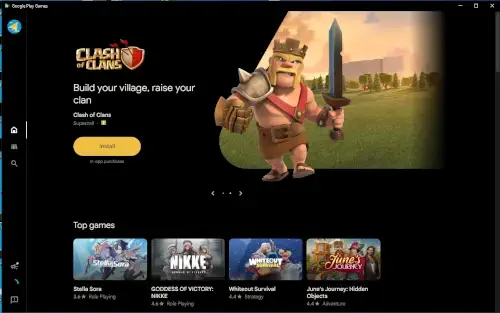
Google Play Games is here to change years of pain.
If you wanted to play a mobile game on a larger screen, you downloaded an emulator. You wrestled with BIOS settings, endured bloated installers, accepted slower performance, and prayed your save file would transfer correctly. It worked, after a fashion, but it always felt like a workaround rather than a solution. Google Play Games on PC exists to retire that entire category of compromise.
This is not a streaming service; you are not renting virtual hardware in a distant data center. It is also not an emulator wrapper disguising third party software. It is Google’s official, native Android runtime for Windows, designed around a simple thesis: the 200,000+ games you already own on the Play Store deserve to be played on the hardware you already own, without friction or performance penalties.
Google Play Games First Launch: Installation and System Readiness
The download itself is unremarkable, a lightweight launcher that walks you through a standard Windows installation. A Microsoft account is optional; your Google credentials are the only hard requirement. What happens next determines whether your experience will be smooth or frustrating.
Google Play Games PC requirements include a non negotiable technical prerequisite: CPU virtualization must be enabled in your system BIOS. This setting, often labeled Intel VT-x or AMD SVM, is frequently disabled by default on pre-built machines. The launcher will check for it and prompt you if it’s missing. This is not a bug; it is the foundation of how the native Android runtime operates.
Storage placement matters. The application and its games perform significantly better on an SSD. Allocating at least 10GB of free space ensures you aren’t constantly juggling installations. Once running, the interface is immediately recognizable, the Play Store’s familiar green-and-white aesthetic, cleanly translated to desktop scale. It feels less like a third-party tool and more like a missing Windows feature finally arriving.
Google Play Games How It Plays: Performance and Hardware Compatibility
The performance delta between Google Play Games emulator vs native execution is immediately apparent. Because the software runs Android code directly on your hardware rather than simulating an entire phone environment, it consumes significantly less RAM and CPU overhead. Games that stuttered in BlueStacks often run at locked frame rates here. This efficiency is the product’s strongest technical achievement.
Input handling is more variable. Mouse and keyboard mapping works well in most supported titles, with cursor capture toggling intuitively when you enter or exit the game window. Gamepad support is present but depends entirely on the individual game’s implementation.
There is no system level controller mapping layer; if a game wasn’t designed with a gamepad in mind, you are using mouse and keyboard. Visual performance scales cleanly with your monitor’s resolution, and the lack of aggressive upscaling artifacts is a noticeable relief compared to stretched emulator windows.
The catalog currently exceeds 200,000 titles, though this is not the entire Play Store. Google curates the selection, prioritizing games that function well with mouse and keyboard input. Your favorite obscure idle tapper may not be present. The vast majority of major releases, particularly from prominent mobile developers, are available.
The Sync Promise: Progress Across Devices
This is the feature that most closely resembles magic when it works correctly. Google Play Games cross platform sync ties your game progress to your Google account, not your device. You play on your phone during a commute, arrive home, open the same title on your PC, and continue exactly where you left off. No manual cloud save exports. No USB transfers. No third party file managers.
There is a meaningful asterisk attached. Cloud save functionality requires explicit implementation by the developer. Not every game in the catalog supports it. You can verify this before committing time to a title; the Play Games PC client clearly indicates sync compatibility. When supported, the transfer includes your story progress, currency balances, purchased items, and achievements. Your library follows you.
Google Play Games Beyond Gaming: Play Points, Rewards, and Your Profile
The Play Games client is also the access point for Google’s broader loyalty infrastructure. Google Play Points explained briefly: you earn currency simply by downloading games, making in-app purchases, or maintaining daily play streaks. These points accumulate and can be redeemed for various rewards, discount codes for future purchases, in-app credit, or perks within the Google Store ecosystem.
The “You” tab functions as a personal gaming dashboard. It tracks your playtime statistics, maintains your achievement collection, and records your current streaks. More usefully, it generates personalized game recommendations based on your actual play history rather than broad demographic profiles. This dashboard, along with your progress and purchases, is unified across your phone and PC. One profile, one library, one account.
The application itself has a modest initial footprint, with additional space consumed by installed games. Rated for Everyone, its content reflects the Play Store’s existing age based classifications. System compatibility continues to expand, with official support now available in over 140 regions globally.
For users evaluating lightweight PC gaming clients, the performance profile and library depth of Steam offer a complementary but distinct experience centered on traditional desktop and AAA titles.
Google Play Games Sidekick: Gemini Powered In-Game Assistance
Google quietly included something in Play Games that most launchers don’t even attempt: an actual intelligence layer. Google Play Games Sidekick is an overlay tool that sits quietly until you need it. Activate it, and you can ask questions about the game you’re playing, in natural language, the way you’d ask a friend sitting next to you.
What’s the drop rate on this boss? Which item upgrades my critical chance? Where do I find this material? The Gemini Live integration processes these conversational queries and returns relevant information without forcing you to tab out and search a wiki. The implications for Google Play Games AI features are significant. This is not a static database; it’s a contextual assistant that understands what game you’re playing and what you’re trying to accomplish.
Google emphasizes the safety layer built around this functionality. Each game undergoes thousands of automated compatibility checks before Sidekick is enabled, designed to prevent exploitation or unfair advantages in competitive titles. You cannot ask it to automate gameplay or extract hidden data.
The guardrails are intentional and visible. Currently, Sidekick supports a growing subset of the catalog, and its utility scales with game complexity. In sprawling RPGs with layered systems, it functions as a legitimate accessibility tool. In simpler arcade titles, it remains dormant. The direction is clear: Google views AI assistance as a native feature of the gaming client, not a novelty.
Google Play Games Setup: A Smarter First Hour
Most frustration with Google Play Games for PC setup stems from one overlooked BIOS setting. Before you install anything, reboot into your UEFI firmware interface and locate the virtualization option. It will be labeled Intel VT-x, Intel Virtualization Technology, AMD SVM, or something similar. Enable it. Save and exit. This single step prevents 90% of installation failures and performance complaints.
Storage strategy is straightforward but often ignored. Install the launcher on your fastest SSD. The application itself is lightweight, but games stream assets directly from this drive during play. An old mechanical hard drive will introduce stutter. A modern NVMe drive will not. You need roughly 10GB of free space as a baseline, with additional room per game.
Google Play Games input testing should happen before you commit to a long session. Launch a supported title and confirm mouse capture behaves correctly, clicking outside the window should release it, clicking inside should recapture. Test your keyboard binds. If you prefer a controller, connect it and verify the game recognizes it. Some titles require you to enable gamepad support in their own settings menus. This is game specific, not client-wide.
There is a tempting but problematic habit among new users: running Google Play Games alongside traditional Android emulators. The virtualization layer conflicts. The launcher may fail to start, or your game performance may degrade unpredictably. If you are transitioning to the official client, uninstall third party emulators first.
Google Play Games Similar Apps
The comparison between Google Play Games vs BlueStacks resolves cleanly. Google’s client uses significantly less RAM and CPU. It boots faster. It is officially supported by Google, which means no ads. The trade-off is smaller game catalog and zero macro scripting capabilities. If you need automated grinding or custom control mapping, emulators still win. If you want clean, efficient play, Google’s client is superior.
Google Play Games similar apps include traditional PC launchers, but the comparison is imperfect. Against Steam, Play Games is not a competitor in the traditional sense. Steam sells and runs desktop games. Play Games runs your existing mobile library. They are adjacent, not oppositional. Against Xbox Game Pass, the philosophical difference is sharper. Game Pass is a rental subscription. Play Games accesses titles you already own or can purchase individually. One is a streaming model; the other is a library expansion model.
Its unique territory is defensible and clear. Google Play Games for Windows is the only official Android gaming client for PC. No other company can offer this. No emulator can claim first party account integration. This is the product’s unassailable position.
Conclusion: Who Should Use This?
The strengths are substantial and verifiable. Google Play Games performance genuinely exceeds emulator benchmarks in most titles. Account sync works seamlessly when developers implement it. The interface is clean, ad-free, and unintrusive. Play Points provide tangible value for players who make occasional purchases.
The limitations are equally real. The catalog remains incomplete; your specific game may not be available. There is no per-game control remapping, a feature emulator users take for granted. Some titles, particularly older or poorly optimized ones, crash on launch. The virtualization requirement excludes users with older CPUs that lack this feature.
So who is this for? The ideal candidate already has a Google Play library. They have spent money on games or in-app purchases. They want to continue their progress on a larger screen without restarting or paying twice. Gacha gamers, particularly those tired of emulator bloat and security concerns, are a natural audience. Anyone seeking a free, official alternative to third party software will find this compelling.
It is not for everyone. Users with CPUs predating virtualization support cannot run it. Players who rely on macro automation for grinding will feel constrained. If your favorite game simply isn’t in the catalog yet, the quality of the client is irrelevant.
But for the audience it serves, Google Play Games on PC is not a compromise. It is the version of mobile gaming that should have existed all along.
FAQ
Is Google Play Games on PC really free?
Yes, the application is completely free to download and use. You sign in with your existing Google account and access the library of supported games without any subscription fee. Play Points are an optional loyalty program, not a paywall.
How do I get started and where do I find supported titles?
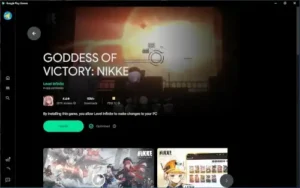
You can complete your Google Play Games download directly from the official Play Store website. The PC client includes a curated catalog of over 200,000 games that are verified to work with mouse, keyboard, and gamepad input. Popular titles like Clash of Clans, Goddess of Victory: NIKKE, and Whiteout Survival are fully supported.
I’m having technical issues or my game won’t launch. Who can help?
For installation problems, crashes, or compatibility questions, contact Google’s official support team at: support@google.com. The support site also includes detailed troubleshooting guides for common issues like virtualization errors and game-specific crashes.
Where can I find system requirements and official announcements?
The Google Play Games Official Website maintains current system requirements, region availability, and feature updates.
Does my progress from my phone carry over automatically?
For supported games, yes. Your save data, purchases, and achievements are tied to your Google account. Install a compatible game on PC, log in, and your progress will be there. Check the individual game’s store page for cloud sync confirmation before installing.