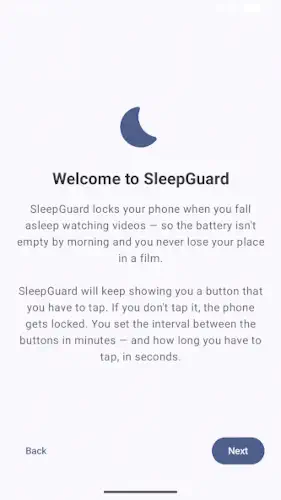
SleepGuard is a free, open source Android utility that locks your phone when you fall asleep watching videos or listening to audio.
SleepGuard is developed by OLEobjekt, this short term dead man’s switch has earned a small but dedicated following for solving one specific problem: preventing your phone from running all night after you have dozed off. The app is lightweight, ad-free and requires no account or data collection. It is currently available on Android only.
What Is SleepGuard?
SleepGuard is a short term dead man’s switch for people who fall asleep while watching videos or using their phone. Unlike traditional dead man’s switch services that send messages after you die, SleepGuard monitors whether you are still awake and interacting with your device. If you stop responding, it locks the phone or interrupts playback to prevent battery drain, overheating or unintended overnight usage.
The concept is simple. You start SleepGuard before you begin watching a video or listening to an audiobook. At a user defined interval, a small red circle appears on top of whatever you are watching. You tap it to confirm you are still awake. If you do not tap it within a set time window, the app assumes you have fallen asleep and triggers your configured action. No subscriptions. No cloud services. Just a quiet watchdog running in the background.
On-Screen Check-In Indicator
At intervals you choose, a small red circle appears as an overlay on top of your video or audio content. You must tap it within a time window to confirm you are still awake. The overlay is deliberately unobtrusive so it does not distract from what you are watching. It sits on top of the content, waits for your response and disappears once you tap it.
The check-in prompt is the heart of the app. It is not an alarm. It is not a notification. It is a small visual cue that asks one question: are you still there? If you are, you tap. If you are not, the app steps in. The design is minimal because the problem is simple. The check-in system is the simplest possible solution that works.
Inactivity Response
If you fail to tap the indicator in time, the app assumes you have fallen asleep. It then triggers a configured action. The most common action is locking the screen, which stops playback and saves battery. Depending on the version and your settings, it may also pause or stop playback directly or sound an alarm or notification. The goal is the same: prevent your phone from running all night, draining the battery and overheating on your nightstand.
This matters more than it sounds. A phone playing video for eight hours can drain from full to zero, generate heat that stresses the battery and disrupt your sleep with ambient light and sound. SleepGuard prevents all three. For people who regularly fall asleep with media playing, that is not a small convenience. It is a nightly fix.
Free and Open Source
SleepGuard is free with no ads, no in-app purchases, and no data collection. The source code is publicly available, allowing community review, forking and improvement. It is a FOSS (free and open source software) project, which means privacy conscious users can verify exactly what the app does. There are no trackers, no analytics and no server dependencies. It runs locally on your device and does one job.
The lightweight utility design also means minimal resource usage. SleepGuard runs in the background without noticeable performance impact during video sessions. The footprint is small. It does not slow your phone down or compete with other apps for resources. It simply waits, checks in, and acts when needed.
SleepGuard Core Features
Every feature exists to serve one purpose: catching you when you fall asleep with your phone still running. Here is what actually matters and why each piece earns its place.
On-Screen Check-In Indicator
At intervals you choose, a small red circle appears on top of whatever you are watching. It is not a popup that steals focus. It is not a notification that piles up in your shade. It sits quietly over the video, waits for a tap and vanishes the moment you respond. You confirm you are still awake by touching it within a time window you also control.
The design here is worth pausing on. A less thoughtful app might buzz, flash or play a sound to get your attention. SleepGuard does none of that. It assumes you are looking at your screen, because you are watching something. The red circle appears in your field of view. You tap it reflexively, the way you might swipe away a smudge. That reflex is the entire interaction. No learning curve. No configuration headache. Just tap or don’t tap.
Inactivity Response
If you fail to tap the indicator, the app draws a simple conclusion: you are asleep. It then triggers whatever action you have configured. The most common is locking the screen, which stops playback and cuts power draw immediately. Depending on your setup, it can also pause or stop playback directly or sound a notification as a secondary cue. The goal is always the same. Stop the phone from running all night.
Why does this matter more than it sounds? A phone streaming video for eight hours can drain from full to zero, generate heat that stresses the battery over time and flood your room with light and sound that disrupt deep sleep. SleepGuard interrupts that cycle at the exact moment it starts. For anyone who regularly drifts off mid episode, this is not a small quality of life tweak. It is a nightly fix that protects both your device and your rest.
Customizable Timing
You decide how often the check-in prompt appears. You also decide how long you have to respond before the app acts. This matters because sleep onset is personal. Some people drift off within ten minutes of lying down. Others take forty. A fixed timer would either nag you constantly or let you sleep through the window entirely. SleepGuard lets you tune the interval to match your actual habits.
The practical advice here: start shorter than you think you need. If you typically fall asleep twenty to thirty minutes into a video, set the check-in interval to ten or fifteen minutes. That way the app catches you before hours of unnecessary playback pile up. You can always loosen the interval later if it feels too frequent. Tightening it after a night of wasted battery is the harder lesson.
Open Source and Ad-Free
There are no ads. There are no in-app purchases. There is no premium tier hiding the useful parts behind a paywall. The entire app is free, and the source code is publicly available through Fossdroid and the project’s code repository. That means anyone can inspect what the app does, fork it, or contribute improvements.
For privacy conscious users, this is the whole ballgame. SleepGuard does not collect your data. It does not phone home. It does not build a profile of when you sleep or what you watch. It runs locally, does its job, and stays silent. The community review process means the code is not taken on faith. It is verifiable. That matters when an app is running in the background every night while you are unconscious.
Lightweight Utility
SleepGuard runs in the background with minimal resource usage. There is no noticeable performance impact during video sessions. The storage footprint is small. It does not compete with your media player for memory or CPU cycles. This is not a feature you will notice, and that is precisely the point. A background utility that draws attention to itself is a background utility that failed.
Think about what a heavier app would do in this role. If SleepGuard loaded a full interface, ran animations or synced to a cloud service, it would consume battery and processing power that the phone needs for the video you are actually watching. The lightweight design is not a limitation. It is a deliberate choice that keeps the app invisible until the moment it needs to act.
Short Term Safety, Not Legacy Planning
This is the distinction that trips people up. SleepGuard is not a “send messages after death” service. It is not for digital inheritance, emergency alerts or notifying loved ones if you go missing. It is a local, short term watchdog for nighttime phone use. That is a different category of tool entirely.
If you searched for “dead man’s switch” expecting a service that emails your passwords to a trusted contact after months of inactivity, SleepGuard is not that. If you expected a tool that monitors motion and calls for help if you stop moving, SleepGuard is not that either. It watches one specific behavior: whether you are still tapping your screen while media plays. When you stop, it intervenes. That is the full scope of its ambition, and it is enough.
SleepGuard Graphics and Design
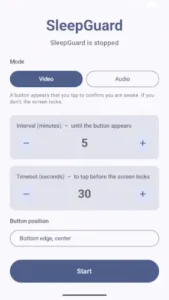
SleepGuard uses a minimal overlay UI: a small red circle that appears periodically over whatever you are watching. A simple settings screen lets you configure intervals, timeouts and actions. There are no complex menus, themes or animations. The design is function over form, a stripped down safety utility that stays out of the way until it is needed.
Visually, SleepGuard is one of the most stripped down utilities on Android. It is essentially a tiny red button that pops up over your video. The overlay is deliberately unobtrusive. It does not block the content. It does not animate dramatically. It appears, waits for a tap and disappears. The simplicity is the point.
SleepGuard Tips
Getting started with SleepGuard is simple, but a few smart choices early on will make it actually work the way you want. Here is what to focus on first.
Beginner Advice
Tune intervals to your sleep habits. If you typically doze off within twenty to thirty minutes of starting a video, set the check-in interval to ten or fifteen minutes. That way the app catches you before hours of playback drain your battery. If you usually stay awake longer, stretch the interval. The point is to match the app to your actual rhythm, not a generic default.
Test before relying on it with intentional no-tap runs. Before you trust SleepGuard on a real night, run a few tests where you deliberately do not tap the overlay. Confirm that the screen actually locks, that playback actually stops and that the timing feels right. Testing once is not enough. Test on different media apps and different scenarios to make sure the behavior is consistent.
Exempt SleepGuard from battery optimization. On most Android phones, battery optimization will eventually kill background services. If SleepGuard gets killed, the overlay never appears and the app becomes useless. Go into your phone’s battery settings, find SleepGuard and set it to unrestricted or exempt from optimization. This is not optional. It is the single most common reason the app fails for new users.
Allow draw over other apps permission. The check-in overlay needs permission to draw on top of other apps. Without it, the red circle never appears over your video. Grant this permission during setup. It is the core permission the app relies on for its one job.
Combine with bedtime mode and grayscale for stronger effect. SleepGuard handles the phone side of falling asleep. Bedtime mode and grayscale handle the human side. Grayscale removes the dopamine pull of color. Bedtime mode dims the screen and silences notifications. Together, they create an environment where falling asleep is more likely and the phone is less likely to keep you awake.
Use with audiobooks and podcasts, not just videos. SleepGuard works with any media that keeps the screen or audio running. If you fall asleep to podcasts or audiobooks, the app is just as useful. The overlay appears regardless of what is playing. This is especially valuable for audio content because there is no visual cue that you have fallen asleep.
Check that lock screen action works on your device. Some Android skins handle screen locking differently. Test that the configured action actually works on your specific phone. If it does not, try switching to a different action or adjusting the permissions. The app gives you options because different devices behave differently.
Start with shorter intervals and adjust as needed. Begin with a ten minute check-in interval. If it feels too frequent, stretch it to fifteen or twenty. If you find yourself falling asleep between prompts, tighten it. Shorter is safer when you are starting out. The cost of an extra tap is nothing compared to the cost of an all night battery drain.
Understand it is not a long-term dead man’s switch. This is important. SleepGuard is a short term local watchdog for nighttime phone use. It is not for digital inheritance, emergency alerts or notifying anyone after death. If you need that kind of service, look at dedicated options like Google Inactive Account Manager. SleepGuard solves a different problem.
Review settings after any Android update. Major Android updates sometimes reset permissions or change how background services work. After updating your phone, open SleepGuard and check that the overlay permission and battery exemption are still in place. A two minute check saves a night of wasted battery.
Advanced Strategy
Pair with app timers for stronger sleep environment. App timers limit how long you can use specific apps. Combined with SleepGuard’s fall asleep protection, you get both a preemptive limit and a reactive intervention. The timer stops you from starting a three hour video at midnight. SleepGuard catches you when you ignore the timer and fall asleep anyway.
Adjust response window based on your reaction time. The response window is how long you have to tap the overlay before the app acts. If you tend to be slow to respond when drowsy, extend it. If you want tighter protection, shorten it. The right window is one that gives you enough time to respond while awake but not enough to miss it while asleep.
Test on different media players to confirm playback stop. Not all media players behave the same when the screen locks. Some stop playback. Some continue playing audio in the background. Test SleepGuard with each player you use. If playback continues after the screen locks, you may need to adjust the app’s action or switch players.
Use alongside Google Inactive Account Manager for long term needs. SleepGuard handles the short term problem. Google Inactive Account Manager handles the long term one. If you want protection for both nightly use and digital legacy, use both tools. They solve different problems and do not overlap.
Share feedback with developer on Reddit for improvements. The developer has been active on Reddit asking for testers and feedback. If you find a bug or have an idea for improvement, share it. The app is open source and community driven. Your feedback can shape future updates.
Monitor battery savings over a week to see impact. Before SleepGuard, track how much battery your phone loses overnight when you fall asleep with a video running. After SleepGuard, track it again. The difference is usually significant. Seeing the numbers makes the app’s value concrete and helps you decide if the interval needs tuning.
Customize interval for different content types. A ten minute YouTube video and a three hour movie need different intervals. For short content, longer intervals work fine because the video ends before you fall asleep. For long content, shorter intervals catch you sooner. You can adjust the interval based on what you plan to watch.
Combine with focus timers for wind down routines. Focus timers help you transition from active phone use to sleep. SleepGuard catches you when the transition is complete. Together they create a wind down routine that ends with the phone off and you asleep, instead of the phone running all night.
Consider OEM specific settings for MIUI, ColorOS and One UI. Aggressive Android skins kill background services to save battery. MIUI, ColorOS, and One UI are the worst offenders. You may need to lock SleepGuard in recent apps, allow autostart and disable battery optimization at the system level. Each OEM has its own procedure. Look up the specific steps for your phone.
Revisit settings seasonally as your sleep patterns change. Sleep patterns shift with seasons, schedules and life changes. The interval that worked in winter may not work in summer. The response window that suited you during a stressful period may feel too short when you are relaxed. Check your settings every few months and adjust.
SleepGuard Similar Apps
| App | Best for | Key Difference |
|---|---|---|
| SleepGuard | Falling asleep with videos or audio running | Local check-in overlay that locks phone or stops playback. FOSS, no ads, no data collection. |
| Dead Man’s Switch (kleeschulte) | Short term safety via motion monitoring | Monitors phone movement, sends SMS or call if no movement. Uses motion instead of tap. |
| bSafe | Personal safety while walking or traveling | Panic button, fake call, live location sharing. Broader safety suite with dead man’s switch as one feature. |
| Snug Safety | Wellness check-ins for people living alone | Check-in reminders, alerts to contacts if you miss check-ins. Focused on wellbeing checks. |
| Google Inactive Account Manager | Digital inheritance after long inactivity | Sends account data or messages after months of inactivity. Long term, not for nightly use. |
SleepGuard is the most focused option for nighttime phone use. If you want motion based safety, Dead Man’s Switch is the alternative. If you want a broader personal safety suite, bSafe covers more ground. If you want wellness check-ins, Snug Safety is built for that. If you want digital inheritance, Google Inactive Account Manager is the standard. Each tool solves a different problem. SleepGuard solves exactly one.
Who Is SleepGuard For?
SleepGuard is for people who regularly fall asleep with videos or audio playing. If you have ever woken up to a dead phone, a warm screen and a video still playing at 4 AM, this app is for you. The fix is simple and the impact is immediate. No more overnight battery drain. No more overheating. No more waking up to background noise.
Users who want to save battery and prevent overheating will find SleepGuard valuable even if they do not fall asleep often. The app is a safety net. On nights when you do drift off, it prevents the phone from running for hours. On nights when you do not, it does nothing. There is no cost to having it running.
Privacy conscious users who prefer FOSS and ad-free tools will appreciate SleepGuard’s approach. No ads, no in-app purchases, no data collection and open source code that anyone can inspect. For users tired of apps that monetize their attention and data, this is a clean alternative.
Anyone who wants a focused, local solution without subscriptions will find SleepGuard fits. There is no account to create. There is no cloud service to trust. There is no monthly fee. Just a small app that does one job and stays out of the way.
If you fall asleep with your phone running, SleepGuard is worth trying.
What Users Say About SleepGuard App
What Works
Users who need exactly this behavior find SleepGuard delivers a simple, focused solution. For people who regularly fall asleep with videos or audiobooks playing, a tiny check-in overlay that locks the phone is precisely what they need, without extra features or subscriptions. The privacy friendly, open source nature is a strong positive for users who do not want another service storing their habits or messages. The lightweight, unobtrusive design makes it suitable for long video sessions without noticeable performance impact.
Where The App Could Improve
Common limitations include its niche use case. Users who do not regularly fall asleep with their phone running may see little value. The app depends on overlay and accessibility or device admin permissions, which some users may be wary of or encounter OEM restrictions on. It is not a replacement for long term dead man’s switch services used for digital inheritance or emergency alerts. People searching for that type of service may be confused if they expect message delivery after death.
Check out Dead Man’s Switch by kleeschulte for a motion based safety alternative.
Conclusion
SleepGuard delivers a short term dead man’s switch that stands out for its simplicity and focus. The check-in overlay catches you when you fall asleep. The inactivity response locks the phone or stops playback. The customizable timing lets you tune the app to your habits. The open source, ad-free design keeps it clean and trustworthy.
The app has limitations. It is a niche tool for a specific problem. It requires overlay and accessibility permissions that some users may hesitate to grant. It is not a replacement for long term dead man’s switch services. OEM battery restrictions can kill it if you do not configure your phone correctly.
For users willing to grant the permissions and set up the app properly, SleepGuard offers a compelling utility. It does not try to be a wellness app, a screen time tracker or a digital inheritance service. It tries to do one thing well: catch you when you fall asleep. And for a specific kind of user, that is exactly what they need.
If you fall asleep with your phone running, SleepGuard is worth downloading.
Fall asleep without the guilt of a phone running all night. SleepGuard has you covered.
SleepGuard FAQ
How do I download SleepGuard and is it really free?
SleepGuard is completely free to download and use from the Official Google Play Store. The app is lightweight, requires no account, and contains no ads, no in-app purchases and no data collection. It is rated for all ages and runs on most modern Android versions.
What if I encounter a problem or need support?
For technical issues, bug reports, or general questions, contact the developer directly at sleepguard@gmx.de. The developer is active on Reddit and open to feedback from testers and users. You can also open an issue through the project’s code repository if you are comfortable with GitHub.
What is the difference between SleepGuard and a traditional dead man’s switch?
This is the most common point of confusion. A traditional dead man’s switch sends messages, unlocks accounts or notifies contacts if you go missing or die. SleepGuard does none of that. It is a short term, local watchdog for nighttime phone use. It watches whether you are still tapping your screen while media plays. If you stop tapping, it locks the phone or stops playback. It does not contact anyone, does not send messages and does not manage digital inheritance. If you need long term legacy planning, look at services like Google Inactive Account Manager. If you need nightly protection against a phone running all night, SleepGuard is the right tool.
Does SleepGuard work with audiobooks and podcasts or only videos?
SleepGuard works with both. The app has a Video mode and an Audio mode you can select on the main screen. In Video mode, the check-in button appears as an overlay on top of whatever is playing. In Audio mode, the app is designed for situations where the screen may be off or dimmed while audio continues. The check-in prompt still appears at your chosen interval. The behavior is the same either way. Tap to confirm you are awake or the phone locks and playback stops. This makes SleepGuard useful for anyone who falls asleep to audiobooks, podcasts or music, not just video content.