All Call Recorder is a tool that prioritizes function over polish.
All Call Recorder does not try to be a sleek, minimalist app. It tries to be a workhorse that captures every call you need, stores it and lets you find it later. It currently holds a 3.7 star rating from over 379,000 reviews on Google Play, with 10 million+ downloads. The install size sits around 20 MB to 30 MB depending on your device and the age rating is Everyone. Millions of people rely on it to record calls, but the recent UI overhaul and lost recordings have dragged down its rating significantly.
What Is All Call Recorder
Starbox built this app around a simple promise: record your calls automatically and give you tools to manage them. There is no fancy AI transcription, no cloud only storage, no subscription first design.
The core value of All Call Recorder is automation. You do not need to manually tap the record button at the start of every call. Set it up once and it records automatically every time. That “set it and forget it” experience is more practical for people who need long term records of work calls or client conversations than any flashy feature.
All Call Recorder Mechanics of Recording and Managing Calls
Automatic Call Recording
You can configure the app to record incoming and outgoing calls automatically. But here is the catch: after every app update, check your settings. The recent UI overhaul reset settings for some users and if you do not check, you might think it is recording when it is not.
White and Ignore Lists
You can set which calls are recorded and which are skipped. The whitelist and ignore list in All Call Recorder let you record only work calls and skip family calls. This feature is useful for privacy protection, but note that if the other person calls from a different number, you will still record it.
Shake to Record and Mini View
You can start a recording by shaking the device. This is useful when you are already in a call and need to start recording quickly. Shake to record in All Call Recorder is not enabled by default. You need to turn it on in settings.
In-App Playback and Notes
You can listen to recordings directly in the app, add notes and share them. The library and calendar formats make it easy to find a specific call.
Cloud Sync and Export
Cloud Synchronization
You can sync recordings to the cloud. Cloud sync in All Call Recorder is one of its most useful features. If you change phones or clear app data, the cloud files are still there. This is the most effective defense against “update wipes recordings.”
Multi Format Export
You can save recordings in .caf, WAV, 3GPP, MP4 or AMR. Multi format export in All Call Recorder lets you send recordings to others or play them on other devices. WAV has the best compatibility, MP4 has the smallest file size.
Audio Source and Sample Rate
If recordings fail on your device, you can change the audio source or sample rate. This is a troubleshooting option, not a feature you use every day, but it can save you if your device has compatibility issues.
How to Record All Incoming and Outgoing Calls on Your Phone
Recording all incoming and outgoing calls on Android starts with configuring automatic recording and checking permissions, not just installing an app.
After opening All Call Recorder, grant microphone, phone, storage and contacts permissions. Then find “Automatic Recording” in settings and make sure it applies to both incoming and outgoing calls. The automatic recording in All Call Recorder is designed so you do not have to tap a button every time, but the trade-off is that you must confirm it actually works during your first setup. A practical test: have a friend call you, hang up and immediately check the recording list to confirm the file exists and captures both sides of the conversation.
Can I Record a Phone Call Secretly?
Technically, All Call Recorder does not actively notify the other person. It does not play a beep during the call and it does not send any notification to the other party. But this question cannot be answered on technical grounds alone.
On the legal side, many regions require two party consent for call recording. The recording feature in All Call Recorder does not change the legal requirements. If you secretly record in a region that requires consent, the recording may not be legally admissible and the act itself may be illegal. The safest approach is to say at the start of the call: “I am recording this for follow-up purposes,” so the other person knows.
How to Access and Manage All Your Recorded Calls
Recordings are saved by default in a folder in internal storage. The recording list in All Call Recorder shows all your recordings and you can play, rename, add notes or share directly from the app.
If you need more systematic management, the app All Call Recorder offers list view and calendar view. List view sorts by time, which is good for finding recent recordings quickly. Calendar view shows recordings by date, which is good for reviewing everything from a specific day. Cloud sync in All Call Recorder lets you access previous recordings after switching phones, which is one of its most useful features.
How to Prevent Unauthorized Call Recording on Your Phone
If you are worried about someone recording your calls without your knowledge, there are a few things you can do.
First, check which call recording apps are installed on your phone. Go through “App Management” in settings and look for recording tools you do not recognize. Second, check permissions. If an app requests microphone permission and you do not know why it needs it, revoke that permission. Third, Android itself has been tightening recording permissions.
Since Android 9, third party apps have had a much harder time secretly recording calls in the background. This is not absolute security, but the system level restrictions are stricter than you might think. The privacy design of All Call Recorder does not secretly upload your recordings, but it is a recording tool. If someone gets hold of your phone and opens it, they can hear all your recordings. Setting a lock screen password is more important than any app level privacy setting.
All Call Recorder Design and Interface
The UI is clean and functional. The mini view for live recordings keeps the screen clear. The library and calendar formats help you organize your archive.
The trade-off is the recent UI overhaul. It changed the app’s look, reset settings and wiped previous recordings for some users. The interface overhaul in All Call Recorder is the most concentrated complaint in user feedback and a major reason for its rating drop.
What Users Say About All Call Recorder App
What users like
Users praise the ability to hear both sides of the call clearly. Some appreciate the lack of commercials. Customizable settings, including white lists and audio source adjustments, earn consistent mention.
Were work is need it
The UI overhaul changed the app’s look, reset settings and wiped old recordings. Some users find the setup complex and the ad load heavy. Recording failures on some devices, including low volume from the other party.
All Call Recorder Tips
Use Automatic Recording for Convenience
Automatic recording is its core selling point and the first thing you should configure. Once set up, you do not have to tap the record button every time a call comes in.
A frequent All Call Recorder tip on Reddit is to check where your recordings are saving immediately after turning on automatic recording. Many people assume automatic recording means everything is handled, only to find the files are saved to a hidden folder, or that nothing saved at all due to permission issues.
Use White and Ignore Lists for Privacy
Whitelists and ignore lists are your first line of defense for privacy. You can record only work calls and unknown numbers, while skipping family and personal friends.
The whitelist feature in All Call Recorder is very practical for people who need to separate work and personal life. You can add clients and colleagues to the whitelist and only record their calls. That way your recording library only contains what you actually need to keep, without private conversations you never want to replay.
Use Cloud Sync for Backup
This is the most effective defense against “update wipes recordings.” Cloud sync in All Call Recorder uploads your recordings to the cloud. Even if local files are cleared, you can restore from the cloud.
A practical piece of advice: turn on cloud sync the first time you use the app. Do not wait until you have accumulated hundreds of recordings. The earlier you enable it, the more complete your backup will be.
Use Multi Format Export for Compatibility
You can export recordings as .caf, WAV, 3GPP, MP4 or AMR. Multi format export in All Call Recorder lets you send recordings to others or play them on other devices.
If you are not sure which format to pick, WAV has the best compatibility and plays on almost any device. MP4 has the smallest file size, suitable for sending via email or messaging apps.
Use Shake to Record for Quick Starts
Shake to record is a convenient feature, especially when you have already answered a call and do not have time to tap a button in the app.
Users of the app All Call Recorder mention treating this feature as an “emergency record” switch. Shake the phone during a call and recording starts immediately without switching screens.
Be Mindful of Device Compatibility
Not every Android device supports call recording. Device compatibility for All Call Recorder depends on your phone model, Android version and whether your carrier restricts call recording.
If recordings fail, first try changing the audio source or adjusting the sample rate in settings. If that still does not work, your device may not support call recording at all. Recording failures in All Call Recorder are in most cases a system level limitation, not an app problem.
If you are searching for All Call Recorder codes, those searches usually point to promo codes that do not exist. The app does not run on redeemable codes. It makes money through ads and some advanced features. The All Call Recorder reddit community confirms this: there are no official codes, so do not waste time looking.
All Call Recorder Similar Apps
All Call Recorder vs Talker ACR
Talker ACR supports VoIP call recording, including WhatsApp, Viber and Skype. All Call Recorder focuses on regular phone calls. If you need to record VoIP calls, Talker ACR fits better. If you only need to record regular phone calls, All Call Recorder is enough.
All Call Recorder vs Call Recorder – Auto Recording
Auto Recording is simpler with fewer features, but its free version may have fewer limitations. All Call Recorder offers more features at the cost of more settings and ads. If you want an “install and use” tool, Auto Recording is lighter. If you need cloud sync and multi format export, All Call Recorder is more complete.
All Call Recorder vs Easy Voice Recorder
Easy Voice Recorder is a general recording tool for meetings, memos and ambient sound. It is not designed for call recording. All Call Recorder is built for call recording. They solve different problems and cannot replace each other.
All Call Recorder vs ASR Voice Recorder
ASR Voice Recorder is also a general recording tool with richer features, but it is not specifically designed for calls. If you need to record calls, All Call Recorder is the right path. If you need to record meetings and ambient sound, ASR fits better.
If you want a tool that supports VoIP recording, the VoIP route of Talker ACR is another direction, but it has its own limitations.
Conclusion
Who All Call Recorder Is For
People who want automatic recording and cloud backup. Users who need whitelists and ignore lists to protect privacy. Anyone who needs multi format export for compatibility across devices.
Who Should Look Elsewhere
People who need to record WhatsApp or Skype calls. People who cannot accept the risk of losing recordings in an update. Anyone highly sensitive to ads and setup complexity.
FAQ
Where is the safest place to get the All Call Recorder App?
You can download All Call Recorder app from the Official Google Play Store. The app is free to download and install, supported by ads. While there are premium features, you can record basic phone calls without paying. Just keep an eye out for the free trial prompts if you decide to explore the advanced settings.
Why did I lose my recordings after an update?
The recent UI overhaul reset settings for some users and even wiped recording files. This is the most concentrated complaint in user feedback. If you have important recordings, back them up manually before updating, or enable cloud sync in advance.
Does it record both sides of the call?
It depends on your device and settings. In most cases, it captures both sides, but on some devices, the other party’s voice is very low or not captured at all. Try changing the audio source or adjusting the sample rate in settings.
How do I contact support if I have a billing issue?
For technical support or billing disputes, the developer’s support email is anasrahmaniseo[at]gmail.com. You can usually find this address at the bottom of the Google Play listing. If you are reporting a bug, include your device model and Android version to help them diagnose the issue faster.
Can I exclude certain contacts from recording?
Yes. In settings, find the “Whitelist” or “Ignore List” and add the contacts you do not want to record. Their calls will not be recorded automatically.
What does the “Record other party voice” setting do?
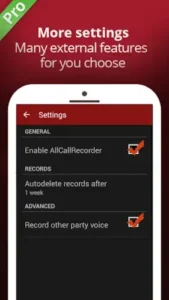
This setting, found in the Advanced menu, attempts to capture the audio coming from the other person on the call. If you find your recordings are only capturing your own voice, toggling this on, along with using the speakerphone, is the most common way to fix one sided recordings.
What formats can I export recordings in?
Supports .caf, WAV, 3GPP, MP4 and AMR. WAV has the best compatibility, MP4 has the smallest file size and is suitable for sending.