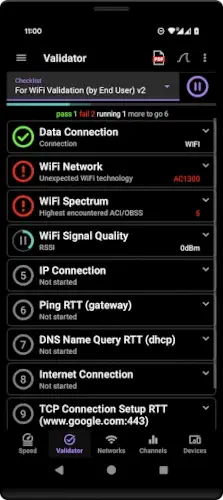
Most speed test apps give you a number and call it a day. Analiti goes deeper. With over 1 million downloads, a 4.4/5 star rating from 85,000+ reviews, and a compact 25MB size, this Android app (ages 12+) doesn’t just measure your internet speed, it dissects your entire network like a surgeon.
Analiti dissects your entire network
Generic apps like Ookla’s Speedtest tell you your download speed. Analiti reveals why your video calls stutter at 3 PM every day, which neighbor’s WiFi is drowning your signal, and whether your ISP is quietly throttling Netflix.
Built for IT professionals but usable by determined home users, it’s the Swiss Army knife of network tools. Where other apps show bars, Analiti shows channel interference maps, bufferbloat metrics, and even rogue devices lurking on your LAN.
Analiti Features (And Why You Care)
Speed Testing Without the Lies
Most apps test against a single server. Analiti uses multi server HTTP and iPerf3 to simulate real world conditions. It measures:
-
Bufferbloat (that lag when someone starts a Zoom call)
-
Jitter (why your game ping spikes randomly)
-
Packet loss (the culprit behind frozen video calls)
Raw speed is meaningless if your connection stutters under load.
WiFi Analysis Like You’re at DEF CON
Open the channel scanner, and you’ll see:
-
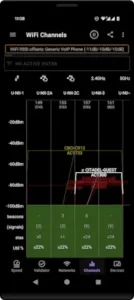
Which networks overlap on Channel 6 (and how to escape the traffic jam)
-
Hidden SSIDs leaking beacon frames
-
MCS indices proving your phone’s “full bars” are actually a weak 802.11n connection
This is the data network engineers use, just on your phone.
LAN Device Scanner: “Who the Hell Is ‘Device-43’?”
Find every connected gadget, sorted by:
-
IP and MAC addresses (when your smart fridge starts bitcoin mining)
-
Open ports (why your security camera feeds are public)
-
Connection type (spot that ancient printer hogging the 2.4GHz band)
The Latency Toolkit
Ping tests are primitive. Analiti runs:
-
ICMP (basic latency)
-
DNS (is your ISP’s resolver slow?)
-
HTTP/TCP (real-world website response times)
-
Scheduled tests to catch intermittent drops
Expert Tools (Worth the $8.99 Upgrade?)
The premium version unlocks:
-
PCAP exports for Wireshark deep dives
-
Custom validation checklists (e.g., “Is VoIP traffic prioritized?”)
-
WiFi roaming analysis (debugging drops between access points)
Real Problems You Can Actually Fix
“My WiFi Dies in the Bedroom”
Use the signal heatmap to:
-
Reposition your router away from microwave interference
-
Switch to a less congested channel (even if signal strength drops slightly)
“Work VPN Keeps Disconnecting”
-
Run interval latency tests to catch ISP throttling
-
Check bufferbloat during peak hours (QoS settings might help)
“Why Is My Smart TV Buffering?”
-
The LAN scanner reveals it’s stuck on 802.11g (time for an Ethernet adapter)
-
Channel graphs show baby monitors crushing your 2.4GHz band
The Tradeoffs
-
Free version has ads, but they’re tolerable
-
Steep learning curve, casual users might prefer WiFiman for simpler scans
-
Android restrictions sometimes hide MAC addresses (blame Google, not Analiti)
Analiti vs. The Competition: When to Choose Depth Over Simplicity
Analiti vs. Ookla Speedtest: The Depth Dilemma
Ookla’s Speedtest is the fast food of network tools: quick, familiar, and nutritionally empty. It answers one question (“How fast is my download?”) but ignores everything else.
When to choose Ookla:
-
You need a 10 second speed check to shame your ISP’s customer service rep.
-
You care more about sharing screenshotable results than actual diagnostics.
When Analiti destroys it:
-
Your Speedtest says “200 Mbps,” but YouTube buffers. Analiti’s bufferbloat test reveals your router can’t handle simultaneous uploads/downloads.
-
Ookla shows “ping: 12ms.” Analiti breaks it down by ICMP, DNS, and HTTP latency, exposing your work VPN as the real lag culprit.
Analiti vs. WiFiman/NetSpot: The Specialist Trap
WiFiman (by Ubiquiti) excels at WiFi signal visualization, while NetSpot specializes in coverage mapping. Both do one thing well, Analiti does everything adequately.
WiFiman’s edge:
-
Cleaner heatmaps for spotting dead zones.
-
Tighter integration with Ubiquiti hardware.
NetSpot’s advantage:
-
Better at plotting WiFi strength across physical spaces.
Where Analiti outshines both:
-
WiFiman can’t detect hidden networks or analyze channel interference (OBSS/ACI).
-
NetSpot won’t show you real time RX/TX rates or per device bandwidth hogs.
When to switch apps:
-
Use WiFiman if you only care about signal strength visuals.
-
Pick NetSpot for walking surveys of large spaces.
-
Stick with Analiti when you need forensic level data (like proving your neighbor’s baby monitor is crushing your WiFi).
Pro Tips: Unleashing Analiti’s Hidden Power
Manual Server Selection: Stop Trusting Automation
The default “nearest server” might be overloaded. Hand-pick one:
-
Go to Speed Test > Settings > Server List
-
Choose a server with <100km distance and <20ms baseline ping
-
Avoid ISP-owned servers (they often prioritize speed test traffic)
RSSI vs. SNR: The Signal Metrics That Actually Matter
-
RSSI (Received Signal Strength): Your phone’s “bars.” Useless alone.
-
SNR (Signal-to-Noise Ratio): The truth-teller. Below 25dB? Expect drops.
Find both under WiFi Analyzer > AP Details. If RSSI is -65dBm (decent) but SNR is 15dB (terrible), your network is drowning in interference, likely from that ancient microwave.
Exporting Proof Your ISP Is Throttling You
-
Run scheduled latency tests during peak hours (7-10 PM)
-
Export to CSV (Menu > Export > Full Session)
-
Look for latency spikes or packet loss patterns coinciding with Netflix usage
-
Attach to your FCC complaint (they respond faster than your ISP’s support)
Conclusion :
IT Professionals: Buy It Yesterday
-
PCAP exports integrate with Wireshark.
-
Roaming analysis debugs enterprise WiFi handoffs.
-
Custom validation scripts automate pre-meeting checks.
Power Users: Worth the Learning Curve
-
Fixing bufferbloat can feel like unlocking FPS in games.
-
Identifying channel conflicts turns WiFi from art to science.
Casual Users: Try the Free Version First
-
If you just want to check speeds, stick with Ookla.
-
But if you’ve ever yelled “Why does my WiFi suck?”, the free version offers 90% of the tools.
FAQ
Is Analiti the best network analyzer for Android?
For professionals who need deep diagnostics, yes. It outperforms apps like WiFiman in interference analysis and packet-level insights. Casual users might find it complex, try the free Analiti version first. For support: contact[at]analiti.com.
How accurate are Analiti’s WiFi channel reports?
Extremely. It detects hidden networks, overlapping channels (OBSS/ACI), and even devices causing interference. Most apps miss these details.
Can Analiti detect ISP throttling?
Yes. Schedule latency tests during peak hours, then export CSV reports to prove throttling patterns.
What’s the difference between the free and paid versions?
Free shows ads but includes core tools. Paid ($8.99) adds PCAP exports, roaming analysis, and ad removal.
Why does my device list show incomplete MAC addresses?
Blame Android’s privacy restrictions. For full visibility, use LAN scanning on the same network as your router.