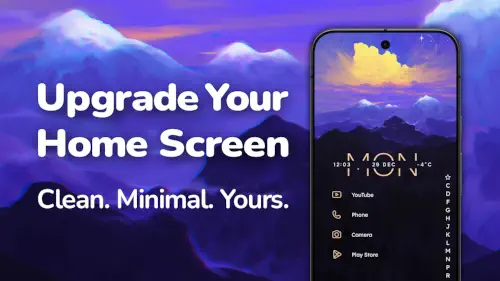
Niagara Launcher rethinks the Android home screen around your thumb, replacing the traditional icon grid with a vertical list of favorite apps and a wave alphabet edge that puts every installed app within one handed reach.
Niagara Launcher is developed by Mellowdrop Studio, this minimalist launcher has earned a 4.8 star rating from over 238,000 reviews on Google Play and has been downloaded more than 10 million times. The app weighs in at just 13 MB, is rated for ages 3 and up and is available on Google Play and the official website.
What Is Niagara Launcher?
Niagara Launcher is a minimalist, one handed Android home screen replacement designed to reduce clutter and distractions while keeping essential info and apps within easy thumb reach. Instead of traditional icon grids and multiple home pages, it uses a vertical list of favorite apps plus a “wave alphabet” sidebar for fast access to any installed app. The launcher positions itself as a minimalist productivity tool that balances clean design with enough customization to feel personal without becoming overwhelming.
The core philosophy is ergonomic minimalism. Your thumb should not have to stretch to the top of a tall phone screen. Everything important lives in the lower half of the display. Everything else is one swipe away along the alphabetical edge. It is a quiet rethinking of what a home screen should be.
Vertical List and Wave Alphabet
The home screen shows a short vertical list of your favorite apps on the left side. There are no rows of icons, no folders scattered across multiple pages, no widgets crowding the screen. Just the apps you actually use, listed in plain text with small icons next to them.
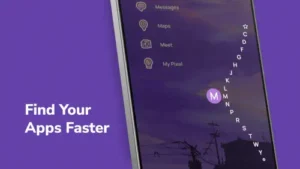
To open anything not on the list, you swipe along the alphabetical edge on the right side of the screen. The “wave alphabet” lets you jump directly to any letter, then tap the app you want. This becomes muscle memory within a few days. On tall phones and foldables, it is a genuinely faster way to reach apps than stretching your thumb to the top corner of an icon grid. The design is calm and efficient in a way that traditional launchers rarely are.
Integrated Notifications and Widgets
Niagara keeps you on the home screen longer by letting you read and reply to notifications for selected apps without opening them. The notification appears inline on the home screen with a reply option. You handle the message and move on, never entering the app itself. This reduces app switching and the rabbit holes that come with it.
Widgets are handled with restraint. Calendar and weather widgets are available, and the widget stack holds up to four widgets in a compact, space saving arrangement. You get the information you need without a wall of widgets dominating the screen. The stack keeps the minimal aesthetic intact while still giving you the essentials at a glance.
What Does Niagara Launcher Do?
Niagara Launcher replaces your Android home screen with a vertical list of your favorite apps and a wave alphabet edge that puts every installed app within one handed reach. That is the core idea. But the launcher does a lot more than just rearrange icons.
It gives you a one handed home screen. The vertical list sits on the left side of the screen. Your thumb naturally rests there. The wave alphabet runs down the right edge. Swipe along the edge and you jump to any letter instantly. No stretching to the top of a tall phone. No reaching across the screen with two hands. Everything important lives where your thumb already is.
It integrates notifications into the home screen. Selected apps show their notifications directly on the home screen with inline reply options. You can read and respond to messages without opening the app. This reduces app switching and the rabbit holes that come with it. You handle the notification and move on.
It provides widgets in a compact stack. Calendar and weather widgets are available. The widget stack holds up to four widgets in a space saving arrangement. You get the information you need at a glance without a wall of widgets dominating the screen.
It supports themes and icon packs. One tap themes from a built-in collection. Third party icon packs for a personal look. Custom fonts, wallpapers, clock styles and Material You dynamic theming on supported devices. Theme Studio lets you create, save and share custom themes with live preview. The minimalist structure stays intact no matter how much you customize.
It helps with digital wellbeing. Usage Breaker sends gentle reminders when you spend too much time in specific apps. Notification summary bundles less important alerts. You can hide apps you do not want to see regularly. Stay focused mode simplifies the home screen further. The launcher encourages intentional use without being restrictive.
It handles the basics well. Advanced search finds contacts, searches the web and performs quick calculations from the home screen. Gestures like double tap to lock make quick actions easy. Backup and restore keeps your setup intact when you switch phones.
In short, Niagara Launcher is a complete home screen replacement that prioritizes one handed use, calm design and intentional app access without sacrificing the customization that makes a phone feel personal.
Is Niagara Launcher Free or Do I Need to Pay?
Niagara Launcher is free to download and use. The core experience does not cost anything and there are no ads even in the free version .
What you get for free:
-
Vertical favorites list on the home screen
-
Wave alphabet for one handed app access
-
Basic themes
-
Integrated notifications with inline replies
-
Widget stack (with limitations)
-
Gestures including double tap to lock
-
Backup and restore
-
Advanced search
-
Pop-up folders (limited)
What requires Niagara Pro:
-
Theme Studio for creating and sharing custom themes
-
Expanded widget support
-
Full pop-up folder functionality
-
Usage Breaker for digital wellbeing
-
Notification popups
The bottom line: You can use Niagara Launcher indefinitely without paying. The free version is not crippled or ad-ridden. It is a fully functional minimalist launcher. The Pro upgrade adds advanced customization and wellbeing features for users who want them. If you are unsure, start with the free version. Upgrade later if you find yourself wanting the extra features.
Niagara Launcher Pro: Is It Worth the Upgrade?
The answer depends on which features matter to you. Here is how to decide.
Worth it if you want deep customization. Theme Studio is the biggest Pro feature. It lets you build custom themes from scratch, save them and share them with others. If you enjoy personalizing your phone’s look and want full control over wallpapers, icons, clock styles and text styles, Theme Studio delivers. The live preview makes experimentation easy.
Worth it if you need more widgets. The free version limits widget placement and stack size. Pro expands widget support, giving you more flexibility for calendar, weather, notes and other widgets. If widgets are central to how you use your home screen, Pro removes the restrictions.
Worth it if you want Usage Breaker. This digital wellbeing feature sends gentle reminders when you spend too much time in specific apps. It is not a hard block. It is a nudge that builds awareness. If you struggle with mindless scrolling and want a tool that helps without being restrictive, Usage Breaker is genuinely useful.
Worth it if you use pop-up folders heavily. Pop-up folders keep related apps grouped and accessible without cluttering the main list. Pro unlocks full folder functionality. If you have multiple banking apps, work tools or streaming services, pop-up folders keep them organized.
Worth it if you want notification popups. Pro adds notification popups that display alerts in a style that fits the launcher aesthetic. This is a polish feature rather than a core necessity, but it enhances the overall experience.
Not worth it if you are happy with the free version. The free version covers everything most people need: vertical list, wave alphabet, basic themes, integrated notifications and gesture support. If you do not need advanced theming or Usage Breaker, you can use Niagara indefinitely without paying.
The value calculation: At $13.99 per year, Pro costs about the same as one coffee per month. At $42.99 lifetime, it costs roughly the same as a single month of most subscription services, but you own it forever. If you use Niagara as your daily launcher and want the extra features, the lifetime option is the better value. If you just want to try the advanced features, the yearly subscription is lower risk.
The honest recommendation: Use the free version for at least a month. If you find yourself wishing you could customize themes more deeply, add more widgets or track your usage, then upgrade. If the free version already meets your needs, keep using it. Niagara does not punish free users. It rewards paying users with extras, not essentials.
Niagara Launcher Core Features
Customization
Themes and icon packs with one tap application and third party icon pack support. Wallpapers and clock styles. Custom fonts and Material You dynamic theming that adapts to your wallpaper on supported Android versions. Multiple light and dark mode options. Theme Studio for creating, saving and sharing custom themes with live preview.
Productivity Features
Integrated notifications with inline replies. Wave Alphabet for instant app access. Widgets and a widget stack that holds up to four widgets. Pop-up folders for grouping apps without cluttering the main list. Advanced search for contacts, web and quick calculations. Gestures including double-tap to lock the screen. Backup and restore so your setup carries over when you switch phones .
Digital Wellbeing
Usage Breaker sends gentle reminders when you spend too much time in specific apps. Stay focused mode simplifies the home screen and hides apps you do not need to see regularly. Notification summary bundles less important alerts to reduce interruptions. The entire experience is ad-free, even in the free version .
Free vs Pro Features
Free tier gives you the core launcher, vertical favorites list, wave alphabet, basic themes and ad-free use. Pro adds Theme Studio, expanded widget support, pop-up folders, Usage Breaker and notification popups. Pricing sits around $13.99 per year or $42.99 for lifetime access, varying by region.
Niagara Launcher Graphics and Design
Niagara Launcher uses a vertical, list-based home screen with no traditional icon grid or multi page setup. The aesthetic emphasizes whitespace, simple typography and subtle animations that reviewers describe as “buttery smooth.” The design is clean and elegant without being sterile. Despite the minimalism, you can apply full themes and icon packs, so the look can range from ultra clean to more stylized while keeping the list layout intact.
One handed ergonomics are baked into every design decision. The vertical list and wave alphabet are placed so your thumb can reach everything on tall and folding phones without stretching. Compared to icon heavy launchers, Niagara feels like a calm, focused app list rather than a traditional home screen. It is the kind of interface that disappears when you are using it and lets you get on with your day.
What Users Say About Niagara Launcher App
What Works
Users consistently praise the clean, distraction free design for reducing visual clutter and making the phone feel calmer. The one handed usability is a recurring highlight, especially on large and folding phones, allowing quick app access without stretching. Many note fast, fluid animations and appreciate that the free version is ad-free. The developer support is responsive, with the team actively replying to reviews and support emails, which builds trust and loyalty.
Where The App Could Improve
Common criticisms include a learning curve for users accustomed to traditional grids and docks. Some miss the bottom app tray or multi page setup. Power users who rely on many widgets find the widget stack (max four) and limited placement restrictive compared to Nova or Lawnchair. Some desired features (advanced themes, full widget support, Usage Breaker) require Pro, which can feel limiting. Occasional bugs are reported, including freezing, touch miscalibration and notification dismissal issues, though many users still rate it highly overall.
Check out Olauncher for an even more radical, text only approach to digital minimalism or explore the full collection of Android apps to find your next productivity tool.
Niagara Launcher Tips
Beginner Advice
Curate your favorites list with only daily essentials. The vertical list on the home screen should contain only the apps you actually use every day. Phone, Messages, Camera, Maps and one or two productivity apps is a solid starting point. Everything else lives in the wave alphabet. A short favorites list keeps the home screen calm and makes the launcher feel purposeful.
Practice the wave alphabet for one-handed navigation. The alphabetical edge is Niagara’s signature feature. Swipe along the right side to jump to any letter, then tap the app. It feels unusual for the first day or two. By the third day, it becomes muscle memory and you will wonder why other launchers make you stretch to reach the top of the screen.
Use widget stack strategically with your most important widget. The widget stack holds up to four widgets in a compact arrangement. Put your most important widget (calendar or weather) at the top of the stack. Keep the stack lean. Two widgets are often enough. A crowded stack defeats the minimalist purpose.
Enable Usage Breaker for problem apps. If there is an app you open too often, turn on Usage Breaker for it. The gentle reminder appears when you have spent too much time in that app. It is not a hard block. It is a nudge. For many people, that nudge is enough to break the autopilot habit.
Hide bloat and distractions from the alphabetical list. Preinstalled bloatware and apps you rarely use clutter the alphabetical list. Hide them. You can always unhide them later if you need to. A clean alphabet makes finding what you actually want faster.
Start with a simple theme, then explore Theme Studio. The default theme is clean and functional. Use it for a week before diving into customization. Once you are comfortable with the layout, explore Theme Studio to create something that matches your wallpaper and icon pack.
Test integrated notifications for your most-used apps. Niagara lets you read and reply to notifications directly from the home screen. Enable this for your top two or three messaging apps. It reduces the number of times you actually open those apps, which is exactly the point.
Set up double-tap to lock for quick screen-off. The double tap gesture is the fastest way to lock your screen. It uses an optional Accessibility Service that is disabled by default. Enable it in settings, and you can put your phone down with one motion instead of reaching for the power button.
Back up your setup before switching phones. Niagara has a backup and restore feature. Use it. Your curated favorites list, themes, widget stack and gesture configuration all carry over to a new device. Without a backup, you start from scratch.
Explore Material You theming if your phone supports it. On Android 12 and above, Niagara supports Material You dynamic theming. The launcher colors adapt to your wallpaper automatically. It is a small touch that makes the launcher feel native to your device.
Advanced Strategy
Create custom themes in Theme Studio and share them. Theme Studio lets you build themes with specific wallpapers, icon styles, clock designs and text styles. Once you have a theme you love, share it with friends or the community. Theme sharing is one of the ways Niagara users personalize their experience beyond the built-in options.
Use pop-up folders to group related apps. Pop-up folders keep the main list clean while still giving you grouped access to related apps. Group your banking apps, your work tools or your streaming services. The folder opens as a compact popup, so it does not disrupt the vertical list aesthetic.
Configure gestures for frequently used tools. Niagara supports customizable gestures. Double tap to lock is the most common, but you can assign other gestures to launch specific apps or tools. If you check your calendar every morning, assign it to a gesture. The less you have to search, the faster your routine becomes.
Combine Niagara with app blockers and grayscale mode. Niagara handles the launcher layer of digital wellbeing. App blockers handle the hard limits. Grayscale mode removes the dopamine pull of color. Together, they create a phone that is calmer to use and harder to get lost in.
Use notification summary to reduce interruptions. Niagara can bundle less important notifications into a summary instead of showing them one by one. This keeps the important alerts visible while reducing the constant pinging that fragments your attention.
Apply third-party icon packs for a personal look. Niagara supports third-party icon packs. If you want a different visual style without abandoning the list layout, apply an icon pack from the Play Store. The launcher keeps its structure while the icons change to match your preference.
Set up advanced search for contacts and calculations. Niagara’s advanced search can find contacts, search the web and perform quick calculations from the home screen. It turns the launcher into a mini command center. For quick math or finding a contact, you never leave the home screen.
Use backup and restore when changing devices. If you upgrade phones, the backup and restore feature saves you from rebuilding your setup. Export your configuration before switching, then import it on the new device. Everything from favorites to themes carries over.
Experiment with light and dark modes for different times of day. Niagara supports multiple light and dark themes. Some users prefer light mode during the day and dark mode at night. The switch is quick, and both modes maintain the minimalist aesthetic.
Share your setup with the community. The Niagara community on Reddit and other platforms shares themes, tips and setups. Sharing your configuration and seeing what others do can inspire ideas you would not have considered. It is a small but active community, and the feedback loop makes the launcher better for everyone.
Niagara Launcher Similar Apps?
| App | Best for | Key Difference |
|---|---|---|
| Niagara Launcher | All around minimalism with one-handed ergonomics | Vertical list plus wave alphabet, icons, compact widgets. Best usability-to-minimalism balance. |
| Olauncher | Extreme distraction reduction, text only home screen | Text list with no icons at all. FOSS and no data collection. More radical than Niagara. |
| KISS Launcher | Speed, privacy, search first minimalism | Simple list plus search bar. Very lightweight. Open source. Fewer gestures than Niagara. |
| Nova Launcher | Deep customization, traditional grid | Classic icon grid, dock, multiple pages. Best for power customizers. Not minimal by default. |
| Lawnchair | Pixel style minimalism, open source | Pixel like grid, clean design. Free and open source. More icon centric than Niagara . |
| Smart Launcher 6 | Automated organization, categories | Categorized app drawer, widgets, themes. More complex than Niagara. Strong auto sorting . |
Niagara is the best all around minimalist launcher for everyday users, especially on large or folding phones where one handed use matters. If you want maximum minimalism with no icons, Olauncher is the better choice. If you want search first speed, KISS Launcher wins. If you want deep customization with a traditional grid, Nova remains the standard.
Who Is Niagara Launcher For?
Niagara Launcher is for users who want minimalist design with one handed ergonomics. If you have ever struggled to reach the top of a tall phone screen or found yourself thumb stretching to open an app in the top corner, Niagara solves that problem. Everything important lives within easy reach of your thumb.
People who use tall or folding phones will appreciate Niagara the most. The vertical list and wave alphabet are designed specifically for these form factors. On a standard-sized phone, the benefit is noticeable. On a 6.7 inch or larger display, it is transformative.
Users who want productivity without losing customization will find Niagara hits the sweet spot. It is minimal in structure but still supports themes, icon packs, widgets and gestures. You get the calm of a stripped down interface without losing the personal touches that make a phone feel like yours.
Digital wellbeing enthusiasts who want a calmer phone will appreciate Niagara’s Usage Breaker, hide apps feature and notification summary. The launcher encourages intentional use without being restrictive. It is a tool for people who want to spend less time on their phone without giving up the convenience of having one.
If you want a launcher that respects your thumb and your attention, Niagara Launcher is worth trying.
Conclusion
Niagara Launcher delivers a minimalist Android home screen experience that stands out for its one handed ergonomics and thoughtful design. The vertical favorites list keeps the home screen calm. The wave alphabet makes every app reachable with a swipe. Integrated notifications reduce app switching. The widget stack provides essential info without clutter. The customization options let you personalize without overwhelming.
The app has limitations. The learning curve takes a few days for users accustomed to icon grids. Widget power users may find the four widget stack restrictive. Some features require the Pro subscription. Occasional bugs appear in reviews, though the overall rating remains high.
For users willing to embrace the one handed philosophy and adapt to the vertical list, Niagara offers a compelling launcher experience. It does not try to be the most customizable launcher (that is Nova) or the most radically minimal (that is Olauncher). It strikes a balance that works for most people.
If you want a phone that feels calmer and fits your hand better, Niagara Launcher is worth downloading.
Your thumb deserves a launcher that reaches everything.
Niagara Launcher FAQ
How do I download Niagara Launcher and is it really free?
Niagara Launcher is free to download and use. You can download Niagara Launcher from the Official Google Play Store or directly from the official Niagara Launcher website. The free version includes the core launcher, vertical favorites list, wave alphabet, basic themes, integrated notifications and is completely ad-free. Niagara Pro is an optional upgrade that unlocks Theme Studio, expanded widget support, pop-up folders and Usage Breaker, priced around $13.99 per year or $42.99 for a lifetime license.
Where can I find guides, tips, and community resources?
The public feedback portal at feedback.niagaralauncher.com lets you propose and vote on features. For community discussions, tips, and setups, the Niagara Launcher subreddit is active with users sharing their configurations. YouTube also has setup videos and walkthroughs.
What if I encounter a problem or need support?
For technical issues, bug reports, or general questions, contact the developer directly at support[at]niagaralauncher.com. The team at Mellowdrop Studio is known for responding to user emails and Play Store reviews, which has built strong loyalty among users. You can also use the public feedback portal at feedback.niagaralauncher.com to report issues or suggest features. For community support, the r/NiagaraLauncher subreddit is a good place to ask questions and share solutions.
What is the difference between the free version and Niagara Pro?
The free version gives you the core launcher experience: vertical favorites list, wave alphabet, basic themes, integrated notifications, and an ad-free interface. Niagara Pro adds Theme Studio for creating and sharing custom themes, expanded widget support, pop-up folders for grouping apps, Usage Breaker for digital wellbeing and notification popups. Pricing is around $13.99 per year or $42.99 for a lifetime license, depending on your region and store. If you do not need advanced theming or pop-up folders, the free version covers everything for daily use.
Can Niagara Launcher help reduce my screen time and distraction?
Yes. Niagara was built with digital wellbeing in mind. The vertical list and wave alphabet encourage intentional app access instead of mindless tapping through icon grids. The Usage Breaker feature sends gentle reminders when you spend too much time in specific apps. Notification summary bundles less important alerts to reduce constant interruptions. You can also hide apps you do not want to see regularly. Combined with app blockers or grayscale mode, Niagara becomes a powerful tool for spending less time on your phone without giving up the convenience of having one.