The Samsung Internet Browser comes pre loaded on millions of phones.
Samsung Internet Browser for Android offer anything substantial, or is it just taking up space? Let’s move past the assumption that “default” means “basic” and see what it actually provides in day to day use, from its much discussed privacy controls to how it handles fifty open tabs.
What Is Samsung Internet Browser:
Calling it “Samsung’s Chrome” misses the point entirely. The Samsung Internet Browser is built with two clear design philosophies in mind: deep hardware integration and proactive privacy. It’s less of a generic web portal and more of a tailored system component.
While most browsers aim to work identically on every device, this one is optimized for Samsung’s own Exynos and Snapdragon chipsets, its AMOLED displays, and its One UI layer. This synergy is its primary advantage. The most obvious extension of this is its full Wear OS support for Galaxy Watches, letting you pass browsing sessions from your phone to your wrist, a niche but thoughtful integration if you live in that ecosystem.
Its second pillar is a privacy stance that’s more active than reactive. Instead of just offering a barebones “incognito mode,” it bakes in anti-tracking and content blocking from the ground up, positioning itself as a secure Samsung Internet Browser alternative to the data collection models of larger rivals. Understanding this dual identity, as a system integrated workhorse and a privacy guard, explains its specific feature set.
Samsung Internet Browser Features:
The features list reads well. The real test is whether they feel like marketing checkboxes or useful daily tools. They’re grouped here by the problem they solve for you.
Privacy & Security Controls You Can Actually Feel
This is where Samsung Internet makes its stand. Smart Anti Tracking isn’t just a toggle; it’s a built-in engine that blocks cross site trackers and cookies before they load. The difference can be tangible, some sites simply feel less “sticky” as ads fail to follow you. Pair this with the Secret Mode (more robust than standard private browsing as it can integrate with content blockers), and you have a legitimate, layered approach to leaving fewer digital footprints.
The Quality of Life Upgrades You Might Use Daily
Beyond privacy, several features aim to smooth out minor frustrations. The Video Assistant is a prime example, it pops out videos, lets you adjust playback speed, and can even minimize a video into a floating window. It turns the mobile browser from a passive viewer into a more capable media hub. Extensions, like a quick translator, further this idea. They’re not overwhelming in number, but they address specific scenarios, such as reading a foreign language site without constant copy pasting.
Taming the Tab Chaos
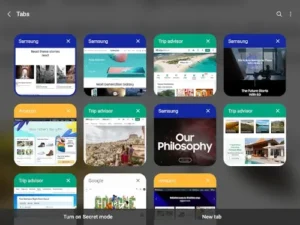
If you’re someone who measures productivity by the number of open tabs, the tab management tools are a direct intervention. The new Grid view presents your tabs as visual cards, a significant upgrade over a simple list. More importantly, the auto close tabs feature can be set to clean up sessions older than a day, week, or month. It’s a simple rule that prevents tab hoarding from crippling your browser’s performance.
Samsung Internet Browser User Experience:
A sleek feature set means little if the app stumbles during basic use. So, what’s the actual experience?
Design and Daily Navigation
The interface is clean and intentionally minimal. Key controls are placed within thumb reach, supporting one handed use. The Dark Mode is system-wide and truly black on OLED screens, reducing eye strain and power consumption. For Galaxy device owners, the performance is generally fluid, pages render quickly, and switching between apps is smooth, a benefit of that hardware level optimization we mentioned. It feels like a native part of the phone.
The Common Complaints: A Necessary Reality Check
Ignoring the negative reviews does you no favors. They highlight real friction points, especially for non-Samsung users. Stability can be inconsistent; some users report specific sites (like Lowe’s or certain Google search result pages) causing crashes, an annoying hiccup when it occurs. Others note the search bar can occasionally lag during typing, a small but frequent irritation.
The most significant barrier is the “bloatware” perception. On non Samsung phones, it can feel like an unwelcome guest, with some users reporting persistent cache issues that are hard to resolve. This raises a valid question: is Samsung Internet Browser good for non Samsung phones? The experience is often less polished, and these performance quirks are why many outside the ecosystem uninstall it.
Samsung Internet Browser Tips:
If you’re going to use it, configure it to work for you. Here’s how to leverage its strengths and sidestep its weaknesses.
-
Lock Down Your Privacy: Don’t just enable Secret Mode. Go into Settings > Privacy and turn on Smart Anti Tracking and Block Pop-ups immediately after installation. This sets a high privacy baseline from your first search.
-
Manage the Tab Avalanche: In Settings > Tabs, switch the layout to Grid view for better visibility. Then, set the “Auto close tabs” rule to a timeframe you’re comfortable with (e.g., one week) to keep things manageable automatically.
-
Troubleshoot the Hiccups: If the browser feels slow or a site acts up, your first step should be to clear the browsing cache (Settings > Privacy > Delete browsing data). For persistent search bar lag, a simple force stop and restart of the app often resolves it.
-
Control Permissions Thoughtfully: The browser requests access to location, camera, and microphone for specific web functions. Review these permissions in your phone’s settings and disable any that aren’t necessary for your typical browsing to limit its background access.
These steps align with a common search: how to improve Samsung Internet Browser performance. They take it from a default app to a tuned tool.
*(At the time of this post, the Samsung Internet Browser holds a 4.2-star rating from over 10 million reviews on the Play Store. The app size is approximately 85MB, and while used by all ages, its feature set suggests a primary audience of teens and adults focused on privacy and media consumption.)*
For users interested in exploring other system integrated browsers, the LG SmartWorld app offers a similar concept of curated, device specific enhancements and content, which you can find more about on its dedicated page.
Samsung Internet Browser Similar Apps:
The Samsung Internet Browser app doesn’t exist in a vacuum. Its value becomes clearest when you see where it sits on the broader map. Whether you’re looking for a direct replacement or just curious about the options, here’s how it compares.
For the Samsung Loyalist Who Wants More
If you enjoy the core Samsung Internet Browser but want to test features before they’re widely released, Samsung Internet Beta is your direct path. It’s the same foundation with earlier access to updates and experimental tools. This is the logical step if your primary goal is getting the most out of your Galaxy device.
When Privacy Is the Non Negotiable Priority
If the anti tracking features attracted you to Samsung’s browser but you want a more aggressive, cross platform stance, two alternatives stand out. Brave takes a harder line by blocking ads and trackers by default, integrating a privacy-focused VPN, and even offering a token-based rewards system. Firefox, from Mozilla, provides robust customization through its extension library and a strong track record of advocating for an open web. Choosing between them often comes down to preference: Brave’s all in one shield or Firefox’s customizable, principled approach.
If Your Digital Life Revolves Around Chrome
For users deeply embedded in Google’s ecosystem, syncing passwords, bookmarks, and history across a Chromebook, desktop, and Android phone, deviating can feel costly. The Chrome Beta or Chrome Dev channels offer a compromise. You retain full sync capabilities and familiarity while accessing newer, albeit less stable, versions of Chrome. It’s the path of least resistance for those who value a unified workflow above all else.
For Hardware Specific Optimization on Other Brands
The principle of a browser built for your phone isn’t unique to Samsung. Xiaomi’s Mi Browser offers a comparable philosophy for its devices, focusing on speed and built-in utilities like a private file vault. Exploring these Samsung Internet Browser similar apps is worthwhile if you use a different manufacturer’s phone and want an experience tuned for its hardware, though you’ll trade Samsung’s particular privacy tools for other integrated features.
The conclusion from this landscape is straightforward. The Samsung Internet Browser is not a universal champion; it’s a specialist. Its ideal user is someone holding a Galaxy phone, who values integrated privacy controls and device specific performance over universal sync. If that describes you, it’s a compelling default. If not, a more generalized or privacy-focused alternative likely serves you better.
Conclusion :
The Samsung Internet Browser is a strong, intentional choice, but with a strict condition. It delivers a smooth, privacy aware, and feature rich browsing experience primarily if you are invested in the Samsung and Galaxy ecosystem. On a Galaxy S23 or Z Fold, its hardware optimization, seamless Dark Mode, and thoughtful tools like Video Assistant feel native and purposeful. For this user, it transcends being a mere pre installed app and becomes a genuine competitor to Chrome.
The caveat is equally important. For users of other Android brands, its value proposition weakens significantly. The performance hiccups, persistent cache issues, and the pervasive sense of it being “bloatware” on non Samsung hardware are real barriers. Here, its unique advantages fade, and its shortcomings become the main story.
The final takeaway is this: the Samsung Internet Browser challenges the assumption that a default app is inherently inferior. For its target audience, Galaxy users looking for a polished, integrated, and privacy conscious browser, it’s not just a default; it’s a legitimate contender. For everyone else, the broader browser market offers better, more stable fits. The decision ultimately hinges on the device in your hand.
FAQ
Is Samsung Internet Browser only for Samsung Galaxy phones?
While it comes pre-installed and is optimized for Galaxy devices, the Samsung Internet Browser app is available for any Android phone via the Google Play Store. However, performance and integration are most refined on Samsung hardware.
How do I customize the toolbar with features like ‘Translate’ or ‘Read aloud’?
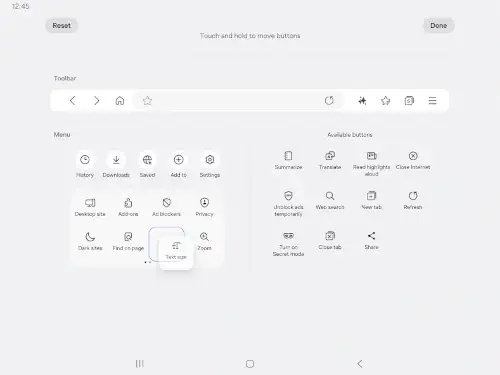
The browser allows deep toolbar customization. Go to Settings > Toolbar, then select ‘Customize buttons.’ You can ‘Touch and hold to move buttons’ from the ‘Available buttons’ list (which includes Summarize, Translate, Read aloud, etc.) into your active menu, replacing ones you use less often. This lets you tailor access to your most-used tools.
What is the safest source for a Samsung Internet Browser download?
The only source you should use for a Samsung Internet Browser download is the official Google Play Store. This ensures you receive the authentic, security-patched version directly from Samsung Electronics Co., Ltd. Avoid third party app stores or APK files.
How do I use the Secret Mode and ad-blocking features effectively?
Secret Mode is activated via the toolbar button (two dots in a circle). For ad-blocking, navigate to Settings > Extensions to manage add-ons. You can install third-party content blockers from there. Combining Secret Mode (which leaves no history) with an active ad blocker creates a more private, clutter free session. For detailed feature history, you can consult the Samsung Internet Wikipedia page.
I need to report a bug or request support. What’s the official channel?
For technical issues, bug reports, or feature requests, the primary channel is the developer support team. You can contact them via email at noreply.sec[at]samsung.com. Providing specific details, like your device model and steps to reproduce an issue, will help them assist you.