SwiftKey is not just a keyboard anymore.
SwiftKey is an AI-powered typing assistant that happens to look like a keyboard. It currently holds a 4.7 star rating from over 4.61 million reviews on Google Play, with 1 billion+ downloads. The install size sits around 50 MB to 80 MB depending on the assets and the age rating is Everyone. A tool that has been on people’s phones for over a decade, but also one that has struggled with performance and prediction accuracy in recent years.
What Is SwiftKey
Microsoft built SwiftKey around the idea that your keyboard should learn how you type. It uses AI to predict your next word, correct your spelling and even rewrite your sentences. The core selling point of SwiftKey is AI-assisted typing. It does not just help you type. It tries to understand what you want to say and then helps you say it better.
SwiftKey Mechanics of Typing and AI Assistance
Swipe or Tap to Type
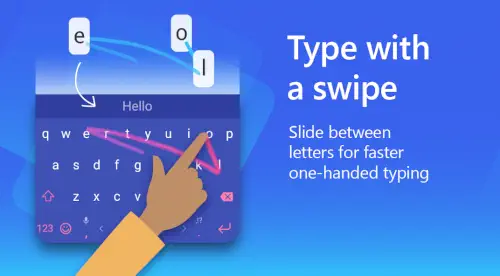
You can choose between swiping and tapping. Swipe typing in SwiftKey is one of the features that made it famous. It lets you slide your finger across the keyboard to spell words instead of tapping each key. For people used to swipe typing, its accuracy is in the top tier of similar products.
Rewrite and Compose
This is one of its newer AI features. You can select a block of text and let the AI rewrite the tone, for example from formal to casual, or from brief to detailed. The AI rewriting feature in SwiftKey is not a gimmick. It genuinely saves time when you are writing emails or replying to messages, especially when you are not sure how to phrase something.
Custom Toolbar
There is an expandable toolbar above the keyboard where you can put frequently used tools, like the clipboard, translation or GIF search. The custom toolbar in SwiftKey lets you do a lot of things without leaving the keyboard.
Copilot Integration
You can summon Copilot directly from the keyboard, ask it anything and paste the answer straight into the chat box. Copilot integration in SwiftKey is what sets it apart from other keyboards. You do not have to switch apps to search, summarize or rewrite inside the input field.
Best Swipe Typing Keyboards for Android
If you want the best swipe typing experience, SwiftKey is still one of the top contenders, but Gboard is right there with it. Swipe typing in SwiftKey is particularly strong for people who type fast and do not want to look at the keyboard. The AI prediction fills in the gaps when your swipe path is sloppy.
The other option worth mentioning is Fossify Keyboard if you prioritize privacy, though it does not have swipe typing yet. If swipe speed is your priority, SwiftKey and Gboard are the two to compare.
How to Customize Your Keyboard Settings
Open SwiftKey, tap the toolbar icon and go into Settings. From there, you can adjust the theme, keyboard size, layout and vibration feedback. The customization options in SwiftKey are deep enough that you can make the keyboard feel like it was built for your hands.
A practical tip: resize the keyboard to fit your thumbs. Most people leave it at the default size, but if you have larger hands or a smaller screen, adjusting the height makes a noticeable difference in typing comfort.
How to Fix Keyboard Prediction Errors
Prediction errors usually come from three things: the keyboard learning bad patterns, multiple languages confusing the AI or a corrupted local dictionary. Prediction errors in SwiftKey can be fixed by clearing the learned data and starting fresh.
Go into Settings, find “Typing” or “Prediction,” and look for the option to clear learned words. After clearing, type carefully for a few days so the keyboard relearns your habits correctly. If you have multiple languages enabled, turn off the ones you do not use regularly.
Best AI-Powered Keyboard Apps
SwiftKey is the most prominent AI-powered keyboard because of Copilot integration. You can ask AI questions, rewrite sentences and summarize text without leaving the keyboard.
The AI features in SwiftKey are not just about predictions. It is about using AI as a writing assistant. If you want a keyboard that helps you write better, not just type faster, SwiftKey is the strongest option on Android.
How to Switch Between Different Keyboards on Android
Open your phone settings, go to “System” or “Language & Input,” and find “Current Keyboard” or “Virtual Keyboard.” You will see a list of installed keyboards. Tap the one you want to use.
The switching method for SwiftKey is the same as any other keyboard. Once installed and enabled, it appears in the system keyboard list. You can also use the keyboard switcher button in the navigation bar if your phone has one.
How to Enable Gesture Typing on Your Keyboard
In SwiftKey, gesture typing is enabled by default. If it is not working, go into Settings, find “Typing,” and make sure “Swipe typing” or “Gesture typing” is turned on. Gesture typing in SwiftKey should work out of the box, but if it does not, checking this setting is the first step.
Top Keyboard Apps for Multiple Languages
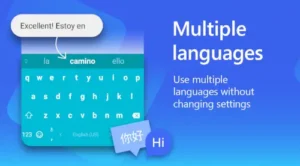
SwiftKey supports up to five languages at once and over 700 languages in total. The multi language support in SwiftKey is one of its strongest features. If you type in English and Spanish, or English and Arabic, it can switch between them automatically based on the words you are typing.
Gboard also supports multiple languages, but SwiftKey’s language detection is generally more accurate for people who mix languages within a single sentence.
How to Backup Your Keyboard Predictions and Settings
SwiftKey backs up your settings and learned predictions to your Microsoft account if you sign in. The backup feature in SwiftKey means that if you switch phones, your typing habits, themes and language settings carry over.
To enable it, go into Settings, find “Backup & Sync,” and sign in with your Microsoft account. Without signing in, your learned predictions stay on the device and are lost if you uninstall or switch phones.
How to Disable Keyboard Autocorrect When You Don’t Want It
Autocorrect is helpful until it changes a name, a technical term or a word you deliberately typed. To turn it off in SwiftKey, open the app, tap “Typing,” then “Correction,” and toggle off “Auto-correction.”
Disabling autocorrect in SwiftKey does not mean you lose predictions. You will still see suggested words above the keyboard, but the keyboard will not force a replacement when you hit space. This is the right setting for anyone typing in multiple languages, using slang or writing code snippets.
Best Lightweight Keyboard Apps for Older Phones
If your phone is older or has limited RAM, the biggest drag on keyboard performance is AI processing and background learning. SwiftKey is feature rich, but it can feel heavy on older devices.
Lightweight keyboard apps for older phones include Simple Keyboard, which strips out predictions entirely and loads instantly. For a middle ground, Gboard offers a lighter experience than SwiftKey if you turn off some of the AI features. If you want to stay with SwiftKey, go into Settings and turn off “Animated themes” and “Predictive search” to reduce the load.
How to Add Custom Words to Your Keyboard Dictionary
SwiftKey learns new words automatically as you type, but you can also add them manually. Go to Settings, tap “Typing,” then “Dictionary” and tap “Add word.”
Adding custom words to SwiftKey is useful for names, medical terms or brand names that the keyboard keeps auto correcting. You can also add a shortcut, so typing three letters expands into a full phrase. This is the fastest way to stop the keyboard from “fixing” words it does not know.
How to Fix Keyboard Not Appearing on Screen
If the keyboard does not appear when you tap a text field, the issue is usually the system’s input method setting, not the keyboard app itself. Go to your phone’s Settings, find “System” or “Language & Input,” and check “Current Keyboard.” Make sure SwiftKey is selected and enabled.
Fixing the keyboard not appearing sometimes requires clearing the app’s cache or restarting the phone. If the keyboard appears and then disappears immediately, check if a battery optimization setting is killing the process. Adding SwiftKey to the battery optimization whitelist usually solves it.
Best Keyboard for People With Accessibility Needs
SwiftKey has strong accessibility features, including adjustable keyboard height, a one handed mode and high contrast themes. For people with visual impairments, the high contrast theme and larger key sizes make a noticeable difference.
Accessibility features in SwiftKey also include voice typing, which can replace tapping entirely. If you have motor difficulties, the swipe typing feature reduces the number of precise taps required. For a completely minimal experience, Gboard offers a simpler layout, but SwiftKey’s customization is deeper.
How to Choose the Right Keyboard Size and Layout
SwiftKey lets you resize the keyboard by dragging the top edge up or down. You can also switch between a standard layout, a compact layout or a one handed layout for either the left or right hand.
Choosing the right keyboard size depends on your thumb reach and your phone’s screen size. If you have small hands, a compact layout with a slightly smaller height will reduce thumb strain. If you have larger hands, push the height up to make the keys easier to hit.
SwiftKey Rich Content and Customization
Emoji, GIFs and Stickers
SwiftKey has a rich library of emojis, GIFs and stickers. Its adaptive emoji keyboard learns which ones you use most and puts them in front. Emoji and GIF support in SwiftKey is practical for people who like to express themselves with reaction images.
AI-Powered Images and Memes
You can generate images and memes with AI. The AI image generation feature in SwiftKey is a recent addition that lets you create an image directly from the keyboard and send it.
Themes and Layout
It has over 100 themes and you can use your own photo as a custom background. The theme system in SwiftKey makes the keyboard look less like a default engineering tool.
Multilingual Support
SwiftKey can enable up to five languages at once and supports over 700 languages. Multi language support in SwiftKey is one of its strongest features. If you switch between two or three languages, you do not have to manually switch layouts. It detects the language from the word you are typing.
What Users Say About SwiftKey App
What users like
Some users have used SwiftKey for over 13 years and still think it is the best keyboard. Users appreciate the feature depth, especially Copilot and the AI features.
Were users say work is need it
Prediction accuracy is the biggest complaint. Some users report bizarre word predictions and issues with GIF insertion. The responsiveness of SwiftKey is another pain point. Some feel it has gotten slower and less smooth than it used to be. Language separation is a third issue. When you enable multiple languages, prediction accuracy drops. Some users also report missing technical words in the dictionary and no way to type exponents like squared or cubed.
SwiftKey Tips
Use Swipe to Type for Speed
Swipe typing is its most underrated feature. Many people still tap every key on SwiftKey and never try swiping. A frequent SwiftKey tip on Reddit is this: force yourself to use swipe typing for two days, even if your accuracy is terrible at first.
After two days, you will find your typing speed is twice as fast as tapping. The core of swipe typing is flow. You do not need to slide precisely over every letter. You just trace a rough path and the AI guesses the word from context. If you keep tapping, you are wasting the keyboard’s biggest advantage.
Use Copilot for AI Assistance
Copilot integration is what sets it apart from other keyboards. You do not need to exit your current app. Tap Copilot on the keyboard and you can ask a question, summarize a block of text or rewrite a sentence you just typed.
Copilot integration in SwiftKey is especially useful when replying to emails or writing work messages. For example, if you type something and it sounds too blunt, select it and let Copilot rewrite it to sound more polite. Or if you are not sure how to reply to a message, just ask Copilot. The real world usage frequency is higher than you might think.
Use Clipboard Clips
The clipboard lets you pin frequently used text snippets. The clipboard feature in SwiftKey saves people who constantly paste email addresses, phone numbers or repetitive phrases from switching apps back and forth. You can find the clipboard in the toolbar, pin your common snippets and paste them with one tap next time.
Choose Language and Layout Wisely
SwiftKey supports up to five languages at once. But if you only type in one language, turn the others off. The multi language setup in SwiftKey is convenient, but when you enable multiple languages at once, prediction accuracy drops because the AI has to guess which language you are typing in.
If you genuinely need bilingual input, two languages is enough. Three or more languages will confuse the predictions because it cannot accurately determine which language you are using.
Customize Colors and Themes
It has over 100 themes and you can use your own photo as a custom background. The theme system in SwiftKey is its most intuitive personalization feature. If you type a lot every day, the visual feel of the keyboard affects your mood.
A practical tip: pick a high contrast theme so the keys stand out clearly from the background. If you use your phone in low light, a dark theme is more comfortable than a light one.
Be Mindful of Prediction Accuracy
Prediction accuracy is one of the most concentrated complaints in user feedback. The prediction feature in SwiftKey sometimes suggests bizarre words, especially when you type fast or have multiple languages enabled.
A practical way to handle it: do not blindly accept the predicted word. If the suggestion is wrong, delete it and retype it manually. If you keep accepting wrong predictions, the keyboard learns the wrong patterns and the predictions get worse over time.
Users of the app SwiftKey frequently discuss prediction accuracy and responsiveness issues in the community. If you run into a problem, search there first. Someone has likely shared a fix. As for searches like swiftkey keyboard for android or swiftkey keyboard android, they all refer to this app that we write in this blog.
SwiftKey Similar Apps
SwiftKey vs Gboard
Gboard has a cleaner interface and stronger voice typing. SwiftKey leans harder into AI, Copilot and theme customization. If you need voice typing and a clean interface, Gboard fits better. If you want AI rewriting and Copilot integration, SwiftKey is the right path.
SwiftKey vs Facemoji
Facemoji focuses on emojis, GIFs and stickers. SwiftKey adds AI assistance and multi language support on top of rich content. If you just want an emoji rich keyboard, Facemoji is lighter. If you want AI features, SwiftKey is more complete.
SwiftKey vs Yandex Keyboard
Yandex Keyboard focuses on multilingual typing. SwiftKey offers broader AI features and a larger theme library. If you mainly type in Russian or need Eastern European language support, Yandex fits better. If you need AI and theme customization, SwiftKey is better.
SwiftKey vs Stylish Fonts Keyboard
Stylish Fonts focuses on fonts and visual styling. SwiftKey focuses on prediction, AI and typing speed. If you just want good looking fonts, Stylish Fonts is enough. If you want AI assistance, SwiftKey is the answer.
If you want a lighter keyboard with a stronger focus on privacy, the offline route of Fossify Keyboard is another direction, but it has no AI predictions or Copilot.
Conclusion
Who SwiftKey Is For
People who want AI-assisted typing and Copilot integration. Users who switch between multiple languages. Anyone who wants deep theme and layout customization.
Who Should Look Elsewhere
People sensitive to prediction accuracy and responsiveness. Users who want a lighter, simpler keyboard. Anyone concerned about data collection for AI features.
FAQ
Where is the safest place to get the SwiftKey download and does it cost anything?
You can Download SwiftKey from the Official Google Play Store. The app is completely free to download and use. There is no subscription tier or paywall blocking the AI features. You get full access to the keyboard, including multi language support and swipe typing, without spending a dime.
What is the official website and where do I find community resources?
The official hub is microsoft.com/swiftkey, which hosts support articles and privacy details. For community driven advice, the SwiftKey reddit is highly active. It is the best place to find workarounds for prediction quirks and tips on customizing themes.
How do I contact support if I find a bug or need technical help?
For technical issues or account problems, the official support email is swiftkeysupport[at]microsoft.com. You can also submit a ticket through the in-app help menu. If you are reporting a bug, include your device model and Android version to help them resolve it faster.
How does the multi language feature actually work?
You can enable up to five languages at once and SwiftKey will automatically detect which one you are typing in without you needing to manually switch settings. As shown in the image, you can type in Spanish and English in the same sentence and the keyboard will adapt its predictions based on the context.
Does SwiftKey collect my data?
The Play Store data safety declaration says no data is shared with third parties, but it does collect location, personal info and other data. If you are sensitive to data collection, you can turn off some permissions in settings.
How many languages does SwiftKey support?
Over 700 languages, with up to five enabled at once.
Is swipe typing faster than tapping?
For many users, yes. Swipe typing allows you to slide your finger between letters to form words, which is especially useful for one-handed typing. It reduces the number of precise taps required and the AI fills in the gaps if your swipe path is slightly messy.
Is Copilot available in all apps?
Yes. Copilot is integrated at the keyboard level, so you can call it from any app with a text field.