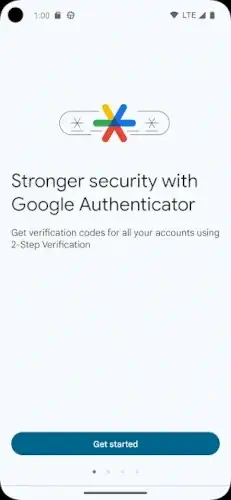
Google Authenticator, a tool that operates on a simple, critical premise: what you know is not enough
Google Authenticator app holds a 4.2 star rating from over 10 million reviews on the Google Play Store, requires less than 50 MB of storage, and is suitable for a general audience.
Google Authenticator Function: How It Works
What transforms a simple six digit code into a powerful security barrier? The answer lies in a combination of cryptography and time, a system where Google Authenticator serves as your personal code generator.
The principle of two factors is straightforward. The first factor is something you know, which is your password. The second factor is something you have, which in this case is your phone with the Authenticator app installed. Even if a hacker steals your password from a compromised database, they cannot complete the login without the unique, temporary code displayed on your specific device. This is where the Google Authenticator app fits, acting as the gatekeeper that verifies you physically possess the registered device.
But how does it create these codes without an internet connection? The magic is in the Time based One Time Password algorithm. When you scan a website’s QR code, you are giving the app a secret seed value. This seed, combined with the current time (divided into 30 second intervals) and a cryptographic algorithm, generates your six digit code. Both your app and the website’s server perform this same calculation simultaneously. Because they share the same secret and are synchronized to the same time, they produce matching codes.
This is also why a common fix for a Google Authenticator not working issue is to ensure your device’s clock is set to update automatically.
The user experience is deliberately simple. You enable two factor authentication on a service like Facebook or GitHub. The site displays a QR code. You open the Google Authenticator app, tap the plus sign, point your camera at the code, and the account is linked. From that moment on, every time you log in, you will open the app, find the current code for that service, and enter it after your password. The process adds mere seconds to your login but a significant barrier against unauthorized access.
Google Authenticator Feature Set: Utility and Security
Beyond generating codes, the app includes features that manage the balance between daily utility and long term security.
Multi account management is a core function. The app presents a simple list of all your connected services. The importance of organizational naming becomes apparent quickly. When you scan a QR code, the app often imports a default account name like “JohnDoe@gmail.com.” Taking a moment to rename it to “Gmail” or “Primary Email” saves confusion later when you have two dozen entries. This is a simple but critical step in any effective Google Authenticator guide.
The cloud sync feature represents a significant shift in the app’s philosophy. By opting to sync your codes to your Google Account, you protect yourself from being permanently locked out if you lose your phone. Your authentication seeds are encrypted and stored in your cloud, allowing you to restore them on a new device seamlessly. However, this convenience introduces a theoretical risk: it consolidates your second factor with your primary Google account. For users who prefer to keep these factors completely separate, this feature is optional.
Account transfer via QR codes is the legacy method for moving to a new phone. The app can generate QR codes for all your accounts at once, which you then scan with the new device. This process works well but requires you to have both phones in hand simultaneously, making it less flexible than cloud sync for emergency recovery.
Offline operation remains a foundational security feature. The app does not need a network connection to generate codes because the algorithm runs locally on your device. This means you can access your codes anywhere, even on a plane or in a basement with no service. The visual timer next to each code, counting down from 30 seconds, provides a clear indication of how long the current code remains valid, preventing rushed or mistyped entries.
Google Authenticator Daily Use and Setup
Understanding the theory is one thing. Implementing it securely is another. A proper setup and recovery strategy is what separates a secure user from a potentially locked out one.
Initial configuration is a universal process. When you enable 2FA on a service, it will present a QR code. Have your Google Authenticator app ready. After scanning, the service will immediately ask you to enter a freshly generated code to verify the setup worked correctly. This test confirms that both your app and their server are in sync. It is a crucial final step you should never skip.
Account recovery strategies are your most important safety net. Every reputable service provides backup codes when you enable 2FA. These are one use passwords that can bypass the authenticator requirement. You must save these codes in a secure place, such as a password manager or a printed sheet stored safely. Think of them as master keys. Similarly, taking a screenshot of the original QR code during setup and storing it securely gives you a way to re link your account later without going through a complex account recovery process with the service provider.
Troubleshooting common issues usually leads to two culprits. The most frequent is code mismatch, which is almost always caused by a device clock that has drifted out of sync. The solution is to go into your phone’s settings and enable “Automatic date and time” or “Use network provided time.” If you lose your phone, the situation becomes more serious. If you enabled cloud sync, you can simply reinstall the app on a new device and sign in to your Google Account to restore your codes.
If you did not use sync and you do not have backup codes, you must use each service’s account recovery procedure, which can be slow and difficult. This scenario highlights why backup codes are non negotiable.
Google Authenticator Strengths and Friction Points
Synthesizing user sentiment reveals a clear divide between function and form. The community overwhelmingly praises the app’s core reliability. It generates codes consistently and does its primary job without fail. This dependability is the main reason for its widespread adoption. However, this praise is consistently paired with frustration over the user experience. Many users describe the interface as too sparse, lacking basic management features like sorting or searching through a long list of accounts. This can make finding a specific code cumbersome if you have many services connected, a common challenge the app does little to solve.
This leads to the central Sync Dilemma. The introduction of cloud backup was a major update, but it presents a philosophical conflict. Is it wiser to accept the convenience of having your codes synced to your Google Account, which protects you from permanent lockout if you lose your phone? Or does this violate a core security principle by merging your second factor with your primary online identity? There is no universal answer. The convenience is tangible, but the consolidation of security layers gives some experts pause. It is a personal risk calculation every user must make.
This conflict between usability and security defines the app. Does the minimalist design enhance security? In one sense, yes. A simple code generator with no network connectivity by default has a very small attack surface. There are no complex features that could be exploited. However, this simplicity means it lacks capabilities that competitors offer, such as encrypted backups that are not tied to a single cloud provider or the ability to easily search and categorize accounts. The Google Authenticator app chooses unwavering focus over flexible utility, a design decision that serves its purpose but may not suit every user’s workflow.
Optimizing Your Security with Google Authenticator
To get the most from any security tool, you need to use it with intention. For those seeking practical Google Authenticator tips, this guide moves beyond basic setup to strategic management.
Your essential setup habits form the foundation of a secure experience. The moment you scan a new QR code, take two actions. First, immediately rename the account entry to something clear and recognizable, like “Work Email” or “Banking Login.” This simple step prevents future confusion. Second, and more critically, save the backup codes provided by the service. Store these in a separate, secure location like a password manager. Do not simply take a screenshot that sits in your camera roll. These two habits, performed consistently, transform a basic setup into a resilient security practice.
Proactive management is your defense against future headaches. Every few months, take two minutes to scroll through your list of accounts in the authenticator. Verify that you still use each service and can identify them all. This quick audit prevents “account drift,” where obsolete entries clutter your list. Furthermore, the moment you consider upgrading your phone, begin the transfer process before you wipe your old device. Whether you use cloud sync or the QR code export method, testing this process with a clear head is far better than attempting it under pressure. This is one of the most overlooked Google Authenticator tips for maintaining seamless access.
Knowing when to seek alternatives is a sign of an informed user. The Google Authenticator app is an excellent choice for individuals who value a no frills, Google integrated approach. However, if you need to share access to 2FA codes with family members or a team, an app like Authy is purpose built for that. If you prefer multi device access without tying everything to a single Google account, or if you need robust encrypted backups, other options exist. Your choice in authenticator should reflect your specific security model and lifestyle needs.
Conclusion : An Essential Layer
So, who is the Google Authenticator app truly for? The answer points to a user who values straightforward, reliable security within the Google ecosystem.
Google Authenticator is the ideal security tool for the individual who wants a set it and forget it solution from a trusted developer. It is perfect for anyone who appreciates a minimalist design and prefers that their second factor remains a physically distinct element on their device, separate from cloud dependencies. If your priority is a lean, focused app that performs its core function with maximum reliability, this remains a top tier choice.
However, its minimalist approach may feel limiting for the user who manages a very large number of accounts and needs organizational tools, or for someone uncomfortable with tethering their backup strategy solely to their Google account. If you anticipate needing to restore your codes on multiple device types or require features beyond simple code generation, the lack of flexibility could become a daily friction.
In a modern personal security strategy, Google Authenticator serves as an essential and highly effective layer of defense. It is not the only option, but it is a proven one. Its value lies in its singular focus. It provides a critical barrier that dramatically increases the cost for any attacker trying to breach your accounts. Your decision to use it hinges on a simple question: do you prefer a specialized tool that does one job exceptionally well, or a more versatile platform that offers convenience at the cost of some simplicity? For millions, the focused reliability of Google Authenticator is the right answer.
Frequently Asked Questions
What is the primary function of Google Authenticator?
It generates time based, unique codes on your device for two step verification. After entering your password on a site, you provide a code from the app, confirming your identity and significantly improving account security.
How do I perform a Google Authenticator download and set it up?
You can get the Google Authenticator app from the official Google Play Store. The setup typically involves scanning a QR code provided by the website (like Gmail or Facebook) within the app, which then links your account and begins generating codes. For detailed instructions, the official support page is the best resource.
Is my information secure within the Google Authenticator app?
The app operates locally on your device; it does not require an active internet connection to generate codes and does not collect or transmit your personal account data to Google for this specific function. Your codes remain on your phone.
What should I do if I lose my phone or get a new device?
This is a critical step. Before you lose access, use the export feature within the app to transfer your accounts to a new device. If it’s too late, you must use the backup codes provided by each service during the initial 2FA setup to regain access and then re-establish 2FA with your new device. For account recovery, contact the developer at accounts-support[at]google.com.
Where can I find more technical or historical background?
For a deeper look at the technology behind the app, such as the Time based One Time Password (TOTP) algorithm, you can consult its Google Authenticator Wiki Page.