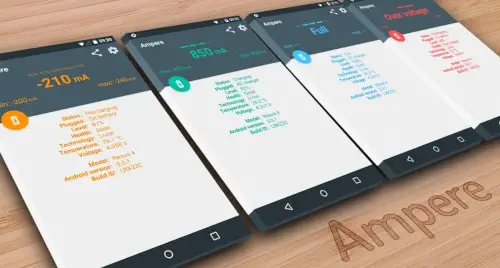
Ampere takes the guesswork out.
Ampere shows you exactly how much current your phone is receiving. No more wondering if your cable is broken or your charger is weak.
What is Ampere ?
You are looking at a utility app by Brain_trapp that measures your phone’s charging and discharging current, helping you compare chargers, cables, and battery performance.
Ampere is a simple Android app that shows how much current your device is receiving when charging and how much it is consuming when not plugged in. Its main purpose is to help you understand charging speed, battery behavior, and whether a charger or cable is performing well on your device. The app is positioned as a lightweight diagnostic tool, and its readings are meant for relative comparison rather than lab grade precision.
Ampere holds a 4.6 star rating from more than 328,000 reviews. The app size is roughly 5 MB. The age rating is Everyone. The app is free with a paid Pro version for additional features.
A utility app that measures charging and discharging current on Android
The category matters here. Ampere is not a game. It is not a social app. It is a diagnostic tool. You open it. You plug in your charger. You read the numbers. The app tells you the current in milliamps. Positive numbers mean charging. Negative numbers mean discharging. The information is simple and direct.
Who this app was built for
Users who want to test if their charger is working properly
Your charger might be dying. Your cable might be damaged. Ampere tells you. A low reading means something is wrong. A high reading means everything is fine.
People who need to compare different cables and charging bricks
You have multiple cables. Multiple bricks. Which combination charges fastest? Ampere gives you the numbers. Test each combination. Use the one with the highest current.
Android users who want to monitor battery health and performance
Battery health degrades over time. Ampere shows you voltage and temperature. Unusual readings may indicate a problem. The app helps you catch issues early.
Anyone curious about their device’s charging speed
Have you ever wondered how fast your phone is actually charging? Ampere answers that question. No more guessing.
Ampere Main Features
Real time charging and discharging current measurement
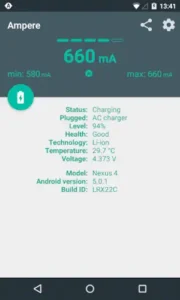
This is the core feature. Plug in your charger. The app shows the current in milliamps. The number updates in real time. You see exactly what is happening.
Battery information such as health, status, technology, voltage, temperature, and capacity details
Ampere app also shows battery details. Health percentage. Status. Technology type. Voltage. Temperature. The information helps you understand your battery’s condition.
Relative charger and cable comparison for testing different setups
You can test multiple chargers and cables. The app gives you a number for each setup. Compare the numbers. Use the setup with the highest number. The comparison is relative, not absolute.
Free version with a paid Pro version for additional features
The free version is functional. The Pro version adds widgets, notifications, and alerts. Pro is for users who want more convenience.
Widgets, notifications, and alerts in the Pro version
Pro users can put a widget on their home screen. They can get notifications when charging speed changes. They can set alerts for low current. The Pro features add convenience.
Works as a quick battery diagnostic tool for everyday users
You do not need to be a technician. Open the app. Read the numbers. Understand your battery. The app is simple enough for anyone.
Ampere Interface and Design
Clean, minimal interface that keeps attention on battery data
The app looks simple. No flashy graphics. No animations. Just numbers. The focus is on the data.
Utility focused with straightforward screens and no unnecessary clutter
You open the app. You see the current reading. You see the battery details. There is nothing extra. The design is functional.
Users can quickly check measurements without navigating complex menus
The main screen shows everything. No menus to dig through. No settings to adjust. Just open and read.
Where the design works well
The app is fast. It opens quickly. It updates quickly. The simple design works.
Where readings are approximate rather than scientifically precise
Ampere is not a lab instrument. The readings are approximate. Use them for comparison, not for exact measurement.
What users say about the Ampere app
The parts people enjoy
Positive reviews often mention the simplicity. The app is easy to use. The charger comparison is useful.
The parts people complain about
No utility app escapes criticism. Here is what comes up most often.
Readings are approximate, not lab grade precise
Some users expect exact measurements. Ampere gives approximate readings. The accuracy varies by device.
Accuracy depends on device hardware and compatibility
Not all phones support current measurement. Some devices give less accurate readings. The app works best on supported hardware.
Some devices may not support current measurement
Older phones may not work with Ampere. The app may show no reading. Compatibility is not guaranteed.
Pro features are paid; free version is limited
The free version is basic. Pro features require payment. Some users feel the free version is too limited.
How the Ampere app mechanics work
Measures current flow after connecting or disconnecting a charger
Plug in your charger. The app measures the current. Unplug the charger. The app shows discharge current. The measurement is automatic.
Shows readings on screen: positive for charging, negative for discharging
Positive numbers mean charging. Negative numbers mean discharging. The sign tells you what is happening.
Live monitoring loop: connect, wait a few seconds, read results
Connect the charger. Wait a few seconds for the reading to stabilize. Read the number. The loop is simple.
Compare different chargers and cables for performance differences
Test charger A. Note the number. Test charger B. Note the number. Compare. The higher number is the better charger.
Not a scientific meter; use for relative comparison
The readings are approximate. Use them to compare setups, not to measure absolute current. The app is for relative comparison.
Looking for another Android utility app that helps you monitor your device? Check out AccuBattery, a popular battery health and charging monitor with more detailed stats.
Ampere Tips
You can open Ampere app and get a reading in seconds. Getting consistent, useful comparisons between chargers and cables takes a little care. These tips help you get the most accurate readings from the app.
Test the same phone with different chargers and cables for fair comparisons
Here is a question. Why does the same charger give different readings on different phones? Because phones have different charging circuits.
Ampere tips from experienced users all say the same thing. Keep the phone constant. Change only the charger or cable. Test charger A with cable A. Then charger B with cable A. Then charger A with cable B. A player who tests systematically gets reliable comparisons. A player who changes multiple variables at once gets confusing results.
Wait a few seconds after plugging in for readings to stabilize
Ampere app readings fluctuate when you first plug in. The current spikes. Then it settles.
Wait 5 to 10 seconds. The reading stabilizes. Use that number. A player who reads immediately gets an inaccurate number. A player who waits gets a reliable number.
Use as a relative benchmark, not a scientific meter
Ampere is not a lab instrument. The readings are approximate. Use them to compare chargers, not to measure absolute current.
A difference of 100 mA between two chargers is meaningful. A specific reading of 800 mA does not mean your charger is delivering exactly 800 mA. Use the app to find the best charger, not to measure exact current.
Check battery temperature and voltage along with current for a more complete picture
Ampere similar apps only show current. This app also shows voltage and temperature.
Voltage affects charging speed. Temperature affects battery health. A charger that gives high current but also high heat is not good. A player who checks all three readings makes better decisions than a player who only looks at current.
Enable widgets or alerts for quicker monitoring in Pro version
The free version works. The Pro version adds widgets and alerts.
A widget on your home screen shows current at a glance. An alert notifies you when charging speed drops. The Pro features save time. A player who uses widgets monitors their battery more consistently than a player who opens the app manually.
Compare readings at similar battery percentages for consistent results
Ampere app readings change with battery percentage. A nearly full battery charges slower than a nearly empty battery.
Compare readings at similar percentages. Test charger A at 20 percent. Test charger B at 20 percent. A player who controls for percentage gets consistent results. A player who ignores percentage gets inconsistent results.
Apps similar to Ampere
If you like Ampere, here are other utility apps worth your time. Each offers something similar with a different twist.
Battery monitor apps
Battery monitor apps show health, capacity, and charging status. AccuBattery is a popular example. The difference is that AccuBattery provides more detailed historical data. Good for users who want to track battery degradation over time.
Charging testers
Charging testers measure current and voltage. Some are hardware devices that plug between the charger and phone. The difference is that hardware testers are more accurate but cost money. Good for users who want lab grade precision.
Device diagnostics tools
Device diagnostics tools check multiple hardware components. Battery. Screen. Camera. Sensors. The difference is that these apps are more comprehensive but less focused. Good for users who want a full device checkup, not just charging info.
Other utility style battery health apps
Other apps like Battery Life and Battery HD provide similar information. Some focus on battery health. Others focus on remaining time. The difference is in the presentation and features. Good for users who want a different interface or additional metrics.
Ampere Community
No social systems such as chat, multiplayer, or community competition
No guilds. No friends lists. No leaderboards. The app is for one user and one phone.
Value is individual and practical, centered on solo device monitoring
The app helps you understand your phone. It does not help you connect with others. The value is personal.
App is focused on helping a single user understand their device’s charging behavior
You open the app. You read the numbers. You make a decision. The app does not ask you to share, like, or comment.
Not designed for social interaction
If you want a social app, look elsewhere. Ampere is for utility, not connection.
Conclusion
Ampere works for three types of people. First, users who want to test if their charger is working properly and identify failing cables. Second, people who need to compare different cables and charging bricks to find the fastest combination. Third, Android users who want to monitor battery health and performance with simple, readable data.
Do you want to know exactly how fast your phone is charging and compare your chargers and cables? Or do you simply plug in and hope for the best?
If the first one, Ampere gives you the data you need to make informed decisions. If the second one, you probably do not need this app. Both answers are fine. Just know what you want.
Frequently asked questions about Ampere
How do I get Ampere download on my phone?
Go to the Google Play Store if you use Android. Search for Ampere. The developer is Brain_trapp. Tap install or use the direct link to Download Ampere from the Official Google Play Store.
Is Ampere free to use, or do I need to pay?
The app is free with ads. You can measure charging and discharging current, check battery health, voltage, and temperature without paying. The free version is functional. A paid Pro version adds widgets, notifications, and alerts . Pro features let you see current in your notification bar and get alerts for temperature or charging issues. Most users find the free version sufficient.
Where can I find the official website and help documentation?
The developer provides an FAQ page: goo.gl/R8XgXX . The app’s settings menu also has a “Change history” section with update notes. For troubleshooting, there is an active XDA Developers forum thread where users post problems and solutions.
I have a problem with the app. Who do I contact?
If the app gets stuck on “measuring” after a firmware update, clear the app cache first. Open Android Settings > Apps > Ampere > Storage > Clear Data . If issues persist, post in the XDA Developers forum thread linked above. The developer does not provide a direct support email, but the Play Store listing allows you to leave feedback or by email at: braintrapp[at]gmail.com.
Why does Ampere show 0mA or inaccurate readings on my phone?
Not every device supports current measurement. Some phones lack the necessary hardware chip . If you see 0mA, go to Settings and enable “Old measurement method” . Some Samsung devices, like the Galaxy S5, don’t give correct measured values due to firmware limitations . The app is not meant to be mA accurate. It is designed for relative comparison between chargers and cables on the same device