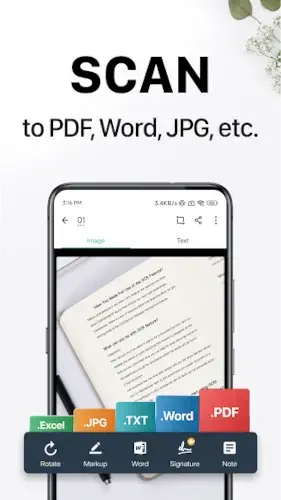
CamScanner represents a fundamental change in how we handle documents.
The bulky, dedicated scanner was once an office staple, but now the tool fits in your pocket. This shift isn’t just about convenience; it’s about accessibility. Having a scanner available at any moment changes your relationship with paperwork. But with numerous options available, what specific role does CamScanner play?
The core proposition of CamScanner is straightforward: it uses your smartphone’s camera to capture documents. The real value, however, lies in what happens after the photo is taken. The application processes the image, turning a simple picture into a clean, cropped, and enhanced digital document. The key outcome is the transformation of physical pages into high quality PDF or JPEG files. A significant capability is its Optical Character Recognition (OCR), which can extract text from images, creating editable and searchable documents.
This makes CamScanner particularly useful for students digitizing notes, professionals archiving contracts, or anyone needing to manage receipts and business cards efficiently
The CamScanner Toolset
Document Capture and Image Enhancement
The process begins with intelligent capture. CamScanner uses auto cropping and edge detection to isolate the document from its background. This is followed by image enhancement algorithms that adjust contrast, sharpen text, and correct perspective. The result is a scan that often surpasses the clarity of the original paper document, even in less than ideal lighting conditions.
Text Recognition and Searchability
The OCR functionality is a central feature. It supports 41 languages and converts the text within your scans into editable and searchable data. This transforms a static image into dynamic content. You are no longer just storing a picture of a document; you are storing its information. This allows you to find a specific receipt or note by searching for a word contained within it, a powerful organizational advantage.
Organization and Cloud Synchronization
Managing dozens of scans requires robust organization. CamScanner provides tagging, folder creation, and a search function that works with its OCR data. Furthermore, cloud sync ensures your document library is accessible across your smartphone, tablet, and computer. This multi device access is crucial for a seamless workflow, making your documents available wherever you need them.
Editing, Output, and Security
Once a document is digitized, CamScanner offers a suite of editing tools. You can annotate, highlight, add watermarks, merge multiple scans into a single PDF, or split large files. For sharing, you can control file size with compression and protect sensitive information with password encryption on PDFs or secure sharing links.
User Perspective on CamScanner
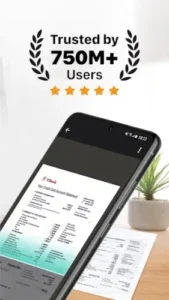
With over 100 million downloads and a 4.8 star rating from nearly 5 million reviews on the Google Play Store, the user base speaks volumes. The app size is approximately 95 MB, and it is rated for everyone. The consensus points to high satisfaction with the output quality and the utility of multi-page scanning and OCR. The primary consideration for most users revolves around the freemium model. The free version includes advertisements and applies watermarks to documents, while a subscription to CamScanner Premium removes these limitations and unlocks advanced features like greater cloud storage and enhanced OCR accuracy.
How CamScanner Operates
The functionality is a streamlined sequence. You open the app, point your camera at a document, and the app automatically detects the edges and captures the image. The software then processes it, applying the enhancements and corrections. If you use OCR, that analysis happens next, making the text ready for extraction. The entire system is supported by a cloud architecture that handles synchronization and storage. The access model is clear: the free version offers substantial capability, while the subscription provides a more polished and unrestricted experience.
For those evaluating different approaches to mobile scanning, it can be useful to compare features with other established options. A tool like Adobe Scan offers a different set of priorities within the same category, and understanding these distinctions helps in making an informed choice.
Applying the CamScanner Tool Effectively
Knowing a tool’s features is one thing; using them with precision is another. The difference between a mediocre scan and a professional one often comes down to technique. How do you ensure you’re getting the most from the application? These CamScanner tips move beyond the basics to improve your output quality and workflow efficiency significantly.
Optimizing Scan Quality and Workflow
The foundation of a good digital document is a clear capture. While the app’s auto enhancement is powerful, it works best with a good starting point.
Capture with Clarity
Place the document on a flat, contrasting surface. Ensure lighting is even and shadows are minimized; natural, indirect light often yields the best results. Hold the phone steady and parallel to the document, allowing the auto crop feature to snap accurately to the edges. If the auto crop misses, manually adjust the corners for a perfect fit. This initial attention to detail reduces the need for heavy correction later and results in a sharper image.
Mastering the OCR Function
The real power of CamScanner text recognition is not just creating editable text, but creating a searchable personal archive. After scanning a multi page contract or a stack of lecture notes, use the OCR function. Once processed, you can search for any term within those documents directly from the app’s main search bar. This turns a chaotic folder of PDFs into an instantly accessible database. For important documents, verifying the OCR output for minor errors ensures the text is accurate for future use.
Building Organization from the Start
The most common mistake is scanning without a system. Before you begin a scanning session, decide on a simple tagging structure. Use tags like “#Tax_2024”, “#Client_Agreement”, or “#Receipts” consistently. Create folders for broad categories. The minutes spent organizing at the start save hours of searching later. This proactive approach is a fundamental CamScanner how to strategy for long term usability.
Prioritizing Security Before Sharing
When sharing a sensitive document, apply security settings as the final step before sending. Add a password to the PDF itself. For shared links, set an expiration date and, if available, a password for access. This habit ensures that protection is integral to your process, not an afterthought. It is one of the most crucial CamScanner tips for professionals handling confidential information.
The Landscape of CamScanner Similar Apps
CamScanner operates in a crowded field, and understanding the alternatives helps clarify its position. The question isn’t which app is universally best, but which tool is right for a specific need.
Adobe Scan is a strong competitor, particularly for users deeply invested in the Adobe ecosystem. Its OCR is highly accurate, and integration with Adobe Document Cloud and Acrobat services is seamless. It positions itself as a professional grade tool, sometimes with a steeper learning curve but with robust output. For those already using Adobe products, it can feel like a natural extension.
Microsoft Lens (formerly Office Lens) excels through its deep integration with the Microsoft 365 suite. Scanning a document and sending it directly to OneNote, Word, or PowerPoint as an image or editable text is its core strength. Its interface is notably clean and simple. If your workflow revolves around Microsoft applications, this integration is a significant advantage over other CamScanner similar apps.
Scanbot is often noted for its user friendly interface and strong focus on privacy, with some versions offering local processing without cloud dependency. It provides reliable scanning and a clear, intuitive user experience. It appeals to users who prioritize design simplicity and data control.
Each alternative has a distinct focus: ecosystem integration, simplicity, or privacy. CamScanner’s position is one of breadth, offering a wide array of features within a single application.
Conclusion :
CamScanner functions as a comprehensive mobile document tool. Its strength lies in combining capable scanning, powerful OCR, extensive editing, and cloud management into a single package. It is a strong option for individuals and professionals who need frequent, feature rich scanning and are willing to navigate a freemium model.
The value proposition is clear. The free version handles most occasional scanning needs effectively, while the subscription unlocks the full potential for power users who require ad-free operation, no watermarks, and advanced capabilities. It effectively replaces dedicated hardware for the vast majority of everyday document tasks, from archiving receipts to managing contracts.
The tool does not promise to revolutionize document management; it promises to simplify it. And for over 100 million users, that promise has been kept. The final consideration is not if CamScanner works, but if its specific blend of features and access model aligns with your personal or professional workflow. For many, the answer is a definitive yes.
Frequently Asked Questions
What is CamScanner used for?
CamScanner is a mobile application that uses your phone’s camera to digitize physical documents. It turns paper documents, receipts, whiteboards, and notes into high quality PDF or image files. Its key function includes Optical Character Recognition (OCR) to make text within those scans editable and searchable.
Is CamScanner free to use?
Yes, CamScanner offers a free version with robust functionality, including scanning, basic OCR, and sharing. This version is supported by advertisements and may include watermarks. A subscription based premium plan removes these limitations and provides advanced features like improved OCR accuracy and increased cloud storage.
How can I download CamScanner?
You can get the app directly from the Google Play Store. A search for “CamScanner” will list it, or you can use this direct link for a CamScanner download on Google Play. For more details, the official website is: CamScanner Official Website.
I need help with the app. What is the support contact?
For technical issues or account support, you can contact the developer, INTSIG, directly. The support email address is android_support[at]camscanner.com. They handle inquiries related to functionality, subscriptions, and troubleshooting.
Where can I find wiki page?
The CamScanner Wiki