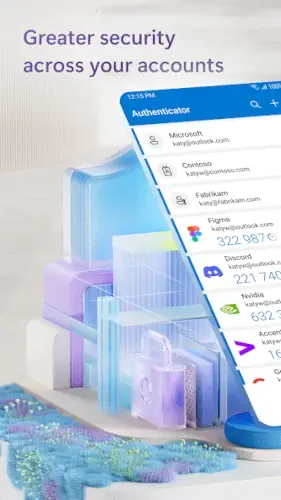
Microsoft Authenticator functions as that digital gatekeeper. It is a pragmatic, powerful layer of security that sits between your accounts and unauthorized access.
Microsoft Authenticator app holds a strong 4. 8 star rating from over 2 million user reviews on the Google Play Store. With a download size of approximately 75MB, it is designed for a broad age range, from professionals managing work accounts to any individual seeking to secure their personal email and social media.
How Microsoft Authenticator Secures Your Access
The principle is simple yet profound: two factors are better than one. The system requires something you know, your password, combined with something you have, which is your phone with the Microsoft Authenticator app installed. This creates a dynamic barrier. Even if a password is compromised, an attacker lacks the second, time sensitive element generated by your device.
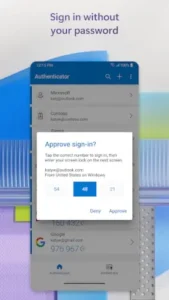
You interact with this system through two primary methods. The first involves Time Based One Time Passwords (TOTP). These are the classic, rotating six digit codes that refresh every 30 seconds. You type this code after your password. The second, and often more fluid, method is the push notification. Instead of typing a code, a sign-in attempt triggers an alert directly to your phone. A single tap approves or denies the request.
This logic culminates in a passwordless future. For Microsoft accounts, you can eliminate your password entirely. The Microsoft Authenticator sign in process becomes the primary method: you enter your username, and the app sends a notification that you approve using your phone’s biometric sensor or PIN. Your face or fingerprint becomes the key.
The Distinctive Features of Microsoft Authenticator
What separates this authenticator from a basic code generator? Its strengths lie in integration and intelligence. The Microsoft Authenticator ecosystem advantage provides seamless operation with Microsoft services like Office 365 and Azure Active Directory. It also supports a vast array of non Microsoft accounts, including Google, Facebook, and Amazon, making it a universal security tool.
Perhaps its most critical feature is backup and recovery for Microsoft Authenticator. Your account credentials are securely encrypted and saved to your personal Microsoft cloud account. If you lose or upgrade your phone, you can restore all your linked accounts during reinstallation. This directly addresses the primary fear of locking yourself out of your digital life.
This sync extends to cross device synchronization with Microsoft Authenticator, allowing your accounts and settings to be consistent across a tablet and a phone. For organizational use, its enterprise grade capabilities support certificate-based authentication and device registration, providing IT departments with robust tools to verify trusted devices and secure access to company resources.
Navigating the Microsoft Authenticator Interface
The application prioritizes function. The interface is a clean, list based layout that displays all your added accounts alongside their current codes and countdown timers. The design philosophy is clarity over clutter, ensuring you can find the right code quickly when you need it.
Adding a new account is a straightforward Microsoft Authenticator setup guide in itself. You typically scan a QR code provided by the website, which automatically configures the app. The entire process takes seconds. To protect this central hub of access, the app itself can be locked with a PIN, fingerprint, or facial recognition, ensuring that even if your phone is unattended, your codes remain secure.
For those considering alternatives, a similar and highly rated security application available is Authy: Two Factor Authentication, which also offers multi device support. However, for users deeply invested in the Microsoft ecosystem, the seamless integration and backup solutions of Microsoft’s offering present a compelling case for consolidating your security.
User Reflections on Microsoft Authenticator
User feedback reveals a clear consensus on the app’s strengths. Its reliability for daily use and wide compatibility with thousands of services form its foundation. The true value, however, lies in the peace of mind offered by its cloud backup and sync features. Knowing your Microsoft Authenticator app configuration can survive a phone upgrade or loss is a significant weight off your shoulders. It transforms a potential security disaster into a simple, recoverable event.
No tool is without its points of friction. Some users report occasional sync delays when adding a new account across devices. A more noted critique involves the removal of certain legacy features, like the ability to store passwords, which some long-time users found convenient. For individuals managing a very large number of accounts, the desire for more advanced organizational tools, such as folders or custom sorting, becomes apparent. The interface, while clean, can become a long scroll.
Microsoft Authenticator Tips
Getting started is straightforward, but a few Microsoft Authenticator tips can optimize your long term experience. The initial setup is a logical, step by step guide within the app itself, primarily revolving around scanning a Microsoft Authenticator QR code provided by the service you are securing.
Once operational, proactive management is key. The single most important action is to immediately enable cloud backup during the initial Microsoft Authenticator setup guide. This is not an optional step; it is your recovery plan. Furthermore, ensure your device’s time and date are set to update automatically. Even a slight time drift can invalidate your time based codes, causing login failures.
A simple yet effective habit is to use clear, recognizable labels for each account as you add them. “Work Azure” is far more immediate than the default “azure.com” when you are in a hurry. When transitioning to a new phone, use the app’s built-in export feature, which generates its own QR code to securely transfer your accounts, avoiding the need to manually reconfigure each one.
Microsoft Authenticator Similar Apps in the Security Landscape
How does this app fit into the broader market of Microsoft Authenticator similar apps? A neutral comparison helps clarify its position. Google Authenticator offers a more minimalist approach, focusing solely on codes without cloud backup. Authy provides strong multi device sync and encrypted backups, making it a direct competitor for users who value redundancy. Duo Mobile is often the choice in enterprise environments, with a strong emphasis on push notifications for business applications.
Microsoft Authenticator carves its niche by blending the code generation utility of Google Authenticator with the robust backup features of Authy, all while delivering deep, native integration for the Microsoft ecosystem. Its position is that of a versatile, recovery focused tool for both individual and organizational use.
Conclusion: A Consolidated Security Position
The Microsoft Authenticator app functions as a powerful, integrated tool that strengthens account security across both personal and professional spheres. It addresses the critical vulnerability of stolen passwords while thoughtfully mitigating the primary risk of using a phone as a security key: device loss.
For anyone invested in the Microsoft ecosystem, or for any user seeking a reliable authenticator with robust backup capabilities, it represents a pragmatic and forward looking choice. It is a solid step toward a more secure, password light digital life, built not on novelty, but on resilient, practical design.
Frequently Asked Questions
What is the main advantage of using Microsoft Authenticator over a simple password?
It adds a critical second layer of security. Even if someone steals your password, they cannot sign in without also having your phone to approve the request or provide the rotating code. This makes your accounts significantly more resistant to unauthorized access.
How do I perform a Microsoft Authenticator download and initial setup?
You can get the Microsoft Authenticator app from the official Google Play Store. The setup typically involves scanning a QR code from the website or service you want to protect.
Is the passwordless sign in feature secure?
Yes, it is often more secure than a traditional password. It uses your device’s biometrics (fingerprint or face) or PIN to approve a sign-in, which is much harder to steal or replicate than a string of text. You are essentially proving your identity with something you are or have, not just something you know.
What happens to my accounts if I lose my phone?
This is where the backup feature is essential. If you enabled cloud backup before losing your device, you can recover your account configurations on a new phone by signing into your personal Microsoft account during the app’s setup. Without this, you must use each service’s backup recovery codes to regain access.
Where can I learn about the underlying technology it uses?
For a deeper technical understanding of the algorithms and standards, such as Time-based One-Time Password (TOTP), you can consult the Wikipedia page for Microsoft Authenticator.