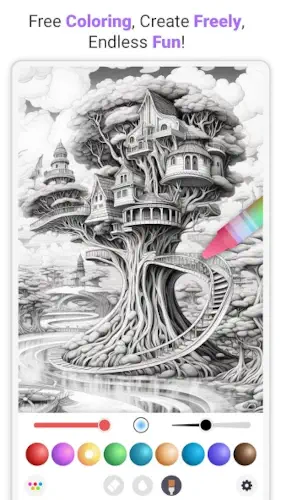
InColor does more then most coloring apps that give you pages and pencils.
InColor lets you type a prompt and generate a brand new coloring page on demand. Turn any photo from your camera roll into a sketch. Draw freehand with realistic brushes. Share your work with a community. The question is whether these extra features make the app better or just more complicated than simpler alternatives.
What is InColor?
You are looking at a mobile coloring and drawing app that combines an extensive coloring gallery, realistic painting tools, photo to sketch conversion, and an AI coloring page generator, plus a built in community for sharing finished art.
InColor comes from a developer focused on creative apps. It positions itself as more than just a coloring app, offering curated coloring pages, free draw canvases, and AI generated line art from prompts so users can quickly produce unique coloring pages. The app targets both quick relaxation sessions, like color by numbers style, and more creative workflows like photo to sketch conversion and free drawing, so it works for beginners and intermediate hobbyists.
On Google Play, InColor holds a 4.6 star rating from more than 107,000 reviews. The app size comes in at roughly 96 MB. The age rating is Everyone. The app is free with in app purchases and offers a premium subscription.
A mobile coloring and drawing app with AI tools
The category matters here. InColor is not a professional painting app like Procreate. It is not a simple color by numbers app either. It sits in the middle. You can color pre made pages. You can generate new pages from text prompts. You can turn your own photos into coloring pages. You can draw from scratch on a blank canvas. The AI tools are the standout feature. Type “steampunk cat riding a unicycle” and the app produces a black and white line drawing ready for you to color.
Who this app was built for
Not every mobile artist will enjoy InColor. Here is who will.
Casual colorists who want relaxing, low stress art
Do you enjoy coloring but find detailed mandalas overwhelming? InColor has simpler pages. The smart fill tool stays inside the lines. The color palettes are preselected. You can finish a page in ten minutes and feel accomplished. The app is designed for relaxation, not perfection.
Hobby artists who want realistic brush tools
Beyond coloring pages, InColor includes free drawing tools. Multiple brushes. Pressure like smoothing. Gradient fills. Custom color mixing. You can draw original artwork from scratch. The brushes feel more realistic than basic coloring apps.
People who want to turn photos into coloring pages
Have you ever wanted to color a photo of your pet? Or a family portrait? Or a landscape you took on vacation? Import the photo into InColor. The app converts it to a sketch. Bold outlines. Clear shapes. Ready to color. The feature works best with high contrast, simple photos.
Users who enjoy sharing art and joining challenges
InColor includes a built in community. You upload your finished work. Browse what others have made. Join themed challenges. Weekly prompts encourage you to try new styles. The social features are optional but add motivation for some users.
InColor Main Features you will use
The app offers several tools. Here are the ones that matter most.
AI Coloring Book Generator from text prompts
This is the headline feature. Type a description. Any description. “Dragon flying over a castle.” “Underwater city with mermaids.” “Cozy coffee shop filled with cats.” InColor generates a black and white line drawing based on your words. The results are not perfect. Some lines are messy. But the variety is endless. You are not limited to the app’s gallery.
Large curated gallery of mandalas, animals, florals, cartoons
If you do not want to generate pages, the built in gallery has thousands of options. Mandalas for relaxation. Animals for fun. Florals for elegance. Cartoons for kids. Themed packs update frequently. New pages appear regularly.
Photo import and sketch conversion
Take a photo from your camera roll or snap one in the app. InColor converts it to line art. The conversion reduces the image to bold outlines. You color the simplified version. Good for personal projects. Pet portraits. Family drawings. Gifts.
Realistic painting tools with brushes, gradients, flood fill
The brush engine is stronger than most coloring apps. Multiple brush types. Pencil. Marker. Watercolor. Oil. Gradient fills blend colors smoothly. Flood fill fills closed areas with one tap. Edge aware coloring helps you stay inside the lines.
Smart coloring (edge aware) to stay inside lines
Smart fill is a time saver. Tap an area. The app detects the boundary. It fills only inside that area. You do not need to carefully trace edges. Works best on clean, bold line art. Complex or fuzzy lines may confuse the detection.
Free drawing mode and blank canvas for original art
Not just coloring. Start from scratch. A blank canvas. Choose brushes and colors. Draw anything you want. The tools are the same as the coloring mode. This makes InColor a hybrid app. Coloring book and drawing pad in one.
Sharing and community features
After finishing a piece, you can share it. Inside the app to the InColor community. Or outside to Instagram, Facebook, TikTok. The community section shows popular works, new uploads, and themed galleries. You can like and comment on others’ art.
Premium subscription with freemium model
InColor is free to download. The free tier includes ads and a limited selection of pages. Some tools are locked. Premium removes ads, unlocks the full gallery, adds high resolution exports, and gives access to advanced tools. Subscription is weekly, monthly, or yearly.
InColor Graphics and Design
Clean, gallery focused visual style
The app looks modern. Large thumbnails. Bright colors. The home screen shows featured pages, categories, and your recent work.
Large thumbnails and previewed palettes
You see what you are getting before you open a page. Thumbnails show the line art. Palettes show the suggested colors. You can ignore the suggestions and pick your own.
Canvas UI prioritizes tools and color selection
When you are coloring, the interface minimizes distractions. Tools sit at the bottom. Colors sit on the side or bottom. The line art fills most of the screen. Palettes and brushes appear when you need them and hide when you do not.
Where the design works well
The layout is optimized for touch. Buttons are large enough to tap without zooming. The canvas is responsive. Zoom and pan are smooth.
Where freemium gating can interrupt flow
The free version shows ads. Between pages. After finishing a coloring. Before exporting. Popups for premium subscription appear regularly. These interruptions break the relaxation that coloring is supposed to provide.
What users say about InColor app
The parts people enjoy
Positive reviews often mention the AI generator. Creating custom pages from prompts is fun. The brush quality is praised. Photo to sketch conversion gets positive notes. The variety of pages keeps things fresh.
One user wrote: “Love the AI feature. I can make coloring pages of anything I want. Brushes feel good on my tablet.”
The parts people complain about
No freemium app escapes criticism. Here is what comes up most often.
Freemium limits and paywalled pages
The free version has a limited gallery. Many attractive pages require premium. Users feel frustrated when they find a page they want to color, only to see a lock icon.
Imperfect photo to sketch conversions
Photo to sketch works well on simple, high contrast images. It struggles with busy photos. Group shots. Landscapes with many details. The output can be messy or unrecognizable.
Ads in the free tier
Ads appear frequently. Between coloring sessions. After exports. The frequency annoys users who want a relaxing, uninterrupted experience.
Edge detection issues on complex photos
Smart fill works best on simple, bold outlines. On complex generated pages or converted photos, the edge detection may bleed outside the lines. Users need to correct with smaller brushes.
How the InColor app mechanics work
Pick or generate a line drawing to color
Choose from the gallery. Or type a prompt to generate a new page. Or import a photo to convert.
Choose brushes and palette
Select a brush. Pencil for fine details. Marker for bold colors. Watercolor for soft blends. Select colors from the palette or mix your own.
Color with smart fill or free brush
Tap smart fill to fill a closed area with one tap. Drag free brush to color manually. Combine both methods. Smart fill for large areas. Free brush for details and shading.
Apply finishing effects
Add gradients. Adjust brightness and contrast. Apply filters. The app includes basic finishing tools to polish your work.
Export or share to community
Save to your device. Share directly to social media. Or post to the InColor community gallery. Other users can see, like, and comment on your work.
Alternative entry via AI generator or photo import
Not a traditional coloring app workflow. You are not limited to the built in library. Generate something new every time. Or convert personal photos. These features keep the app from feeling repetitive.
Looking for another coloring app with realistic brushes and a large gallery? Check out Pigment, a premium coloring app with high quality pages and advanced tools for serious colorists.
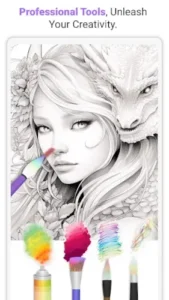
InColor Tips that actually help
You can open InColor and start coloring in seconds. Getting the most out of the AI generator, photo conversion, and smart fill tools takes a little practice. These tips separate users who create polished pieces from users who wonder why their converted sketches look messy.
Use high contrast photos for cleaner sketch conversion
Here is a question. Why does your friend’s pet portrait look great while yours turns out as a blob?
InColor tips from experienced users all say the same thing. The photo to sketch feature works best with simple, high contrast images. A close up of a dog with a plain background converts well. A crowded group photo with trees and buildings in the background converts poorly. Crop your photo first. Remove clutter. Pick images where the subject stands out clearly from the background.
Adjust generated line threshold if lines look messy
The AI coloring page generator produces line art from text prompts. Sometimes the lines are clean. Sometimes they are fuzzy or overlapping.
Check the settings before generating. Look for a line threshold or detail slider. Adjust it. Lower threshold produces fewer, thicker lines. Higher threshold produces more, thinner lines. Test both. Find the setting that works for your prompt. A simple prompt like “cat” needs different settings than a complex prompt like “steampunk city with flying ships.”
Use smart fill for base colors, then add texture with small brushes
Smart fill is fast. Tap an area. The app fills it instantly. But flat colors look flat.
Use smart fill to lay down the base color. Then switch to a small brush. Add shadows. Add highlights. Add texture. A leaf looks better with dark green in the center and light green at the edges. A character’s hair looks better with streaks of a lighter shade. Smart fill for speed. Manual brush for depth. Combine both.
Work on tablet with stylus for finer control
InColor app works on phones. It works better on tablets.
The canvas is larger. Your finger covers less of the screen. A stylus, even a cheap one, gives you precision that a finger cannot match. Fine lines. Small details. Shading. Tablets also handle more layers and larger files without lag. If you color regularly, invest in a tablet. The experience changes.
Try AI prompts for themed pages like steampunk fox
The AI generator is the most creative feature. Do not waste it on simple prompts.
Type “steampunk fox wearing a top hat in a clockwork forest.” Type “mermaid queen sitting on a coral throne surrounded by glowing jellyfish.” Type “cozy cat library with books stacked everywhere.” Elaborate prompts produce elaborate line art. Elaborate line art is more fun to color. Experiment. The generator has no limits.
Participate in weekly challenges for new palettes
The community section includes weekly challenges. A theme. A palette. A goal.
Join them. Even if you do not share the result. The challenges push you to try color combinations you would not choose yourself. Yellow and purple. Orange and teal. Monochromatic blue. New palettes improve your skills. They also make you faster at choosing colors for your own projects.
Crop complex photos before conversion
InColor app converts the whole photo. If your photo has a busy background, the conversion translates all that clutter into messy lines.
Crop first. Open any photo editor. Crop tightly around your subject. Remove as much background as possible. Then import to InColor. The conversion has less noise. The lines focus on the subject. The result is cleaner and easier to color.
Use gradient tools for depth and shading
Flat colors are easy. Gradients add polish.
InColor includes gradient brushes. The color shifts from one shade to another. Use gradients for skies, water, large backgrounds. Use gradients for shading on rounded objects like apples or faces. A simple gradient turns a flat shape into something that looks dimensional. Experiment with gradient direction and length.
Apps similar to InColor
If you like InColor, here are six other apps worth your time. Each offers something similar with a different twist.
Pigment
Pigment is a premium coloring app with high quality pages and realistic brushes. The gallery is curated. The tools are professional. InColor similar apps should start here. The difference is that Pigment has no AI generator and no photo conversion. Good for users who want polished pages without freemium interruptions.
Recolor
Recolor focuses on color by numbers style coloring. Each page has numbered sections. Tap the number. Tap the corresponding color. The section fills. Very relaxing. Low stress. The difference is that Recolor has no free drawing and no AI tools. Good for users who want guided coloring without decisions.
Colorfy
Colorfy is another color by numbers app. Large gallery. Daily new pages. Simple controls. The difference is that Colorfy has fewer brush options and no photo conversion. Good for quick, satisfying sessions on a phone.
Happy Color
Happy Color is perhaps the simplest coloring app. Tap. Fill. No brushes. No shading. No choices. The app decides the colors for you. The difference is that Happy Color is purely passive relaxation. Good for users who want no decisions at all.
Ibis Paint X
Ibis Paint X is a full featured drawing and painting app. Layers. Blending modes. Hundreds of brushes. The difference is that Ibis has no coloring gallery and no AI generator. It is for creating original art from scratch. Good for users who want professional drawing tools on mobile.
Autodesk SketchBook
SketchBook is another professional drawing app. Clean interface. Powerful brushes. No ads. The difference is that SketchBook has no coloring pages and no AI tools. It is for serious artists who want a focused drawing environment. Good for users who find InColor too cluttered.
InColor Community
InColor has a built in community, but it is not a social network.
In app sharing and themed challenges
Finish a piece. Tap share. Post to the InColor gallery. Other users see your work. They can like it. They can leave comments. The app hosts weekly themed challenges. Participate to earn badges. The community is positive and encouraging.
Post art, get inspired, follow trends
Browse the gallery. See what others are making. Notice trends. One week, everyone colors mermaids. Another week, dragons are popular. Following trends gives you ideas for your own pages.
External communities on Reddit and Facebook
The official InColor community lives inside the app. External communities exist on Reddit and Facebook. Users share tips there. They post AI prompts that worked well. They discuss which subscription tier is worth it. Join these spaces for deeper discussion.
Community led but not a social network
InColor is not trying to be Instagram. The social features are there to motivate you, not to build a following. You can ignore the community entirely and still enjoy the app. But the challenges and gallery add value for users who want feedback or inspiration.
Conclusion
InColor works for three types of people. First, casual colorists who want a relaxing activity with more variety than basic color by numbers apps. Second, hobby artists who want realistic brushes and the ability to generate custom coloring pages from prompts. Third, people who want to turn personal photos into coloring projects for gifts or keepsakes.
If you fit any of those, the download is worth trying.
Freemium limits are frustrating. Many attractive pages require premium. Ads interrupt the relaxation flow in the free version. Photo to sketch conversion is imperfect on complex images. Edge detection can bleed on detailed line art. The free tier may feel too limited for regular users.
None of these are deal breakers for the right user. But they are honest warnings.
Do you want a coloring app with AI generation and photo conversion, and are you willing to pay for premium or tolerate ads? Or do you prefer a simple, one time purchase coloring app with no subscriptions?
If the first one, InColor offers features you will not find in most coloring apps. If the second one, look for premium apps like Pigment or simpler free apps like Happy Color. Both answers are fine. Just know what you want.
Frequently asked questions about InColor
How do I get InColor download on my phone?
Download InColor Coloring & Drawing from the Official Google Play Store.
Is InColor free to use, or do I need to pay?
The app is free to download. You can color pages from the gallery, use basic brushes, and share your work without paying. The free tier includes ads and a limited selection of pages. Premium removes ads, unlocks the full gallery, adds high resolution exports, and gives access to advanced tools like the AI generator and photo to sketch conversion. Subscription options include weekly, monthly, or yearly plans.
Where can I find the official website and help documentation?
The official website has information about features, subscriptions, and updates: Official InColor Website .
I have a problem with the app. Who do I contact?
Send an email to the developer support team. They handle account issues, billing problems, bug reports, and feature requests. Here is the address: incolor.feedback[at]hotmail.com. For InColor download problems or installation issues, that same email applies. Include your device model, app version, and a description of the problem.
How does the AI coloring page generator work?
Type any text prompt into the AI generator. For example, “dragon flying over a castle” or “cozy cat reading a book.” The app creates a black and white line drawing based on your words. You then color that drawing using the app’s brushes and tools. The AI works best with simple, clear prompts. Elaborate prompts may produce messy or incomplete results. The feature requires a premium subscription. It is the main reason many users upgrade.